
Participating Frequently
March 22, 2021
Question

R3D files appear grey when imported (added images)

  • March 22, 2021
  • 4 replies
  • 6522 views
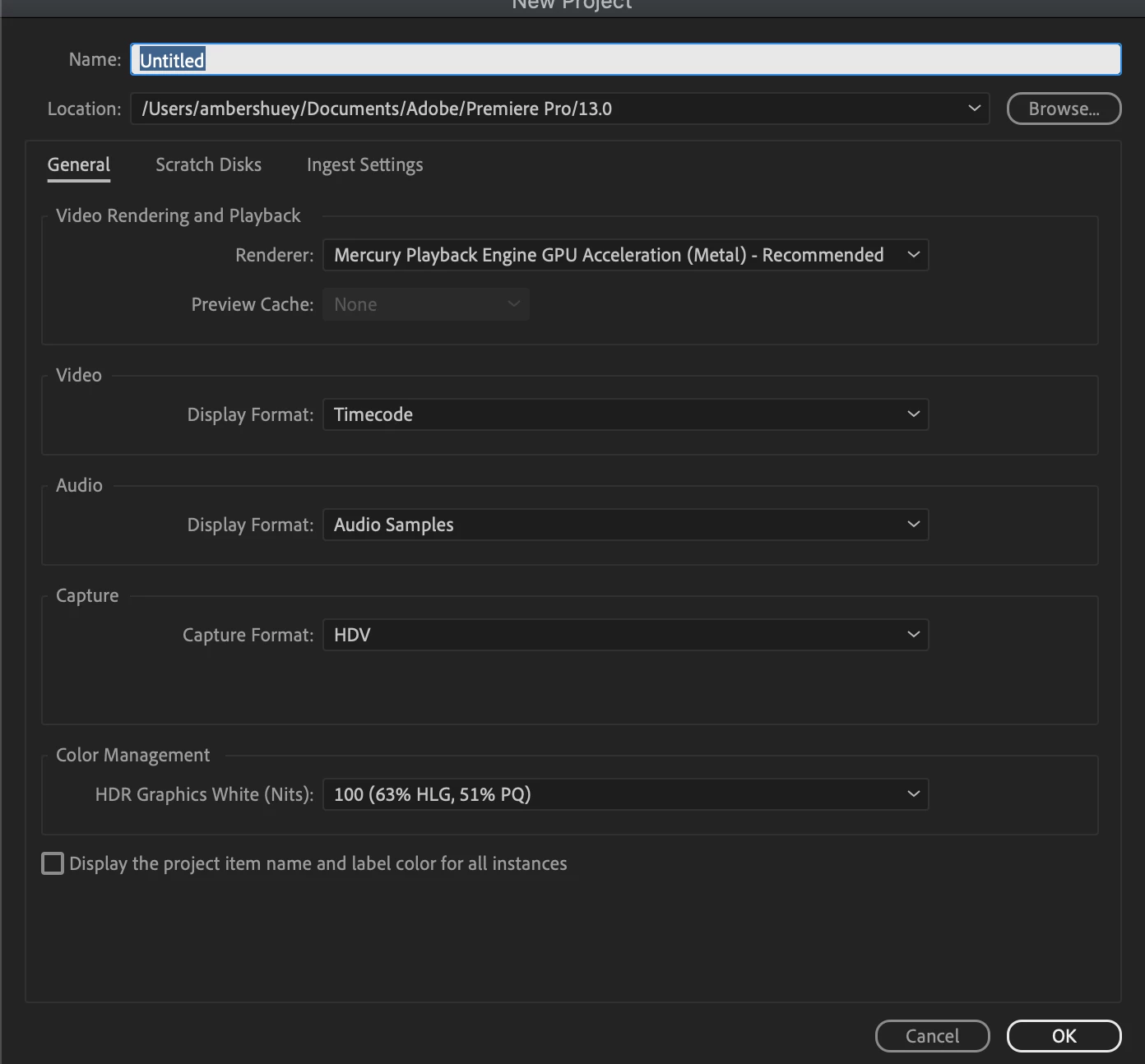
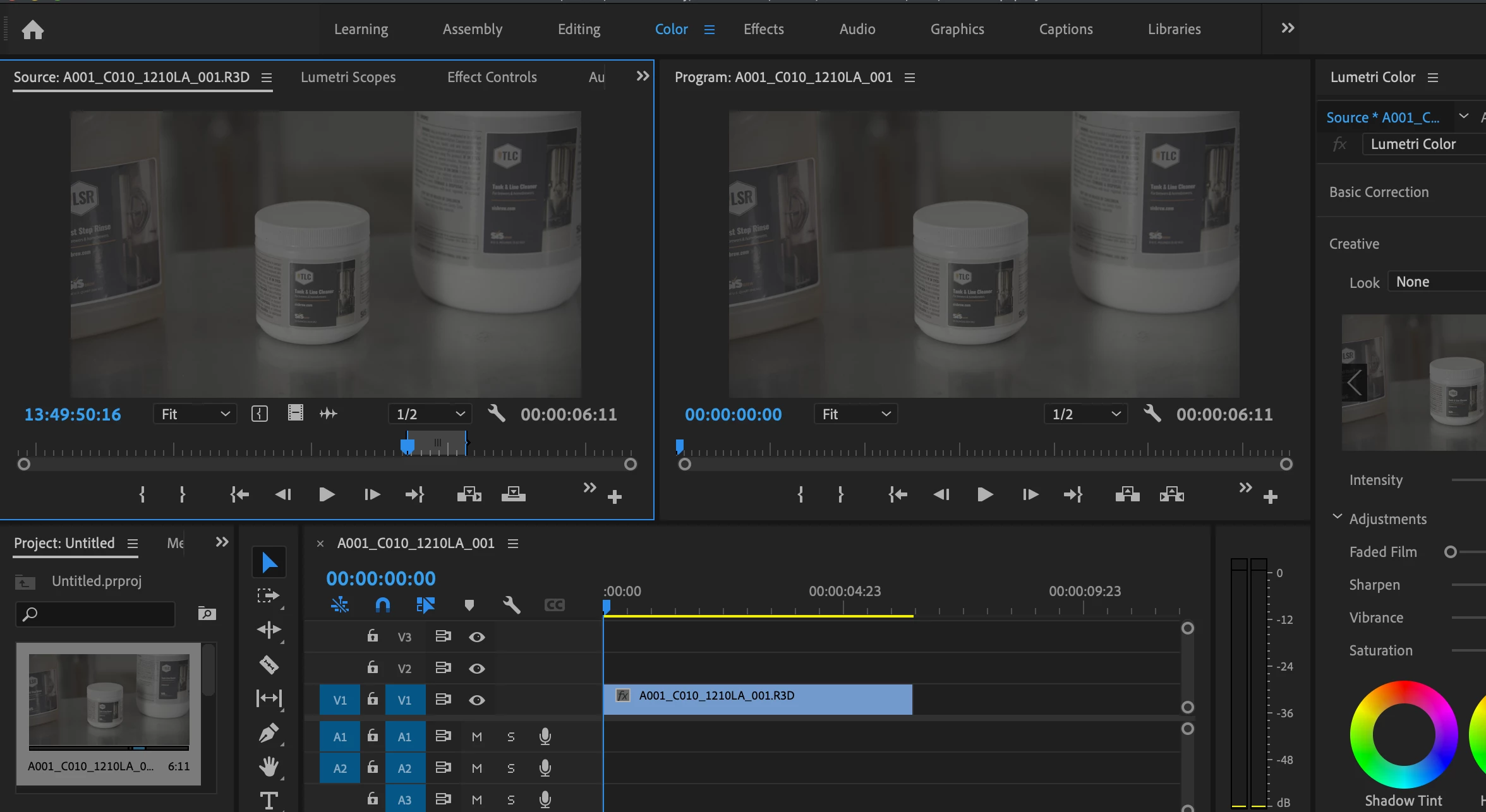
(Reposted with proper images) So my work is having this issue where these R3D raw video files appear like they have a grey overlay or that the colors are not coming out? We edited the files before and they had the proper color but once IT did a system update (PC) the grey issue occurred. At first, we thought the files were corrupted but the same issue happened on my older MacBook with files taken directly from our vendor. This would mean the IT update didn't corrupt the files since the files on my external hard drive were untouched, but what was probably changed were system settings. My MacBook is behind on updates for space reasons.


So the question what is causing our footage to be grey and how would we fix it? I think it is a settings issue but I have no idea where to start with.
 

This topic has been closed for replies.

4 replies

Mike Dziennik
Community Expert
Community Expert
March 22, 2021

I'm on v15.0.0 Build 41 on Mac OS Catalin 10.15.7.

I'm also seeing the color management area greyed-out in the interpret footage dialog - this is for around half a dozen or so sample R3Ds from the RED website. The RED Source Settings are still available from the tab in the ECP.


nsoulliard
Participant
February 22, 2022

Hi All! I feel like this is the right place for my questions. I updated from 2018 Premiere Pro to 2022 and now all my RED footage comes in gray like the below clip. None of what I've scene on this forum is working. Although, I haven't found what you're talking about in the Effects Control Panel. Any help would be greatly appreciated. 

nsoulliard
Participant
February 22, 2022

In the ECP ... Efffects Control Panel ... you are currently seeing effects on the Timeline tab. See the tab up top with the selected clip's filename in blue?


You need to click on the Source tab, the grayed tab to the left with Source then the clip name. The RED control panel settings are on that tab.


Neil


THANK YOU! I scrolled down and changed the colorspace to REC.709 and then scolled back up and hit "as shot" and I was back in business. I put screenshots in here in case someone as clueless as me needs the visual aides. 

Again, THANK YOU! 

R Neil Haugen
Legend
March 22, 2021

I answered in the other thread. These are still in log form, they are not "normalized' to Rec.709 yet.


To do that in the 15.x or 2021 builds, you now go into the Project panel, and the bins the clips are in. Right-click a clip, Modify/Interpret footage, and at the bottom of the dialog is where the settings for RED media now "live".


Neil

Everyone's mileage always varies ...
Participating Frequently
March 22, 2021

Ah I see, thanks for responding. I click the Interpret footage option but no dialog box comes up, this may be an issue with my graphics card driver needing updated which I sent a ticket into, but if you know of another reason why the dialog box isn't showing I'd appreciate anything you would know.

Mike Dziennik
Community Expert
Community Expert
March 22, 2021

In the source settings try hitting the Reload from RMD button. Also try changing IPP2 to Legacy and toggling between Default and As Shot. There is something funky going on, I have a bunch of R3D sample clips which all come in looking flat - I can fix by doing the above, but it seems a bit glitchy. The samples I have are a variety of different RED cameras and different shooting settings so its tricky to pinpoint the exact issue.

Participating Frequently
March 22, 2021

(I'm the same person now on the company account PC) So I'm right-clicking and selecting source settings but it does a click and then does nothing. 


I am also having a driver issue but that would require IT to download drivers so I can;t update them myself at this moment 

R Neil Haugen
Legend
March 22, 2021

 Try Modify/Interpret Footage options.


Nei

Everyone's mileage always varies ...
Participating Frequently
March 22, 2021

So my work is having this issue where these R3D raw video files appear like they have a grey overlay or that the colors are not coming out? We edited the files before and they had the proper color but once IT did a system update (PC) the grey issue occurred. At first, we thought the files were corrupted but the same issue happened on my older MacBook with files taken directly from our vendor. This would mean the IT update didn't corrupt the files since the files on my external hard drive were untouched, but what was probably changed were system settings. My MacBook is behind on updates for space reasons.


So the question what is causing our footage to be grey and how would we fix it? I think it is a settings issue but I have no idea where to start with.

Ann Bens
Community Expert
Community Expert
March 22, 2021

Participating Frequently
March 22, 2021

My bad