Pratibha Bibyan
Known Participant
April 24, 2017
Answered

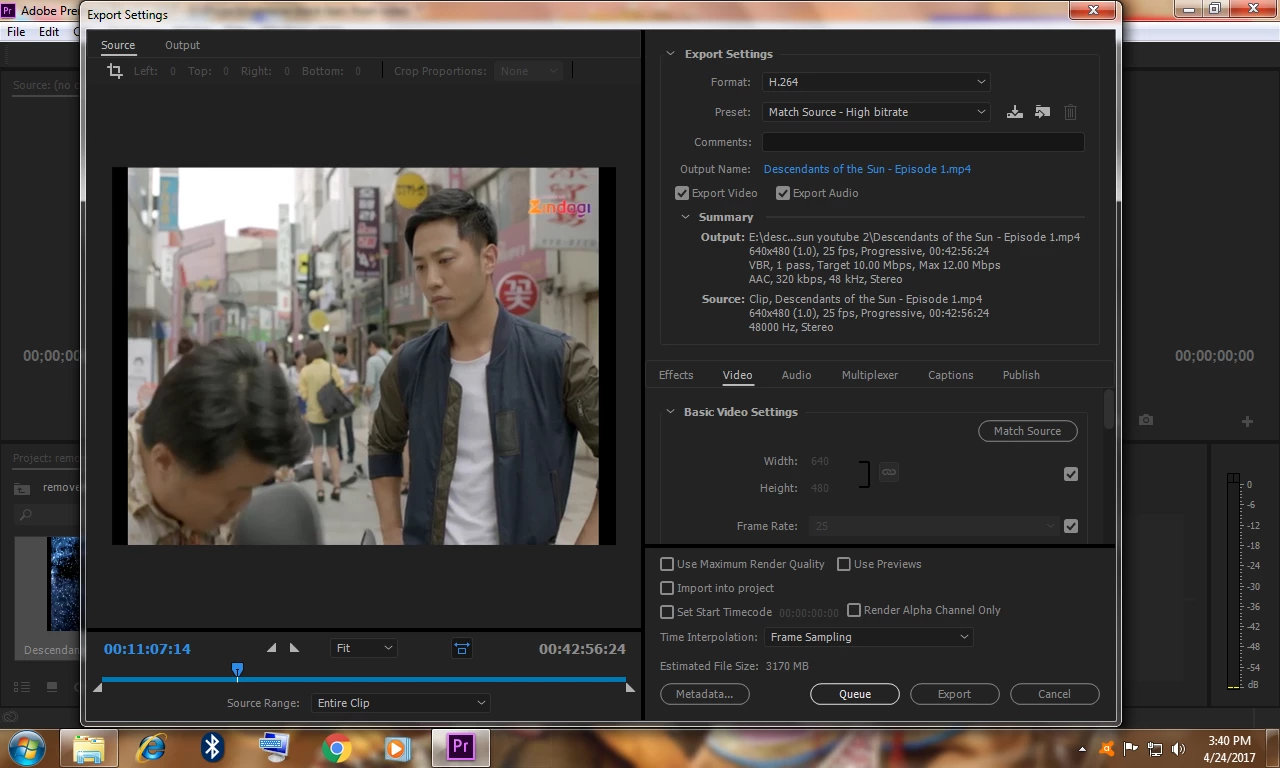
Remove black bars from video in Adobe Premiere Pro CC 2017

  • April 24, 2017
  • 3 replies
  • 67033 views

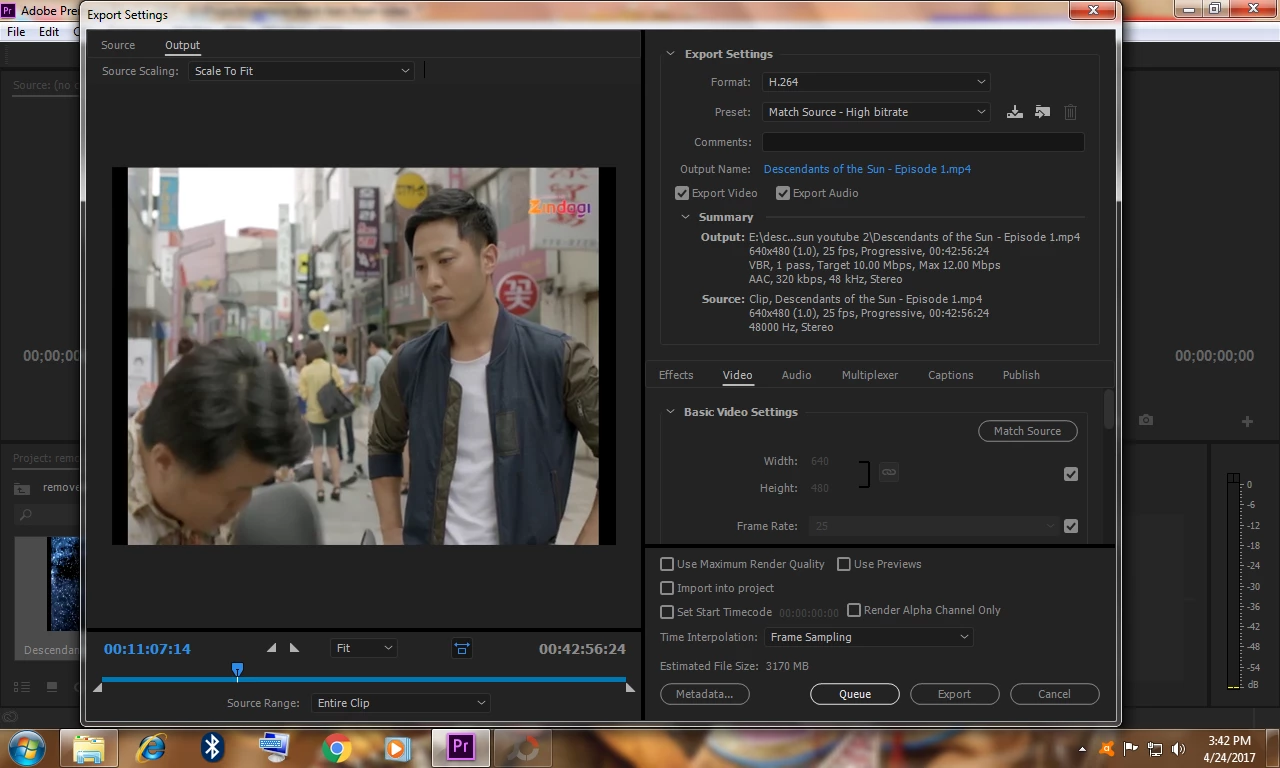
Remove black bars from video in Adobe Premiere Pro CC 2017. In this pic.

    This topic has been closed for replies.
    Correct answer Ann Bens

    The only way to get rid of the black bars is to scale the footage in the timeline.

    3 replies

    Warren Heaton
    Community Expert
    Community Expert
    April 26, 2017

    Is the Pixel Aspect Ratio of your Source Sequence D1/DV Pal (1.0940)?  Or maybe D1/DV NTSC (0.9001)?

    This commonly comes up when editing non-square pixel formats and exporting to presets with square pixel proportions.

    Changing "Scale to Fit" to "Stretch to Fit" should resolve the pillar boxing as well as correct for pixel aspect ratio.

    -Warren

    Ann Bens
    Community Expert
    Ann BensCommunity ExpertCorrect answer
    Community Expert
    April 24, 2017

    The only way to get rid of the black bars is to scale the footage in the timeline.

    Pratibha Bibyan
    Known Participant
    April 26, 2017

    Export widescreen video without letterboxing from utube in Adobe Premiere Pro cc 2017.

    Ann Bens
    Community Expert
    Community Expert
    April 26, 2017

    If your movie is 4/3 you will always have black bars on Youtube no matter what.

    R Neil Haugen
    Legend
    April 24, 2017

    First, I've occasionally had this issue when using "Match source" presets, and by selecting and/or making one for the specific media, the problem went away.

    Second ... there are other options than "scale to fit" for the export (upper left corner of Export dialog box). Have you tried that?

    Neil

    Everyone's mileage always varies ...
    Ann Bens
    Community Expert
    Community Expert
    April 24, 2017

    Scale to fit is only useful when downscaling HD to DVD. (different aspect ratio).