Participant
July 27, 2021
Answered

Render issue with Xbox/Win10 screen capture footage

  • July 27, 2021
  • 1 reply
  • 700 views

Hi there!


Having a unique issue that I can't find on google. When I render with Premiere/Media Encoder, any footage recorded via Xbox/Windows 10 screen capture has strange artifacts as seen here:

https://streamable.com/vjt3vnlink


When I watch the raw footage I don't have this issue, only when the footage is used in a rendered video. Example of raw footage in premiere:

https://streamable.com/o5pue0


Thanks for any help

This topic has been closed for replies.
Correct answer Averdahl

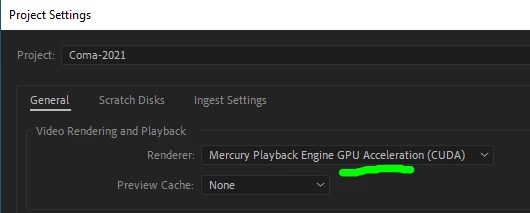
After you updated your drivers, did you try to render out using GPU Acceleration? Or, when exporting, set the Performance in the Export Settings dialog to Software instead of Hardware?


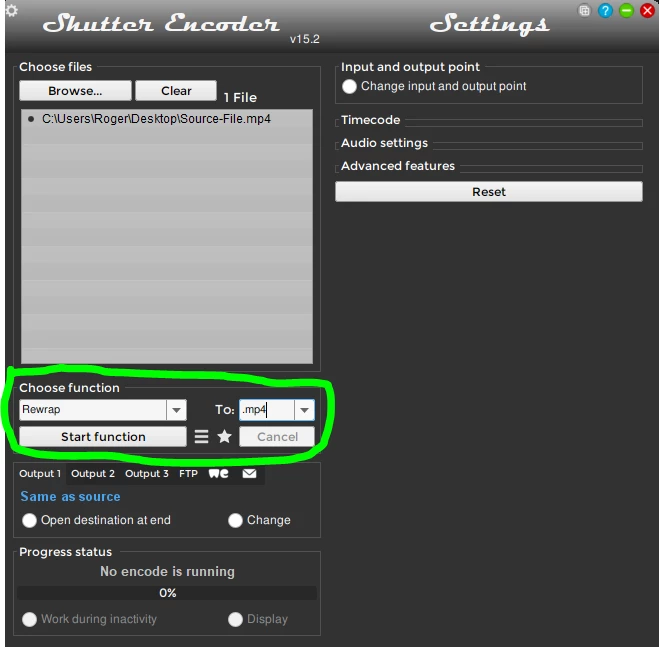
If the issue persists, download the free app Shutter Encoder and just rewrap the source video using the settings in the attached image. This will take just a couple of seconds and do most of the times solve issues like this when drivers are up to date, etc. When done, use the rewrapped footage as your source footage in Premiere Pro.


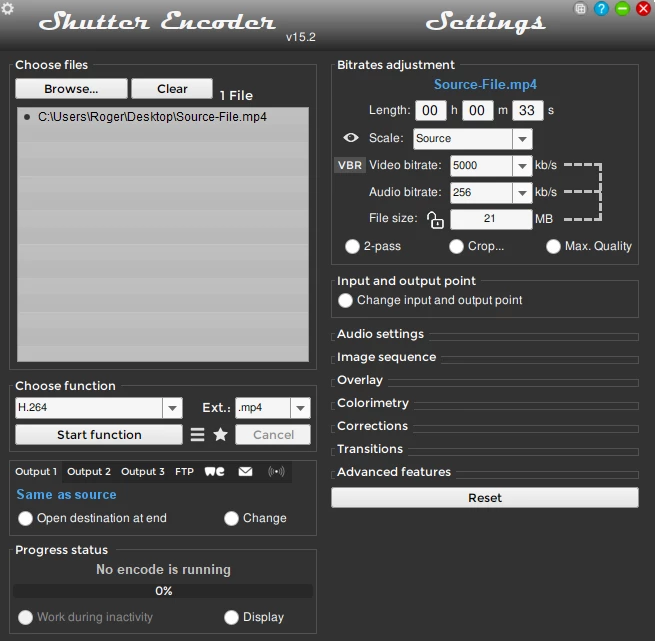
If that fails as well, transcode the footage with the settings in the last image. Adjust the bitrate settings to the same as your source footage to avoid to much quality loss. Use the transcoded clip as your source in Premiere Pro.


1 reply

Averdahl
Community Expert
Community Expert
July 27, 2021

This indicates that the driver to the graphic card in the Win 10 computer is old. Download the latest driver directly from Nvidia and use the Studio Driver.


Or, go to File > Project Settings > General and set the Renderer to MPE Software Only. The downside with this is that the renders will take significantly longer. Updating the driver is best.

Participant
July 27, 2021

Thanks for the suggestion,


I have updated my drivers and switched to Software rendering, but the issue persists even with footage recorded after trying these fixes.

Averdahl
Community Expert
AverdahlCommunity ExpertCorrect answer
Community Expert
July 27, 2021

After you updated your drivers, did you try to render out using GPU Acceleration? Or, when exporting, set the Performance in the Export Settings dialog to Software instead of Hardware?


If the issue persists, download the free app Shutter Encoder and just rewrap the source video using the settings in the attached image. This will take just a couple of seconds and do most of the times solve issues like this when drivers are up to date, etc. When done, use the rewrapped footage as your source footage in Premiere Pro.


If that fails as well, transcode the footage with the settings in the last image. Adjust the bitrate settings to the same as your source footage to avoid to much quality loss. Use the transcoded clip as your source in Premiere Pro.