
Monkey King Productions
Participant
August 7, 2017
Answered

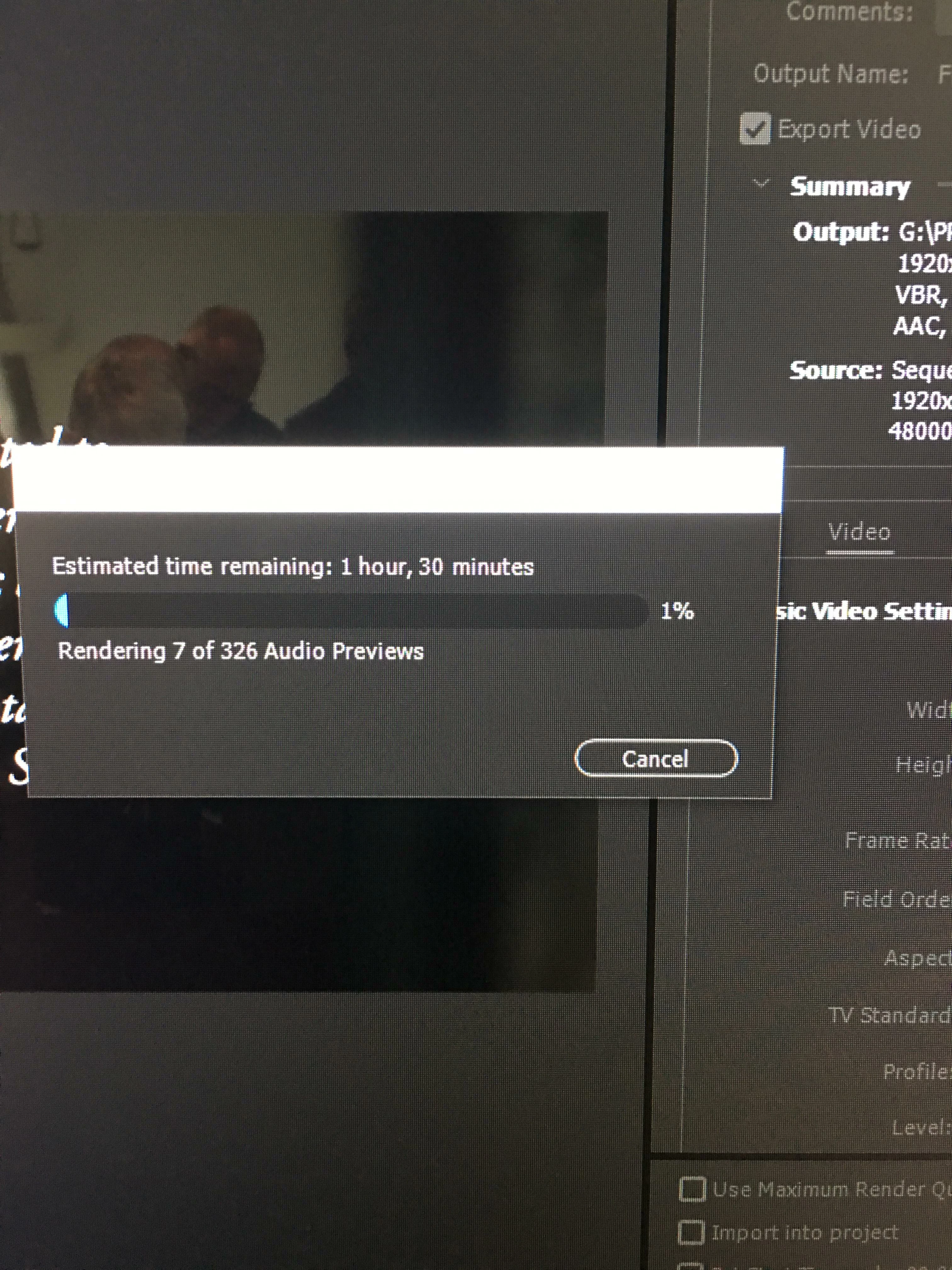
Rendering Required Audio Files Insane Render Times

  • August 7, 2017
  • 9 replies
  • 21781 views

I have recently run into this problem when I export a sequence where my audio render times (separate from the ACTUAL render) takes hours.  Even on a small 5 minute video, it takes approx. 1 hour.  My Windows-based PC is more than competent and has all drivers updated.   I am using the latest version of Premiere and have not changed my workflow in anyway.

I've looked on other forums and tried everything but to no avail (unchecking Generate Peak file, cleaning out cache, unchecking Match Sequence settings in the export menu, starting a new project, etc).

The only thing I have noticed with the project is that my audio files are 24 bit and the sequence is 32.  Not sure how much this affects the export but I don't think it would; it hasn't in the past.  I have attached a photo for what I am experiencing.

Anyone else have this issue or know a fix?
Correct answer Scoothare

Solved this one a lot later than the post, but might help anyone else figure the problem out. The problem is a mole-audio file that ruins the render times completely. There's two solutions to this:


1. In your project files window, search ".wav" or ".mp3" or whatever you're using, if you use several then do them one by one. After that, scroll to the side until you find "Audio info". Then just go through all your files until you find one that sticks out, can be a really high hz or a unique bit rate. Then just convert that file to another format or change the rates to your fitting since that's probably the file ruining your rendertime.


2. This one is almost guaranteed to work, but takes a bit more time to tackle. Try soloing and rendering out each track separetly until you find which track takes a lot more time than the others. When you've found that track you can then single out each sound in that track until you find the mole, then convert the file to your fitting.


Premiere often struggles with files 192000 hz for some reason. Sometimes it works smoothly, and sometimes they will take hours to export. Look out for those.

9 replies

Participant
May 26, 2024

I managed to solve this issue by aligning the AUDIO SAMPLE RATE in the following 3 settings:

1 - The Sequence settings of your project.
2 - The same value as the videos attached to your project.
3 - And on valeu of the export settings. 

Which were all 48000 Hz in this case. By doing this all the videos that have the same AUDIO SAMPLE RATE will not need to be render when you export your video.

Participant
January 24, 2024

Hi,


I have figured this out after endless editing time and sitting in the studio with long tiring renders.

It was occuring due to difference in sample rate of audio files and sequence setting. Below are the steps to avoid this in future.

Step 1: Check with your camera settings for audio sample rate selection while recording generally it is 44100khz

Step 2: If Your'e using the different cameras then you must select the same audio sample for all the cameras.

Step 3: Just change the Sequence audio sample rate to match the camera recording sample rates eg. in this case it will be 44100khz.

Step 4: Also check for audio sample rate while rendering from preimere pro or media encoder.

Thats it. now you will see render time will decrease exponentially.

djessence412
Participating Frequently
April 14, 2023

Just figured it out since I was having this problem too and some people alluded to the problem in this post. Change your sequence settings audio sample rate to the same sample rate as the audio on the sequence. My :21 second timeline went from needing 1 hour to create audio preview files to only needing 10 seconds to export.

dawsoncarroll
Participant
June 10, 2024

This was the correct answer for me. Thank you!

Scoothare
ScoothareCorrect answer
Participant
September 3, 2021

Solved this one a lot later than the post, but might help anyone else figure the problem out. The problem is a mole-audio file that ruins the render times completely. There's two solutions to this:


1. In your project files window, search ".wav" or ".mp3" or whatever you're using, if you use several then do them one by one. After that, scroll to the side until you find "Audio info". Then just go through all your files until you find one that sticks out, can be a really high hz or a unique bit rate. Then just convert that file to another format or change the rates to your fitting since that's probably the file ruining your rendertime.


2. This one is almost guaranteed to work, but takes a bit more time to tackle. Try soloing and rendering out each track separetly until you find which track takes a lot more time than the others. When you've found that track you can then single out each sound in that track until you find the mole, then convert the file to your fitting.


Premiere often struggles with files 192000 hz for some reason. Sometimes it works smoothly, and sometimes they will take hours to export. Look out for those.

/Harald :D
Participant
December 5, 2022

SIMPLY RENDER AND REPLACE, EASIEST FIX

Known Participant
March 19, 2018

I found this answer on another forum after looking for solutions to my own problem.

Sure enough, I have two different bit rates of audio in my timeline and resampling fixed it. Not sure if in my case it's the two bit rates or (one of) them not matching the sequence...

Participating Frequently
July 11, 2023

Thank you, it fixed my issue, I just changes sequence to same hz as my audio (before it was endless "render audio files"

Participant
December 21, 2017

Having the same issue here, insane long render times for a 7 minute sequence. In my opinion this is a fatal flaw, I don't understand how anyone can actually use this to get work done under deadline. And this has apparently been a problem for years.

Inspiring
December 21, 2017

Does bumping the audio to audition and then re-importing it back into Premiere eliminate the problem?

Participant
September 16, 2017

Just wanted to chime in and say I'm seeing similar issues, and also with a very large number of audio files that need rendering for what is a fairly simple 1080/60 sequence, and another I've done recently.

System: 5820k @ 4.5ghz, 32gb ram, 1080ti, Win 10 Pro 64bit.

Footage is in h264 .mkv format with multi-channel audio stored on a NAS with both that and my editing rig using 10gbe. System usage is 10% cpu, 10GB ram, 1.5Mb/s drive write to local SSD cache, 40Mb/s~ across the network.

Stuck rendering at the moment (audio previews!) so will update with PrPro version, but do have auto-updates enabled and run the CC app whenever the PC is on. This seems to be a recent issue.

The estimated time doesn't actually show anything scary, about 20mins. But it stays at that for a good 2 hours on this particular sequence which claims to have 258 audio previews.

Inspiring
September 21, 2017

as a work around has anyone bounced their sequence audio out to Audition and then re-imported back into Premiere?

Monkey King Productions
Participant
August 8, 2017

Anyone?

[Moderator note: moved to best forum in hope of assistance]

R Neil Haugen
Legend
August 7, 2017

Wouldn't have a clue from this.

It does help a ton to get actual hard data to start puzzling through a trouble shoot ... OS/CPU/RAM/GPU/vRAM, the number-dot-number version of PrPro (as so often it says it's up to date when it isn't), the number & type of drives used, the media used, how it was created (camera, device, screen-capture, what?), any effects used, any plug-ins or third-party apps involved.

Also ... from Task Manager, how many processes are running when you have PrPro open and are working?

Neil

Everyone's mileage always varies ...
Monkey King Productions
Participant
August 7, 2017

There are the computer specs.  Using Premiere 2017 build 11.1.2 (22).

I am using a newer 5TB Seagate 7200rpm hdd to edit on (applications are stored on SSD)

This is the footage information.  Shot with Blackmagic Ursa Mini 4.6k.

There are no plug-ins on the desktop I am using.  I have closed every other application and no background processes are running.