
n0n0
Known Participant
June 19, 2023
Answered

Replacing clips

  • June 19, 2023
  • 3 replies
  • 2020 views

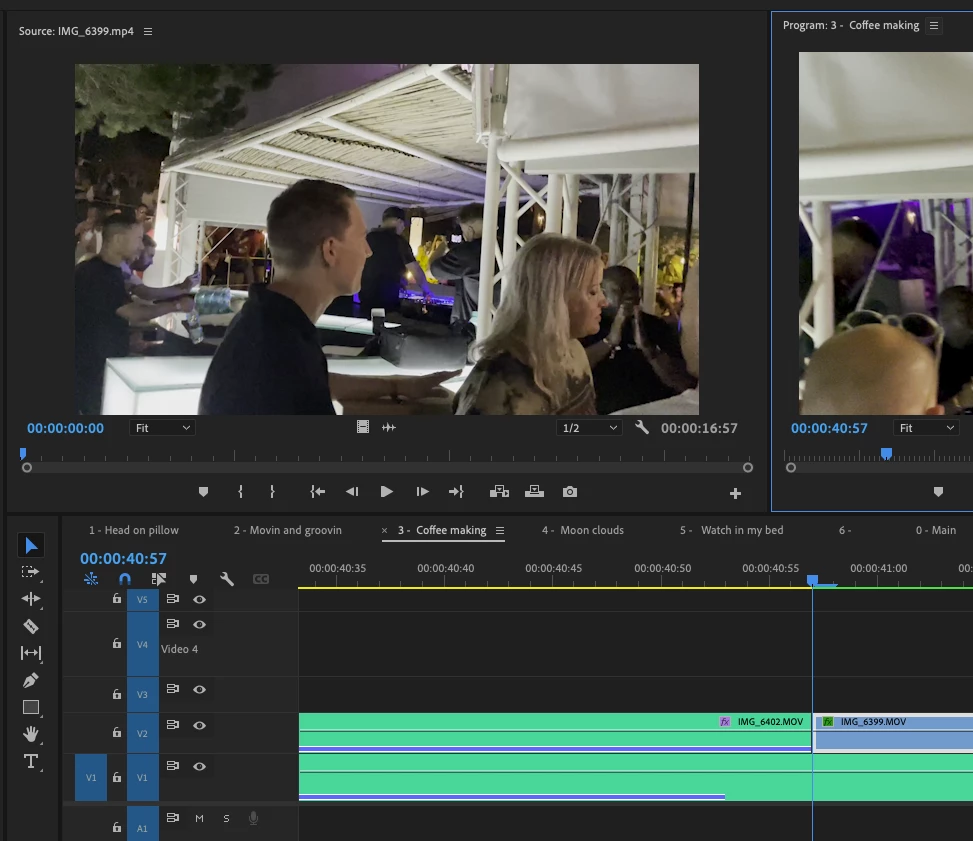
I am trying to replace in my timeline an MP4 version of a duplicate MOV clip.  Currently, when I try to do this, I click on the clip from the timeline so that it shows in the Program monitor, and I try to find the timestamp for when that clip starts (so that I can match it with the start of the new MP4 clip in the Source monitor), but I only see the timestamp relative to its place in the timeline.  


How can I see the timestamp for a portion of a clip that has been used in the timeline?


What do you suggest as an alternate method, if any?


This topic has been closed for replies.
Correct answer Sami Succar

Ok, there are several ways to do that.


1. If your MOV and MP4 have the same duration and timecodes, the easiest way is to replace the clip from the bin (project panel). Locate the MOV in the project panel, right click > replace footage, and locate the MP4. All the MOV instances used in the timeline will be replaced with the MP4.


2. To reply to your specific question, in order to view the timecode of a certain clip on your timeline, you have two options.

     2.a. Right click on your program monitor and check "Overlays", this will display a small box on your monitor with the timecodes specific for each track.

     2.b. If you find those Overlays intrusive, you can go to window > timecode, this will open a new panel where you can add lines to display any timecode related thingy.


Hope this helps.

3 replies

Sami SuccarCorrect answer
Inspiring
June 19, 2023

Ok, there are several ways to do that.


1. If your MOV and MP4 have the same duration and timecodes, the easiest way is to replace the clip from the bin (project panel). Locate the MOV in the project panel, right click > replace footage, and locate the MP4. All the MOV instances used in the timeline will be replaced with the MP4.


2. To reply to your specific question, in order to view the timecode of a certain clip on your timeline, you have two options.

     2.a. Right click on your program monitor and check "Overlays", this will display a small box on your monitor with the timecodes specific for each track.

     2.b. If you find those Overlays intrusive, you can go to window > timecode, this will open a new panel where you can add lines to display any timecode related thingy.


Hope this helps.

n0n0
n0n0Author
Known Participant
July 2, 2023

Holy moly - this is life-changing!!  Thank you SOOO much for all this help.  Super clear and concise.  What a time saver.  

n0n0
n0n0Author
Known Participant
July 2, 2023

Can I ask why you are doing this? Are you doing a sort of manual Proxy workflow?


I am newer and unsure what a manual Proxy workflow is, but my reasoning for doing this is that I was getting a watery effect on my clips and was advised to convert those clips from variable frame rate to constant frame rate.


Then I figured I should probably have converted all my clips to CFR before the initial import.  So now I am going back and converting and replacing each one at a time.  However, there are a lot of clips.


Thoughts?  Recommended adjustments?

Community Expert
June 19, 2023

Could you use 'replace footage' in the project panel?

Inspiring
June 19, 2023

Hey,

If I understand correctly, you can try using the markers ?

If it's the exact same clip, base it on the duration?

Good luck


G.