
Participant
February 9, 2017
Answered

Rotate a video in Premier pro CC 2017

  • February 9, 2017
  • 2 replies
  • 59709 views

I have a video clip that was recorded sideways (couldn't be avoided. It was on a phone). I want to rotate the video 90 degrees before I make clips out of it. I googled how to do it, and most of the responses said to look under the Motion tab in Effect Controls. These were older posts for older versions of Premier Pro. In the 2017 version, there doesn't seem to be a Motion tab in Effect Controls. How do I rotate the video in the 2017 version? I am new to the software, so I admit I may just be looking in the wrong spot.

[Here is the list of all Adobe forums... https://forums.adobe.com/welcome]

[Moved from generic Cloud/Setup forum to specific Program forum... Mod]
    Correct answer Meg The Dog

    Because

    lordkuro wrote:

    I want to rotate the video 90 degrees before I make clips out of it.

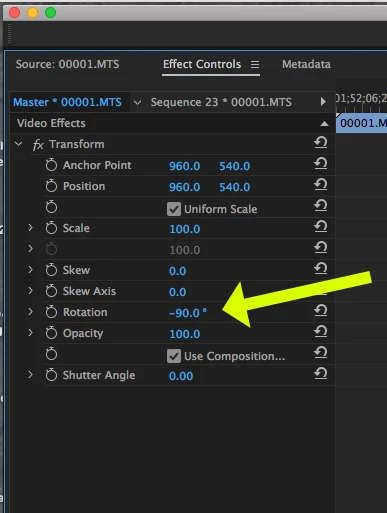
    you want to apply a Master Clip Effect.

    Click on the clip you want to rotate in your Program Panel to select it.

    Go to the Effect Controls Panel and make sure the tab that is named Master*"Clip Name* is selected. It will be empty.

    Go to the Effects Panel (not the Effect Controls Panel) and in the search box at the top type "Transform".

    The Transform effect will be revealed. drag it to the (empty) Effects Controls Panel and into the Master*"Clip Name* area and release.

    You should now see the controls, and you can rotate the master clip.

    Now, each time you use the clip, the rotation will be applied.

    MtD

    2 replies

    Meg The DogCorrect answer
    Inspiring
    February 9, 2017

    Because

    lordkuro wrote:

    I want to rotate the video 90 degrees before I make clips out of it.

    you want to apply a Master Clip Effect.

    Click on the clip you want to rotate in your Program Panel to select it.

    Go to the Effect Controls Panel and make sure the tab that is named Master*"Clip Name* is selected. It will be empty.

    Go to the Effects Panel (not the Effect Controls Panel) and in the search box at the top type "Transform".

    The Transform effect will be revealed. drag it to the (empty) Effects Controls Panel and into the Master*"Clip Name* area and release.

    You should now see the controls, and you can rotate the master clip.

    Now, each time you use the clip, the rotation will be applied.

    MtD

    LordKuroAuthor
    Participant
    February 9, 2017

    Thank you! I think I almost have it. The only issue now is when I try to drag the transform effect to the effects control panel, the

    cursor has a circle with a slash through it and won't open the effect, like in this screenshot. Am I just dragging/dropping something in the wrong spot?

    Inspiring
    February 9, 2017

    Sorry, I wasn't clear.

    You want the effect, not the folder.

    Look in Video Effects > Distort  to find the Transform effect. Drag that.

    MtD

    Ann Bens
    Community Expert
    Community Expert
    February 9, 2017

    Even in 2017 there is still a rotate parameter in the Motion Tab in the Effect Controls.

    I have a video clip that was recorded sideways (couldn't be avoided. It was on a phone)

    You dont have to hold the phone vertical you can rotate the phone to a horizontal position.

    shooternz
    Legend
    February 9, 2017
    (couldn't be avoided. It was on a phone)

    Oh dear... 

    Ann Bens
    Community Expert
    Community Expert
    February 9, 2017

    Or rotate the tv 90 degrees.