
Participating Frequently
January 19, 2021
Question

Shadows in PNG-file look different in Premiere Pro compared to Photoshop

  • January 19, 2021
  • 5 replies
  • 2466 views

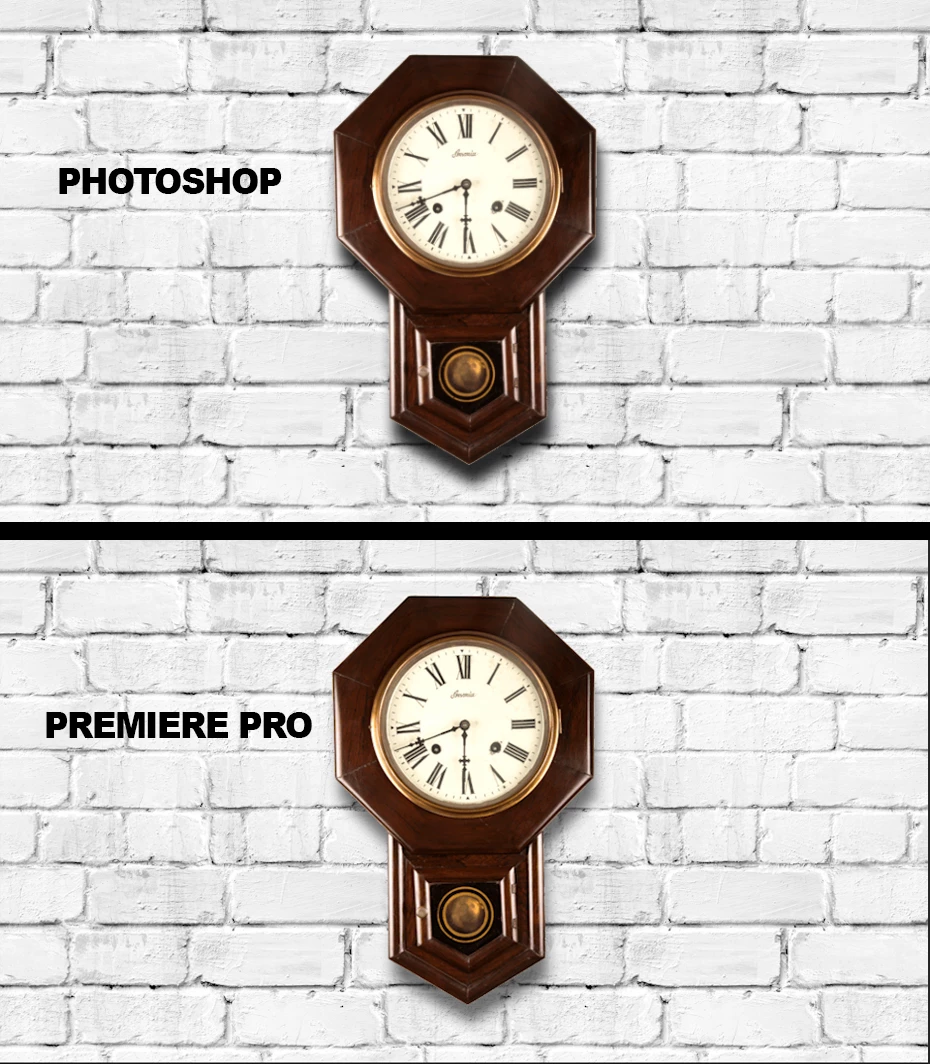
Whenever I import PNG-files to Premiere Pro, the shadows are much weaker than they were in Photoshop where I created them. Below is an example where I've exported two layers from Photoshop as seperate PNG-files. Top layer is the clock with a drop shadow, second layers is the brick wall. You can see how different the shadow looks after importing the two images to Premiere Pro. Why is this?


Maybe this is a Photoshop issue, and should've been posted there. Please move the post if that is the case. Thank you.
 

This topic has been closed for replies.

5 replies

Participating Frequently
November 6, 2023

I've been able to recreate this issue when exporting/saving .png from Photoshop and importing into Premiere pro. 
I've tried multiple export color profiles, which did not help.


What solved it for me was after importing into Premiere, right-click the .png > Modify > Interpret footage > Color and override the colorspace to Rec 709.  This matched the .png colors to the underlying footage.

More details:   I created a .png that masks out objects in a static video file. The photoshop file was created from a .tiff screenshot of footage in my premiere timeline. When overlaying the .png from Photoshop on the top track in my timeline, the shadows of the .png did not match the shadows of the footage.  After modifying the color space interpretation to rec. 709 (my footage is rec.709), the shadows, highlights and colors all matched perfectly. 

Hope this helps!

Averdahl
Community Expert
Community Expert
January 19, 2021

You can see how different the shadow looks after importing the two images to Premiere Pro. Why is this?


Since the drop shadow is semi transparenent i would go to Sequence > Sequence Settings and un-check "Composite in Linear Color..." in the sequence you are using.


Participant
May 1, 2024

it solve nice🤘

R Neil Haugen
Legend
January 19, 2021

Also ... make sure you are exporting to sRGB and not ProPhoto, Adobe-RGB, or in CMYK from within Photoshop.


Neil

Everyone's mileage always varies ...
Graeme Bull
Community Expert
Community Expert
January 19, 2021

Did you bring the PNG files back into Photoshop and compare? I would expect you'll see just about the same result as you see by importing the PNG files into Premiere. It's likely just that the alpha is rendered at a particular depth and not quite true to what you are editingin Photoshop. I would guess that if you want the same depth to that shadow, to just import the PSD into Premiere.

Participating Frequently
January 19, 2021

I did bring the file back into Photoshop, but it was actually not the same as Premiere -- it was just as good as the original. However, I noticed that if I do my Photoshop edits in 32 bit color mode insteatd of 8, I get a much better result with my imports to Premiere. See image below. So thank you for pointing me in the "depth" direction. 🙂

Ann Bens
Community Expert
Community Expert
January 19, 2021

Does it make any difference if you turn MPE Hardware to Software.

Participating Frequently
January 19, 2021

Where can this setting be found? In Premiere or Photoshop? Also, I should say that I don't export the images from Photoshop using the Export function, I just save them as PNG.

Ann Bens
Community Expert
Community Expert
January 19, 2021

MPE render/playback is found in the project settings of Premiere.