
Participant
April 23, 2019
Question

Significant quality loss after exporting video

  • April 23, 2019
  • 3 replies
  • 38656 views

Hello dear forum members!

I have made my first premiere pro video so far and I somehow struggle in exporting it properly. I´ve searched through the forum and tried everything, but the quality isn´t getting any better. Maybe you guys can help me.

My Video is a mixture of Camera-Photos, Photos from my mobile phone and videos from several divices. Surprisingly the mobile phone videos are quite ok compared to the original, but also not perfect. I feel like, the better the original quality of the photo or video, the higher is the loss of quality after export.

My Camera photos are 4272x2848.

I used following export settings:

Format: h.264

Preset: Match source - high bitrate

Width/Height: 1920/1080

Frame rate: 59,94

Field order: progressive

Aspect: square pixels

Profile: Main

Level: 4,2

Bitrate encoding: VBR, 1 pass

Target bitrate: 10

Max bitrate: 12

"Render at maximum depth" and "use maximum render quality" are selected

My sequence settings are: AVCHD 1080p square pixels with 59,94 frames and 1920/1080 width/height

After some research, I tried to adjust following:

Profile: High

Level: 5,2

Width/Height: 3840/2160

Target bitrate: 20

Max bitrate: 22

-----------------> same result! Photos lack in resolution and it seems like colors and contrast are a bit different from the original

-> I also tried a new sequence with higher resolution settings, didn´t work as well.

I don´t know what I´m missing here - like I said, I´m farely new to the programm and hope you can help me. I put a lot of effort in making this video and would be very disappointed, if that is the best outcome.

I put some examples below, so you see clearly what I mean. Thank you so much!

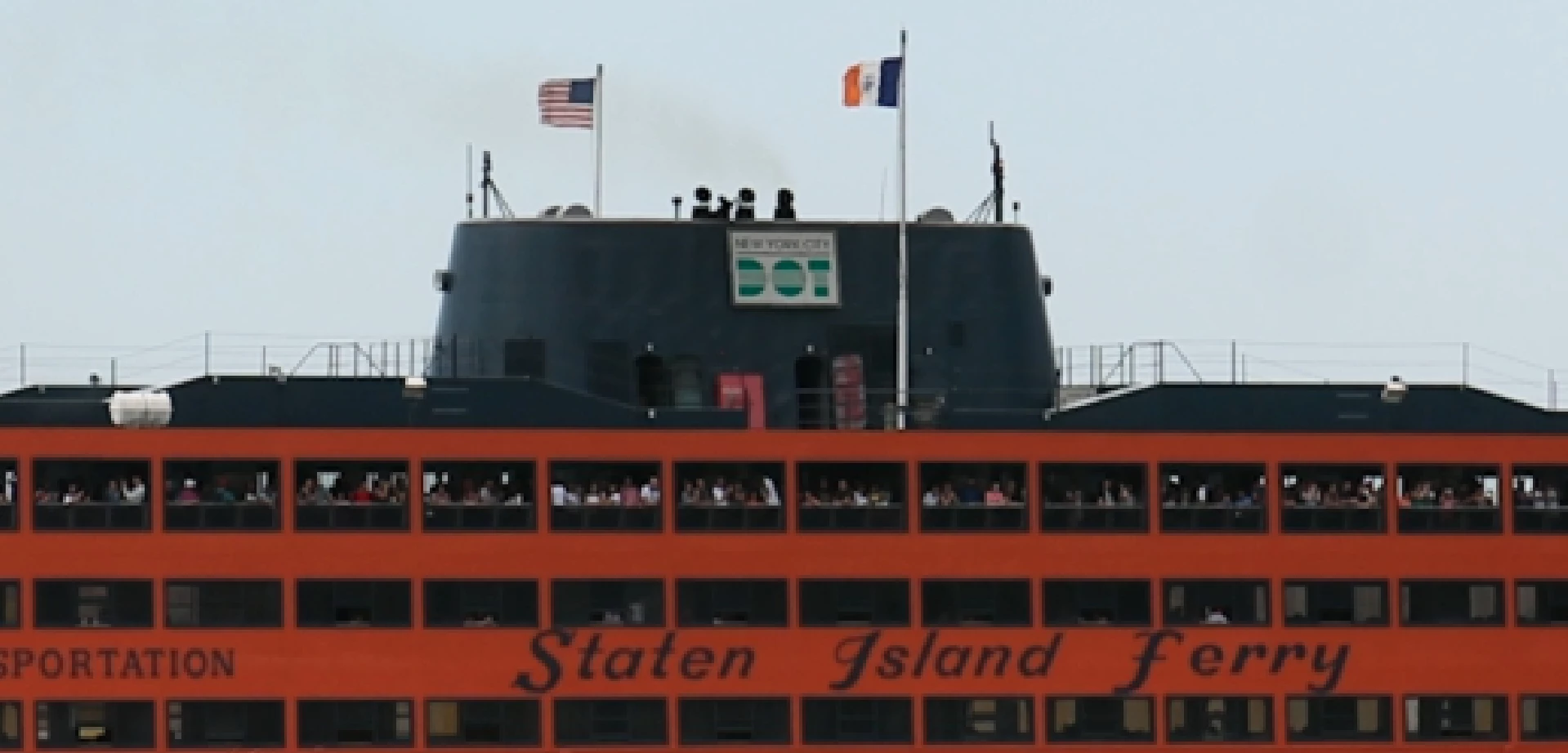
Zoomed in footage original:
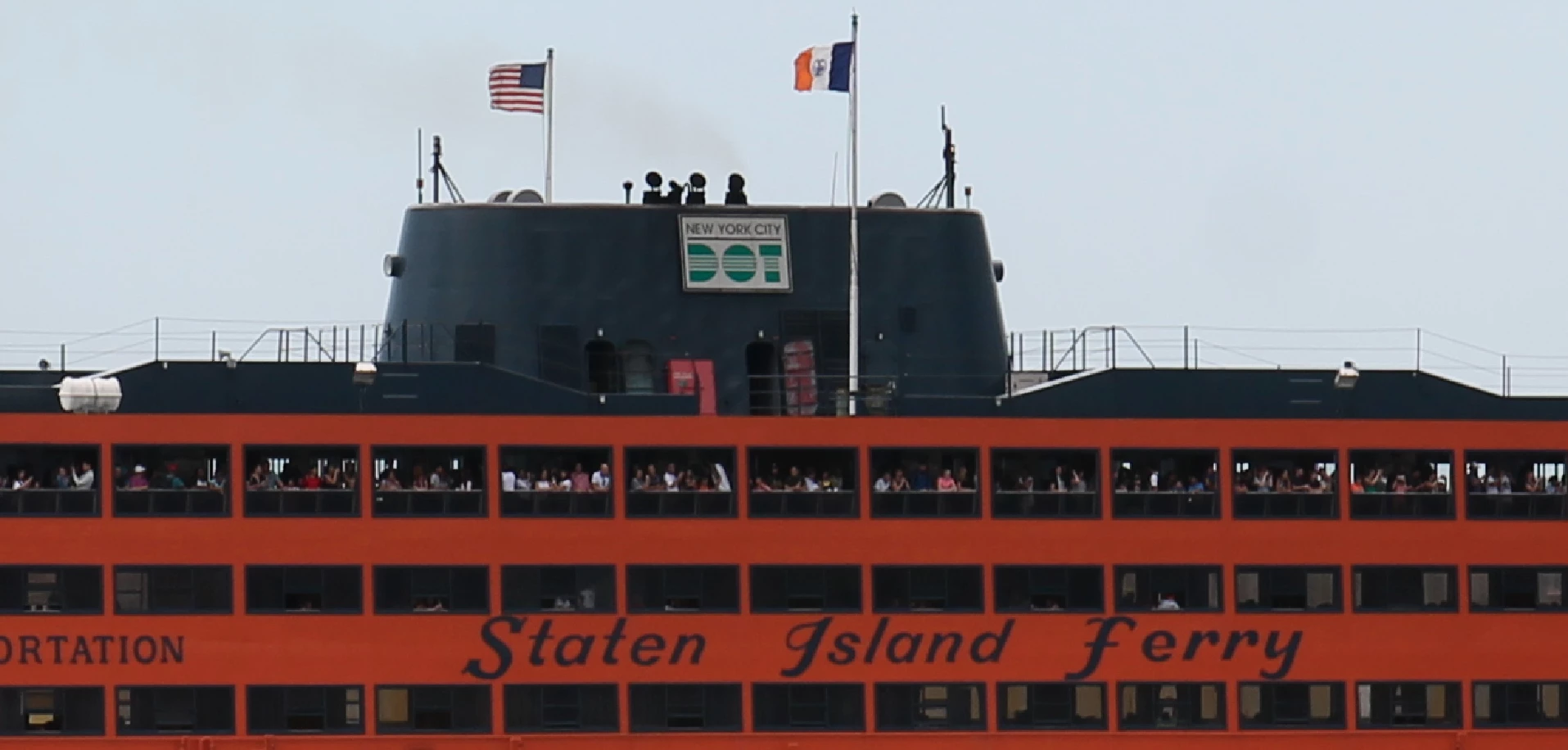
After export:
Original:
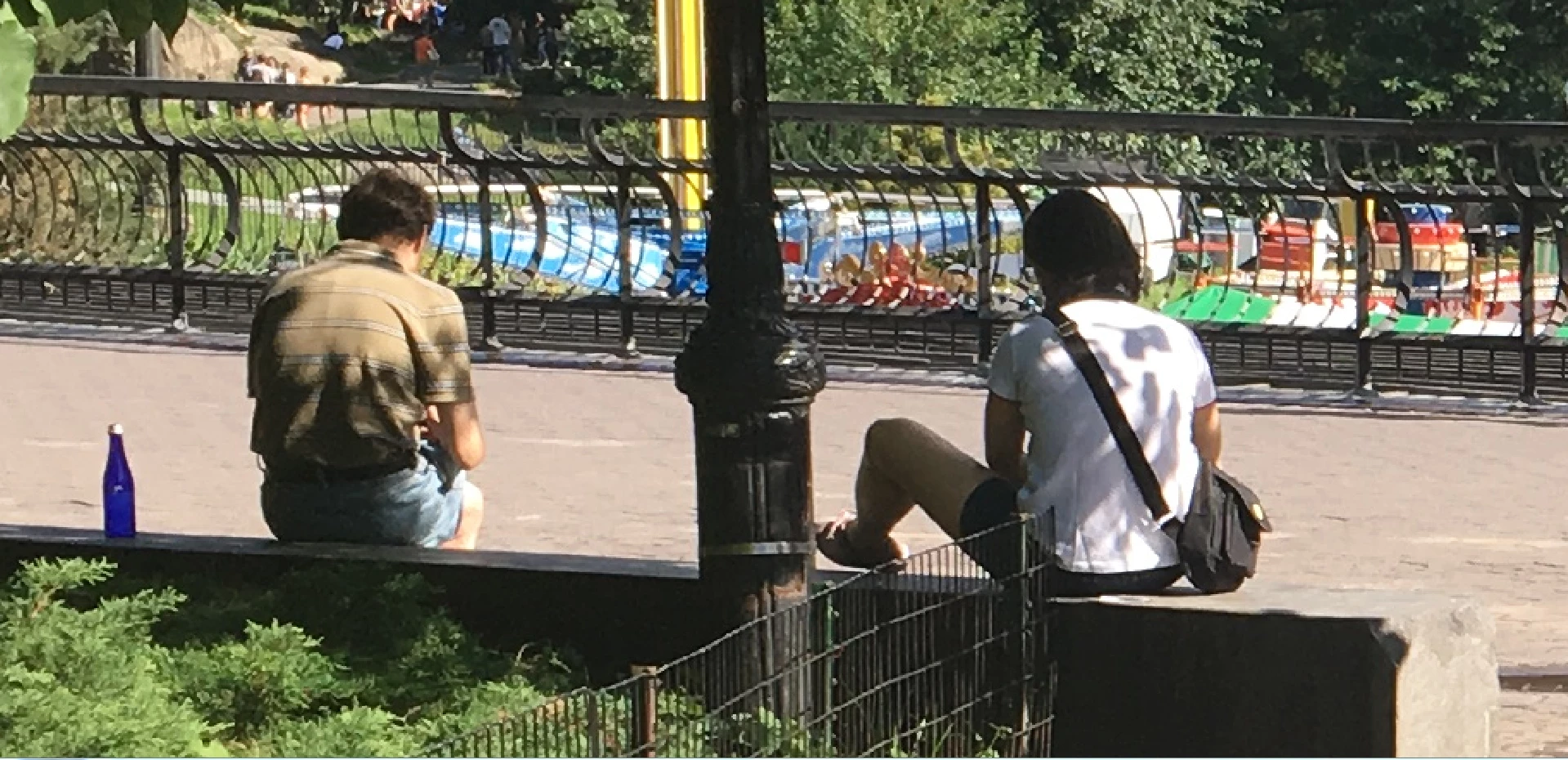
Export:

Mobile phone video original screenshot:
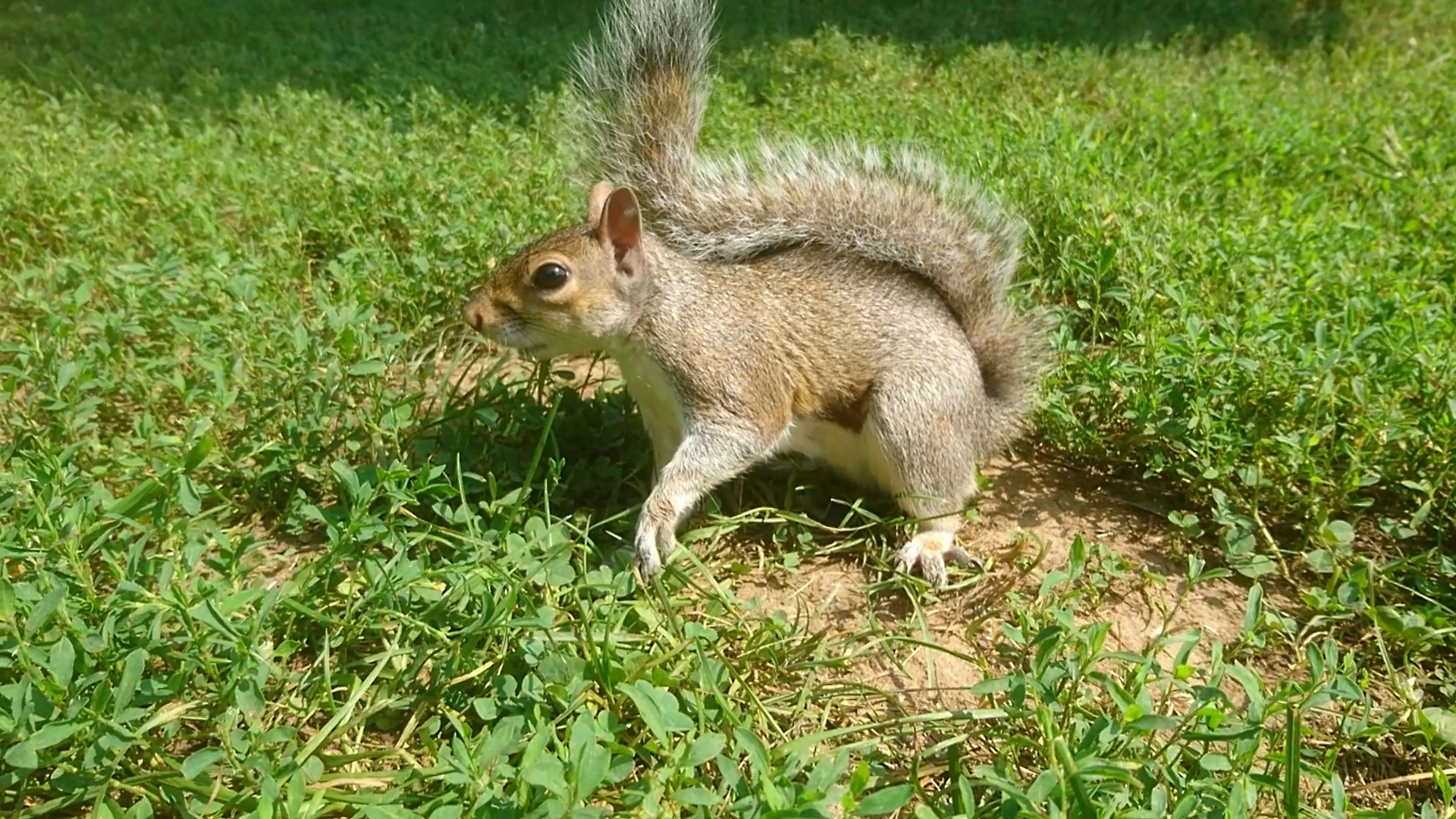
After export (loss of saturation)

This topic has been closed for replies.

3 replies

Christian.Z
Community Expert
Community Expert
May 25, 2021

No matter what you do to the export settings, if your sequence settings are low, the result will be low

Ann Bens
Community Expert
Community Expert
April 23, 2019

Now wonder its bad: first you are downscaling then upscaling on export.

khomthepreditor
Inspiring
April 23, 2019

Alright so there are a few different things at play here, let's see if we can unpack it all...

First I'd start with your sequence settings. Make the sequence resolution match what your export resolution. Making the sequence resolution far higher than your media will mean you may have to scale that media up to fill the frame, which means a loss in quality. That shouldn't be an issue with your camera photos at 4272x2848, but it looks like that's what's happening in your second set of example pictures.

Next, I'd look at your export settings. The main thing that's probably holding you back is your bitrate. To export 1080p60 H.264 at a decent quality, you're going to want at least 12 Mbps. You were on the right track here...

After some research, I tried to adjust following:

Profile: High

Level: 5,2

Width/Height: 3840/2160

Target bitrate: 20

Max bitrate: 22

...but your downfall was upping your resolution as well as your bitrate. Also, I'm assuming those are adjustments to your export settings, not your sequence settings? Target 20, Max 22 should be fine for 1080p60, but you lose quality by trying to squeeze a 4K export out with that bitrate. Try exporting 1080p60 at Target 20, Max 22, and that should help the loss in quality you see in the first set of example pictures.

Finally, as for the color shifts in your exported videos, what program are you using to view them? Whatever media player you're using to play them back may be messing with your color, so it may be an issue there instead of with Premiere.

khomthepreditor
Inspiring
April 23, 2019

Ooh, one more thing I noticed from your OP...

Surprisingly the mobile phone videos are quite ok compared to the original, but also not perfect. I feel like, the better the original quality of the photo or video, the higher is the loss of quality after export.

You may also be dealing with different codecs from your different sources. If all else fails, you may want to transcode all your footage to the same codec before bringing it into Premiere.

Participant
April 25, 2019

"I can´t set the export settings higher than 3456/2304"

Nor should anyone want to! Please know that the Sequence Settings are all important to the success of what you are doing. Like the foundation of a building, get that wrong and everything else falls down (bad results).

If your end goal is to export an HD video, then start with an HD sequence, not some odd sizing to match some still photo (that is not video).

If you are using a bunch of video clips, would you say that "most" of them are a common size, like most of the clips are from a certain camera and therefore all "match" one another? Find a common denominator to the material you are working with. If most of the video clips are 1080p60, well then work in a 1080p60 Sequence. Or perhaps 1080p30. But never attempt to size a VIDEO project to somehow match a STILL image format. You are editing as video and exporting as video, and there are standard sizes and frame rates for video, can't mess with that too much and expect sharp results.

In other words, if you take your source video clip and edit it in another frame size or frame rate, that degrades the quality, then you export at perhaps another size which does more scaling/stretching of the video, quality is gone. Try to edit and export VIDEO clips at same settings as the original clips and that will maximize the end quality since no conversions have happened in the process.

If you have video clips that are common to the project (lots from same camera), right-click one of those clips in the Project Bin in Premiere and select New Sequence from Clip. That creates a New Sequence for you to work in that properly matches the source video. Any stills that you add can be scaled to fit the video frame size, don't try and do the opposite of scaling video clips to match the stills. When you export the final project, use Export Settings to match the sequence.

Also when exporting, in most cases you do not need to check the Max Quality and Max Depth buttons, use default settings.

Thanks

Jeff


Ok, thank you very much! I followed your instructions and took a closer look at my video footage. I´m very glad that my videos are very fine with these settings now. I can´t see a difference between original and export now! Thank you so much.

But still, my photos loose much quality. I am aware that premiere pro is a video editing programm and not perfectly suited for still images. But this is a vacation video, wich contains more than 1200 pictures of my camera + mobile phone and "only" about 30 videos. That´s why the quality of the still images are that important to me.

Maybe my current 1080p/60 settings are the best possible settings and I just have to accept the quality loss in my pictures. But I would try your patience once more and upload some zoomed images before and after exporting. Maybe you guys have one last hint for me, I really would appreciate that, but I´m already very thankfull for all your time!

Original:

Export

Original

Export