
Known Participant
August 19, 2022
Question

Slog3 footage appearing ungraded when sent through Media Encoder

  • August 19, 2022
  • 1 reply
  • 965 views

Hey all,


Hoping someone can shed some light here. I recently finished a series of projects that I'd previously exported directly from Premiere 2022. Everything looked great, no problems.


I went back to make some changes and this time exported through Media Encoder. Slog3 footage from my FX6 came out of Media Encoder looking super flat, as if it hadn't been graded.


Premiere 2022 preview window:
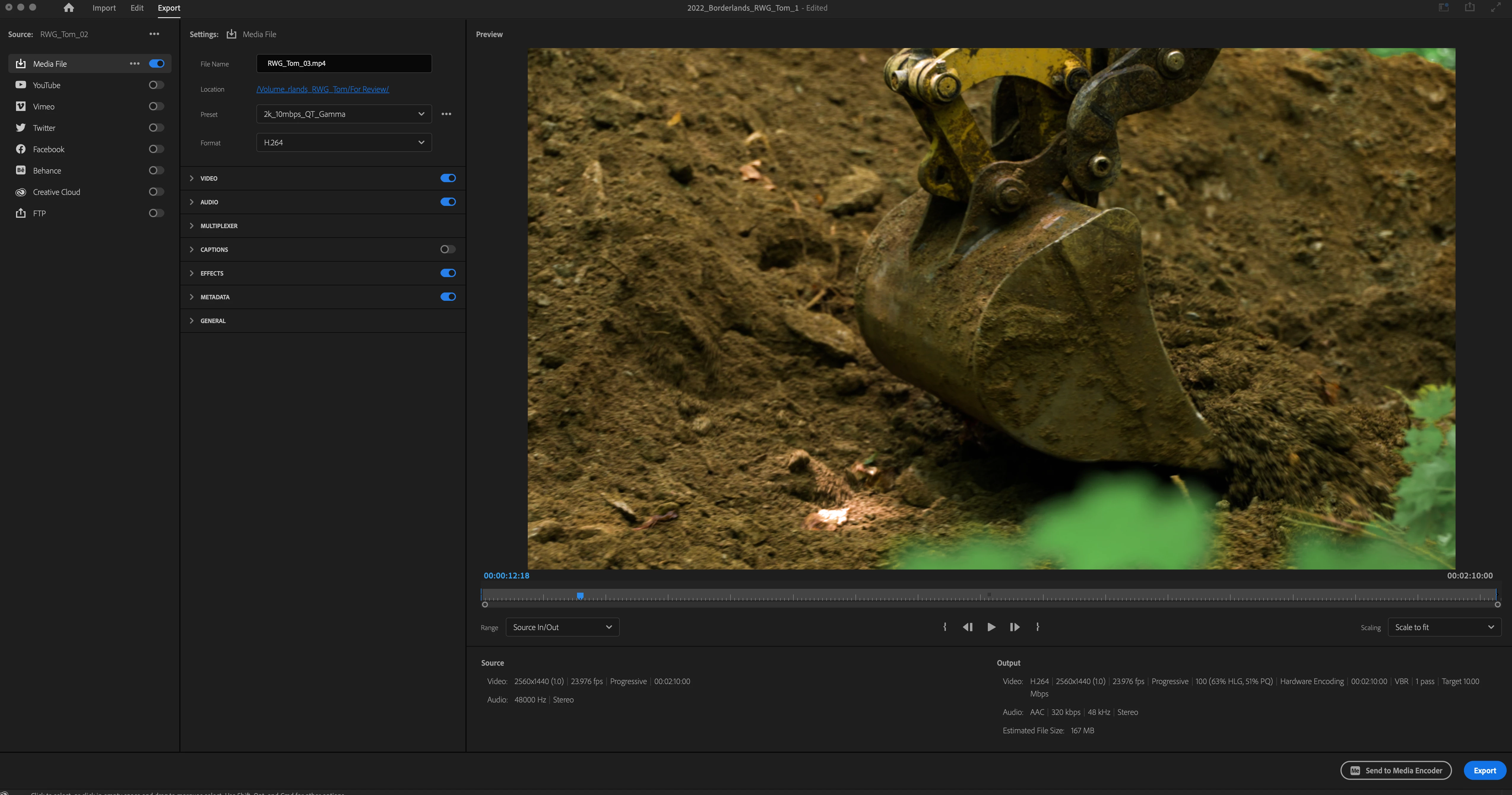
 

Media Encoder 2022 preview window:
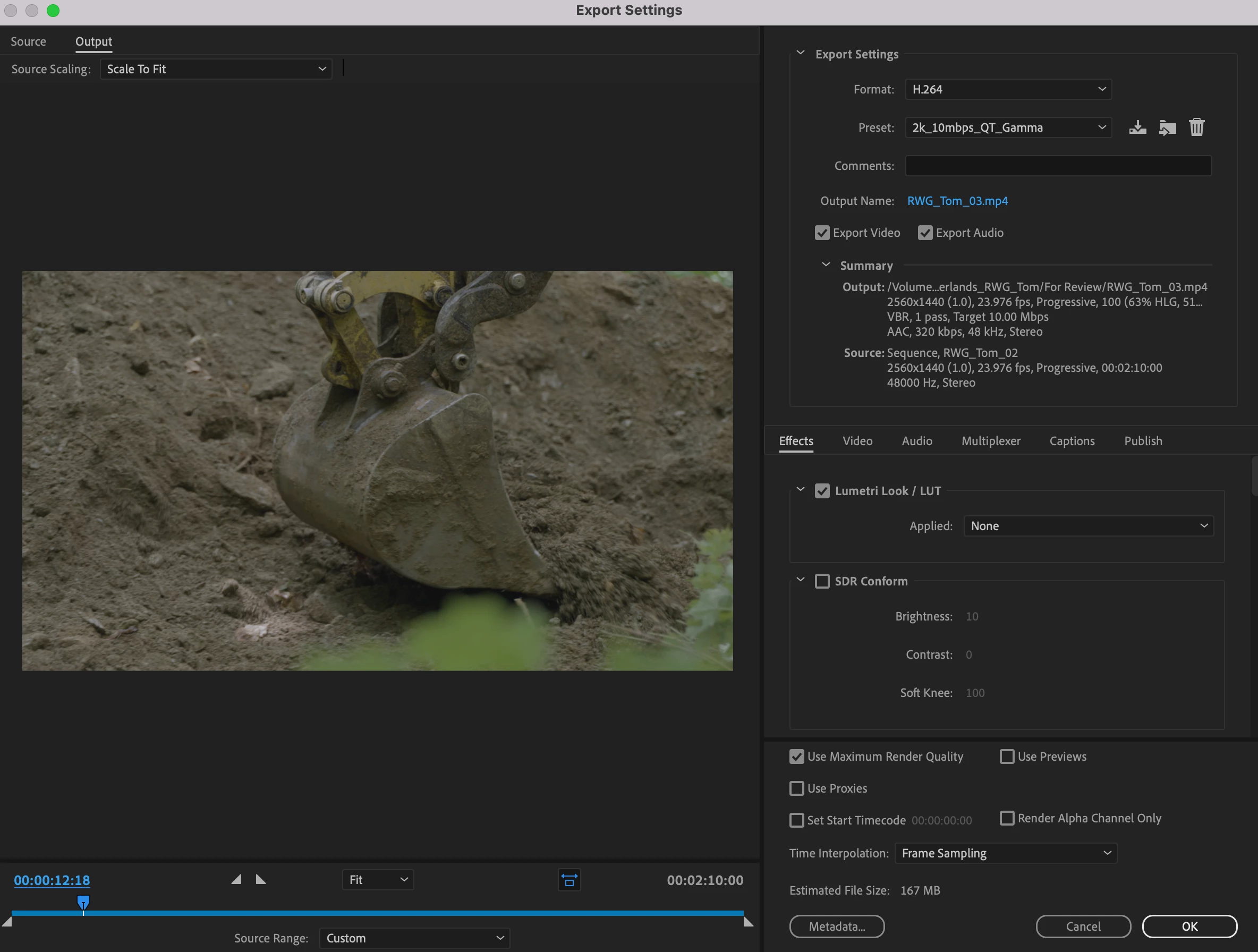
 

I assume this has something to do with Premiere's new adaptive colorspace. I'm not sure what I'm missing, but it'd be great if Media Encoder and Premiere exported the same image. If anyone has any insights or leads, I'd appreciate it.


Thanks,
Sam

This topic has been closed for replies.

1 reply

gerikp
Community Expert
Community Expert
August 19, 2022

It could be your export color space that has been chosen in your export settings in Media Encoder. Under the Video tab down to encoding settings, there's a dropdown menu next to Export Color Space. Is it set to Rec. 709?

Known Participant
August 23, 2022

Thanks for the reply @gerikp. It is in fact set to Rec. 709, however the option to change it is greyed out. Any idea as to why? If I'm able to change it, what is the color space I'm trying to change it to? Thank you.

gerikp
Community Expert
Community Expert
August 27, 2022

What LUT ... and is it one you've built or acquired?


And if the latter, where did you put that on a drive?


I hope not the Program Files/Adobe/Premiere Pro/.../LUTs folder setup, as that would definitely cause this behavior. Users should NEVER ever add LUTs to the 'built-in' program folders. Those are expected to be identical across Pr, Ae, and Au ... and the apps access them by alpha-numeric sort order NOT BY NAME.


So Me wouldn't 'see' the LUT you're using if you have an acquired LUT in with the company provided ones.


A good place to park yours is the Program Files/Adobe/Common/LUTs setup, in the subfolders for Tech (Basic tab) and Creative (Creative tab) folders.


Neil


This was the direction I was leaning toward @R Neil Haugen