MahaB82A
December 29, 2023
Answered

Slow motion play for editing

  • December 29, 2023
  • 6 replies
  • 2079 views

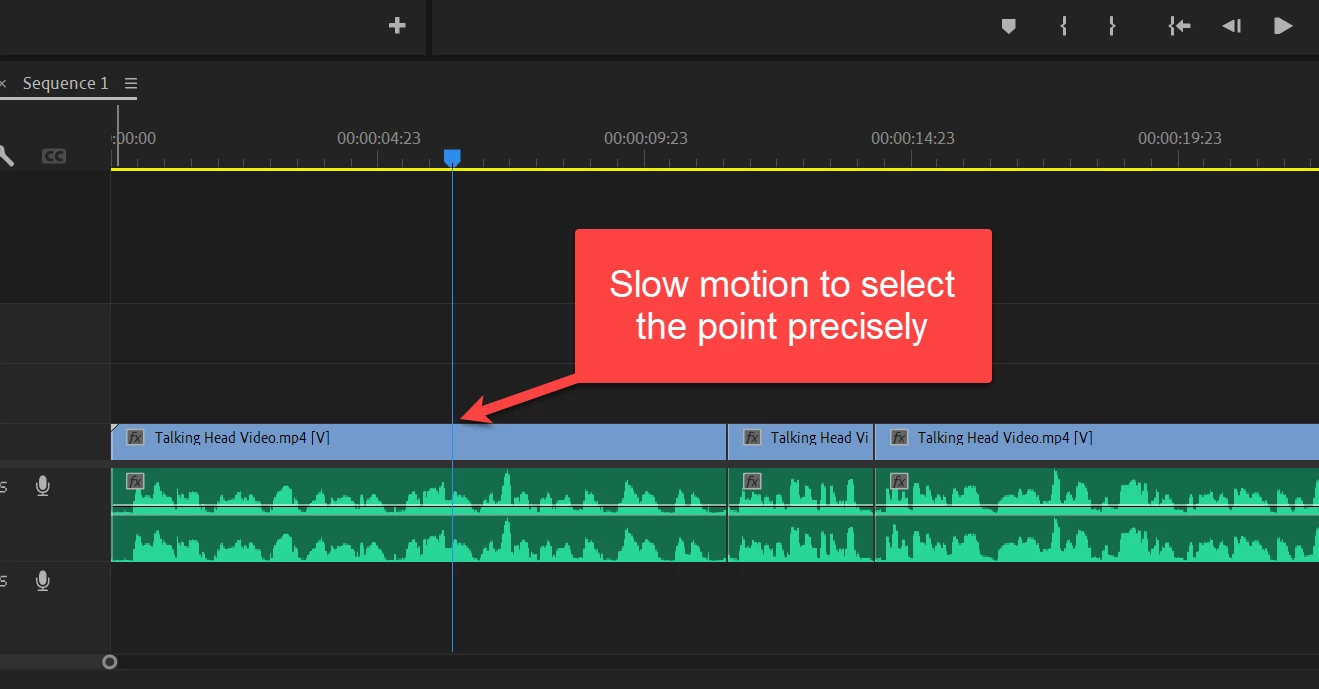
Is there any way to make a play back video at a particular point slow motion to precisely indentify the point to be cut? Hotkey is better for this purpose.



This topic has been closed for replies.
Correct answer Warren Heaton

For slow playback forward, hold K and L. 

For slow playback in reverse, hold K and J. 

Shift L and Shift J also work.


6 replies

MahaB82A
MahaB82AAuthor
December 30, 2023

Thanks for all.

Warren Heaton
Community Expert
Warren HeatonCommunity ExpertCorrect answer
Community Expert
December 29, 2023

For slow playback forward, hold K and L. 

For slow playback in reverse, hold K and J. 

Shift L and Shift J also work.


Ann Bens
Community Expert
Community Expert
December 29, 2023
R Neil Haugen
Legend
December 29, 2023

I think what you're wanting to do is to just get playback slower to make your cut?


If so, there's several ways. First of course is when working with the JKL transport keys, you can change playback speed using keyboard shorts. Check out the available options in the keyboard shortcut dialog.


Second ... and probably the more widely used ... is going into a loop in Trim mode. Set Premiere in Trim mode, which gets you side by side images in the program monitor with timecode on each. Set it to loop, X number of frames eithe side of the start point. Now start playback.


You can set your cut .... watch it through a couple loops, and try a different spot, all while it continuously loops. All done with keyboard taps.

Everyone's mileage always varies ...
MahaB82A
MahaB82AAuthor
December 30, 2023

I watched two tutorials. In those approximate method was used to eliminate the unwanted part of the video. That means by listing to the audio, play head was stopped at particular two points to cut & eliminate that part. No precise method was used. Is approximate method acceptable for professional work? 

R Neil Haugen
Legend
December 30, 2023

Apparently you don't understand looping in Trim mode, maybe didnt' check it out, or got some YouTuber with idiotic suggestions. Nor does it seem you've tried the slow-mo JKL work as also noted above. Both of which are heavily used in professional editing daily.


I've watched Christine Steele working in Trim mode, to try several cut points with a frame or two, with final cut chosen after playing that back while trimming. Precise control of where to cut, while playing back ... and viewing the results, trying a different point without ever stopping the loop.


Blazingly fast, and incredibly 'tight' editing.


And I've seen others use the slo-mo JKL while looping and work quickly, accurately.  Professionally.

Everyone's mileage always varies ...
Richard van den Boogaard
Community Expert
Community Expert
December 29, 2023

Yes, two ways:

1) add a cut (CTRL/CMD+K) at that point, make ample space in the timeline by moving the next clips enough to the right. Use context menu (right-click) to adjust speed/duration.


2) Use Time Remapping feature to create point where you like to slow things down: https://www.youtube.com/watch?v=gtrcAKl1Rfs


Hope this helps.

Peru Bob
Community Expert
Community Expert
December 29, 2023

Ctrl + K to cut. Then apply time remapping or speed change to the clip after the cut.