
Solution Included: Adobe Premiere Pro (2025, 2024) Playhead Freezes in Timeline During Playback.
Issue:
During playback of projects, Adobe Premiere frequently stops updating the playhead (line that follows playback) in the Timeline Panel until the user stops playback. Once the playback is stopped, the playhead will jump to the correct location.
Verions Affected: Multiple versions of Adobe Premiere
I've seen a bunch of other forum posts about this and some mention "fixes" that include doing things like resetting your Workspace Layout, Resetting view settings, and even completely resetting your configurations - DON'T DO ANY OF THESE, SOME ARE DESTRUCTIVE TO YOUR LAYOUTS! AT LEAST GIVE MY FIX A TRY FIRST, AS IT'S ONE CHECKBOX!
Work-Around Fix:
Go to EDIT > PREFERENCE > GENERAL and uncheck the bottom box that says "GPU accelerated UI rendering (restart required)" and then restart Adobe Premiere:
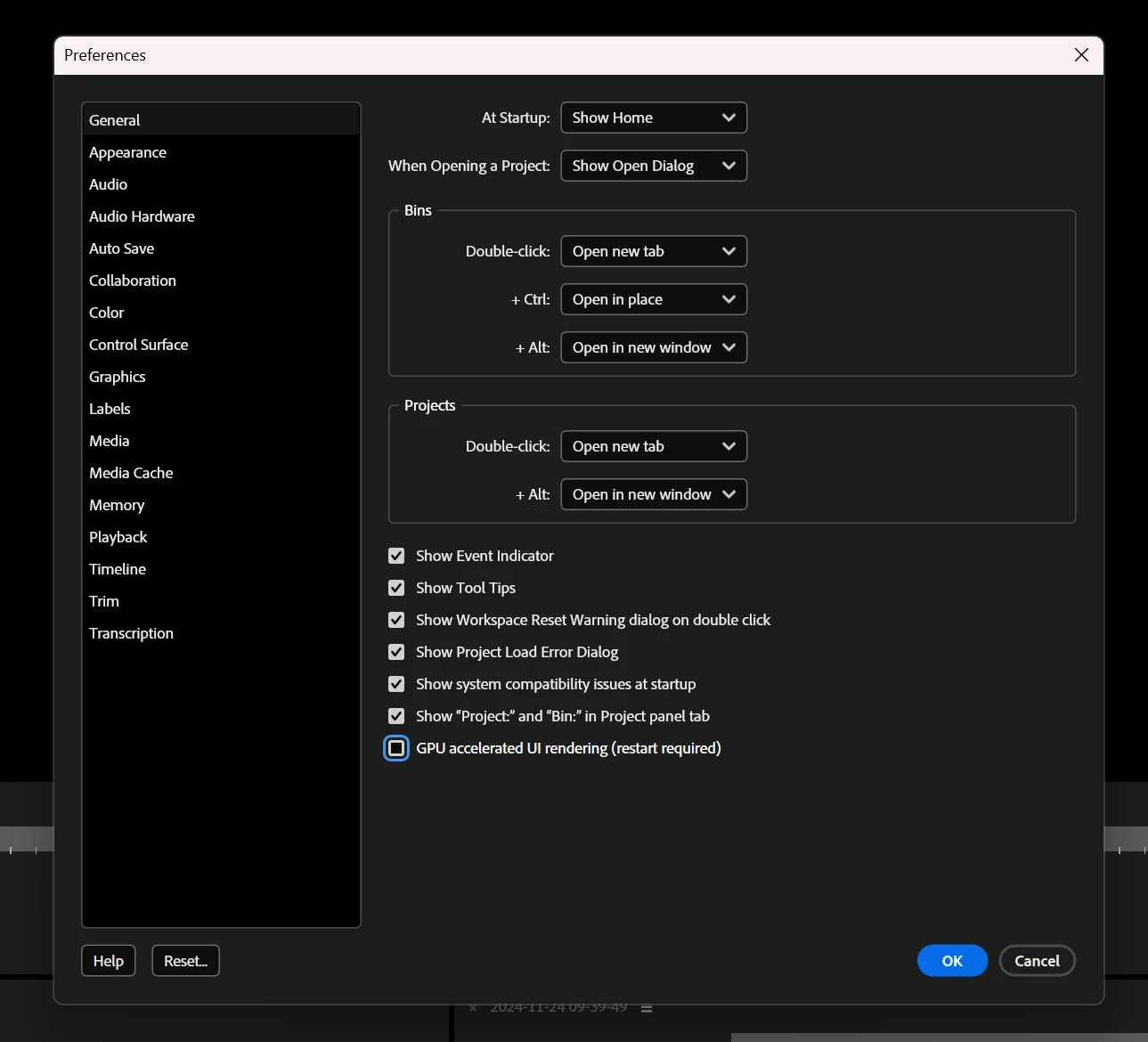
Re-open the project you were working on and you will notice immediately that the project will play with any Workspace Window setup selected, and any settings enabled.
Downsides:
The only downside to this fix is that the CPU is slightly more taxed, but the impact is very small. The rendering of any photos or video asset thumbnails becomes stobe-like during playback. Both of these problems (the playhead issue, and the CPU UI stobing) need to be fixed by the Adobe team. This is a really crazy issue for this product to be having.
Alternative Work-Around:
If you absolutely MUST have the GPU rendering your UI, you can also detach the primary Timeline by clicking the Hamburger (3 lines) menu and then selecting "Undock Panel". You will notice that upon resuming playback, the playhead will smoothly follow your content without having any strobing or issues that come with using the CPU to render the UI. I personally don't like having the extra window, so I go with the non-GPU UI until a competent fix is released.
I hope this solves the issue(s) for you. Something tells me there's more than just the playhead not working properly, tbh, so if you're having strange glitchy things happen and they're part of the UI (basically everything) then might as well try turning GPU UI rendering off and restart to see if it helps before taking more drastic measures.
ADOBE:
Please fix this ASAP. The description and fix info contained in this and other posts should be plenty for you to fix in the next minor rev.
Please let me know if this fix doesn't work for you, or if you have any issues.
 AdChoices