
Participating Frequently
March 27, 2020
Question

Still image color distortion

  • March 27, 2020
  • 12 replies
  • 8052 views

When i import an image to Premiere Pro CC the colors get distorted, mainly the highligt and shadow areas. I capture my photos in RAW and then i edit them in Camera Raw (Photoshop). I save the photos as jpeg's and then import them into a project in Premiere Pro. When i do that this happends (SEE PICTURE). Exporting the file dosen't help either, the problem remains.


What is this ?!?!
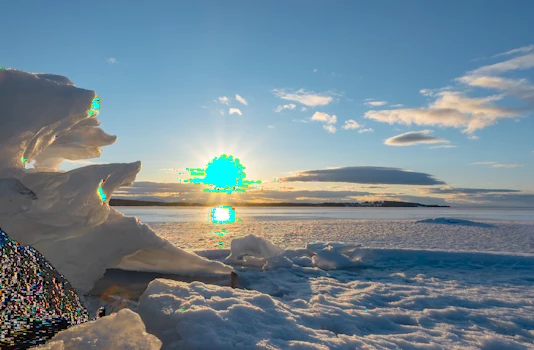
 

This topic has been closed for replies.

12 replies

Participant
February 22, 2021

I had the same issue and what I did to fix it was edit the white point on the original photo file. I dropped the contrast a bit too and that immediatley fixed the image distortion problem in premiere.

Ann Bens
Community Expert
Community Expert
April 1, 2020

Please post complete comp specs.

Update or rollback video driver.

Inspiring
April 1, 2020

On reflection,  I'm thinking that if you put it into YOUR photoshop version, and make sure your color space is sRGB ( rec 709 if you have that option ,, video ) , and save as a PSD ( without ANY adjustments in photoshop ) what does that look like when you put it into PPRO ???


You can do your contrast and levels ( luma values ) using Lumetri.


???


Inspiring
April 1, 2020

good going on posting the raw thing. I have a quick question, and then I'm gonna say what happened with ME just so other people can know that later on. So good going.

Question: DID you ever try putting the raw image in question directly INTO Premiere pro ??  BEFORE doing stuff in photoshop ????


Thanks.


What happened to me. I downloaded raw image and put it into both resolve source material folder and desktop ( on junk laptop ).

I then downloaded and installed the sony raw file codec for that for WINDOWS 10 ( win 10 is latest, updated automatically thanks to stupid Microsoft ).

I opened a CS6 photoshop and couldn't open the file.

I opened a project in CS6 PPro and couldn't even SEE the filename listed in my directory or desktop.

I opened a project in Resolve and couldn't even SEE the filename listed in my directory or desktop.


I put it into media info and got nothin basically ( junk info )

I double clicked on the image on desktop and some PC windows photo 'viewer' opened and showed me the image. I looks like I'd expect it to... bright sun, much darker foreground. Nice shot. Bold ....is hard to shoot into sun.


Then I right clicked on the desktop thumbnail of image and chose 'properties' and got TONS OF INFO... dimensions, PPI, all sorts of cool info.


But I'm out of this as far as helping goes cause I can't open ( or even SEE ) the filename in PPro or Resolve.


🙂

good luck !!!    Hope you didn't meet any mean polar bears when taking that shot !

Inspiring
March 31, 2020

==========

I capture my photos in RAW and then i edit them in Camera Raw (Photoshop)

==========

this thread is going nowhere fast... IMO. You've been asked to upload the original image... that is the file that came OUT OF YOUR CAMERA. It will be a FILE with some kind of extension ... depending on what camera you used to make the RAW image.... 


do you know how to upload a file ???? There are various ways... like dropbox and google and so on.... cause you can't just drop a file into this forum directly... Figure it out and then someone can put THAT into their own programs ( photoshop or PPro or AE ) and solve your problem maybe...


🙂


Participating Frequently
April 1, 2020

This URL will take you to a google drive folder that contains the original picture. It also contains a screenshot with the settings used when saving that  jpeg.


https://drive.google.com/drive/folders/1Jbe01-NikaseEHeWWkhyYlOm2hTUcHX2?usp=sharing

Community Expert
April 1, 2020

We need the raw file not the jpeg

Community Manager
March 30, 2020

Hi McSenderson,


Do you have the Video Limiter effect applied to the clip with Gamut warning enabled? That can cause this color overlay on the blown-out highlights.

Thanks,

Sumeet

Participating Frequently
March 31, 2020

Hi, thanks for the reply!


No i don't have the Video Limiter effect applied.

Participating Frequently
March 28, 2020

Thank you all for your answers! I will try what you have suggested but in the meantime here's what the picture looks like before imprting it into Premiere Pro. (Note that this is a screnshot of the original image!)

Ann Bens
Community Expert
Community Expert
March 28, 2020

I think you have an issue with your gpu.

Update or roll back a driver.

The image shows fine on my machine.

Not overexposed at all.

Participating Frequently
March 28, 2020

Thanks for replying! The image i posted was a screenshot of the original picture and may have effected how your computer handled it. I can take the same file and load it into Premiere just fine without any issues. The problem still remains! 


I want to create a timelapse with the images i have taken. If i use Photoshop to do this it works just fine! I succesfully exported a sequence (H.264) with the tools available in PS (see the attached GIF-file). Why can photoshop handle these images but not Premiere?


Inspiring
March 28, 2020

Neil

========

but those pixels are so far out they're going bizarre in Premiere.

========

THAT made me laugh out loud, for real.... thank you... I needed that laugh. It's like a huge understatement.


hehe


🙂


R Neil Haugen
Legend
March 28, 2020

I think you need to try bringing down the white point of that image in Photoshop if you can ... Levels or Curves, dropping the white point a bit. See if that's better. Not to get color back there, but those pixels are so far out they're going bizarre in Premiere.


Then ... bring down the White point in Lumetri's RGB Curve and see what it looks like ...


Neil

Everyone's mileage always varies ...
Inspiring
March 28, 2020

As a test, go to File > Project Settings > General and set the renderer to Software only.

Any difference?


MtD