
handjojot17224968
Inspiring
May 26, 2018
Answered

TIME REMAPPING DOESN'T WORK IN PREMIERE PRO CC 2018

  • May 26, 2018
  • 4 replies
  • 9942 views

Dear All,

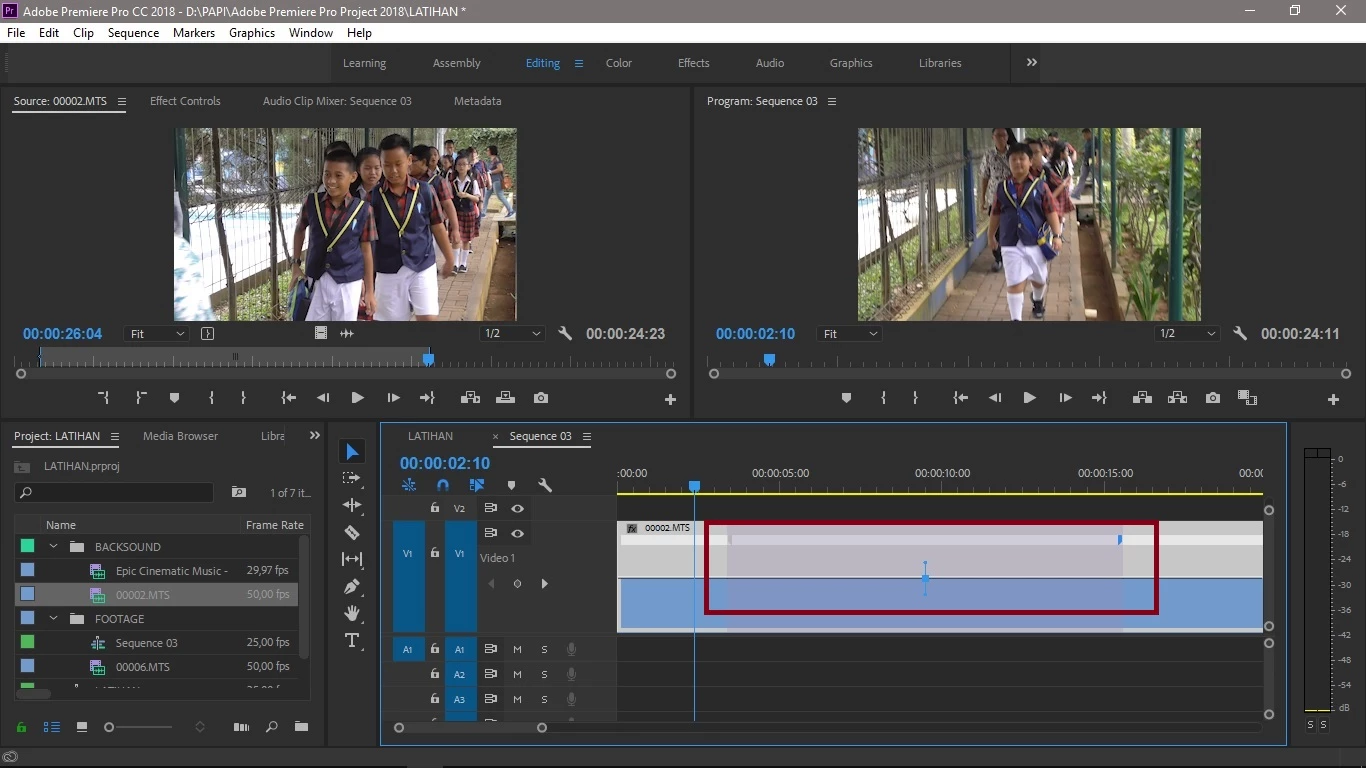
I got a trouble when using Time Remapping, After I click the Effect Badge on the Timeline then select Time Remapping, then move the fade out button, however the time remapping doesn't work, I cannot adjust speed duration by drag pointer, the line of the time still flat as per screen attached.

Please advise to solve this problem.

Thanks & B/regards,
    This topic has been closed for replies.
    Correct answer handjojot17224968

    Dear All,

    It has solved, thank you for your advise.

    4 replies

    handjojot17224968
    handjojot17224968AuthorCorrect answer
    Inspiring
    June 7, 2018

    Dear All,

    It has solved, thank you for your advise.

    Ann Bens
    Community Expert
    Community Expert
    June 7, 2018

    Please share you solution.

    handjojot17224968
    Inspiring
    June 8, 2018

    First you must choose the first position of  in and out of keyframe on your sequence where is the footage to be time remapping after use the right click to find the Time Remapping menu, after that you can find two part of each in and out keyframe, then you can drag it until the line like "U" figure.

    In the beginning I have reported it, I forgot only make the one keyframe therefore I cannot drag it and didn't seen the "U" figure.

    Good luck and have a nice weekend.

    Community Expert
    May 28, 2018

    Please use the pen tool to place a key frame on the speed line to where you woul like to have the speed change back to normal then pull the front part of the line down to the slower speed.

    Ko.Maruyama
    Community Expert
    Community Expert
    May 26, 2018

    Do you have multiple keyframes set for the change?

    Check Helpx for more information

    Change Clip Speed and Duration in Adobe Premiere Pro CC

    handjojot17224968
    Inspiring
    May 28, 2018

    I don't have multiple keyframes, I only want the part of a clip with beginning slower then at the last part of the clip go normal again like "U" shape.

    Community Expert
    May 26, 2018

    Dragging the line up or down (with the selection tool) should slow down or speed up the clip. If you want to change the speed of a portion of the clip you can set key frames by clicking on the white line with your pen tool. If you move the line up or down between 2 key frames the speed change will only affect that section of the clip.

    handjojot17224968
    Inspiring
    May 28, 2018

    Thanks Rob for your advice, however it didn't worked when I drag use selection tool, it seems idle (I cannot make "U' shape in time remapping) also in effect page, it didn't work also when use the pen tool.