
Participant
August 26, 2020
Answered

Timeline Playhead offset

  • August 26, 2020
  • 6 replies
  • 4668 views

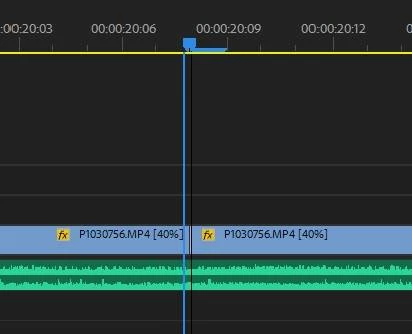
I'm workin on a relativley new iMac with the latest version of Premier Pro. What is the blue extension to the right of the cursor Playhead arrow on the timeline (see top of attached photo)? It's presence creates an offset between the arrow and the actual insertion point, which, needless to say, slows down my editing because I have to correct for it each time I want to insert anything. This just started happening with the install of the latest version, though there is at least one other thread about this from earlier versions, which unfortunately remained unresolved, because the person was working in Windows.  I'm working on just the computer's screen with no second monitor attached. 
 

Mod edit for searchability

Correct answer Kevin-Monahan

When the needle of the playhead is offset from the cut and where the playhead has snapped at an In point (as pictured), you may have to reset preferences. Furthermore, it looks like you have a garbage frame that needs to be removed.


-------------------------------------------------


This problem is different from those that do not understand how the playhead UI is supposed to appear on an Out point.


A playhead has a needle and a tail. All NLEs have playheads that are constructed in this way. That is why you have to move left one frame before marking an Out when using the playhead (or the down arrow) as a guide.


You can use the "/" key to mark an In and Out on a selected clip or "X" for a clip on a track that is auto selected. If I only need to mark out, I just move left one frame, then mark out - as always. Sorry for the misunderstanding.


Cheers,
Kevin


6 replies

Kevin-Monahan
Community Manager
Kevin-MonahanCommunity ManagerCorrect answer
Community Manager
April 10, 2025

When the needle of the playhead is offset from the cut and where the playhead has snapped at an In point (as pictured), you may have to reset preferences. Furthermore, it looks like you have a garbage frame that needs to be removed.


-------------------------------------------------


This problem is different from those that do not understand how the playhead UI is supposed to appear on an Out point.


A playhead has a needle and a tail. All NLEs have playheads that are constructed in this way. That is why you have to move left one frame before marking an Out when using the playhead (or the down arrow) as a guide.


You can use the "/" key to mark an In and Out on a selected clip or "X" for a clip on a track that is auto selected. If I only need to mark out, I just move left one frame, then mark out - as always. Sorry for the misunderstanding.


Cheers,
Kevin


Kevin Monahan - Sr. Community and Engagement Strategist – Adobe Pro Video and Audio
Participant
April 30, 2024

I had this same problem and fixed it. You have to right click on the playhead and select "Show Audio Time Units."

Participant
April 30, 2024

Participant
April 10, 2025

To everyone who said "it's just a thing to get used to" NOPE! This is the answer!! Thank you Ashley. 

It drove me mad that a fresh project would be normal and something I clearly had changed by accident messed it up with the offset. You legend for finding the solution! 

DSV
Participant
October 14, 2021

I think I found the solution. I was experiencing the same problem. I went to desktop - right click - screen adjustments - and restored the resolution and zoom to its original values (screen to native resolution  and  zoom 100%). Restarted my computer and voilá. Hope it works for you.

Mr. Oppong
Participant
February 23, 2022

Thanks for your advice. Your trick helped ! You saved me from a lot of frustration 😊

Kevin-Monahan
Community Manager
Community Manager
April 10, 2025

Not a "fix" - you're just zoomed out so you don't see it. Sorry, all NLEs have such a playhead. If you use the playhead to mark an out, it will always be this way. Sorry.


Thanks,
Kevin


Kevin Monahan - Sr. Community and Engagement Strategist – Adobe Pro Video and Audio
R Neil Haugen
Legend
August 26, 2020

I'm with PeruBob ... to get that long of a frame indicator, you are zoomed WAY in. I can see that at times when cutting audio tracks, but for video, I've never needed that level of zoom-in. In fact, it's a pain in the patooshie as you just see so little sequence in the panel at any one moment.


Neil

Everyone's mileage always varies ...
Kevin-Monahan
Community Manager
Community Manager
August 26, 2020

Neil,

This is not a bug, it's how all NLEs are designed.


The problem with misunderstanding of the construction of the playhead causes a lot of grief when editors who are not aware of it frequently mark an Out point using the playhead as the guide. Zoom way in. If you snap to the Out point and Mark Out, then make a cut, you can see that you'll slice off an extra frame unknowingly. Whoops.


Some editors cut for years before realizing that. It's one of those lessons I gave my 101 students so that they could avoid this "smack my own head" error.

For me, I do actually use the playhead to guide an Out point all the time, I just move left one frame before tapping O. It's a maneuver you just get used to doing after awhile.

Thanks,
Kevin

Kevin Monahan - Sr. Community and Engagement Strategist – Adobe Pro Video and Audio
R Neil Haugen
Legend
August 27, 2020

I know! That seemed weird when I first started in Premiere all those years back, but after I finally understood what was happening, and more importantly why ... the way it works makes perfect sense.


The playhead/CTI is always at the beginning of the next frame ... never at the end of the last frame.


Neil

Everyone's mileage always varies ...
Peru Bob
Community Expert
Community Expert
August 26, 2020

Does it help to change the zoom level?

MyerPj
Community Expert
Community Expert
August 26, 2020

That's the actual frame you are working on, the frame indicator you are seeing in the monitor. You might need an updated driver or such cause the timeline indicator is not exactly on the cut as you can see.


aadoerrAuthor
Participant
August 26, 2020

I just talked with my IT person, who isn't really familiar with Premier Pro, but is otherwise very knowledgeable. My driver is up to date. I'm working on a later model iMac. 


MyerPj
Community Expert
Community Expert
August 26, 2020

I'm not a mac guy. Did you search the forums for other threads? I've seen this issue before. I don't remember if it is MAC specific. My guess if it is a PC is that you might have Windows Scaling not at 100%. If you have your OS set to something other the default, that could effect it.