
Participant
February 7, 2023
Answered

Toggling ligatures doesn't work

  • February 7, 2023
  • 2 replies
  • 778 views

I'm trying to turn off ligatures in my captions, and the only way I can see of doing this is by going: Edit> Preferences> Graphics and unticking the ligatures box, yet ligatures are still on.


I've tried restarting Premiere Pro and I've tried deleting the captions and recreating them, but I'm still getting ligatures.


Is there another way of turning off ligatures? Some other forum posts have suggested clicking the wrench icon in the Essential Graphics panel, but this doesn't give me any ligature options.
This topic has been closed for replies.
Correct answer ryanm16503321


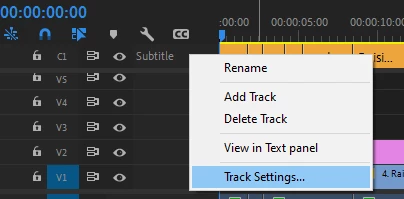
After some experimenting, I have found a way of turning off ligatures in captions.

Right-click the 'Subtitle' track and select Track Settings. Untick the ligatures box in here.

2 replies

Stan Jones
Community Expert
Community Expert
February 7, 2023

ryanm,


Thanks for reporting your solution. And yes, that is the only way to turn ligatures on and off for captions text.


There is no wrench icon in the EGP for Caption text, except for Appearance which is related to Stroke and Background styles. For Graphics text, there is a wrench under the Text section that has Ligature setting - but, as you found, it has no effect on Captions.


This is my report when I tested in version 22.5:

https://community.adobe.com/t5/premiere-pro-discussions/adding-caption-crash-premiere/m-p/13071437#M421585


Stan


ryanm16503321AuthorCorrect answer
Participant
February 7, 2023


After some experimenting, I have found a way of turning off ligatures in captions.

Right-click the 'Subtitle' track and select Track Settings. Untick the ligatures box in here.

Participant
October 7, 2024

The client kept on insting to turn ligatures off and we had no idea how to fix it! This is amazing! Thank you for the solution!