
Participant
August 6, 2021
Answered

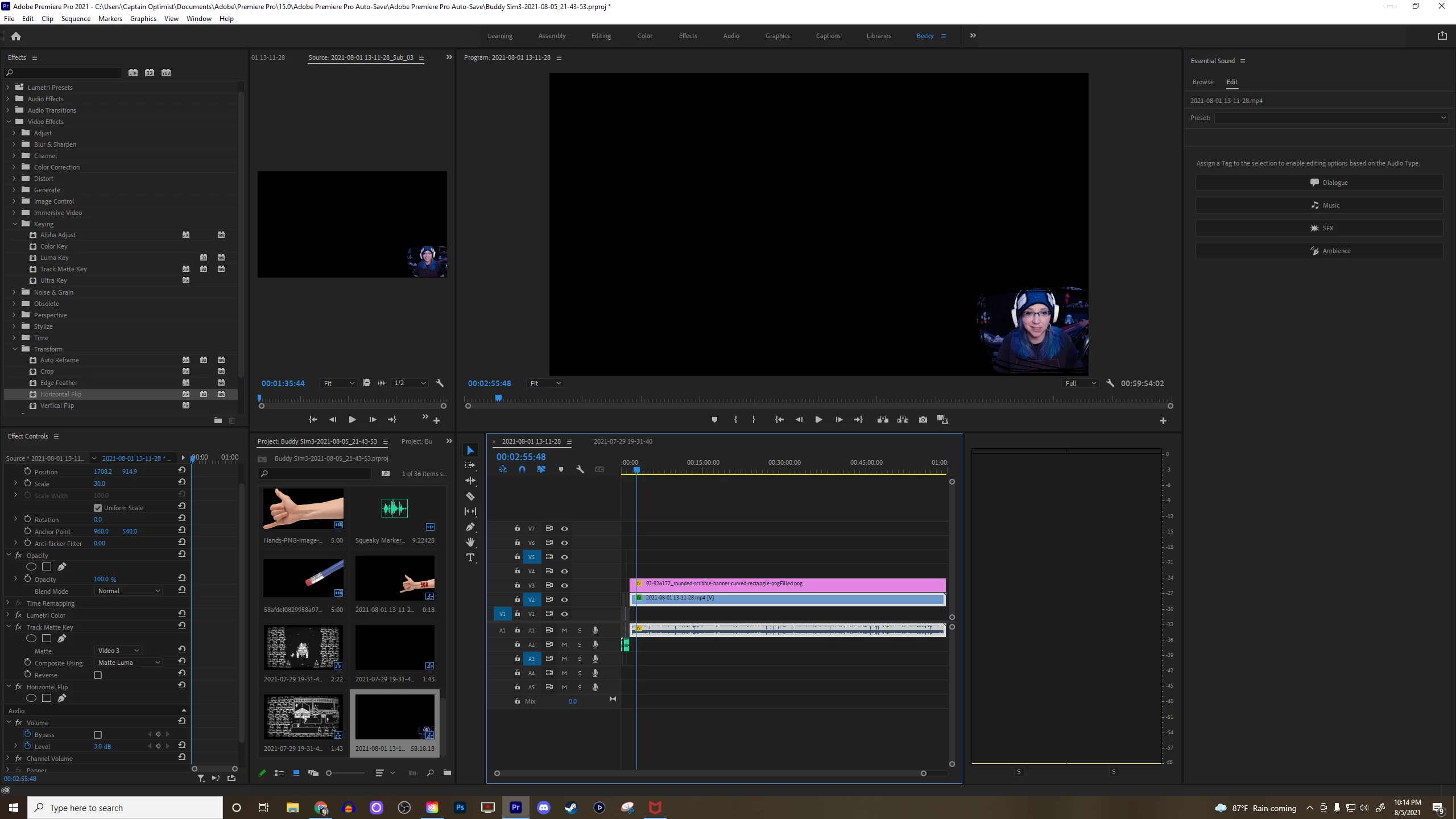
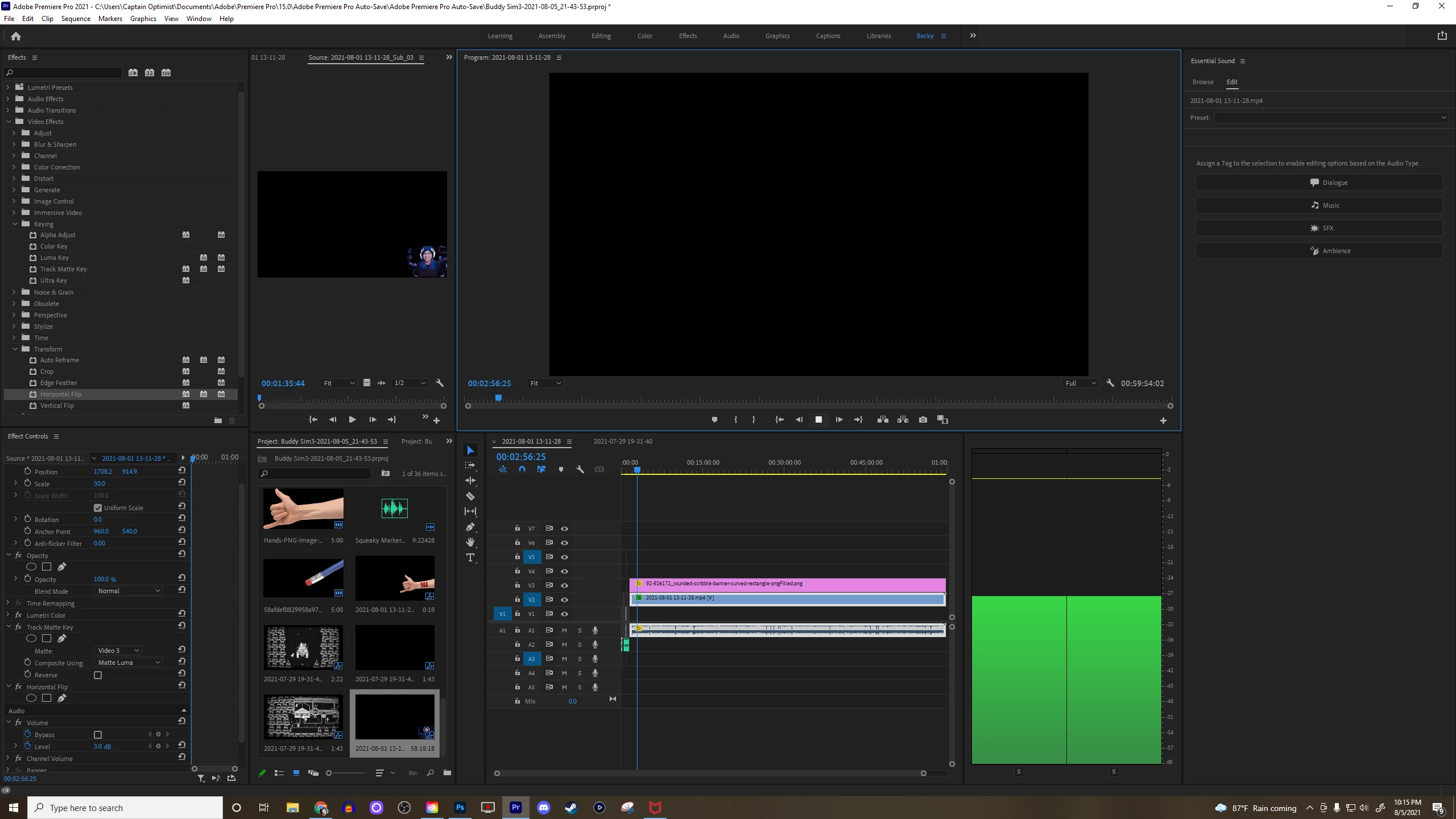
Track Matte makes my video disappear

  • August 6, 2021
  • 1 reply
  • 1081 views

Windows 10, Premiere Pro CC. I've been using the same file and process to make my facecam fill a png for my gaming videos, only now when I use it, the facecam disappears as I play the video. It shows up - in the track matte - when not playing, but the second I hit play it disappears. I've tried making the facecam and matte a subsequence, and that disappears as well.
Correct answer Ann Bens

I guess where I'm confused is that for many of my previous videos it worked fine - and now even the projects it previously worked fine in, I have this issue when I go back to review them. I always apply the matte before scaling the image, which is evident by the matte showing up perfectly fine when the video is paused.


I would drop the png as is over the mp4.

Nest mp4 open nest and scale.

Back to main timeline.

Add Track Matte

Nest png and mp4 together and scale and position in the corner.

1 reply

Kartika Rawat
Community Manager
Community Manager
August 6, 2021

Hi CaptainOptimist!

Sorry to see that. Could you confirm if it's happening after exporting? You can try Render In to Out.


Let us know.

Thanks,

Kartika

Participant
August 7, 2021

So it appears not to be an issue when exporting...but it still makes it very inconvenient during the editing process not to be able to see two layers. Also, I noticed something when creating this test video that may help you diagnose the issue. The disappearing happens when I have the matte layer flipped 180 degrees. However, when it's not flipped, it looks like this when I hit "play."

Participant
March 23, 2025

This is so true, its not an issue when you actually exporting it but it's weird not seeing it as you edit. This problem desperately needs to be fixed.