M1Storyteller
Inspiring
November 9, 2022
Answered

Transcribe "In Point To Out Point Only" Error

  • November 9, 2022
  • 3 replies
  • 14374 views

I've been using the Transcription tool for a little while now with no issues since the initial bugs when it was released. I am on the latest version of PP. At the moment, I am attempting to transcribe just a portion of what is on my sequence via the "in point to out point only" check box. For some strange reason, when I check that box, "Transcribe" greys out, and I can't seem to solve it.
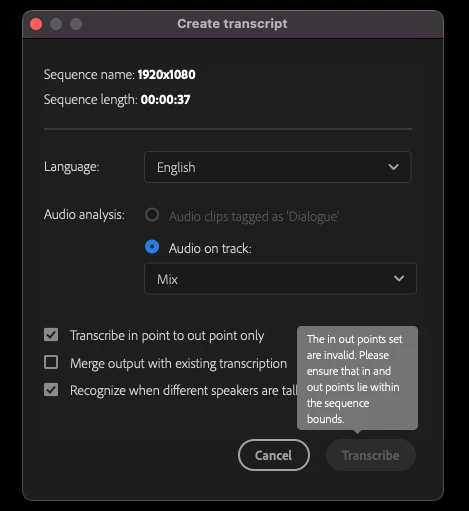
I've tried modifying the in and out points, but I still get the same result. I've also tried checking and unchecking all of the other boxes, selecting a different language, etc. Nothing seems to unlock the Transcribe button. Thanks in advance for any help.
This topic has been closed for replies.
Correct answer M1Storyteller

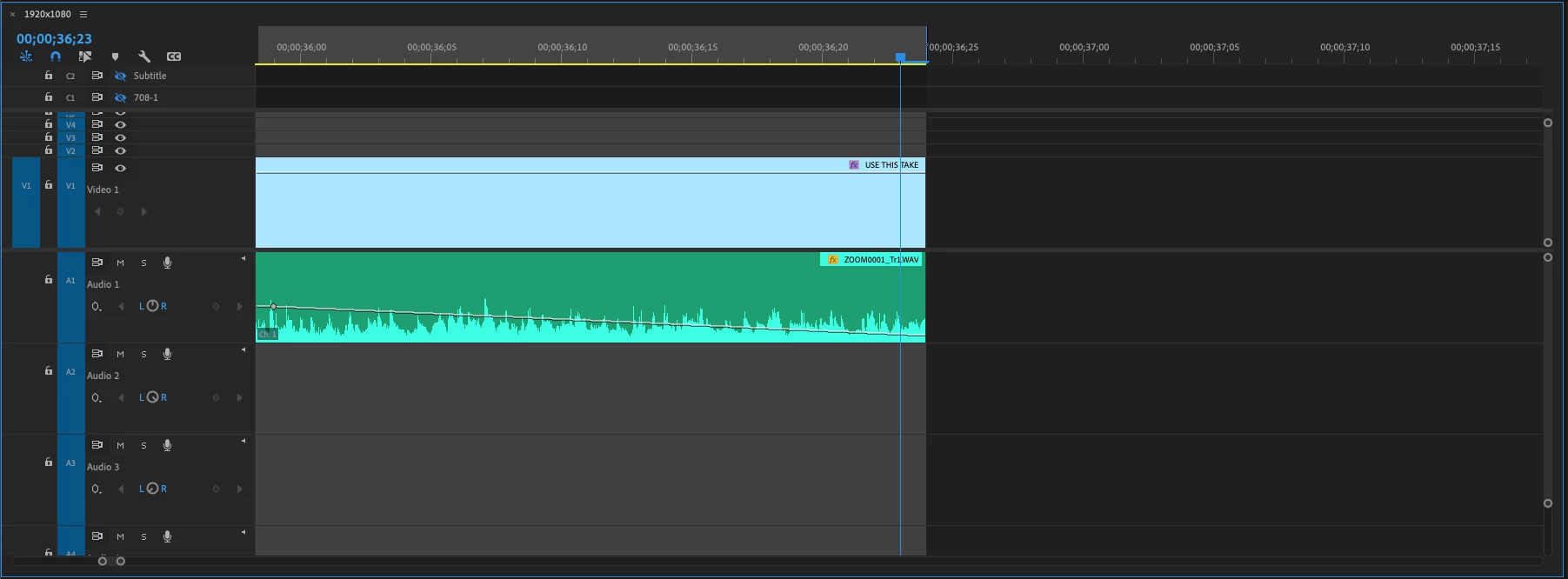
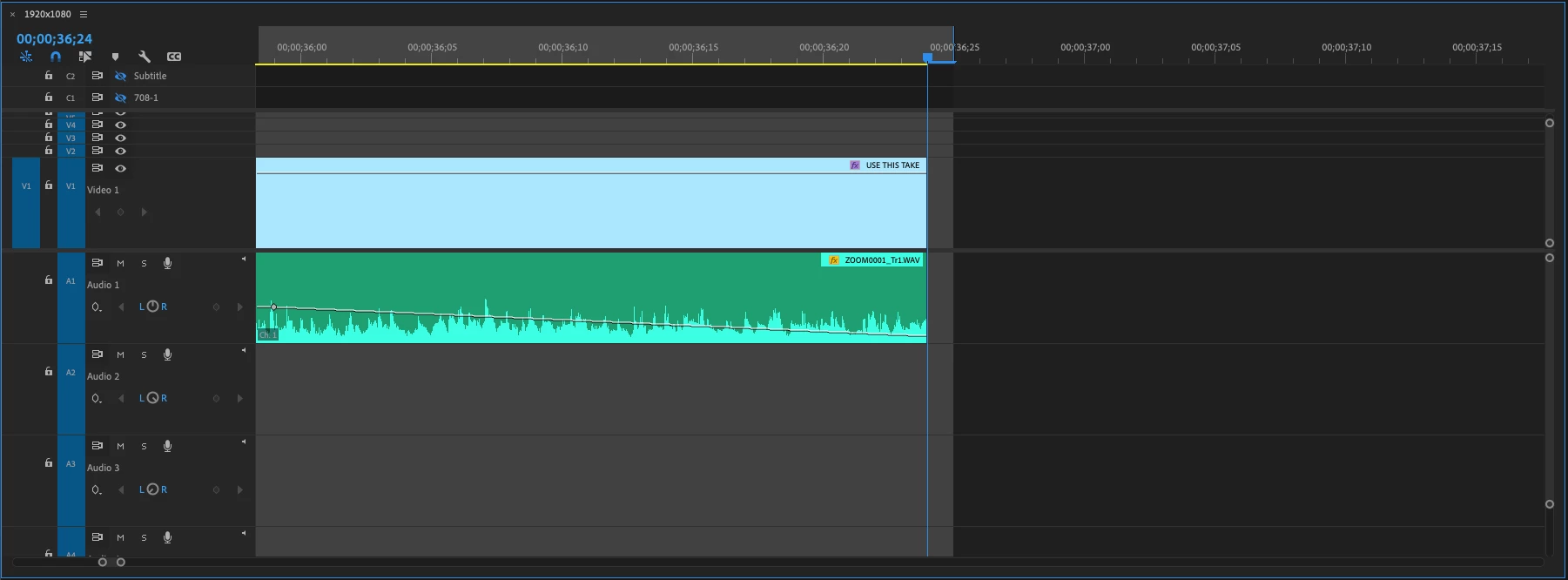
I've solved it. I realized that when I set my outpoint at the end (instead of the beginning) of the last frame, it actually picks up a frame of black - so, technically out of bounds, as you put it. I've always wondered why Adobe has it set up like this. By chance, do you know why they have it built this way?

3 replies

Participant
April 19, 2023

Hey there! 

 New here! I am trying to edit a stand up clip. I went to the source monitor and set my in point and out point when I click transcribe, they "transcribe point to point is greyed out. I have tried to pull it in to my timeline too, but still not seeing a resolution. I am sure this is due to my lack of knowledge but would love some guidance. 

Participant
April 19, 2023

Nevermind! I realized what I did. Since I only had on sequence that I was working with, it transcribed the whole thing. 

Eric Claridades
Inspiring
April 17, 2023

I found an easy solution: Select the clip/clips you want to transcribe then click the "/" key. It automatically sets the exact in and out points quickly. Then transcribe as normal.

Legend
April 17, 2023

Just a heads up, people are using different keyboards so the command is "mark clip" which I have mapped to "x" because I started with the fcp7 keyboard...  

Stan Jones
Community Expert
Community Expert
November 9, 2022

I had not seen this issue before. I suspect it is new since the workflow was changed slightly to avoid certain errors with in/out transcribing.


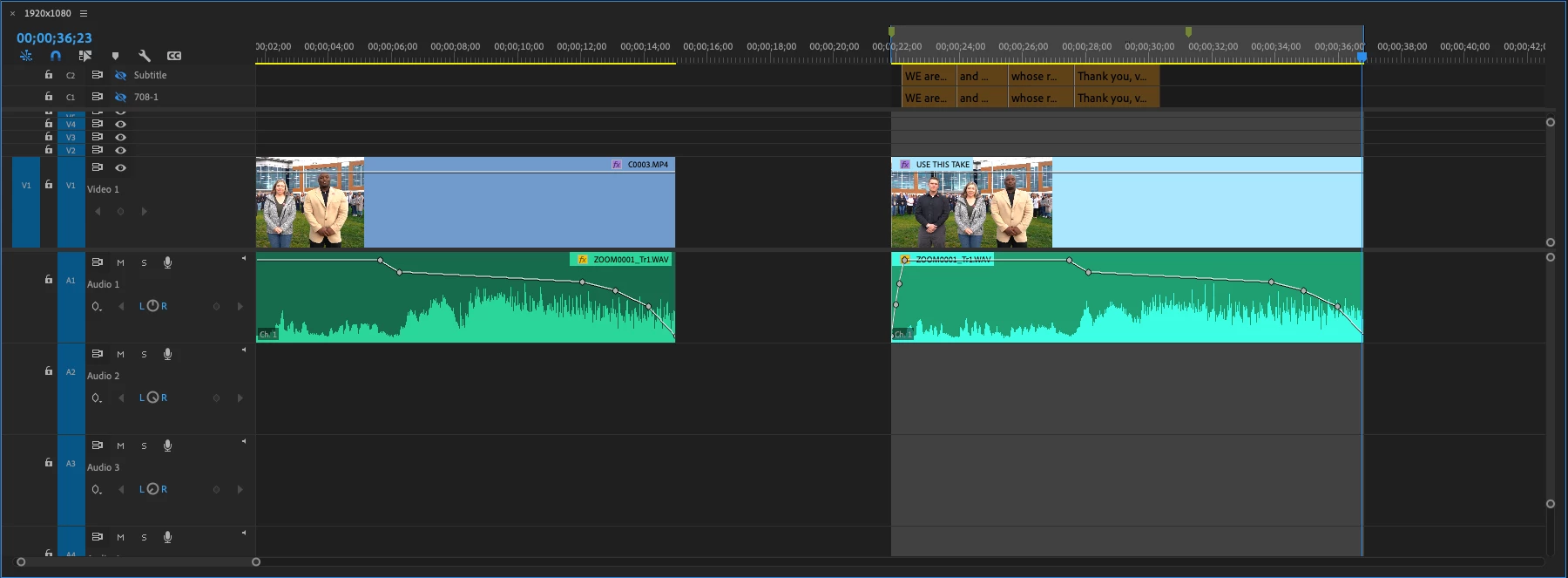
You must set BOTH an in point and an outpoint. If you set only an in point, the shading indicates that the implied end point is past the end of the sequence. If you set an out point only, it looks like there is an in point at the beginning of the sequence, but in fact there is no actual in point.


If you set an in point and out point, but the out point is past the end of the sequence, you also get the warning in  your screenshot. You do not appear to get such a warning if the video starts after an in point - I suspect because in such a case, the sequence still begins at zero.


Bottom line, you will get the disabled Transcribe button (and the warning - in/out out of bounds) if your out point is out of bounds OR if there is no "in" or no "out" point set.


Stan


Known Participant
February 18, 2023

I have the same problem. It doesn't help to move the outpoint one frame back. Premiere does not allow me to put in- and out points for transcription. The only way to get around it is to copy the clip I want to transcribe into a new sequence. 

Legend
February 23, 2023

I need subtitles as srt, so I can exchange or remove the subtitle track. Besides I will export the film with burned subtitles. And yes, it is no problem to import the new subtitle track into my main project. But I have several tracks already, so I would have preferred to keep working on the same one, instead of swapping back and forth all the time. That's why it helped a lot with the re-transcribe option. 


you should be able to merge the 2 tracks without issues as long as you do not have any overlap.   you simply select all the contents of one of the subtitle trackstracks and drag them to the other track making sure you are not shifting to the left or right.  I do it with keyboard shortcuts to insure I haven't shifted anything to the left or right.    Happy to go in to detail out to do this...  Also, there can be issues (can't remember whether it's dvds or blu-rays) if you have to subtitles right next to each other.  You have to leave at least a frame space between subtitles.    Recently finished a restoration of a 16mm documentary from the 80's where the client was obsessive about the subtitles.  Made me crazy...  constantly making changes, and then there were issues where some needed to be at the top of the screen so they weren't superimposed over preexisting burned in subtitles for the streaming version.  Got it all to work, but a royal pain.