Exit
  • Global community
    • Language:
      • Deutsch
      • English
      • Español
      • Français
      • Português
  • 日本語コミュニティ
  • 한국 커뮤니티
0

Transcript Not Showing Markers - Neither for "text" view or when exporting text file

Explorer ,
Mar 04, 2025 Mar 04, 2025

Is this a bug or am I doing something wrong?  I don't see any markers in my trascript view or the exported text file. Using the latest version of Premiere. Windows 11.
Geoffrey37968971duzb_0-1741099617928.png

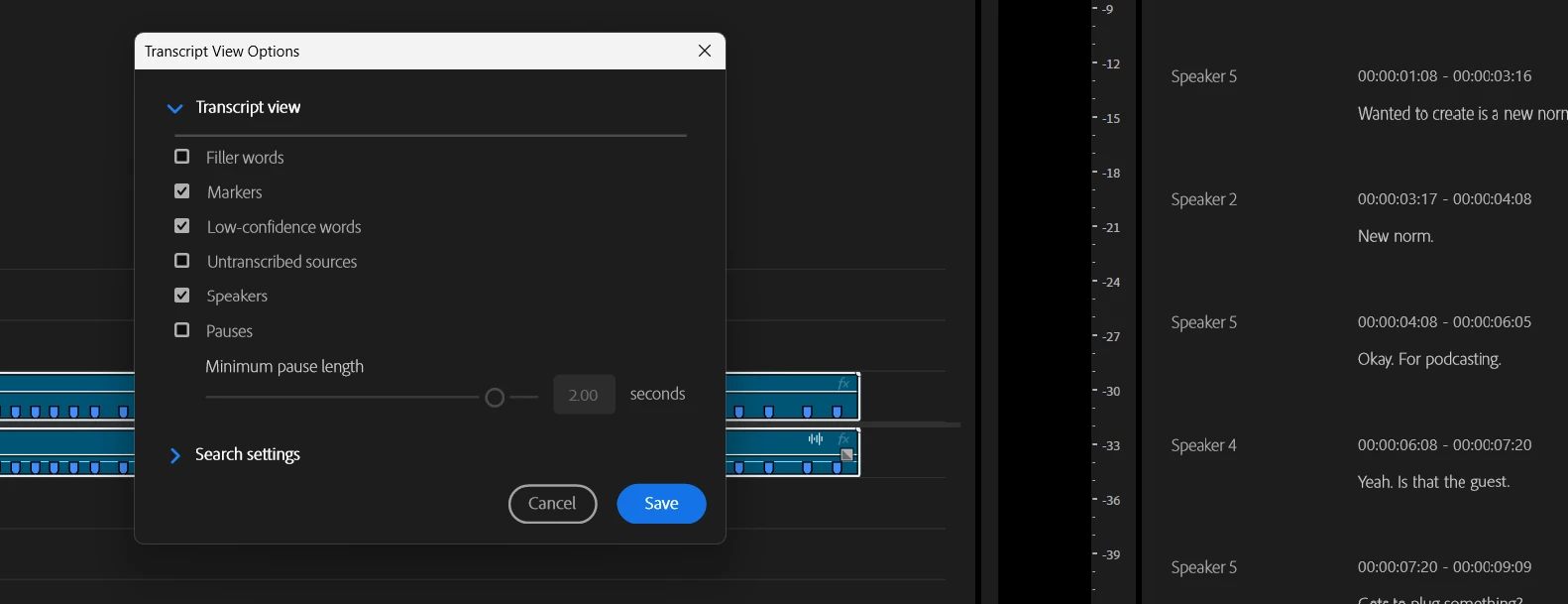
"markers" selected in view options

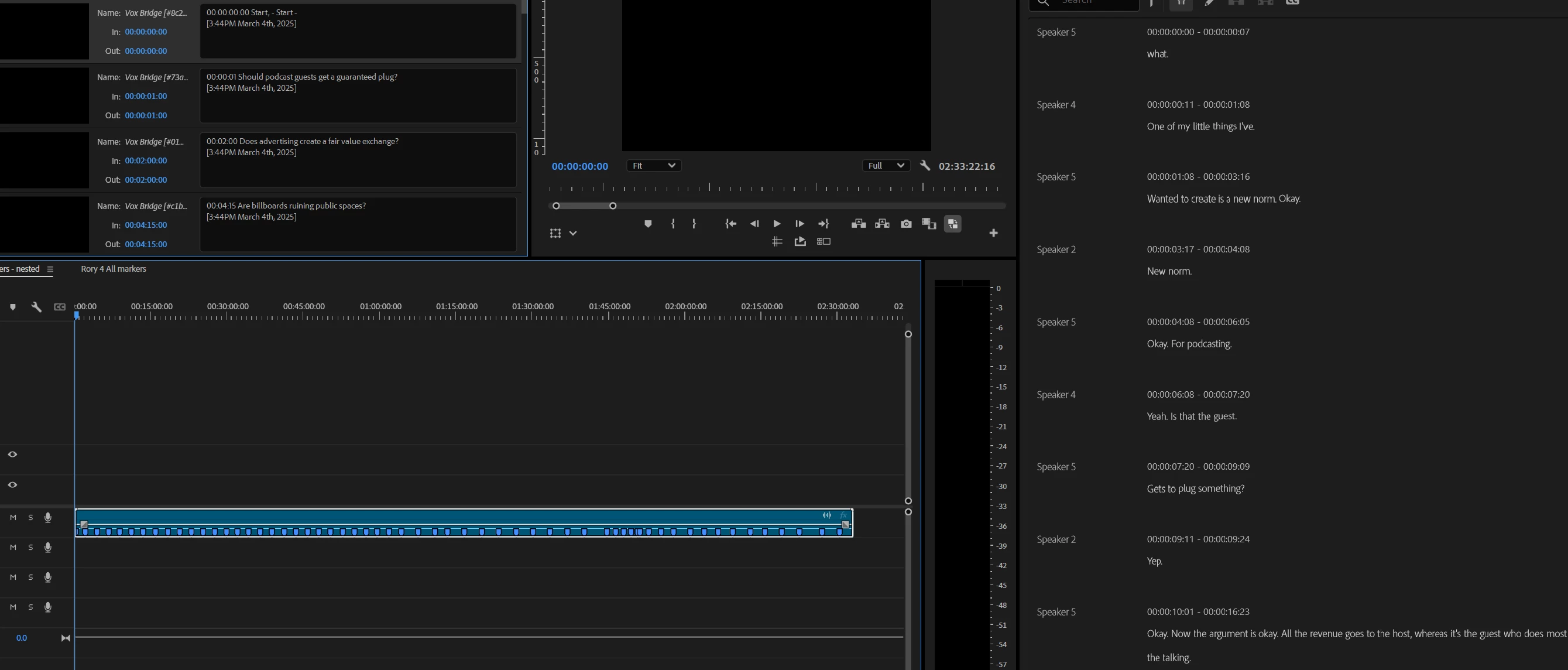
Geoffrey37968971duzb_1-1741099645284.png

same result if the markers are on the timeline instead of the actual clips
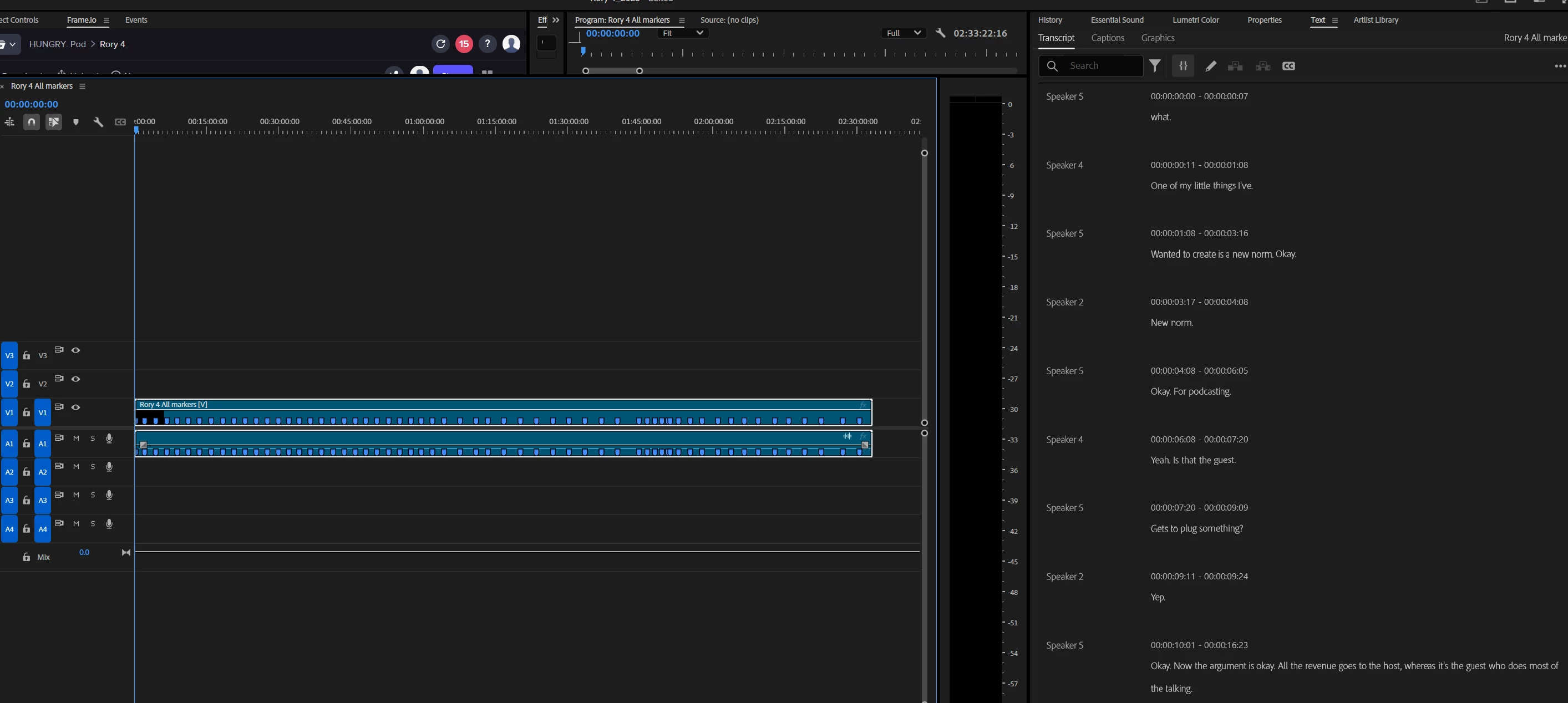
Geoffrey37968971duzb_2-1741099735909.png
markers panel view

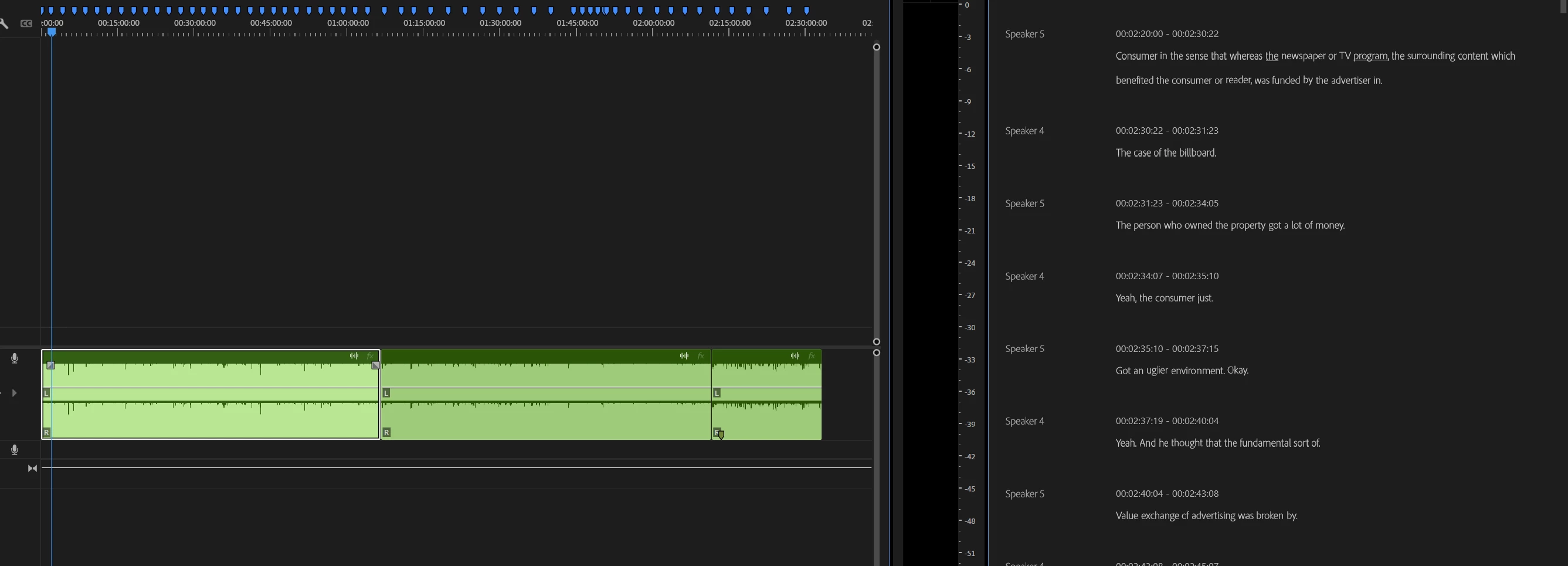
Geoffrey37968971duzb_3-1741099914038.png


362
Translate
Report
Community guidelines
Be kind and respectful, give credit to the original source of content, and search for duplicates before posting. Learn more
community guidelines
Community Expert ,
Mar 04, 2025 Mar 04, 2025

@Geoffrey37968971duzb,


One of your examples should work, but we're not seeing which view you are in (source vs sequence).


From the post introducing this in the Beta:


"Markers on source clips are shown when viewing a source clip’s transcript, and markers on sequences are shown when viewing the sequence transcript. However, markers on source clips are not shown when viewing a sequence transcript."

https://community.adobe.com/t5/premiere-pro-beta-discussions/now-in-beta-show-markers-in-transcript/...


And I would add what I see (testing in Beta 25.3.0.3), sequence markers are not shown when viewing a source transcript even if opened from the sequence. 


We SHOULD be seeing the markers in your example with the Sequence markers, unless you have turned off the "follow active monitor" and are in source view.


@mattchristensen I did not look: when did this hit the release version, and is there a helpx page that has this info?


Stan


Translate
Report
Community guidelines
Be kind and respectful, give credit to the original source of content, and search for duplicates before posting. Learn more
community guidelines
Explorer ,
Mar 05, 2025 Mar 05, 2025

I'm not sure I completely understand the distinction between source clip transcript and sequence transcript, but for whatever reason the markers are now showing! I didn't change anything with the clips or sequence, just a simple restart of Premeire fixed it. Now I have a completely different issue of the default transition shortcut doing nothing on clips...*sigh*  I'll have to make a new post for that one though.

Translate
Report
Community guidelines
Be kind and respectful, give credit to the original source of content, and search for duplicates before posting. Learn more
community guidelines
Community Expert ,
Mar 06, 2025 Mar 06, 2025
LATEST

@Geoffrey37968971duzb,


Thanks for the update. I hope it just keeps working!


> I'm not sure I completely understand the distinction between source clip transcript and sequence transcript


The text-based editing workflow has a serious learning curve. When it works, it seems intuitive, but when it doesn't, it can be very confusing. Some of Premiere Pro can be sorted by just jumping in and doing. This is not one of them.


The help guide is here:

https://helpx.adobe.com/premiere-pro/using/text-based-editing.html


There are 2 types of transcripts and 2 "views." The original type of transcript was a static transcript of a sequence. Once created, it does not change as you edit your sequence. The second type of transcript was introduced with text-based editing and can be referred to as the "source media" transcript. It stays with the clip. So there are 3 situations that are most relevant: A) source media transcript in source monitor view; B) source media transcript(s) in program monitor/timeline view; and C) static transcript (of a sequence) in program monitor/timeline view.


How is the view changed? In the Text Panel/Transcript tab, bottom left, you will see a check box for "Follow active monitor." If you have this checked, it will automatically change the view as you switch from the timeline/program monitor to the source monitor. If you do not have it checked, you manually click one of the icons for "Show Source monitor transcript" or "Show Program monitor transcript." I'll assume you have this checked.


A - Open a clip in the Source Monitor, and switch to the Text panel/Transcript tab. You will see the source media transcript for the clip that is active in the Source Monitor. If there is no clip open there, you see No dialogue found. This is the Source media transcript in Source Monitor view. Note that if you click on the 3 dots drop-down menu, there is no option for Create static transcript.


B - Open a sequence in the timeline that has at least one clip transcribed, and switch to the Text panel/Transcript tab. You will see the source media transcript for all the clips in the sequence that are transcribed. If there are untranscribed clips, you will see a message to that effect. Edit the timeline (delete, move, add another clip), and the transcript you see is the combination of all the clips' transcripts as edited. This is the Source media transcript(s) in Program Monitor view. It can be confusing for at least 2 reasons. 1) It is truly a Sequence transcript even though it is composed of Source media transcripts. 2) You can do some things in this view (edit the text of the transcript you see and have the text changed in the source media) but you cannot do others (edit Speaker names which must be done in Source Monitor view).


C - Now, click on the 3-dot menu, and pick Generate static transcript. The transcript you create includes only what is in the sequence when created and will not change as you edit the timeline. If you wanted to return to the source media transcripts, click the 3-dot menu and pick Generate text-based editing transcript. It returns to the combination of source media transcripts for the sequence.


If you create captions in paragraph B and you create captions in paragraph C (without making any changes to the timeline), the captions will be identical.


This may now be clear as mud. Make it muddier: nest the sequence with a STATIC transcript in another sequence. As you edit that other sequence, it behaves as a source media transcript. omg


Stan


Translate
Report
Community guidelines
Be kind and respectful, give credit to the original source of content, and search for duplicates before posting. Learn more
community guidelines