Inspiring
December 18, 2023
Answered

Unable to break out nested layers when using nest as source

  • December 18, 2023
  • 44 replies
  • 5324 views

Today has been a day I'd rather forget in Premiere Pro 4.1.0. I'll just report this persistent bug here which is killing my normal workflow but t's not the only one to hit me today.


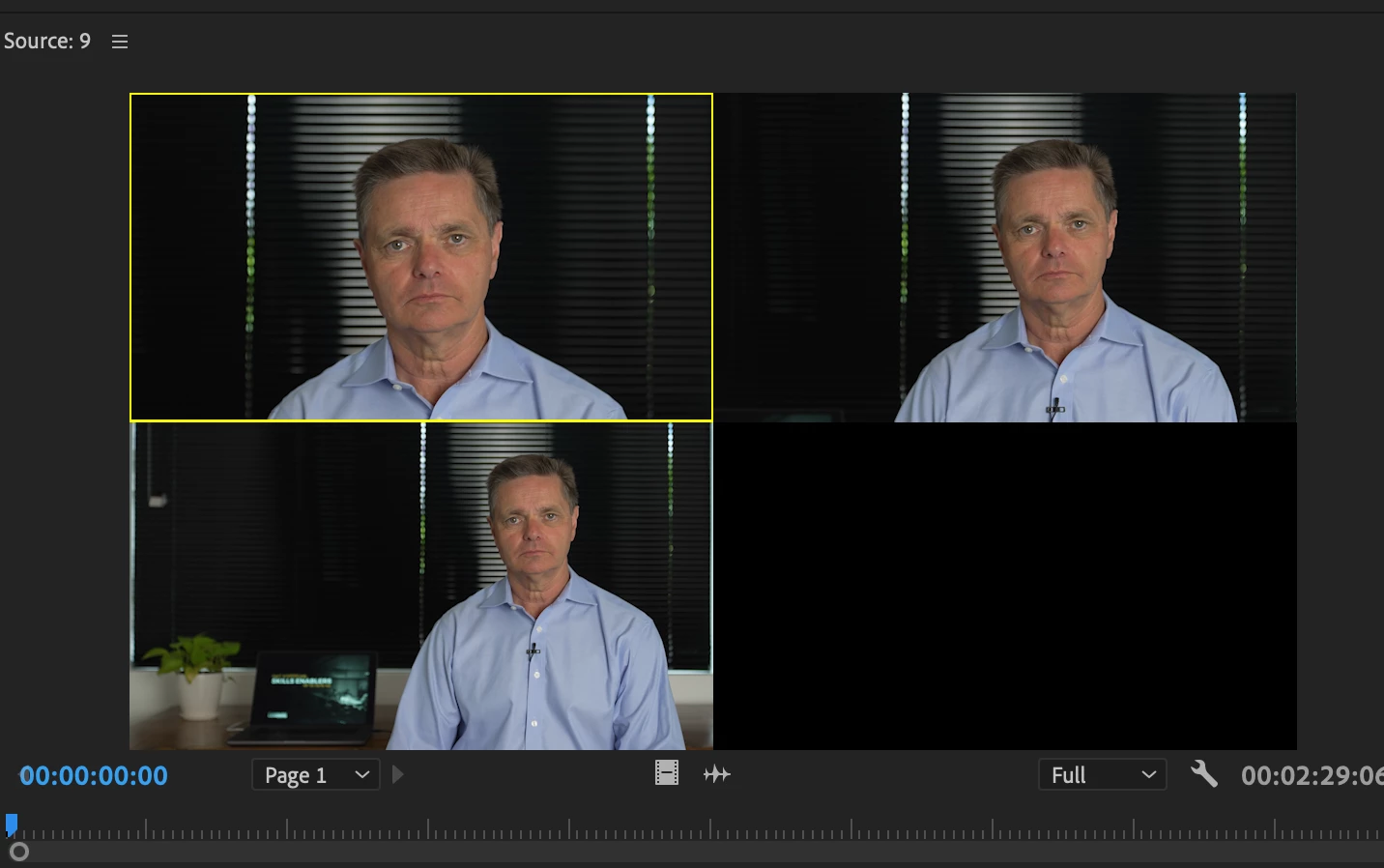
1. I often shoot in 4K and create a multicam source with the source reframed in 1080P as below
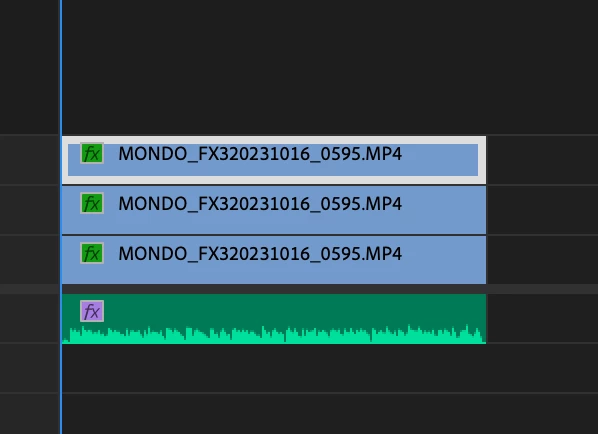
2. I then use that multicam as a source as seen above

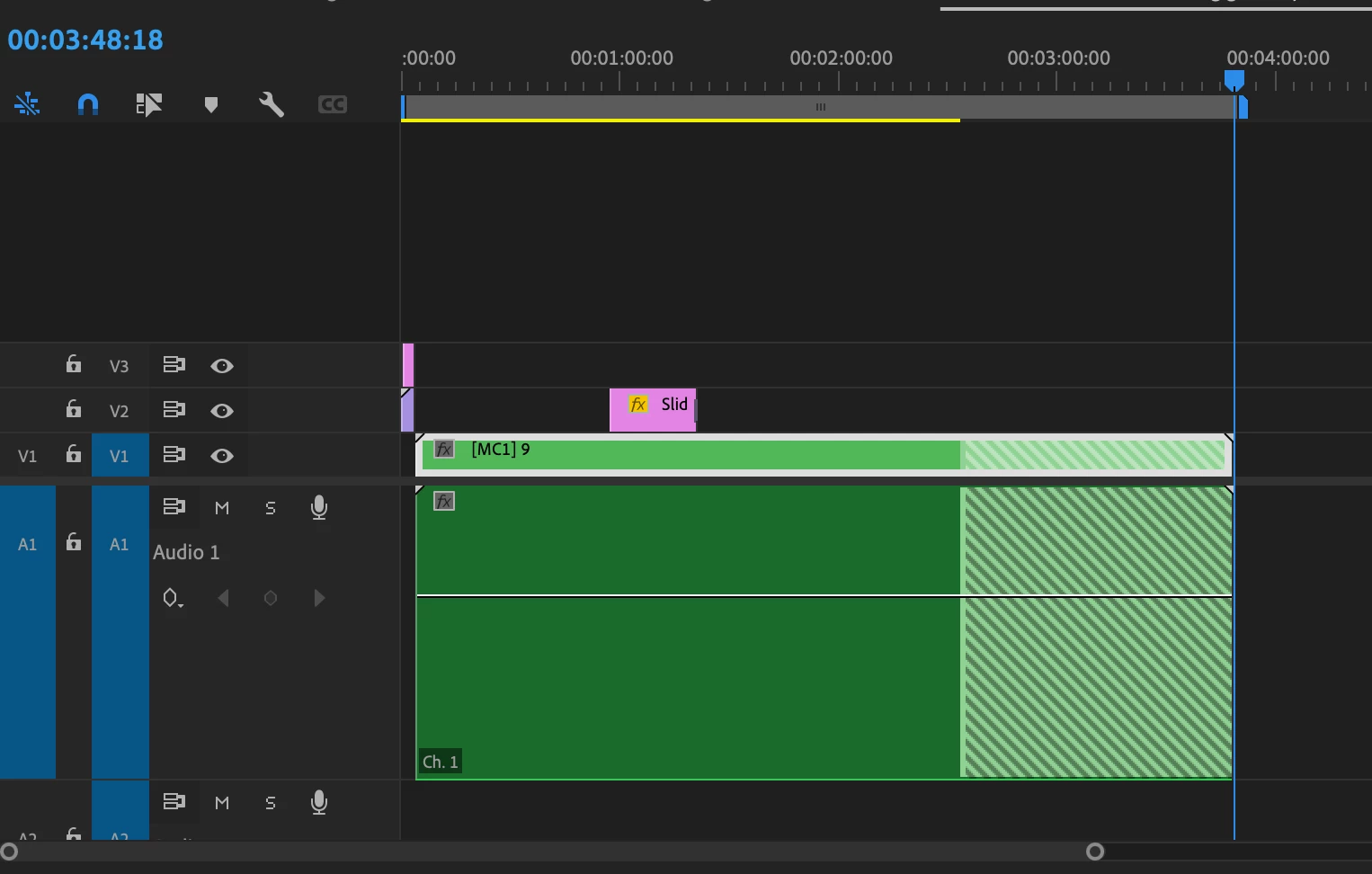
3. I cut it into the sequence as nested video
4. But I like to cut my raw audio in for two reasons - it may need to be adjusted in the essential audio panel and I like to see my waveforms when editing - something that doesn't work in multicam audio (why Adobe? A topic for another discussion)

5. This is a workflow that I've used a thousand times before - both on this kind of multicam and 4 camera multicams - any kind of multicam. Today it's broken... if you look at the image above and below, no matter which way I toggle the nested source button it does not un-nest (is that a word?). I cannot see my nested source tracks, it only appears as source nest.
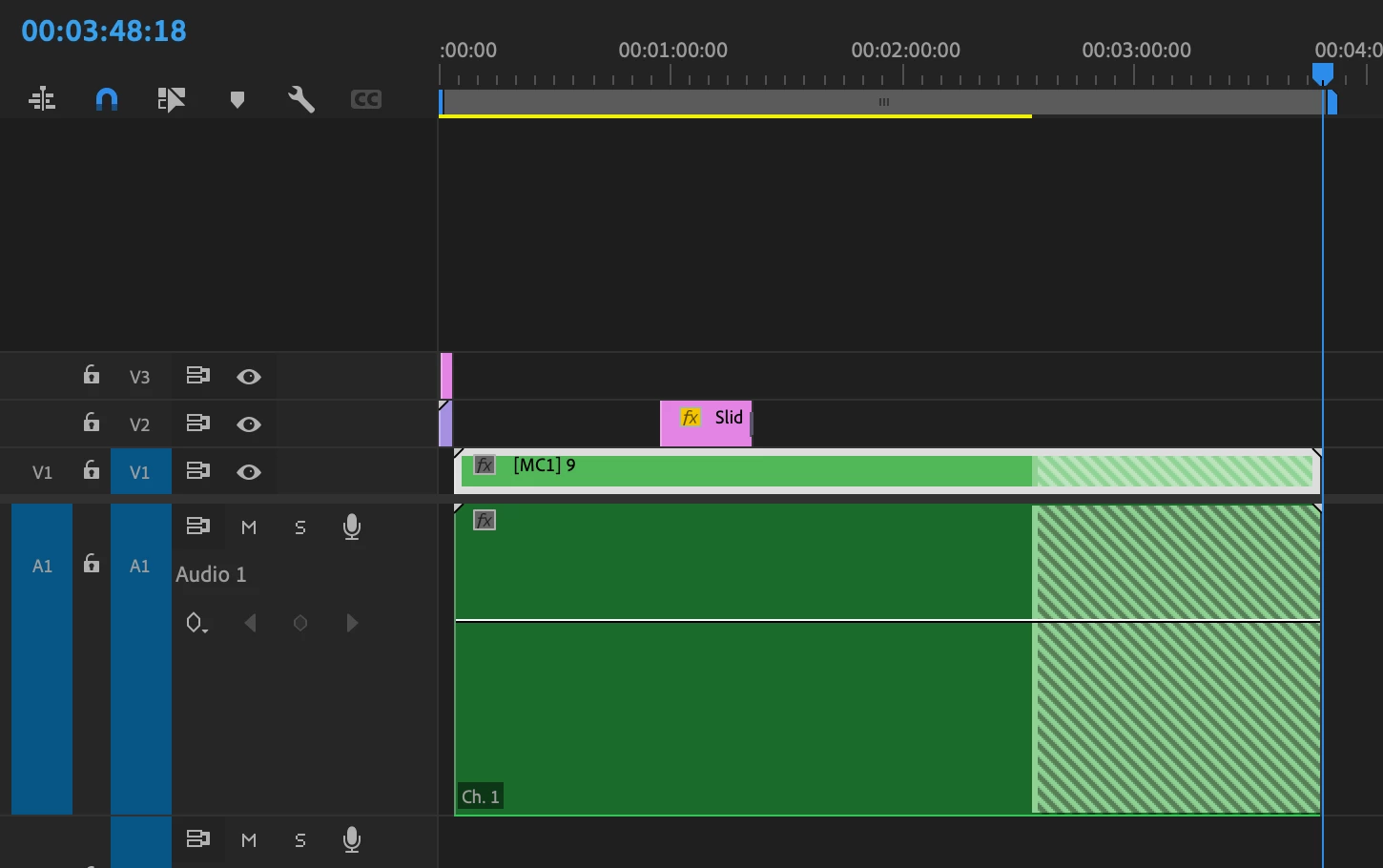
I should be able to see my individual video and audio tracks from the source. ie V1, V2, V3 and A1 - A5. this is breaking a significant workflow for me. 


I've tried making sure I have the source window selected (becaue I've noticed sometimes PP will ignore the source if you've previously dragged something straight form the project window), taking the sequence I'm editing into out of multicam mode (not that that has ever affected it before) but it's broken. At least for my setup. 


Yes, I can work around it by copy and pasting from the source but it involves a number of additional steps to keep the audio in sync that I wouldn't normally have to do.


System specs MacBook Pro


  •          Model Name:    MacBook Pro
  •          Model Identifier:        MacBookPro18,2
  •          Model Number:         MK1A3X/A
  •          Chip: Apple M1 Max
  •          Total Number of Cores:      10 (8 performance and 2 efficiency)
  •         Memory:  32 GB
  •          System Firmware Version: 10151.41.12
  • Operating System: Sonoma 14.1.1


This topic has been closed for replies.
Correct answer Ben Insler
could you at least put it to a vote?


Not to worry @JOHN MONDO, any opinions voiced are considered a vote cast, so the vote's been ongoing the momemt you started this tread 🙂   


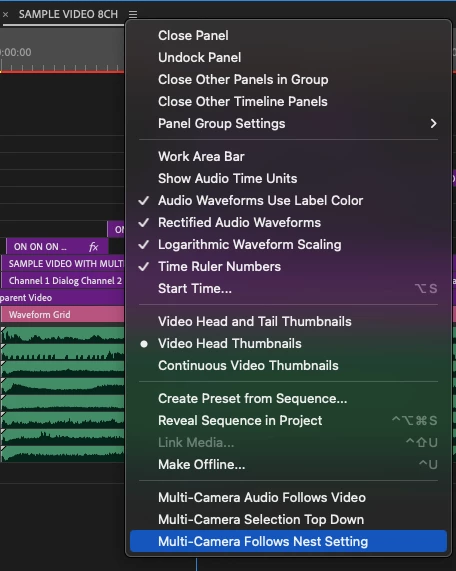
We have restored this functionality with a new preference in the timeline panel menu called Multi-Camera Follows Nest Setting.  When enabled, cutting Multi-Cams into a sequence will revert back to the old behavior where the ...Nests or individual clips toggle is respected.  This is available right now in Beta.  Keep an eye on future version release notes for non-Beta availability.


Thanks for all the feedback from everyone here!


44 replies

Participant
August 15, 2024

I'm going back to the previous version of Premiere because of this change. What a mess around!

As an AE having all the clips un-nested and unlinked is essential for prepping timelines how my editor wants it and allowing full flexibility. This was one of the last things stopping me from going over to Resolve... once BM finds an answer to productions its game over for Premiere. 

Participant
August 15, 2024

I nearly had an aneurysm solving this. I can't believe the only place I could find an answer was deep in the support forums. 

Kevin-Monahan
Community Manager
Community Manager
March 18, 2024

Hello @JOHN MONDO, @jasondecker, and @Dreamotion ®,
A product team member has marked this bug as fixed, so I can change its status.

Please let the community know if you still have trouble with this issue.


Thanks,
Kevin

Kevin Monahan - Sr. Community and Engagement Strategist – Adobe Pro Video and Audio
jasondecker
Known Participant
March 12, 2024

@Ben Insler So I actually wrote a bug report about this the other day and was coming back here to update it with further broken functionality when a deep Google search turned up this thread. This answered not only this question but a few others about Multi-Cam that I didn't even know I had, so thanks for that. But I work with Multi-Cams literally all the time and getting this information from a comment thread on a bug report doesn't feel like the greatest way to learn these things.


Which is to say:


The Multi-Camera Follows Nest Setting option does appear to be live in the current version (24.2.1) but I've scoured the Release Notes to find out where I should have learned about these changes and can't find anything. Am I just missing it? Or is Adobe maybe in need of some better documentation when making deep structural changes to long-standing workflows that aren't necessarily the shiny new AI tools and Tiktok export functionality?


Your workflow suggestion about making a "holding" Multi-Cam sequence with the correct number of video and audio tracks and then creating a second one for the auto-sync which ends up with dozens of tracks that need to be collapsed down is completely new to me. Again... Adobe might want to look into clear, concise, and complete documenation on these things. We as users have been utilizing a multitude of workarounds over the years to get things to work the way we need them to, so if certain workarounds are probably fine and others aren't, it would be REALLY helpful to know exactly how Adobe thinks we should be using these things, step-by-step, with all potential use cases laid out... and not just in a comment thread on a bug post on the forum. Auto-sync isn't perfect. And field shooters and sound recorders are even less so. And, in Doc work, there are even times when we get another random camera of an event (often cellphone footage that we acquire from an outside source) that we'd like to add into an existing multi-cam. We need flexibility to manually adjust and tweak multi-cams to correct for these potentials and should probably know which ways of dealing with them are fine and which have the potential to break things down the line.

Inspiring
March 12, 2024

@Ben Insler Thank you for your swift reply and relative information regarding my similar post in another forum - this whole situation lost me and my colleagues a day of editing. Having to scour the internet to deep-dive and find a change Adobe has made to something essential to editing  AND didn't need chaning is the frustrating part of all this. But again, thanks for the swift reply and pointing me in the right direction. We just want to be able to work conistently and without facing hurdles like this.

Community Manager
February 22, 2024

Hi @Leapnlarry - please see the correct answer above.

Leapnlarry
Participant
February 22, 2024

Hey Ben,

thank god i finally found this thread.  I was going nuts trying to figure out why my multicams were not dropping as individual clips when nesting was off.  my work around has been to open in timeline, then copy and past the individual clips to the new timeline.

it is so much easier to just turn off nesting, and drop the multicam sequence on a timeline.


sometimes I want to see all the individual audio and video clips and choose them manually instead of doing the multicam workflow.  


Is adobe trying to find a way to re-enable the ability to drop the multicams into a timeline as individual clips, back to the way we used to be able to do it.


thanks

Ben InslerCommunity ManagerCorrect answer
Community Manager
January 30, 2024
could you at least put it to a vote?


Not to worry @JOHN MONDO, any opinions voiced are considered a vote cast, so the vote's been ongoing the momemt you started this tread 🙂   


We have restored this functionality with a new preference in the timeline panel menu called Multi-Camera Follows Nest Setting.  When enabled, cutting Multi-Cams into a sequence will revert back to the old behavior where the ...Nests or individual clips toggle is respected.  This is available right now in Beta.  Keep an eye on future version release notes for non-Beta availability.


Thanks for all the feedback from everyone here!


Inspiring
January 30, 2024
the full green multicam block in the top image is totally unweildy and hard to interpret.

At the risk of oversharing (and not at all intending to impose my own personal preferences), I disagree.  To me this acutally looks cleaner as it is clear that the audio and picture assets are associated together in the timeline while maintaining access to all the audio ISOs, and if track organization is consistent across the workflow, it's still relatively clear which track each subject lives on.  It also gives me access to the source audio at the source clip level rathre than having to rely explicitly on the stringout sequence.  As you mentioned though, this is more a case of expectation than functional limitation.  That said you do lose the subject labeling per track in the Multi-Cam, and I concede that this is nice to have from the Editor's perspective, sepecially if mic'd subjects are changing setup-to-setup.

@Ben Insler 

Ben - I'm going to point out a flaw in your logic. The great thing about seeing the source audio as discrete clips is you can tell where the camera started and stopped recording to the frame. You can't do that with a continuous green line. I've not heard a single editor complain about the previous functionality and plenty complain about the change. Users in this thread include a variety of very distinct and advanced workflows. Maybe consider reversing this decision as it doesn't seem too popular. It's not like you had users knocking down your door saying this nest multicam thing is a nuisance. I do appreciate all your input here but could you at least put it to a vote?

Inspiring
January 30, 2024

Sorry, no - I thought youor the mods could just break it out into a new thread.

Remote Index
January 30, 2024

@Ben Insler 


I will note here that you describe the Audio Channels Preset "Automatic" this way:


By selecting this option, Premiere Pro will examine the audio components of each clip being used to build the Multi-Cam, and then select a track routing option that best encapsulates all of your different sources. 


However, Adobe documentation describes it this way:


Automatic: Reads the audio type of the first clip and uses this mapping.


Which is correct?  @Kevin-Monahan (documentation issue)


R.