Participating Frequently
April 28, 2017
Answered

Unable to use Essential Graphics templates created in AE

  • April 28, 2017
  • 33 replies
  • 65478 views

- Latest licensed Premiere and After Effects is installed

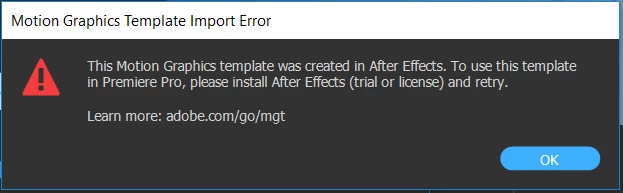
When attempting to use an Essential Graphics template I create in AE, in Premiere I get the following error message:

I am able to use the built-in templates in Premiere without issue.

This topic has been closed for replies.
Correct answer James Landy

I think I figured it out.  It appears that you are using the root directory of a drive for Media Cache, which is not supported by AE.  It's possible to get into this state because PR and AE share the same cache directory.  And if you migrated your AE preferences when updating to 14.2, AE will use the root directory settings from the older AE preferences.  That is the actual problem, which results in the failure to use the (.mogrts) in PR.

We'll look into changing that behavior.  In the mean time, you can try to workaround it by setting the AE preference for Conformed Media Cache, to use the default location, or a non-root directory.

33 replies

Participant
January 8, 2018

I have changed the disk cache as stated on Adobe forum. And the problem persists.  Can you do a tutorial on how to change the cache in the right way so that we can use the file? When I change the cache for premiere it also CHANGES IT for After effects!! :-O

Participant
June 28, 2017

Hi,

Sorry to burst the bubble of this is solved but this is still not working for me...

I created an assest in after effects saved it out opened it in PP and it still comes up with the original error.

I changed the location of my cache files to a new folder in my documents. What am i doing wrong?

THankyou you

R Neil Haugen
Legend
June 28, 2017

If you have only one drive, I would suggest making an "Adobe" folder on the drive, then a subfolder for say "Cache Files" and then another sub of that for telling the Adobe programs (PrPro, Ae, Audition etc) where to put your cache/cache database/pek files.

If you've got two local drives, I'd still leave them there.

If you've got three local drives, with one a newer SSD, I might put your cache drives on a drive other than your OS drive, BUT ... in a folder arrangement as above. Makes them easy to manage.

If you're in a group environment, where cache files need to travel, then they need to be in a Cache folder tree on the drive that has your projects/media that travels.

My 2 US cents ...

Neil

Everyone's mileage always varies ...
James Landy
James LandyCorrect answer
Inspiring
June 16, 2017

I think I figured it out.  It appears that you are using the root directory of a drive for Media Cache, which is not supported by AE.  It's possible to get into this state because PR and AE share the same cache directory.  And if you migrated your AE preferences when updating to 14.2, AE will use the root directory settings from the older AE preferences.  That is the actual problem, which results in the failure to use the (.mogrts) in PR.

We'll look into changing that behavior.  In the mean time, you can try to workaround it by setting the AE preference for Conformed Media Cache, to use the default location, or a non-root directory.

Adam_IMAGO
Participating Frequently
September 26, 2017

https://forums.adobe.com/people/James+Landy  wrote

I think I figured it out.  It appears that you are using the root directory of a drive for Media Cache, which is not supported by AE.  It's possible to get into this state because PR and AE share the same cache directory.  And if you migrated your AE preferences when updating to 14.2, AE will use the root directory settings from the older AE preferences.  That is the actual problem, which results in the failure to use the (.mogrts) in PR.

We'll look into changing that behavior.  In the mean time, you can try to workaround it by setting the AE preference for Conformed Media Cache, to use the default location, or a non-root directory.

YES, THIS IS THE ANSWER

To clarify here is a screenshot of my settings:

Observe that not only is the "Conformed Media Cache" > "Cache" folder not only on a separate drive than my OS (drive "D:\") but it is ALSO in a sub-folder on that drive. This was the key, as I've had "Conformed Media Cache" > "Cache" setup as just "D:\" this whole time. I created a new folder called "Conformed Media Cache" and decided to put it inside the "Adobe After Effects" folder, but as long as this is not on the root of your drive ("D:\" in my case) then it should work.

Roland Kahlenberg
Legend
September 29, 2017

But are they on the same drive as your OS?


Of course it's on a different drive. Maybe I should check if my drive's formatted???
This is a silly/stupid bug if it's got to do with the location of the file/folder!!!

Very Advanced After Effects Training | Adaptive & Responsive Toolkits | Intelligent Design Assets (IDAs) | MoGraph Design System DEV
James Landy
Inspiring
June 13, 2017

Here is another possible workaround, if the cause of the failure is a result of read/write privileges, specific to your system.

Background:

When the AE (.mogrt) is added to a PR sequence, headless AE launches as a background process, and temporarily opens the project on disk.  The default location for the temp directory is:

Win, C:\Users\username\AppData\Roaming\Adobe\Common

Mac, Users\username\Library\Application Support\Adobe\Common

However, you can change the target directory for temp projects.

1. Launch AE, and open the preferences tab for Media & Disk Cache.

2. In the Conformed Media Cache pane, choose a New Folder for Database, and Cache. 

3. Select a directory that is not located in your User library, for example, select the User\Documents folder, or another directory that is not hidded from the user by default, by the OS.

4. Click OK to close AE preferences. 

5. Quit AE.

6. Install and add an AE (.mogrt) into a PR sequence.

This will force headless AE, to write the temp project, to a non-system directory.  You can verify this by viewing the contents of the new target directory.  It should now contain com.adobe.ae.cap, Media Cache, and Media Cache Files folders.

Known Participant
June 15, 2017

James Landy:

Thanks for these new instructions.

I have the AE directory folder for Disk Cache, Conformed Media Cache "Database" and "Cache" all pointing to the following drive location:

Disk Cache                           G\Media Cache

Conformed Media Cache    

Database: G\

Cache:      G:

Disk G is an M2 flash drive.

But when placing an AE .mogrt on a Premiere timeline it still stalls at 15% and then falsely reports I need to install the latest AE which is already installed on my system.

Known Participant
June 15, 2017

I should also add that on this G drive that I am pointing too for Media Cache noted above, I do see the following folders:

com.adobe.ae.cap

Media Cache

Media Cache Files

Known Participant
June 13, 2017

sad to report that this June 13, 2017 bug fix does NOT resolve this issue of AE mogrts failing in Premiere Pro and falsely reporting that you need to install the latest version of After Effects when in fact. the latest version of After Effects IS INSTALLED.

Extremely disappointing.

Known Participant
June 13, 2017

ok - just went thru most of the suggested fixes again after the latest updates-

log out and into CC Account

check cache disc permissions (and all disc permissions) to allow all Users read/write and Full Control

delete PP and AE cache folders

reboot workstation

startup PP and try and install a pre-installed AE Essential Graphics title

Same failed result - the AE mogrt tries to load into the PPro timeline - stalls at 15% - then falsely reports I need to install the latest AE version which is already installed (and confirmed via looking up the About AE in the Help tab).

These latest 6-13-17 Updates to nothing to fix this issue

R Neil Haugen
Legend
June 13, 2017

Please file the bug report ... they don't respond, but these do get distributed in a tabulated form to all manager types, and getting the best understanding of where a problem is and how wide ... and if "a" fix doesn't work in other situations ... is really good.

Neil

https://www.adobe.com/cfusion/mmform/index.cfm?name=wishform

Everyone's mileage always varies ...
Known Participant
June 13, 2017

As of June 13, 2017 there are new updates for both Premiere (version 11.1.2) and After Effects.  Downloading them now to see if they fix this problem. Both update descriptions state these updates are for bug fixes.

Have searched for more specifics as to what bugs are addressed but cannot find this info as of yet.

Hope it does help this issue and will report back here on what I find.

James Landy
Inspiring
June 10, 2017

As far as I can tell, based on the data so far, the failures have been system specific issues, either with disk permissions and/or licensing. 

However, another possible cause could be if the AE preferences settings is enabled for "New Project loads template", and "Show Start Screen at Startup" is disabled.  If so, you can try this workaround.

1. Open AE preferences.

2. Select General settings. 

3. Check “Show Start Screen at Startup” to enable preference setting.

4. Select New Project settings.

5. Uncheck “New Project loads template", to disable the preference setting.

6. Save and quit AE.

7. Try to install and add an AE (.mogrt) file into PR sequence.

Known Participant
June 11, 2017

Following these steps I already found they were correctly set.

These instructions had no effect whatsoever and the AE mogrts still do not work including those installed automatically when Premiere and After Effects are installed.

While this defect is "system specific" it is a widespread problem on many systems.

In my particular case, it is not a problem on a 3 year old laptop, but is still an unrepaired problem on a 3 month old professionally built high end workstation built by a well-respected company known for their Premiere/AE workstations.

Clearly an Adobe issue that still remains unresolved.

R Neil Haugen
Legend
June 11, 2017

Have you posted a nicely specific bug report about this? If not, ​please​ do ... this is the sort of data that is needed to get the team the most info for fixes.

Neil

https://www.adobe.com/cfusion/mmform/index.cfm?name=wishform

Everyone's mileage always varies ...
Known Participant
June 7, 2017

Think at this late date the problem is in the Adobe Installer that breaks Premiere/AE Dynamic Link based upon certain users' scratch disc assignments. disc permissions, cc settings, etc. Too many users reporting this same issue.

In my case the Essential Graphics .mogrts from After Effects work fine on my laptop, but are broken on my workstation even after trying all these suggested fixes.

Hope Adobe comes out with a fix soon.; spent way too much time trying all these fixes and delete/re-install Premiere and AE.

Participating Frequently
June 7, 2017

For me, Dynamic Link works perfectly. It's just the "Essential Graphics" that I'm having trouble with. Really strange!

Participating Frequently
June 7, 2017

I'm having the same issue and went through this entire thread, but have not found a solution yet.

Can anyone offer anymore help?

Thank you!

Known Participant
June 7, 2017

Are you Mac or Windows?

did you try setting permissions on the cache folders/drive? That sorted it for me. BUT I deleted all the cache files and set 'full permissions' on the top level of the drive and on the cache folders.

Dont just check that they look ok - force a permission propagation if you can.

Known Participant
June 7, 2017

James Landy - did you get anywhere with this. I.e. Have you now replicated or fixed the bug?

musician_kev
Participant
May 29, 2017

Hey everyone,

I happen to face the same error message and these are a few things I did and it worked up to a certain extent. Not technical, but silly.

*Update AE and PP to the latest build.

*Check my licenses.

*Keep Premiere Pro open for a few hours.

After closing and opening PP for a few times, the problem was resolved.

But,

I wasn't able to view all the sample templates in Graphics Essentials, which I downloaded from MotionArray.

matthewm34307897 and I have the same templates but not all of them which was included in the free sample Simple Titles templates.

Inspiring
May 30, 2017

I just posted this but for some reason my other account is still being moderated - even though I've been a member for many years and lots of posts! - so as I know some poeple here are still having problems...

I GOT IT WORKING!

I was also getting the same error when loading a custom .mogrt template - every time at 15%

So based on James' info on permissions, I completely deleted the media cache files and folders for both AE and Premiere (I hold these on a very fast M.2 drive). I also gave 'full control' permissions to all users to the entire cache drive. After loading Premiere and checking the cache drive (and cleaning any old files) it now works

Paul.
Known Participant
May 31, 2017

Could you provide more specific File Names for the folders you deleted and were rebuilt by the re-install of Premiere Pro and After Effects.