Participant
October 5, 2023
Answered

Uploaded file becomes overexposed

  • October 5, 2023
  • 3 replies
  • 515 views

Suddenly, my videos (in which I use spotlights so the lightning is already really good) change color when I upload them to premiere pro and are overexposed when I export. I haven't done any changes to my settings! 
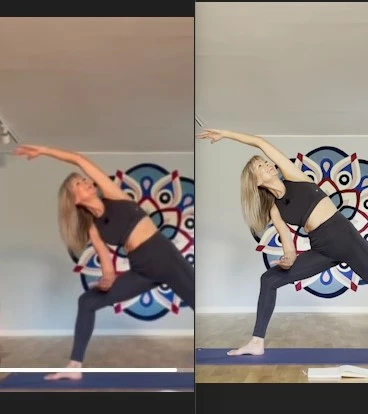
You can see the video here in iCloud before downloading to the left, a bit blurry but nice colors, and how it looks when I upload to premiere pro. What can I do?! I need to publish my yoga classes. 
 

This topic has been closed for replies.
Correct answer R Neil Haugen

As I noted before, this is a (relatively) simple color management issue, because there are a lot more CM options in the newest versions. It's actually easier in the new major version update, 24.0.0, (build 58) than in the 23.x versions. Because all the CM controls can be accessed by one panel ... the Lumetri panel, the Settings tab.


What color space is your media? Newer iPhones seem to default to HDR, but can be set to shoot in SDR (Rec.709) instead. Rec.709 is still easier for most people, and more reliable to get expectable results especially for those newer to video post production.


But no matter whether the clips were shot in HLG/HDR or SDR/Rec.709, they can be worked with on a Rec.709 sequence and export.


Put the clip on a sequence, go to the Color workspace. The Lumetri panel is on the right, go to the Settings tab.


At the top, Preferences/Display Color, make sure "Display color management" is checked, and if on Macs, that the "Extended Dynamic range if available" is also checked.


Typically, it's probably better to then have the Project setting "Auto detect log color space" checked.


In the Sequence settings, set the color space you wish to work in ... easiest, and most viewable on all machines, is still Rec.709. But of course you can choose say HLG if you prefer.


If you set this to Rec.709, make sure that the option below that, "Auto Tone Map Media", is selected. Because in 24.0, if you have "auto tonemapping" clicked on in the Sequence settings, you may not even need to mess with the Source Clip settings. It will normally apply an algorithmic transform to any HDR clip used on the timeline, to very safely get the wider color range and dynamic range remapped to the SDR/Rec.709 color space and range.


In the Sequence Clip section, if you have HLG - HDR clips on a Rec.709 (SDR) sequence, and auto-tonemapping is on, you can also try a couple options to see which you like better. In the dropdown list for "Tonemapping Method are an option called "Hue Preservation (good for iPhone HDR)" that should work, though you might also try with the "Max RGB (good for PQ and HLG)" option.


Then when exporting, you can use the standard SDR/Rec.709 export presets ... easy to see, as they do not have HLG or PQ in the preset name.



3 replies

R Neil Haugen
R Neil HaugenCorrect answer
Legend
October 11, 2023

As I noted before, this is a (relatively) simple color management issue, because there are a lot more CM options in the newest versions. It's actually easier in the new major version update, 24.0.0, (build 58) than in the 23.x versions. Because all the CM controls can be accessed by one panel ... the Lumetri panel, the Settings tab.


What color space is your media? Newer iPhones seem to default to HDR, but can be set to shoot in SDR (Rec.709) instead. Rec.709 is still easier for most people, and more reliable to get expectable results especially for those newer to video post production.


But no matter whether the clips were shot in HLG/HDR or SDR/Rec.709, they can be worked with on a Rec.709 sequence and export.


Put the clip on a sequence, go to the Color workspace. The Lumetri panel is on the right, go to the Settings tab.


At the top, Preferences/Display Color, make sure "Display color management" is checked, and if on Macs, that the "Extended Dynamic range if available" is also checked.


Typically, it's probably better to then have the Project setting "Auto detect log color space" checked.


In the Sequence settings, set the color space you wish to work in ... easiest, and most viewable on all machines, is still Rec.709. But of course you can choose say HLG if you prefer.


If you set this to Rec.709, make sure that the option below that, "Auto Tone Map Media", is selected. Because in 24.0, if you have "auto tonemapping" clicked on in the Sequence settings, you may not even need to mess with the Source Clip settings. It will normally apply an algorithmic transform to any HDR clip used on the timeline, to very safely get the wider color range and dynamic range remapped to the SDR/Rec.709 color space and range.


In the Sequence Clip section, if you have HLG - HDR clips on a Rec.709 (SDR) sequence, and auto-tonemapping is on, you can also try a couple options to see which you like better. In the dropdown list for "Tonemapping Method are an option called "Hue Preservation (good for iPhone HDR)" that should work, though you might also try with the "Max RGB (good for PQ and HLG)" option.


Then when exporting, you can use the standard SDR/Rec.709 export presets ... easy to see, as they do not have HLG or PQ in the preset name.


Everyone's mileage always varies ...
Participant
October 13, 2023

Thank you ever so much for this step-by-step guide and for using lingo I can understand as I'm both autodidact and Swedish. Enjoy the upcoming weekend! 

Participant
October 11, 2023

Turned out my I had to use my old iPhone 12 Max again, but changed video settings to 4k instead. It didn't help! Can something be wrong with my phone?

R Neil Haugen
Legend
October 5, 2023

Probably just needing to work some color management. But we need details ...


What is the camera/device creating the video, what color space are they (Rec.709.SDR, or HLG/HDR), have you done any color management settings or checked your clip color space (project panel), sequence working color space (sequence settings) ... and matched the export color space to sequence settings?

Everyone's mileage always varies ...
Participant
October 11, 2023

I have always filmed in HDR before and never had this problem. I gave up on the last video, I tried changing the sequence settings to Rec.709 and made some color adjustments but it turned out slightly over exposed when I downloaded it anyway. I will now give it a go with my brand new iPhone 15. It is pre-set to HD 1080p 60fps.

Ann Bens
Community Expert
Community Expert
October 11, 2023

Some lingo: uploading is called ingesting or importing, downloading is called exporting.