

Cole W.
Inspiring
February 3, 2022
Answered

Vertical Proxy is Stretched

  • February 3, 2022
  • 6 replies
  • 19943 views

Hey everyone! I'm ripping my hair out trying to edit a simply social media edit. It was filmed vertically at 4k 30fps and even at 1/8 playback quality my computer is struggling. I tried creaating a proxy but it was stretched. So I created an ingest preset "ProRes Proxy 720x1280p". I imported the ingest preset to premiere and ran them through the media encoder and the exact same thing is happening. The image is stretched. Ill attatch a screenshot of the stretched video preview and one of the settings right before I saved it as a preset.

Also, I consider myself an advanced video editor but I get super confused with everyones vocabulary. So If you're talking technical terms can you put in parentheses what it means. Haha Thanks guys!
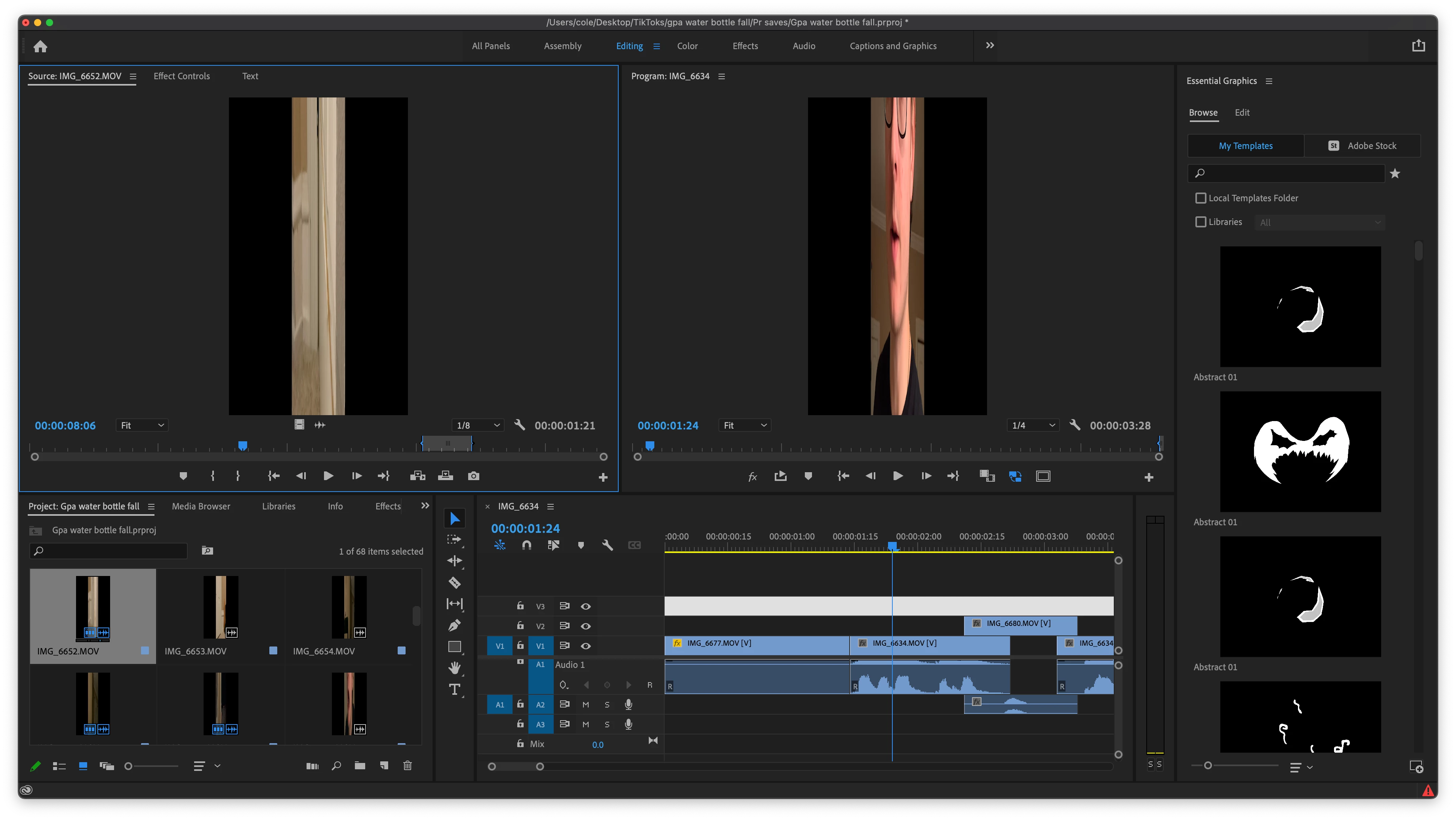
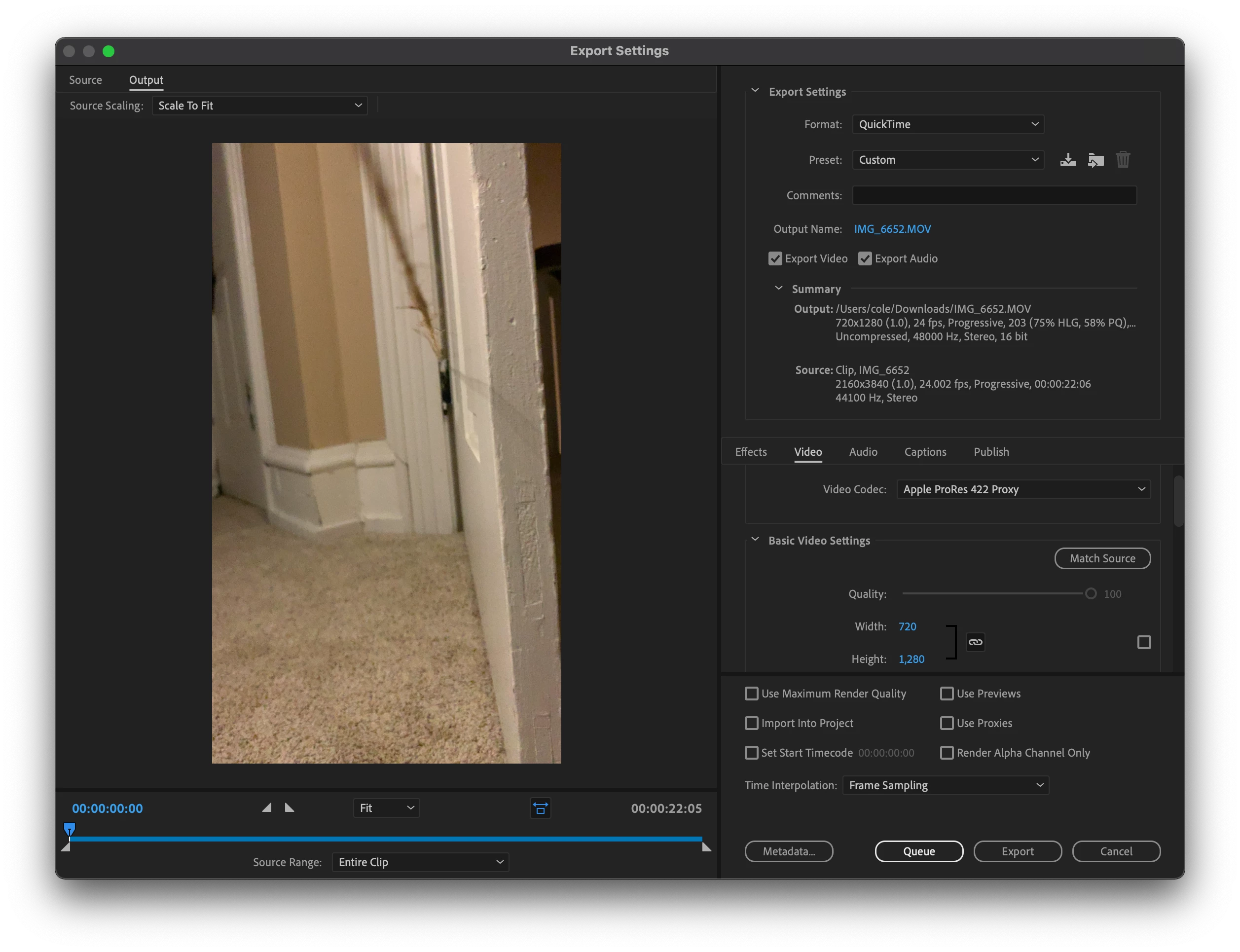
Correct answer João Descalço

I found an easy way to create a proxy encoding profile that doesn't stretch/squeeze the frame. Should work for Mac and PC.

Go to Media Enconder, go to Create New Encoding Present, and create a new preset based on the codec you use normally (like Apple ProRes 422 Proxy), leave everything as is but untick the height and width checkmark and insert 1080x1920 (vertical video) and click OK. You have created the encoding preset. Now you need to create the ingest preset.

Go to Create New Ingest Preset, tick the Transcode files to Destination and select Quicktime format and the preset you just created before. Click OK.

Now head to Premiere and on the create proxies dialog, Add Ingest Preset, select the one you just created and select it from the preset list.

I think what causes the problem is that the proxies preset uses 1920x1080 default size and the match frame 'tick' also doesn't work when transcoding. This solution will transcode using basically the same codec but with vertical video dimensions.

6 replies

Cole W.
Cole W.Author
Inspiring
February 6, 2023

Just popping in to let everyone know that Premiere seemed to of randomly fixed this issue back on a patch of version 22. I still find it odd that they decided to add a "vertical" workspace but have not added a 9:16 proxy option. You still have to create an ingest preset. Which is not that difficult but the problem was that it was still stretching my image. That was the reason on this post I made. But like I said, they have since then fixed the issue and my ingest works fine. Now they need to fix this slog issue as well as the iphone issue. They're slapping input luts on imported footage. Anyone that has imported anything from an iphone 13 or newers knows what I'm talking about. Its washed out and over exposed. 

Warren Heaton
Community Expert
Community Expert
February 6, 2023

Actually HDR video os available on the the iPhone 12 and up.  Color management isn't complex, but we do need to tale the time to learn about it to make informed choices in our workflow and Premiere Pro has the options we need to manage that.


Cole W.
Cole W.Author
Inspiring
February 6, 2023

Thanks!

caroline_edits
Community Manager
Community Manager
December 15, 2022

Hi all, we made a video tutorial to walk you through the process of making a custom proxy preset for vertical video! This is a two-step process, but after you've done it, your vertical videos should not appear stretched again. 


Inspiring
December 15, 2022

Caroline, thanks for this! Just so we (I) don't feel gaslit, this is exactly what I had been doing with the exception of creating the preset/export in media encoder, not inside the export panel of Premiere. So, either creating the export/preset inside of premiere is somehow different than creating it inside of media encoder (yes I created the ingest preset in media encoder of course) or something has changed in the way premiere looks at vertical video with regards to proxy generation. Because this video isn't technically a solve, this video just shows the standard way to make proxy presets that aren't already available (although by using the export panel rather than creating the export preset in media encoder). All that being said, as long as it works I doesn't really matter why it didn't work in the past, or how I feel about it, haha. 

Also, question: why must making presets involve a two step process (as it has been for a while). It must be for a use case that I'm not totally aware of. It's a pain in the butt for a reason I can't comprehend. Not that that matters, once you wrap your ahead aroudn the fact you have to do create 2 presets.... to make 1 that works. Regardless, thank you for the video! 

Participant
December 13, 2022

So typical of Adobe incompetence ... complicate something that should be so easy. You'd think Adobe never heard of vertical video. So they sell you an application that is completely stumped by vertical video. There should be a simple adjustment "switch" right in Premiere "Pro" that flips a horizontal preset to vertical. Or, here's a radical idea: Premiere should come with existing vertical format proxy presets. For all their brilliance in creating apps with incredible capabilities, it still amazes me how they can overlook the needs of their customers to this extent. Hey Adobe, intuitive function ... it really is a thing.

Warren Heaton
Community Expert
Community Expert
December 13, 2022

@walterf44684998 


Vertical video is fairly well supported in Premiere Pro.  As far as I'm aware, there's no NLE that ignores how source footage is recorded in camera and as such it's up to us - the users - to either shoot it in the desired aspect ratio or to override it later.  If you happen to start a Premiere Pro feature request to add a “Rotate 90 or -90 degrees” option in the Interpret Footage dialog box, please share a link back here (I’d vote for it).  However, I see it being challenging for most hardware to play on-the-fly 90-degree rotation smoothly unless intermediate (also called mezzanine formats) are in use (ProRes, DNxHD, Cineform).


Vertical proxies exist via the "Match Source" option of the ingest preset.  Perhaps more importantly, vertical proxies work best when the full resolution source is an intermediate format (so, something like ProRes vertical full resolution source with ProRes vertical proxies).


Something else to consider when planning a vertical post-production workflow:  Since most high end cameras only shoot horizontal, a common workflow for Quibi (while it lasted) was to shoot horizontal 3840-by-2160 ProRes that easily reframes to vertical in a ProRes 1080-by-1920 Timeline and also offered the option of reframing to 1080-by-1080 or 1920-by-1080 if content was to be repurposed later.  This is in keeping with the feature film workflow of shooting “open gate” and deBayering to 2.35, 1.85, 1.78, 1.66, or 1.33 in post.  Premiere Pro even supports automatic reframing of wide content inside of vertical.

Inspiring
December 13, 2022
I didn’t read you’re entire response but I think you may have mist the gist
which is that vertical media doesn’t work with the internal proxy
generation workflow.

Or at least it didn’t, and if it does I’d like to know. I’m quite familiar
with making ingest and transcoding presets etc. no matter what I did the
right click “make proxy” results in incorrect aspect ratios. Work around
was doing it manually by dragging clips etc but I didn’t want to have to
deal with that.

The issue is that the proxy workflow actually adjusts for slightly
different aspect ratios(I think) and pixel sizes(720 vs 1080) but when you
ask it to do something it sees as wrong the result is wrong. Anyway…. I
don’t remember the details at this point. But I have a huge commercial tik
tok job coming up… so I’ll be back!
--
JonahOskow.com <>
914 924 0337
João DescalçoCorrect answer
Inspiring
October 22, 2022

I found an easy way to create a proxy encoding profile that doesn't stretch/squeeze the frame. Should work for Mac and PC.

Go to Media Enconder, go to Create New Encoding Present, and create a new preset based on the codec you use normally (like Apple ProRes 422 Proxy), leave everything as is but untick the height and width checkmark and insert 1080x1920 (vertical video) and click OK. You have created the encoding preset. Now you need to create the ingest preset.

Go to Create New Ingest Preset, tick the Transcode files to Destination and select Quicktime format and the preset you just created before. Click OK.

Now head to Premiere and on the create proxies dialog, Add Ingest Preset, select the one you just created and select it from the preset list.

I think what causes the problem is that the proxies preset uses 1920x1080 default size and the match frame 'tick' also doesn't work when transcoding. This solution will transcode using basically the same codec but with vertical video dimensions.

Inspiring
October 27, 2022

Im having this same issue, however regardless of the changing the pixel dimensions. If I look at the proxy file, it looks perfect, the properties are correct. Same for the original. They should interchange perfectly, but premiere seems to be making an assumption and trying to correct for it. hmm 

R Neil Haugen
Legend
October 27, 2022

I can't tell from your post if you see Pr as trying to correct this on the timeline or in the export ... ?


Neil

Everyone's mileage always varies ...
Warren Heaton
Community Expert
Community Expert
February 3, 2022

Transcode the 4k 30fps 2160-by-3840 source to ProRes422 LT, maintaining the frame size and frame rate in Adobe Media Encoder.   If using macOS you can right-click the clips in the Finder and choose Encode Selected Video, but the results will be ProRes422 not ProRes422 LT.  Yes, the files will be very large, but that's why they're good for editing with the Premiere Pro Proxy Workflow.


Use the resulting 2160-by-3840 30fps ProRes422 LT as the Full Resolution footage in Premiere Pro (not the camera original footage) for the Proxy Workflow, creating/attaching 720-by-1280 ProRes422 Proxy files.


There should be no distortion when Proxies are enabled.

R Neil Haugen
Legend
February 3, 2022

What are the sequence settings? Click in the timeline panel so it's got that thin blue "focus" line around it, then go to the main menu system, Sequence, and check the sequence framesize settings. Change if needed.


Neil

Everyone's mileage always varies ...