
Participant
May 27, 2018
Answered

Video and Audio not linked in timeline

  • May 27, 2018
  • 9 replies
  • 101197 views

My video and audio from mov 29.97 fps files are not showing up as linked once I bring into the timeline. I've tried linking, unlinking, grouping, etc. but even when it says they are linked or grouped the audio and video cannot be moved or edited together.

I tried updating my computer, uninstalling and reinstalling the app, and deleting all the files from Media Cache and Media Cache Files folders in Application support. The issue remains the same.

I also opened old projects that did not have this issue before when I worked on them, and the problem is the same now in the old projects. It says they are linked or grouped but they will will not move or be edited together, only separately.
Correct answer Meg The Dog

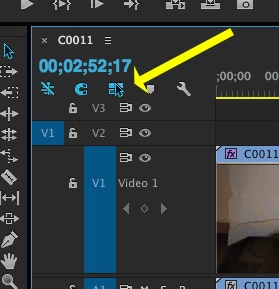
In the upper left corner of the timeline, toggle the button "Linked Selection" to have Premiere respect the clip link status:

MtD

9 replies

Participant
August 14, 2023

I right-clicked solely on the audio and was able to link them that way.


whamalamaboom
Inspiring
October 28, 2021

I'm having the same issue but it's either a bug in my case or unexpected behavior. I just upgraded to win 10 ver 22 that released this week. When I start a new project and import footage, everything is linked by default as normal and I can unlink it as normal either by deselecting linked selection on the timeline or under the sequence menu.


At some point in the middle of editing a project, linked selection stopped working meaning I turned it on but it's being ignored. I didn't touch source patching or anything else, I was just moving and cutting clips as usual, turning linked off and on as needed. It just stopped registering that I turned it on about an hour in so clips now remain unlinked.


The symbol is highlighted on the timeline and linked selection has the checkmark next to it in the sequence menu but the clips still select audio and video individually and unlink is grayed out on them.


The only thing I did differently before link stopped working is that I moved the audio of one clip out of sync with its video by a few frames to fix the lag in the original capture. After I did that, linked selection stopped working in the entire project. Not just on that clip. I have nothing selected when trying to turn it back on. It still won't turn back on.


I tried restarting the app and that didn't help. I opened up a different project and it now doesn't work in that one either. I don't feel like resetting preferences right now so I'll try that later. Just putting it out there that for some folks, there might actually be something going on with this in the latest release and it might be triggered by moving video/audio out of sync.

Participant
October 11, 2021

This saved me loads of time.. as I am a NOOOB. Thanks a millon..


Participant
October 9, 2021

Hello,


Maybe I'm late and u already found this, but right next to the Snap button in your sequence, you have a button which is called Linked Selection. If you press this, your audio and video will be linked independently if the audio and video are on the correct audio track or not. 


I think this is what you need

Participant
January 27, 2021

Hi, I clicked on the toggle button, but Adobe still isn't playing the audio from my video clips. Please advise.


Ann Bens
Community Expert
Community Expert
January 27, 2021

Source patching is probably your answer.


Participant
January 27, 2021
Thanks for your suggestion. What is source patching? I'm kind of new to
Adobe. Thanks! 🙂
Participant
December 18, 2020

Well, that was too easy.  My problem with premier pro is accidentally clicking on things or unintenionally hitting shortcut keys and not being able to find my way back.  Thanks for this simple fix.:-)

Participant
March 4, 2020

thannks!!

Known Participant
August 3, 2020

I'm having the same problem.  I drag clips along the timeline and the audio is unlinked and stays where it was originally; in four or five clips the audio has just disappeared completely!   I don't quite understand what the fix is... someone here said "trashing their preferences" worked (???) and someone else said to mke sure 'source patching for inserts and overights..."  how do I do that?  I checked my audio preferences and there's no such setting.  I'm new to Premiere and I'm becoming less and less endeared to the program.  For a program that people are raving so much about, I'm surprised how many glitches and crashes I'm experiencing since I started learning it two weeks ago.

Ann Bens
Community Expert
Community Expert
August 3, 2020

Most  likely tracks are not souce patched.

Adobe Premiere Pro Help | Source patching and track targeting


If you are new to Premiere take a subscription at LinkedIn./Learning

Premiere has a steep learning curve. If you do not master de basics and how to set up your computer and the program first editing will get frustating.

Inspiring
October 11, 2018

I'm having the same problem as the OP, except my "Linked selection" button IS on!

Is this a new bug, or is there some other reason I might be seeing this?  Right now I'm having to duplicate all my edits manually in the video and audio tracks...

R Neil Haugen
Legend
October 11, 2018

Is that a nested clip brought in?

Also ... right-click the clip, and see if the Link/Unlink option is set to Link ... if not, well ... that's an issue there.

Neil

Everyone's mileage always varies ...
Inspiring
October 13, 2018

Nested clip - I don't know what that means to be honest!  I'm very new to Premiere.

Right clicking on any of the clips I can only see an Unlink option which is greyed out and not ticked.  Does that help at all?

Meg The DogCorrect answer
Inspiring
May 27, 2018

In the upper left corner of the timeline, toggle the button "Linked Selection" to have Premiere respect the clip link status:

MtD

Participant
May 27, 2018

Wow. I didn't even know that was an option. Idk how it got turned off. Thank you so much!