
Known Participant
June 2, 2019
Answered

Video not fluent

  • June 2, 2019
  • 9 replies
  • 3840 views

Hello,

I edit my videos with Adobe Premiere pro CC 2019.

I mainly film 4 k images with my Samsung Galaxy S7.

Now I have every time after exporting the video that the images are not fluent. It is not extremely annoying but I find it a waste of my images.

What can I do about it?

Here an example; https://youtu.be/qu2y5FSRRH4?t=380https://youtu.be/qu2y5FSRRH4?t=380

Look especially to the houses/buildings

I hope you can help me.
This topic has been closed for replies.
Correct answer ivansull

Then i see nothing...


The "Variable Frame Rate Mode" setting may not display if VFR media has a frame rate close to a standard rate.   Converting the clip to a Constant Frame Rate using HandBrake might be your best option.

9 replies

MikeJoowAuthor
Known Participant
June 7, 2019

I have now installed the Handbrake videos on fixed framerate. Export again but still not solved.

Now, the videos so a fixed frame rate and it would be solved.. This is unfortunately not so. How can that be right?

Ann Bens
Community Expert
Community Expert
June 7, 2019

Did you redo the entire video or just replaced the footage and using the same sequence with probably the wrong framerate?

MikeJoowAuthor
Known Participant
June 9, 2019

Try a YT preset.

Are you editing from/to an external drive?


Yes i try a youtube preset but it's not better:

YouTube

Adobe Premiere is installed on my PC, i'm export the video to a external drive.

MikeJoowAuthor
Known Participant
June 4, 2019

Yes but when i want to export the video i choose by frame rate: 30fps. i try also 25fps. but did't work for me.

Target bitrate is 48mbps

Video size is also good..

I don't know what i can change more?

MikeJoowAuthor
Known Participant
June 4, 2019

I think this is enough info?

Ann Bens
Community Expert
Community Expert
June 4, 2019

This is your issue:

Premiere does not handle vfr very well. Use Handbrake and make sure the sequence setting matches the footage.

Averdahl
Community Expert
Community Expert
June 4, 2019
I now have media info used and I saw that the fps on 25 stood while the video 30 fps.

The basic trick is to make sure that the FPS on the source footage matches the FPS on the timeline you use and make sure to export it to the same FPS as your source footage and your timeline.

IOW, if the source footage is 30 FPS, edit it in a 3840*2160 timeline set to 30 FPS and export the footage as 3840*2160, 30 FPS. Any mismatch will give you what you see.

And, if the source footage are variable frame rate transcoding it before edit can solve it. See tips earlier in the thread.

MikeJoowAuthor
Known Participant
June 4, 2019

is there a tutorial video for this problem? That might make it a lot easier to solve.

Because to me 2 times to export video seems to me also what unnecessary. It should be something different to solve?

Ann Bens
Community Expert
Community Expert
June 4, 2019

Please answer post 8 (1). It all is guessing what kind of file you have.

MikeJoowAuthor
Known Participant
June 4, 2019

Here the details

Participating Frequently
June 3, 2019

In the Export Settings dialog, see if the "match source" checkbox is enabled for Frame Rate:

This will automatically set the exported video's frame rate to the same frame rate as the source video, which may reduce any choppiness introduced by frame rate conversion.

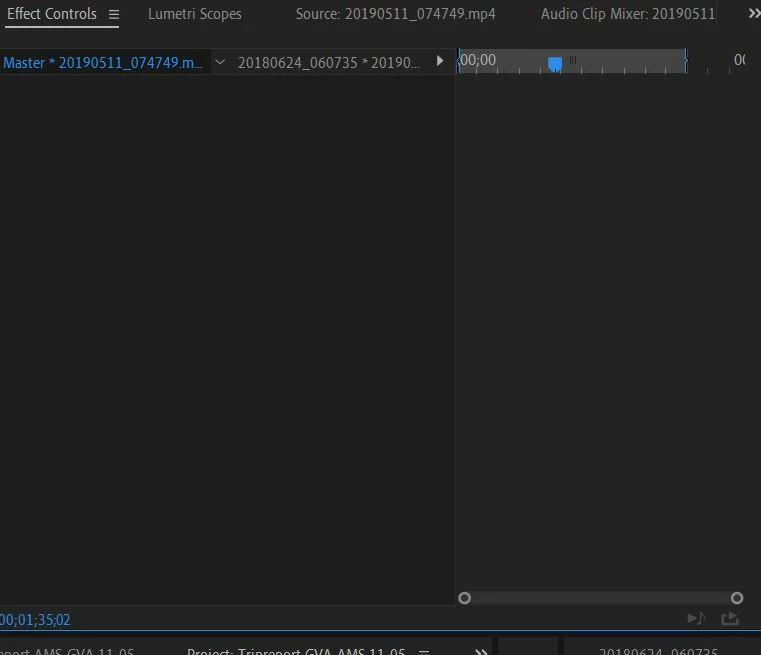
Also, if your source does have a Variable Frame Rate (which seems likely if it was shot on a Samsung Galaxy S7) you may want to choose "Smooth Video Motion" instead of "Preserve Audio Sync" in the Master Clip effects settings of the Effect Controls panel:

This may cause audio to drift out of sync with the video but for the clip in question this shouldn't matter...

MikeJoowAuthor
Known Participant
June 3, 2019

Smooth video motion?

I can't find it

MarekMularczyk
Community Expert
Community Expert
June 3, 2019

Click the "Master" tab to make it active.

Adobe Community ExpertAdobe Certified Professional
MikeJoowAuthor
Known Participant
June 3, 2019

When I play the video without editing, directly from me phone then runs the image just fine. When I use the video playback in Premiere plays the video too good, so with the export.

I now have media info used and I saw that the fps on 25 stood while the video 30 fps. Again uploaded but it now seems even worse before. So the problem is still not solved.

MarekMularczyk
Community Expert
Community Expert
June 3, 2019

I understand you refer to the "stuttering" effect with moving plane and you want a smooth motion, correct?

When you play videos imported from your phone, do they play fine on your computer? Do they then play fine inside Premiere?

Adobe Community ExpertAdobe Certified Professional
Ann Bens
Community Expert
Community Expert
June 2, 2019

Might want to check the Frame Mode in Mediainfo.

If it is set to Variable Frame Rate convert with HandBrake to Contant Frame Rate before bringing it into Premiere.