Participant
December 29, 2021
Répondu

Video rendering and playback option greyed out on Macbook Pro 13-inch 2020 M1 Chip

Hiya,


I've been having issues with the playback and export of my video glitching out (the video I'm editing is not even a minute long). On my old Macbook the solution was always to just switch the Video rendering and playback render option from Mercury Playback Engine CPU to another one. But I can't even change the render option because it's greyed out, and stuck on the Mercury Playback Engine CPU Acceleration (Metal) one. 

I've done my best to dig around to find what else I can do, I've reinstalled Premiere Pro, and I've found that I have a newer graphics chip - the M1 Chip which you guys have been working on to make Adobe apps compatible with n everything?  Is this something that isn't quite working yet? Or am I missing something else that I'm meant to do to fix this.


Pls help.

Screen shots attached below 🙂 
Meilleure réponse par Mia23490039uq30

Oh wait, I just got the prompt to speak to an agent. Let's see what happens.


Ok, so the issue might have been resolved. I did a screen share and we were troubleshooting for about 2 hours and we think we found the problem(s).


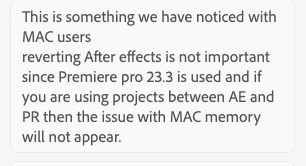
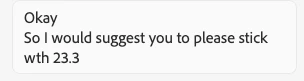
1-  downgrade the Premiere Pro app from 23.6 to 23.3; Mac users apparently have been having issues. 

1.2 - I asked why After Effects also gave me this prompt:

(I managed to fix the issue by following the tips from here: https://www.youtube.com/watch?v=fzYVOEuR-N8&ab_channel=FLIXITY and setting my cache to 90GB from 26Gb) 

The lady from adobe gave the following reasons as to why I got those prompts:


2- revert your screen layout to one of the built-in layouts, such as "editing", click save, and restart the program. 

2.1 - you can then create a new custom layout, and delete all old custom layouts where the Force Quit prompt appears. I was told that, basically, the software can sometimes have some issues and corrupts the layouts. If you create a new one or use one that doesn't prompt the force quit window, then all will be fine. We tested this about 20 times, 10x on one project, and 10x on another over a server. All worked perfectly.


I'm holding thumbs that this stays this way and that it will possibly help anyone else. 

10 commentaires

Known Participant
April 18, 2024

Running in Rosetta fixed the dropped frames for me.  I guess I was foolish to think that by V 24.2.1 and 3 years into the M chip game that this would still not be a requirement.

Warren Heaton
Community Expert
Community Expert
April 18, 2024

If you run Blackmagic Design Speed Test (free,  https://apps.apple.com/us/app/blackmagic-disk-speed-test/id425264550?mt=12) on the drive containing your source footage, what write and read speeds do you see? 

You should get smooth, single-stream playback of any of the formats that get checked as green in Premiere Pro, Media Composer, Final Cut, Capcut, Premiere Rush, iMovie, or Resolve.  


Known Participant
February 16, 2023

This is not fixed. Adobe, do you fix any off the issues you create? We need to work out here in the real world. Please fix this issue now.

Warren Heaton
Community Expert
Community Expert
February 16, 2023

@UNHAPPY_ADOBE_USER10969523 

Only using Metal is an Apple side requirement as Apple Silicon is a series of system on a chip (SoC) and system in a package (SiP) processors.


Users who would like to swtich to Software Only need to run Premiere Pro using Rosetta where macOS software emulates the Intel hardware that would otherwise be present.

Known Participant
February 19, 2023

So in Ventura there is no way to get around the Adobe programming failure that causes this issue?

Arudz
Participant
August 22, 2022

This is extremely frustrating. I have clips that have been sped up or speed ramped and its glitching like crazy! Why is it that I buy the top of the line macbookpro with the latest updates and GPU cant give you results??! I cant even switch to software only..

This is 2022, cmon..

Kevin-Monahan
Community Manager
Community Manager
August 22, 2022

Hi Arduz,

Sorry for the frustration. What kind of footage are you working with? The GPU accelerated effects should work, but I read that the M1 has about the same GPU power as a GTX 1050ti. Consider transcoding or using proxies if the footage is 4K Long GOP. I think that may greatly help your issues if you're not already doing so.


Thanks,
Kevin

Kevin Monahan - Sr. Community and Engagement Strategist – Adobe Pro Video and Audio
Kevin-Monahan
Community Manager
Community Manager
May 17, 2022

Hi Phil,

Sorry. What kind of media are you working with? Do you have any other hardware, like monitors, attached to the system? How much memory is allocated to Premiere Pro? Can you try increasing that?


Thanks,
Kevin

Kevin Monahan - Sr. Community and Engagement Strategist – Adobe Pro Video and Audio
Fazzle
Participant
June 7, 2022

Sorry to jump in but I'm hoping someone can advise on my problem as well?  I'm cutting from mxf files and can't get smooth playback on the timeline.  In the events panel, I'm getting "error retrieving frame" and "frame substitution recursion attempt aborting after multiple attempts".  For a previous project, a colleague had suggested changing the renderer to software only, but I can't change it from Mercury Playback Engine GPU Acceleration (Metal) as it's greyed out.  The media is on an external SSD with over 790GB of space available.  There's over 820GB of space available on my Macbook Pro M1 Max and there's 29GB RAM available for Premiere Pro.  I'm using Monterey Version 12.4 and Premiere is up to date as well (version 22.4).  I've deleted all media cache files from the system.  I've tried unplugging my external monitor, but that hasn't made any difference.  I've reduced the source monitor resolution to 1/4 and turned off audio waveforms on the timeline (that seemed to work for two recent projects, but not this one!)  I've also tried starting a new project and importing the project into it, but that hasn't worked either.  I'm attaching a screenshot of the sequence settings (I've been using a project template from the place I'm currently freelancing).  I had no problem dragging the first minute of footage onto a sequence and exporting it, the playback lagging has been getting worse as I'm trying to edit a 30" sequence. 

Many thanks in advance! 

Kevin-Monahan
Community Manager
Community Manager
August 8, 2022

Hi Scotty,

Sorry about that. Do the best you can with RAM allocation. You can also transcode or create proxies to reduce the load on the graphics unit. The M1 machines are great, but with some formats, you still have to optimize the media to make the Mac fit into your workflow. Another thing to try is to roll back a version to see if that might give you better performance. Let us know if it does.


Thanks,
Kevin

Kevin Monahan - Sr. Community and Engagement Strategist – Adobe Pro Video and Audio
Participant
May 15, 2022

I'm also getting glitchy HD video playback on Premiere, on my 2021 16-inch MacBook Pro with the M1 Pro processor, 16 GB ram, with the OS and all apps up to date, even when rendered! Adobe please fix this ASAP, lots of Pros and Prosumers using Apple silicon now.

Participating Frequently
February 20, 2022

This is still happening.  Greyed out renderer and green glitches after rendering and on export.  I’m on Monterey 12.1 with a M1 based laptop with 64GB of memory.  As a working editor who has tight deadlines-I would say make this a priority over anything else!  I've heard that the green glitches occur on timelines where you use anything with an alpha channel, Frame Hold or After Effects linked clips.  This is very limiting.  ADOBE-PLEASE FIX THIS     

Finished Works
Participating Frequently
February 22, 2022

I was able to change the setting to Software Only in Encoder

Participant
January 14, 2022

Are you still having issues?  My M1 Max MacBook Pro (64gig ram, OS and all CC apps up to date)  is having lots of issues exporting clean from premiere.. lots of glitched frames in outputs and is driving me nuts.  Project is on external drive and exports 100% fine on my older macs (intel MBP / iMac 5k) 

Participant
February 1, 2022

Same problems here on a macbookpro 16" M1 Pro, 16gb ram, 10 core. My machine and premiere are up to date. Tons of glitches in my exports and playback. The export glitches are big pink, green and white blocks that show up in the exports in prores or h264.


I shoot a lot of r3d raw and it glitches out a lot when just playing back. I'll include a screenshot of that playback issue.  More of then than not it seems to happen when there is more than one clip stacked over the top of each other in another track. Which is wildly inconvenient bc I edit in layers. 

Participant
February 3, 2022

I feel your pain..   Sometimes my exports will be clean.. but way to often I'm getting glitches and stuttering frames in my outputs.  I have zero confidence in any of my exports at the moment. 


If I open Premiere in 'Intel' mode I can get clean outputs..  but they take much longer and the program is not as snappy (renders, so on are slower...). 


Give that a try and see if it helps with your exports..  On your M1 mac open the Creative Cloud UI, then click in the '...' to the right of OPEN on the Premiere line.. and it should give you the option of opening the 'Intel' version instead of the native Apple Silicon version of Premiere..  then export from that.. So far all of my exports doing this are clean...  It sucks to have to do it this way..  but it's the only way I can consistenly get clean outputs right now....


Joost van der Hoeven
Community Expert
Community Expert
December 30, 2021

M1 is a new game. So you'll need to play with the developers to get it going. Please update your macOS to 12.1, you are on 12.0.1.

Also make sure you are using Premiere Pro 22.1.2

And last, you have 8 GB of RAM. The specs suggest you need 16 GB of unified memory on Apple silicon. So your computer is underpowered for GPU acceleration.

See: https://helpx.adobe.com/premiere-pro/system-requirements.html

Participating Frequently
August 6, 2022

I'm having the same issue on my 2021 macbook pro m1 with 16 gb of ram however I'm only able to allocate 13 gb of ram to premiere since it automatically saves 3gb for other apps. Am I just underpowered?

Peru Bob
Community Expert
Community Expert
December 29, 2021

Can you uncheck Hardware encoding in the Video tab of the export settings when exporting?

Community Expert
December 29, 2021

Hello,


The M1 chip is actually the entire "brain" of the newer Macs -- it includes the processor, the GPU cores and integrated RAM. In past systems these were all separate components. The latest versions of Premiere are optimized to work with the M1 chip, though there are still a few issues. One of them is that you are no longer able to choose "Software Only" and bypass the GPU when troubleshooting. This may have something to do with the M1 architecture and the integrated GPU, and not something that Adobe can control.


Can you post more information about the issues you're seeing in the program? We may be able to diagnose and fix the problems a different way than disabling the GPU.


JVK

-------------------------------------------------------------------------JVK | Editor/Designer/Software Instructor. Pr, Ae, Ch, Ps, Ai, Id
Participant
March 3, 2022

You can turn it on and off on Media Encoder. I don't know why on Pr you cannot. Exporting isn't a problem since you can use Media Encoder, but editing is still a pain depending on each codec your footage has.


Warren Heaton
Community Expert
Community Expert
August 24, 2022

The Hardware/Software option in Media Encoder is for the Export Settings being used. 


It's not the same Hardware/Software option for the Mercury Playback Engine.