
Aytze
Known Participant
August 16, 2017
Answered

Video size shrinks? please help

  • August 16, 2017
  • 2 replies
  • 7247 views

When i get the video, its in its normal size, but when i put it on the timeline and play it, the video seems more zoomed in.
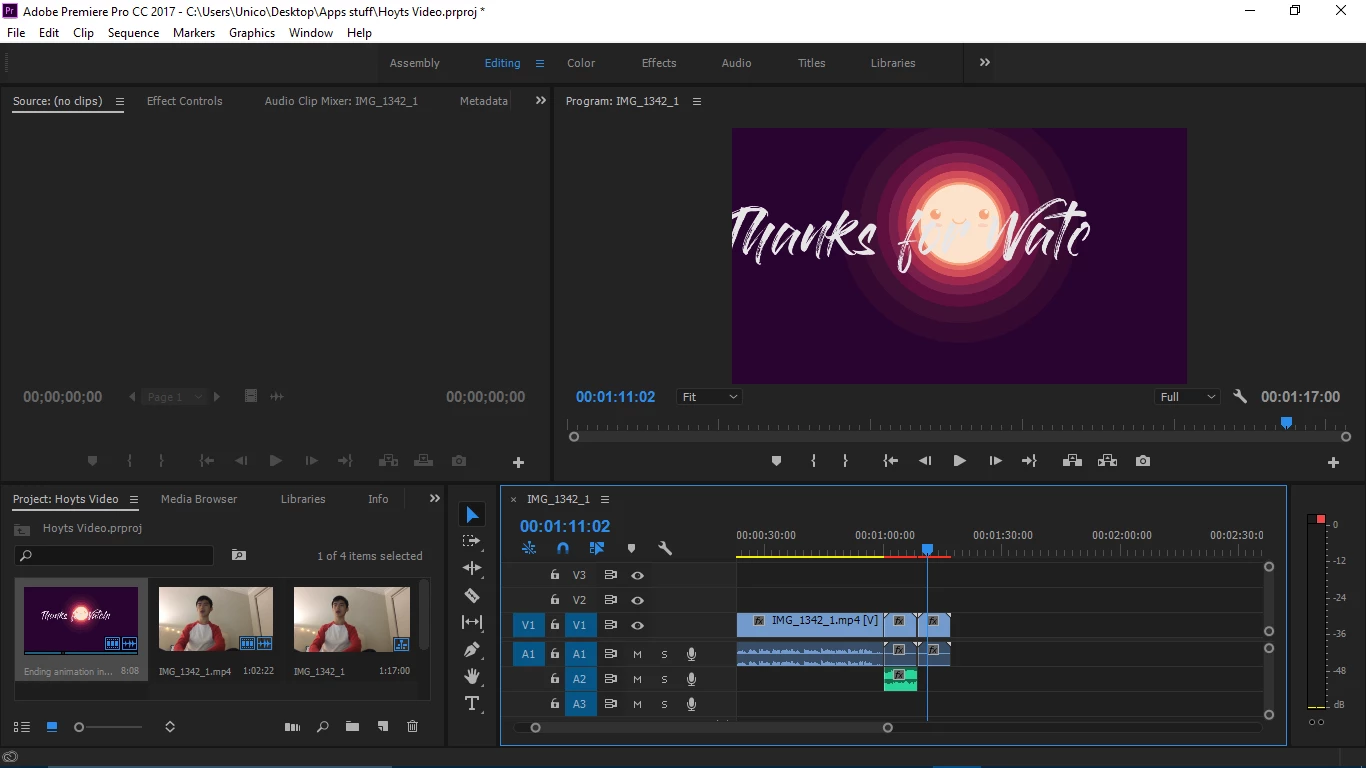
IF you look here ^ compared to my timeline version^ the same file has seemingly reduced in size. IF you guys notice how the text and graphic covers less space i the assets thing on the bottom left compared to the main screen/stage (i don't really know what it's called but i think you get the idea) Please help me! I tried the obvious one which zooms out the stage making it look like:
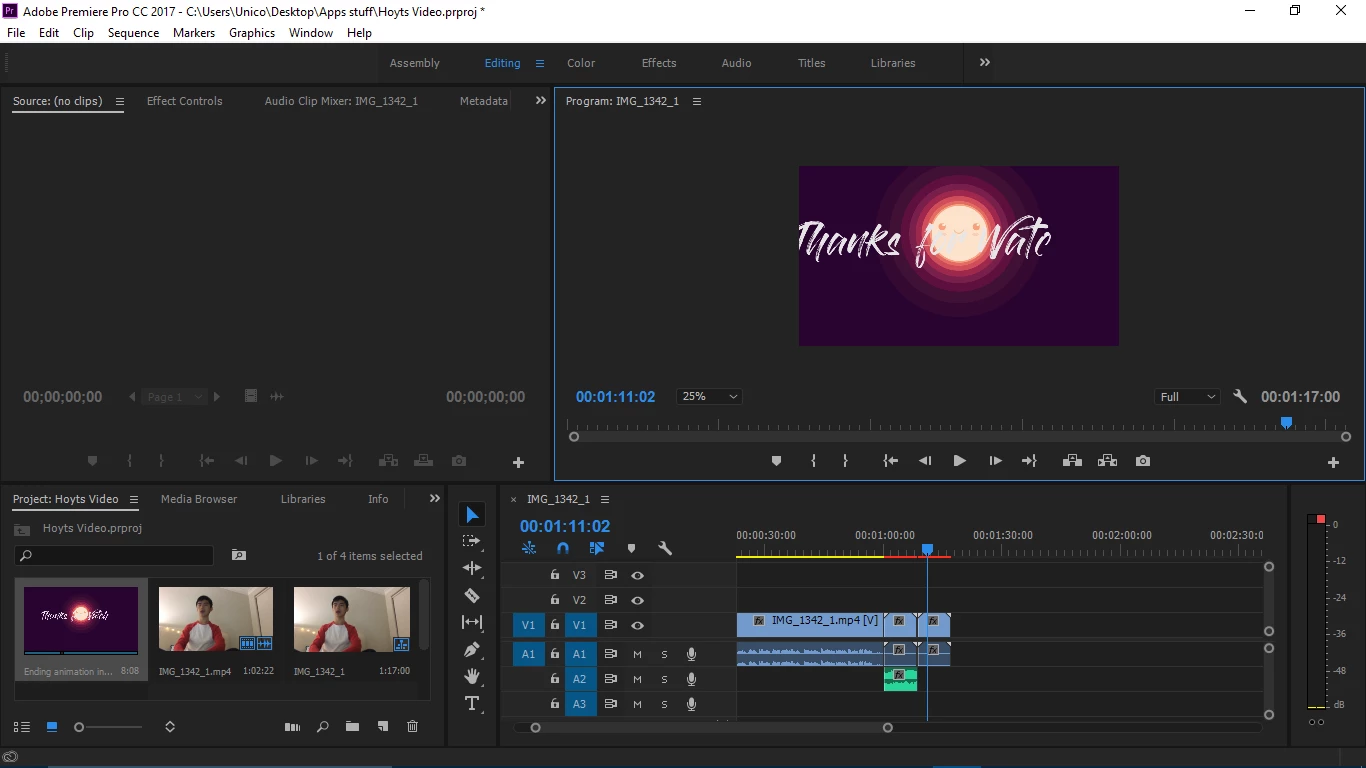
Thanks for your help!

    This topic has been closed for replies.
    Correct answer eikonoklastes

    Your video size doesn't match your sequence size. Either:

    A) Increase your sequence size to match your video (Sequence > Sequence Settings > Custom), or

    B)  Scale your video down to match your sequence (right-click clip, Scale to Frame Size).

    2 replies

    Legend
    August 16, 2017
    Participating Frequently
    August 16, 2017

    The Sequence is the foundation of your video project. Choose the wrong sequence settings, and expect issues down the road.

    Typically, you will want the Sequence Settings to perfectly match the video source you are using. Easy way to do this is to start a New Sequence, then drag and drop a video clip into it. If the Sequence Settings do not match your video clip, Premiere will ask if you wish to match sequence to the clip. Say yes.

    Alternately, right-click a video clip in the Project Bin and select New Sequence from Clip, does the same thing.

    Sequence settings include:

    • Frame Size
    • Frame Rate
    • Pixel Aspect Ratio
    • Fields/Progressive

    If any of those settings are not correct, it can cause problems/quality loss. Thus the automatic methods to remove guesswork.

    Once you have a correct sequence to match the video, you might add still photos or graphics that do not share the same frame size, thus the zoomed look, or perhaps black around the sides (image too small). You can right-click such an image and select Set to Frame and it will scale the image to better fit the frame. Best bet is to simply create graphics to match sequence, such as 1920x1080 pixels for 1080p video.

    Thanks

    Jeff Pulera

    Safe Harbor

    eikonoklastesCorrect answer
    Legend
    August 16, 2017

    Your video size doesn't match your sequence size. Either:

    A) Increase your sequence size to match your video (Sequence > Sequence Settings > Custom), or

    B)  Scale your video down to match your sequence (right-click clip, Scale to Frame Size).

    Participant
    April 22, 2019

    Thank you! I was having the same issue and that fixed it right away