Participant
December 15, 2024
Answered

Where did camera numbers in muti cam sequence go?

  • December 15, 2024
  • 1 reply
  • 583 views

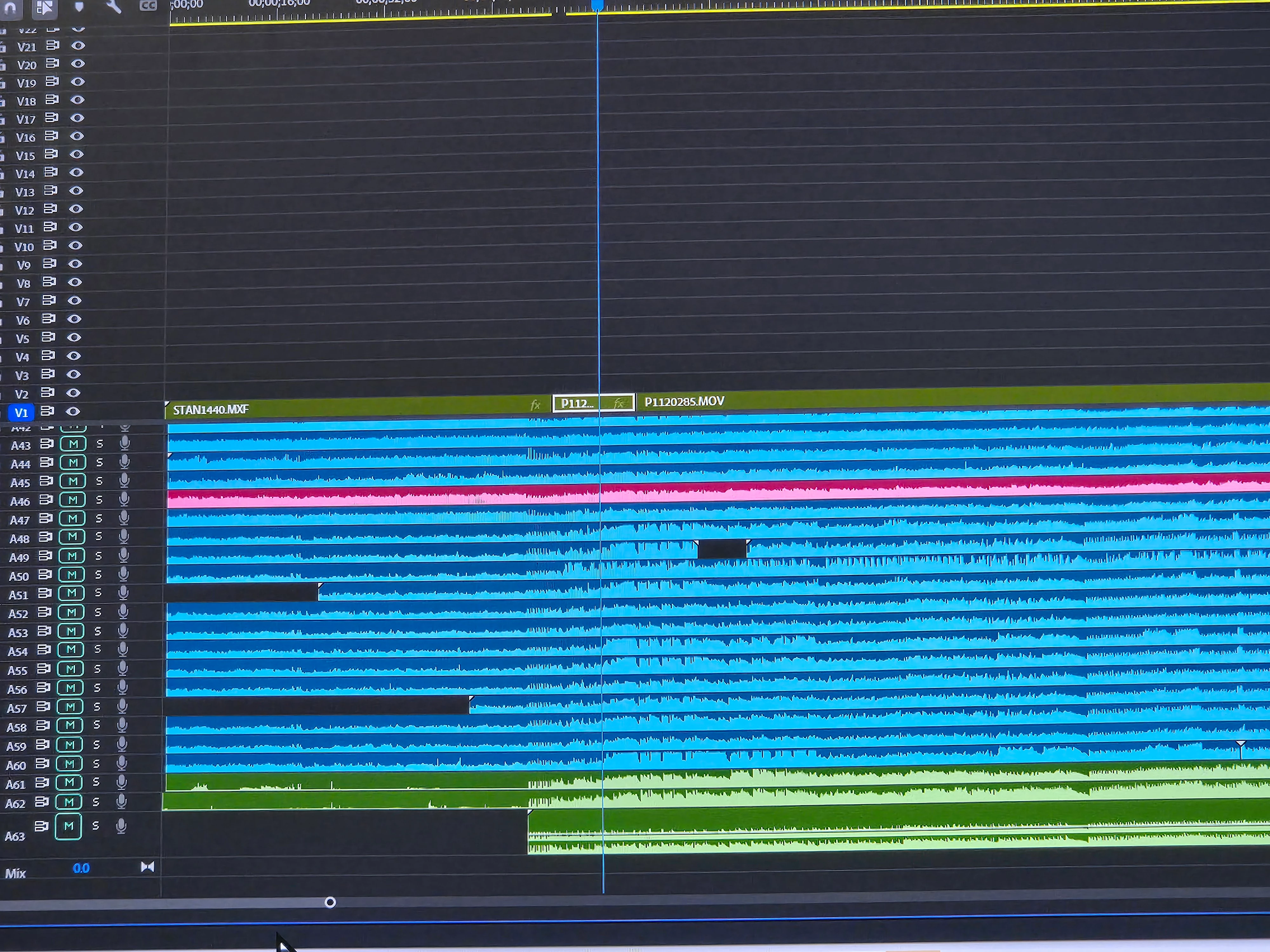
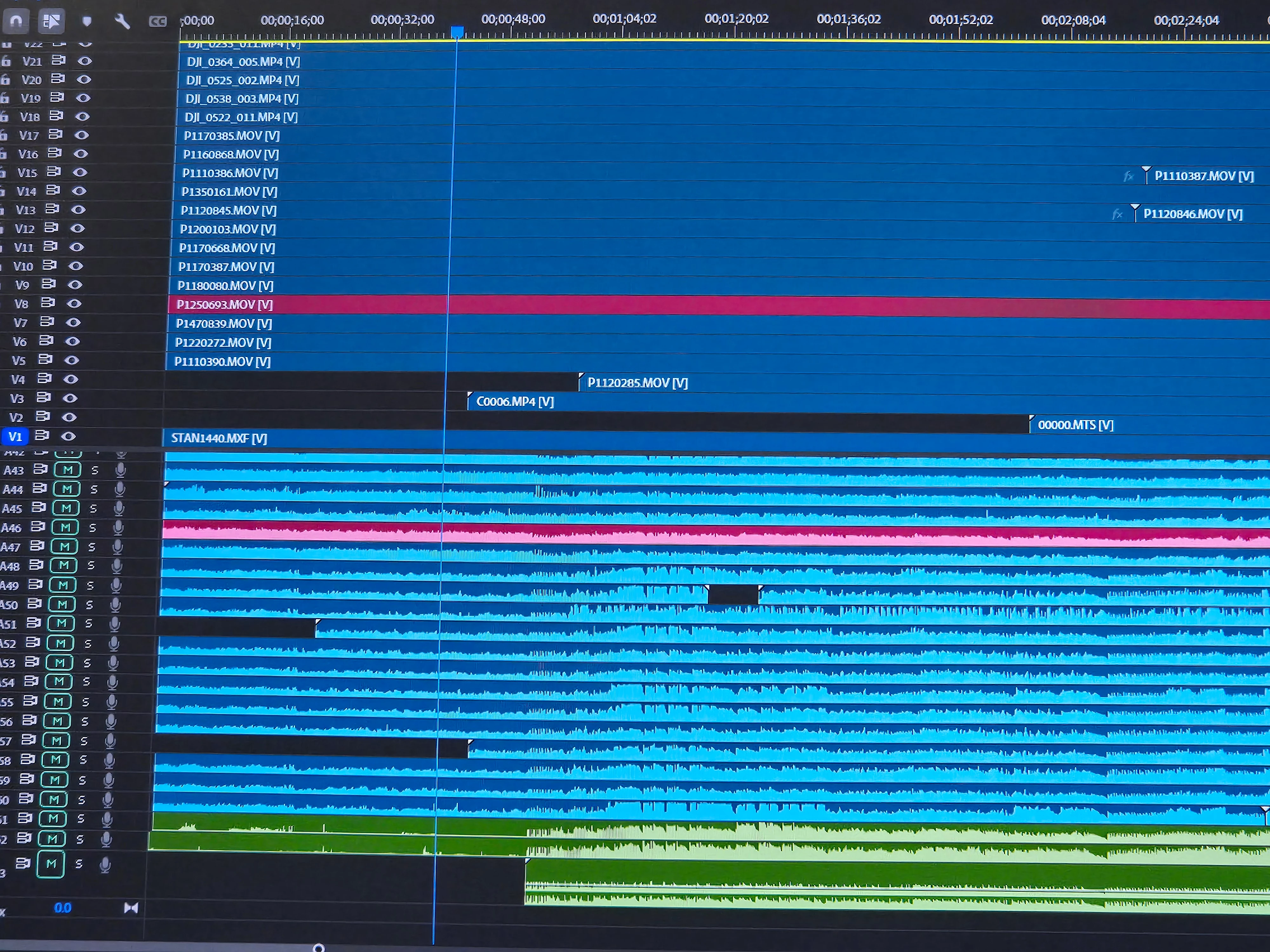
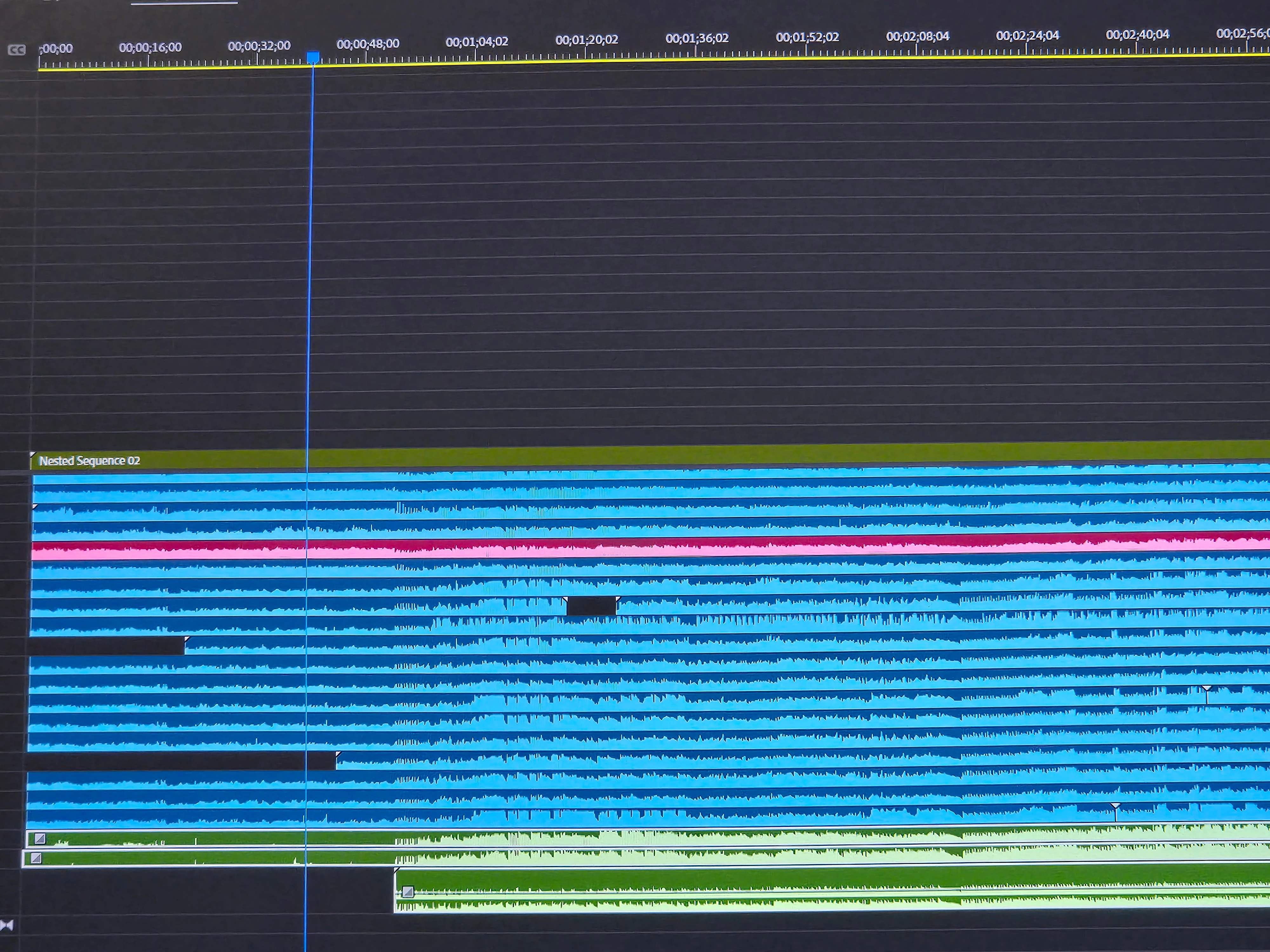
I do a lot of 20-30 camera multi cam edits. I always drop all the cameras onto separate tracks, select all, nest sequence, multi cam then enable. It used to say what camera # you were on as well as the file name. Now it just says the file name and it's driving me crazy. How can I get it back?
Correct answer PaulMurphy

It looks like this is a new behavior introduced in recent versions of Premiere Pro.

To display the camera numbers in the timeline, you'll need to ensure that multicamera is enabled for the sequence in the Project panel. Here’s how you can do this:

  1. Drag the sequence into the Source Monitor.
  2. Right-click inside the Source Monitor and choose Multi-camera > Enable.


Once multicamera is enabled:

  • If you drag this sequence into a new timeline, the camera numbers will automatically display.
  • If you drag it into an existing timeline containing the same nested sequence, all instances of that nested sequence will also display the camera numbers.

1 reply

PaulMurphyCommunity ExpertCorrect answer
Community Expert
December 15, 2024

It looks like this is a new behavior introduced in recent versions of Premiere Pro.

To display the camera numbers in the timeline, you'll need to ensure that multicamera is enabled for the sequence in the Project panel. Here’s how you can do this:

  1. Drag the sequence into the Source Monitor.
  2. Right-click inside the Source Monitor and choose Multi-camera > Enable.


Once multicamera is enabled:

  • If you drag this sequence into a new timeline, the camera numbers will automatically display.
  • If you drag it into an existing timeline containing the same nested sequence, all instances of that nested sequence will also display the camera numbers.
Participant
December 15, 2024

OMG thank you! That worked!