
Participating Frequently
September 4, 2021
Question

White screen in HSL Secondary...

  • September 4, 2021
  • 5 replies
  • 1330 views

Please keep in mind that I am new to video editing:


My specs are:


Intel(R) Core(TM) i7-10750H CPU @ 2.60GHz 2.59 GHz

RTX 2080 Super mobile.

16GB RAM


In HSL secondary when I try to adjust the "sliders" the video screen turns white. I've tried updating my video drivers to the latest and I've tried setting my preferences to default. Also in Vignette moving the sliders makes no difference to the image. I've tried uninstalling and reinstalling Premiere Pro.


Here is a screenshot with the problem:


https://shared-assets.adobe.com/link/90ac851b-9cde-45fc-7913-ca0a4c8e2c9c
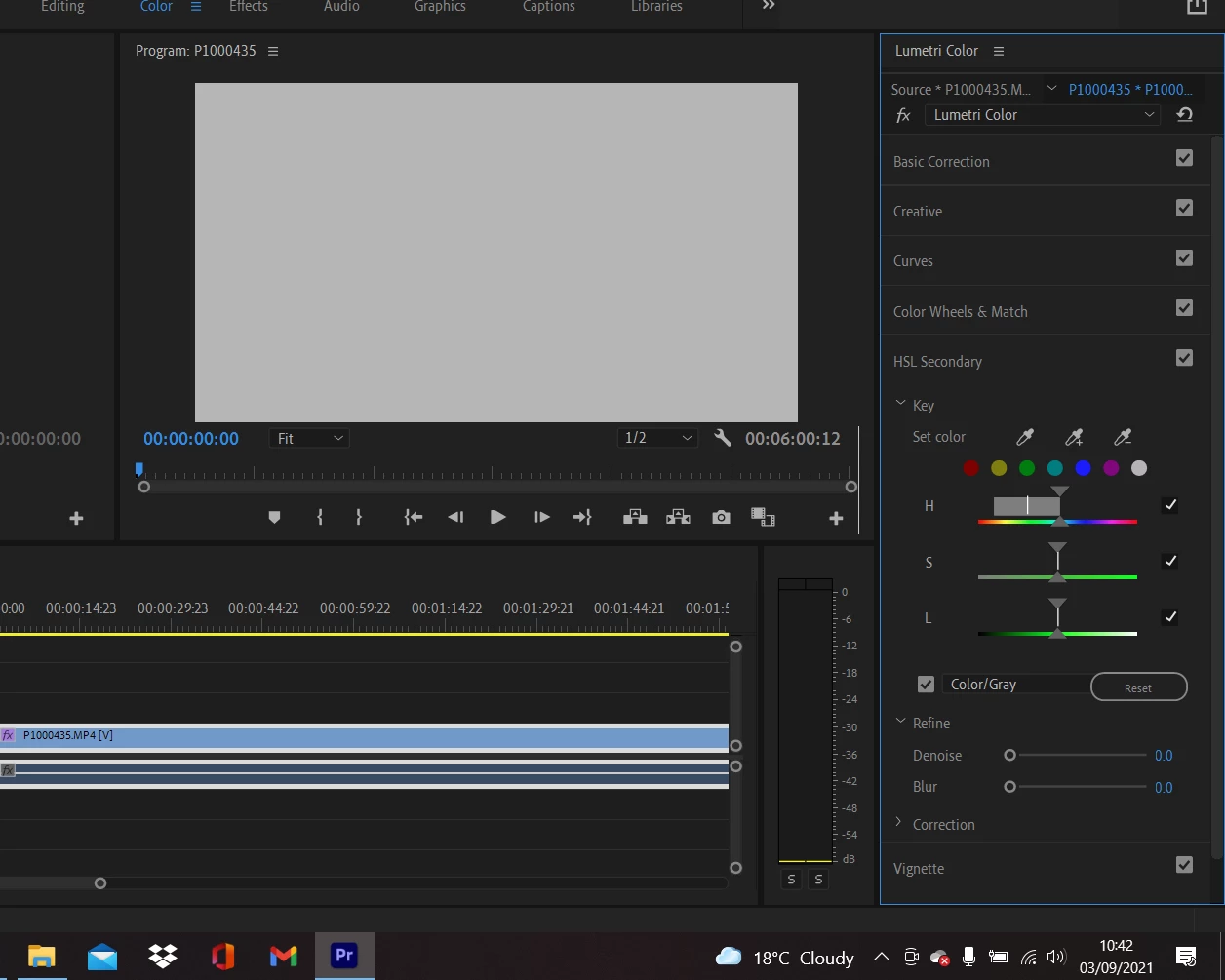
 

[Screenshot embedded by mod]


This topic has been closed for replies.

5 replies

Inspiring
September 6, 2021

Have you tried to uncheck "color/gray"?

After uncheck :

######Raizen 7, 40Gb Ram, RTX 3060, Win 11 -- All of Software in the world are just tools. Buy it if it works for you :)
R Neil Haugen
Legend
September 5, 2021

Basic operation of the HSL tab.


First, start by using the left eyedropper, the one that doesn't have a + or - attached to it, that's the one for general starting selection process. Click the eyedropper, then click on the Program monitor where you want to select data.Ctrl/Cmd-click gets you a larger selection other than a one-pixel selection. I nearly always use the Ctrl-click process.


After you've selected an area, then set the mask to on. Prior to clicking to turn the mask on, your image should be unchanged and showing the whole image. After you turn the mask on, it will show only the pixels that meet the criteria of the combined slider controls for Hue, Saturation, and Lightness (Luma).


Some keys work best with only one or two of the criteria controls, and if you unclick the checkbox to the right of any selection slider you turn that criteria off. So if say you want all pixels of a hue regardless of saturation or brightness, unclick Sat and Luma.


Once you have your key set ... using the mask ... so it shows only color on the pixels you want to change, then turn the mask off.


Now you use the controls below those to make the change in the color to the area selected by the sliders above. The color wheel (which can be in either whole-image or 3-way shadows/mids/highlights), and the Temp, Tint, Contrast, Sharpen, and Sat controls.


Neil

Everyone's mileage always varies ...
Participating Frequently
September 6, 2021

Thanks again.


The image still remain unaffected. It's just as if I didn't do anything to the image. I had a technician update everything and still I get the same results. BTW now I don't get a gray screen but the image just doesn't get coloured in at all.

R Neil Haugen
Legend
September 6, 2021

Give me a complete step-by-step of what you're doing.


Neil

Everyone's mileage always varies ...
R Neil Haugen
Legend
September 4, 2021

If you have selected an area with the eyedropper, you should have all three sliders showing a setting. A slider without any range selected will of course show no area selected ... and so a totally gray area.


With that example, if you turned off the Sat and Luma sliders that do not have a range selected, the Hue range selected would have shown.


Neil

Everyone's mileage always varies ...
Participating Frequently
September 5, 2021

It doesn't affect the image at all when I use the eyedropper. Then when I use the sliders it still turns the image grey.

R Neil Haugen
Legend
September 4, 2021

Did you first select an area with the eyedropper tool? As asked above?


Before the mask can help, you need to select an area to affect.


Neil

Everyone's mileage always varies ...
Participating Frequently
September 4, 2021

Hi,


Yes I tried that it makes no difference to the image. I'm going to try to update my laptop monitor display drivers now.


Thank you for your suggestions so far.

R Neil Haugen
Legend
September 4, 2021

You have the Color/Gray mask turned on. This means that any area that is 'selected' by the sliders will show in color, while all the non-selected area will be gray. It's a mask I use a lot, personally.


The issue is there's nothing selected yet. So of course, everything is gray.


Use the eyedropper to select some area of the image prior to turning on the mask. Use the mask to make sure your selection includes everything you want, and very little you don't.


Also, you'll need to soften with a few points of blur normally, and to keep from having 'chatter', a few points of denoise help. Not a lot typically, just a little of both.


Neil

Everyone's mileage always varies ...
Participating Frequently
September 4, 2021

Thanks:


But even if I have the color/grey deselected everything still turns white when I move the sliders. Also moving the sliders doesn't affect the image at all.