Participant
November 18, 2021
Answered

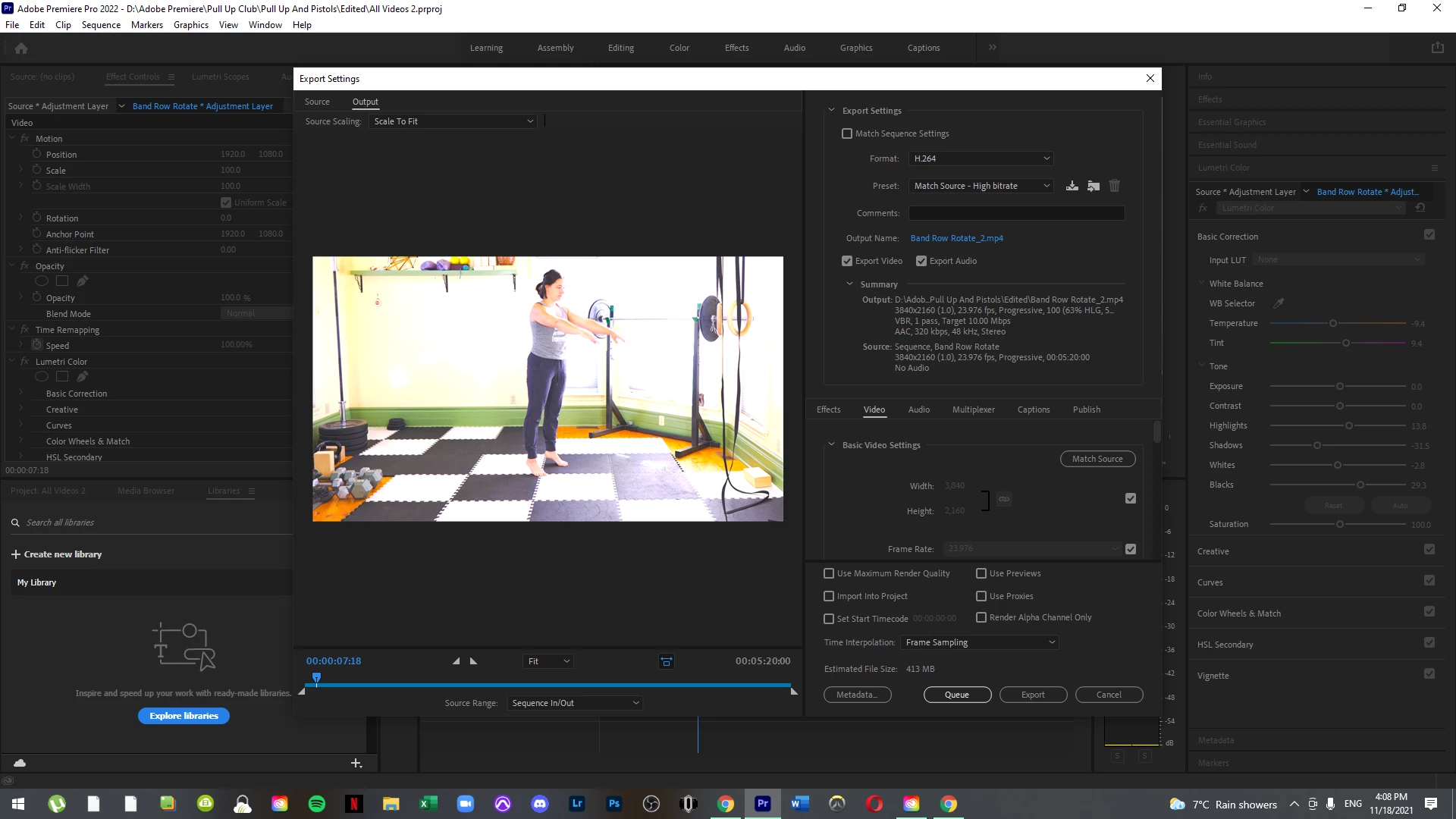
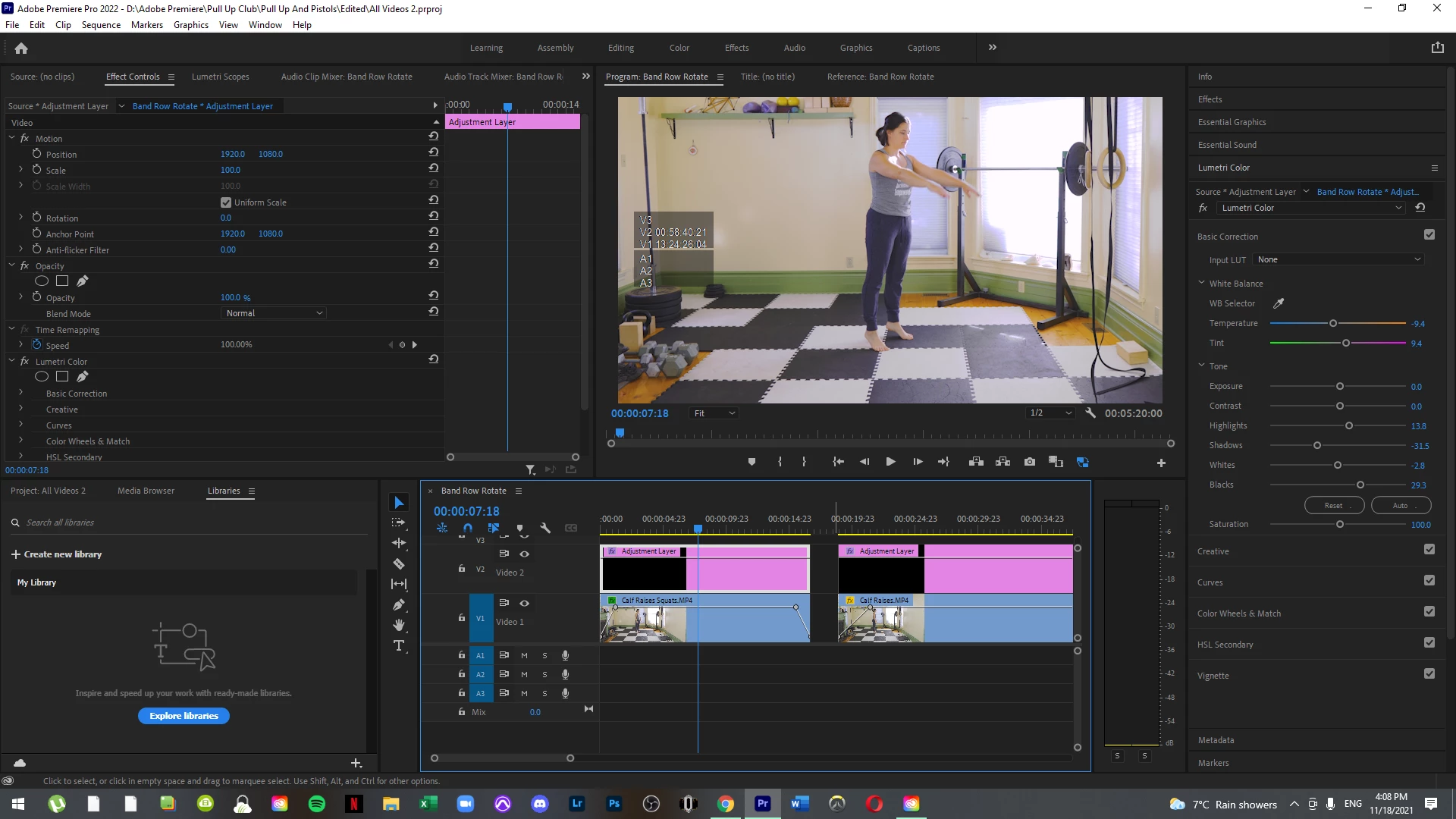
Why does exported file look different?
  • November 18, 2021
  • 2 replies
  • 35297 views


-

After exporting, the video looks exactly like the over exposed version without me being able to correct the matter it seems. Help? I;ve updated adobe, creative cloude, updated my drivers, restarted my computer 3 times. What is happening?


Correct answer R Neil Haugen

In the 2022 version, the developers gave us users more color management setting options and some different default CM behaviors. Which is tripping up many users.


There's a thread here on fixing over-exposed HLG media ... how-to-fix-saturated-over-exposed-hlg-clips ... and you should take a look there.


Short version, check the file properties in the bin (Modify/Interpret footage) for file color space, check the sequence settings for sequence color space, and make sure you're exporting to the space you want to.


Neil

2 replies

Participant
March 14, 2024

Try to find some lut to solve it

, i use gamma fix, you can find easily. But instill not undersanding why adobe make the s***#&#*.

R Neil Haugen
Legend
March 15, 2024

Adobe did not make a problem here. They have to allow users to set color management as there's a number of things you might want to do. They have given you options you didn't used to have!


But you need to set the settings to what you need to use.


Go to the Lumetri panel, the Settings tab, where all the color management settings now 'live'.


Tell us how they are set, and what you want to do. It's very easy to setup what you want to do.


As long as  you don't expect to 'fix' Apple's mess by not following proper Rec.709/SDR standards as everyone else does, that is. None of my pro colorist buds can fix that either, and they're mostly Mac geeks, and really ticked off at Apple.

Everyone's mileage always varies ...
Participant
October 10, 2024

In some ways, Adobe did make it more complicated. If editors have edited Lumtri adjustments to clips, then the default export should allow for this as in, include the Lumetri LUT in the export by default!

Just seems like common sense.

Thanks All.

R Neil Haugen
R Neil HaugenCorrect answer
Legend
November 18, 2021

In the 2022 version, the developers gave us users more color management setting options and some different default CM behaviors. Which is tripping up many users.


There's a thread here on fixing over-exposed HLG media ... how-to-fix-saturated-over-exposed-hlg-clips ... and you should take a look there.


Short version, check the file properties in the bin (Modify/Interpret footage) for file color space, check the sequence settings for sequence color space, and make sure you're exporting to the space you want to.


Neil

Everyone's mileage always varies ...
Participant
November 18, 2021

Hey Neil,


I appreciate the quick reply and this was the issue. I'll have to figure out how I'm going to need to record/save videos now so this doesn't continue to happen.

Inspiring
November 19, 2021

Prior to the new release of Adobe Premiere Pro sometimes the exported video would look at tad bit different when uploaded to YouTube or playing back the exported video in OBS or Quicktime. There are ways to compensate for that by using a LUT or by using an adjustment layer as seen in the video below. 


 https://www.youtube.com/watch?v=K7EGNJop_HE