Participant
June 12, 2025
Answered

Why does Premiere Pro make it SO HARD to export multi-track audio?

  • June 12, 2025
  • 2 replies
  • 264 views

My project:
I have a video track and 2 audio tracks in my sequence.

  • Audio Track 1 is English
  • Audio Track 2 is Chinese


My deliverable:

I want to export this in ANY format (preferably H.264 for size) that will allow VLC and HTML5 video players to select the audio track.

My conundrum:
I've done this before on an older version of Premiere Pro, but some of the menus governing Audio Track Configuration have changed and I don't see the same options.  Regardless, why would Adobe Premiere Pro assume that if I have 2 audio clips in my sequence, that I would randomly want it to only render out Audio Track 2 and not Audio Track 1 or both?!?  That makes no sense and the UI is obtuse about helping me find the path forward.  I've seen suggestions ranging from changing the sample rate from 48k to 44.1k, copying and pasting my clips into a multi-channel sequence (which btw is bonkers that you can't do that on the fly), using the Render and Replace option on the audio clips, etc.  

Hours lost and miles of sanity just gone trying to figure this out.  

Help.  For the love of all that is great about video editing except this, please help.

Correct answer PaulMurphy

To export multi-track audio properly, you'll need to move your clips into a new multichannel sequence and export them as discrete audio streams.

Here's how to do it:

  1. Create a new sequence:
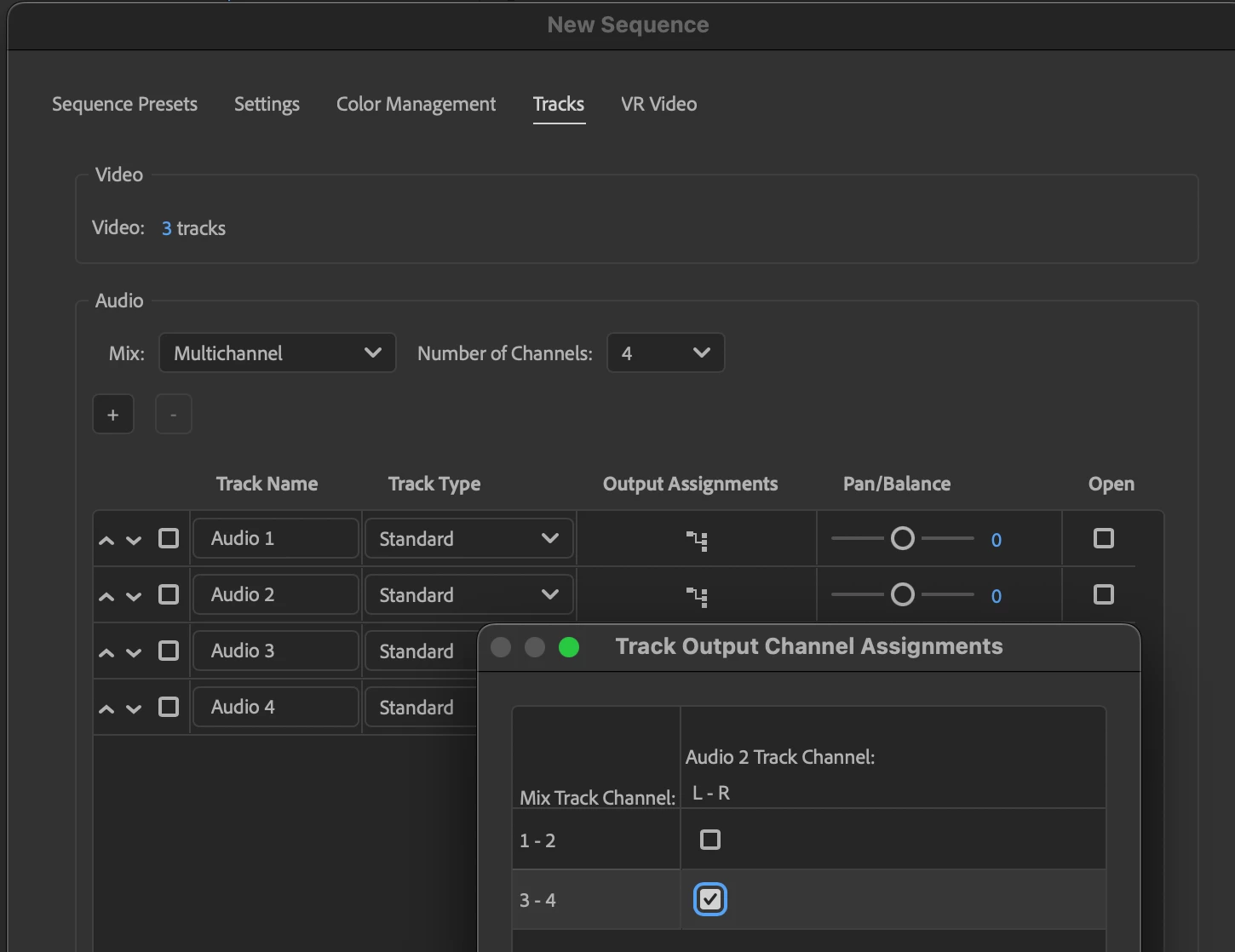
    • In the New Sequence window, go to the Tracks tab.
    • Set the Mix to Multichannel and adjust the Number of Channels to match your total output channels. For example, if you have stereo English and stereo Chinese tracks, set it to 4 channels.
  2. Route your audio tracks:
    • Click on Output Channel Assignments.
    • For Track 2, uncheck channels 1–2 and check channels 3–4. This ensures audio from Track 2 is routed to channels 3 and 4, while Track 1 will remain on channels 1 and 2 by default.
  3. Add your clips to this new sequence.
  4. Export your sequence:
    • Set the format to QuickTime.
    • Expand the Video settings and select H.264 as the codec.
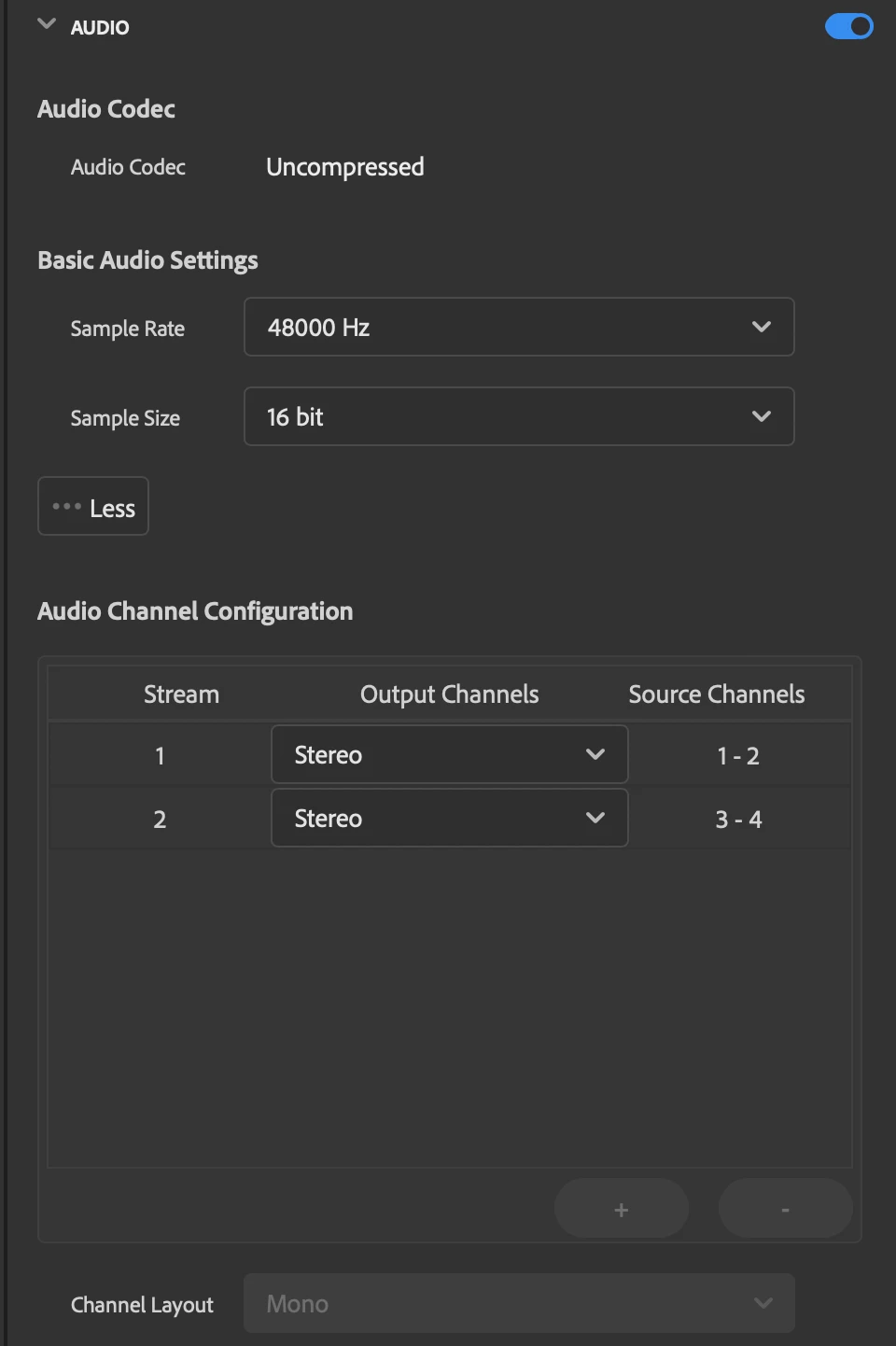
    • Under Audio settings, scroll to Audio Channel Configuration and set the Channel Layout to Discrete.
    • Click the + to add a new audio stream and set Output Channels to Stereo.

This setup allows you to export separate stereo pairs for each language or audio track as required.


2 replies

PaulMurphyCommunity ExpertCorrect answer
Community Expert
June 12, 2025

To export multi-track audio properly, you'll need to move your clips into a new multichannel sequence and export them as discrete audio streams.

Here's how to do it:

  1. Create a new sequence:
    • In the New Sequence window, go to the Tracks tab.
    • Set the Mix to Multichannel and adjust the Number of Channels to match your total output channels. For example, if you have stereo English and stereo Chinese tracks, set it to 4 channels.
  2. Route your audio tracks:
    • Click on Output Channel Assignments.
    • For Track 2, uncheck channels 1–2 and check channels 3–4. This ensures audio from Track 2 is routed to channels 3 and 4, while Track 1 will remain on channels 1 and 2 by default.
  3. Add your clips to this new sequence.
  4. Export your sequence:
    • Set the format to QuickTime.
    • Expand the Video settings and select H.264 as the codec.
    • Under Audio settings, scroll to Audio Channel Configuration and set the Channel Layout to Discrete.
    • Click the + to add a new audio stream and set Output Channels to Stereo.

This setup allows you to export separate stereo pairs for each language or audio track as required.


R Neil Haugen
Legend
June 12, 2025

@PaulMurphy  is the best resident expert on audio setup and exports.

Everyone's mileage always varies ...