
Participating Frequently
March 24, 2016
Answered

Why is this 3 minute 4K video taking 24 hours to export?

  • March 24, 2016
  • 4 replies
  • 39807 views

I am a complete Premiere newbie, so I am still learning how to do this, but even I know that a 3 minute 4K video should not take 24 hours to export.

Here's some information on the situation:

Export settings:

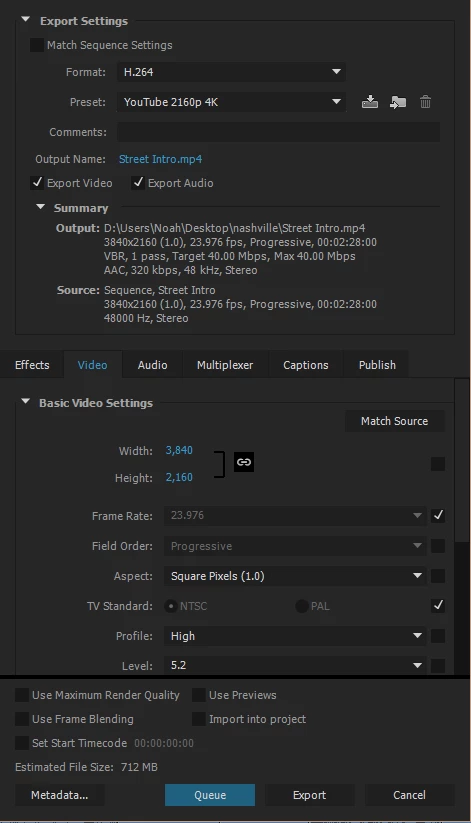
Using H.264 format with the YouTube 4K preset.
Applied FX:

Little correction to exposure, contrast, saturation, etc.

Used Lumetri color to apply LUT

Denoiser II at 200%

Added a soundtrack mp3 file

Using one adjustment layer for color grading and another adjustment layer to create a crop effect

Added a couple text titles

Slowed down one clip to 20% speed

Source Footage:

Slog2 XAVCS 60Mbps 4K video in a .mp4 format

Frame size: 3840 x 2160

Bitrate: 56722kbps

Frame rate: 24p

PC Specs:

i5-4790K

Radeon HD 7950 GPU

8GB DDR3 RAM

Windows 10

600W power supply

Let me know if you need any more information on my project, and I would appreciate any guidance at all! I am so completely new at this so I am trying to learn as much as I can.

This topic has been closed for replies.
Correct answer Kevin-Monahan

Hello noahthomas,

but even I know that a 3 minute 4K video should not take 24 hours to export.

It might.

First of all, I just created a FAQ for those having the same trouble as you. Please read it and see what you think: FAQ: How do I speed up rendering, exporting, or encoding?

My evaluation for why it might be taking a long time to export your rather short project:

  1. Hardware considerations
    1. CPU: encoding is a CPU intensive process.
      1. Consider that your processor might be insufficiently powerful for encoding 4K footage at the rate you expect.
      2. Consider also that you may not have multiple processors as many computers do.
    2. GPU: the GPU can be used to speed up certain processes for export.
      1. Consider that your GPU may not be enabled.
        1. Since you have a GPU which can likely be enabled for GPU acceleration, ensure that it is enabled in Project Settings.
        2. If you are using AME, make sure it is enabled there, as well.
    3. Hard Drive: fast hard drives can assist faster exporting.
      1. Are you using a separate hard drive?
      2. If so, is it internal or external?
      3. How is that drive connected?
        1. Is the hard drive connected via a high speed connection or a slow one?
  2. Optimized media
    1. Is your media optimized for encoding?
      1. No scaling going on: good. However, you are encoding for a huge frame size. Take into consideration that actual frame size you are encoding.
      2. You are encoding camera original footage, so the smart rendering process cannot be used for speeding up the encoding process unless it was transcoded.
      3. You are adding Lumetri effects, which can add time in the encoding process.
        1. Technique to avoid that issue: transcode camera originals to an intermediate codec while simultaneously adding the same Lumetri effect via Media Encoder before editing.
      4. You are using third party effects: some third party effects are well-known for greatly increasing export times. Any image denoiser like Neat or Denoiser II are particularly notorious for jacking up your export times. This is the likely culprit of your long export times.
        1. A good way to work around this time intensive process is to transcode the footage to an intermediate codec with the denoiser plug-ins in Adobe Media Encoder.
        2. Do this in an overnight process before you even begin editing. Offloading the processing of effects you know you will be using up front can save loads of encoding time in the end.
    2. Are you using smart rendering?
      1. You are not using smart rendering, therefore, you cannot export the absolute fastest way Premiere Pro is capable of.
      2. You can use smart rendering in future encoding jobs, however, much of the benefits of smart rendering cannot be taken advantage of unless you are allowing for it in the preparatory stages of project planning. Again, see the FAQ for more info on smart rendering and how it can save you time while being a more reliable way of exporting at the same time.

Hope that this helps you for your encoding job and for future encodes. Please return with any questions.

Thanks,

Kevin

4 replies

yogeshb67794532
Participant
October 9, 2017

Yes, this also happens with me, when I edit my 3-4 video to post on my Hindi Shayari Website. this says that the remaining time is in 10-15 hours and I applied many methods but cannot rid from this problem.Adobe work on it

Participant
March 25, 2016

Hi, is there any answer to this issue? I have been trying everything you guys recommended.

I need to finish one video for ProTrampolines.com and I`m stuck for last 12 hours! Anyone has any other answers?

thank you in advance.

Nino A.

Participating Frequently
March 25, 2016

Hi Nino,

If you're going to edit 4K and export as 4K on a slow machine and use DeNoiser....it will take a very long time, there is no easy solution.

Thanks

Jeff

Kevin-Monahan
Community Manager
Kevin-MonahanCommunity ManagerCorrect answer
Community Manager
March 24, 2016

Hello noahthomas,

but even I know that a 3 minute 4K video should not take 24 hours to export.

It might.

First of all, I just created a FAQ for those having the same trouble as you. Please read it and see what you think: FAQ: How do I speed up rendering, exporting, or encoding?

My evaluation for why it might be taking a long time to export your rather short project:

  1. Hardware considerations
    1. CPU: encoding is a CPU intensive process.
      1. Consider that your processor might be insufficiently powerful for encoding 4K footage at the rate you expect.
      2. Consider also that you may not have multiple processors as many computers do.
    2. GPU: the GPU can be used to speed up certain processes for export.
      1. Consider that your GPU may not be enabled.
        1. Since you have a GPU which can likely be enabled for GPU acceleration, ensure that it is enabled in Project Settings.
        2. If you are using AME, make sure it is enabled there, as well.
    3. Hard Drive: fast hard drives can assist faster exporting.
      1. Are you using a separate hard drive?
      2. If so, is it internal or external?
      3. How is that drive connected?
        1. Is the hard drive connected via a high speed connection or a slow one?
  2. Optimized media
    1. Is your media optimized for encoding?
      1. No scaling going on: good. However, you are encoding for a huge frame size. Take into consideration that actual frame size you are encoding.
      2. You are encoding camera original footage, so the smart rendering process cannot be used for speeding up the encoding process unless it was transcoded.
      3. You are adding Lumetri effects, which can add time in the encoding process.
        1. Technique to avoid that issue: transcode camera originals to an intermediate codec while simultaneously adding the same Lumetri effect via Media Encoder before editing.
      4. You are using third party effects: some third party effects are well-known for greatly increasing export times. Any image denoiser like Neat or Denoiser II are particularly notorious for jacking up your export times. This is the likely culprit of your long export times.
        1. A good way to work around this time intensive process is to transcode the footage to an intermediate codec with the denoiser plug-ins in Adobe Media Encoder.
        2. Do this in an overnight process before you even begin editing. Offloading the processing of effects you know you will be using up front can save loads of encoding time in the end.
    2. Are you using smart rendering?
      1. You are not using smart rendering, therefore, you cannot export the absolute fastest way Premiere Pro is capable of.
      2. You can use smart rendering in future encoding jobs, however, much of the benefits of smart rendering cannot be taken advantage of unless you are allowing for it in the preparatory stages of project planning. Again, see the FAQ for more info on smart rendering and how it can save you time while being a more reliable way of exporting at the same time.

Hope that this helps you for your encoding job and for future encodes. Please return with any questions.

Thanks,

Kevin

Kevin Monahan - Sr. Community and Engagement Strategist – Adobe Pro Video and Audio
Participating Frequently
March 25, 2016

Also, what would be a good intermediate codec for what I am working with?

Kevin-Monahan
Community Manager
Community Manager
March 25, 2016

Does ProRes and DNxHD support 4K though? This is where I am having a hard time understanding your recommendation.


Hi Noah,

Does ProRes and DNxHD support 4K though?

Yes, they do. That's why they're good for transcoding. If you are uploading to YouTube, you can maintain the 4K frame size.

However, do you need 4K? What is the intended destination of the video? Answering that question will help you determine how you transcode.

For example, if you don't need 4K and HD would work for you, then you transcode to HD frame size. This scales down the frame to the right size for HD with all the accouterments you need, allowing an even faster method for encoding.

Hope that helps more than confuses.

Kevin

Kevin Monahan - Sr. Community and Engagement Strategist – Adobe Pro Video and Audio
Peru Bob
Community Expert
Community Expert
March 24, 2016

noahthomas03 wrote:

PC Specs:

i5-4790K

Radeon HD 7950 GPU

8GB DDR3 RAM

Windows 10

600W power supply

An i5 processor, only 8 GB RAM, and Radeon graphics is probably part of the reason.

What is your hard drive setup (how many, what kind, how full, and what is on each)?

Participating Frequently
March 24, 2016

Even with those specs, which really are not bad, it should not be taking 24 hours to export a 3 minute video.

I have a 7200rpm 500GB HDD with 250GB remaining, filled with a ton of random stuff, mostly games,

and a 60GB SSD where I have Premiere and Windows installed. About 20GB remaining on the SSD.

Peru Bob
Community Expert
Community Expert
March 24, 2016

You may want to scroll down and read the articles here:

Tweakers Page