
Laura Rendle
Participant
June 20, 2023
Answered

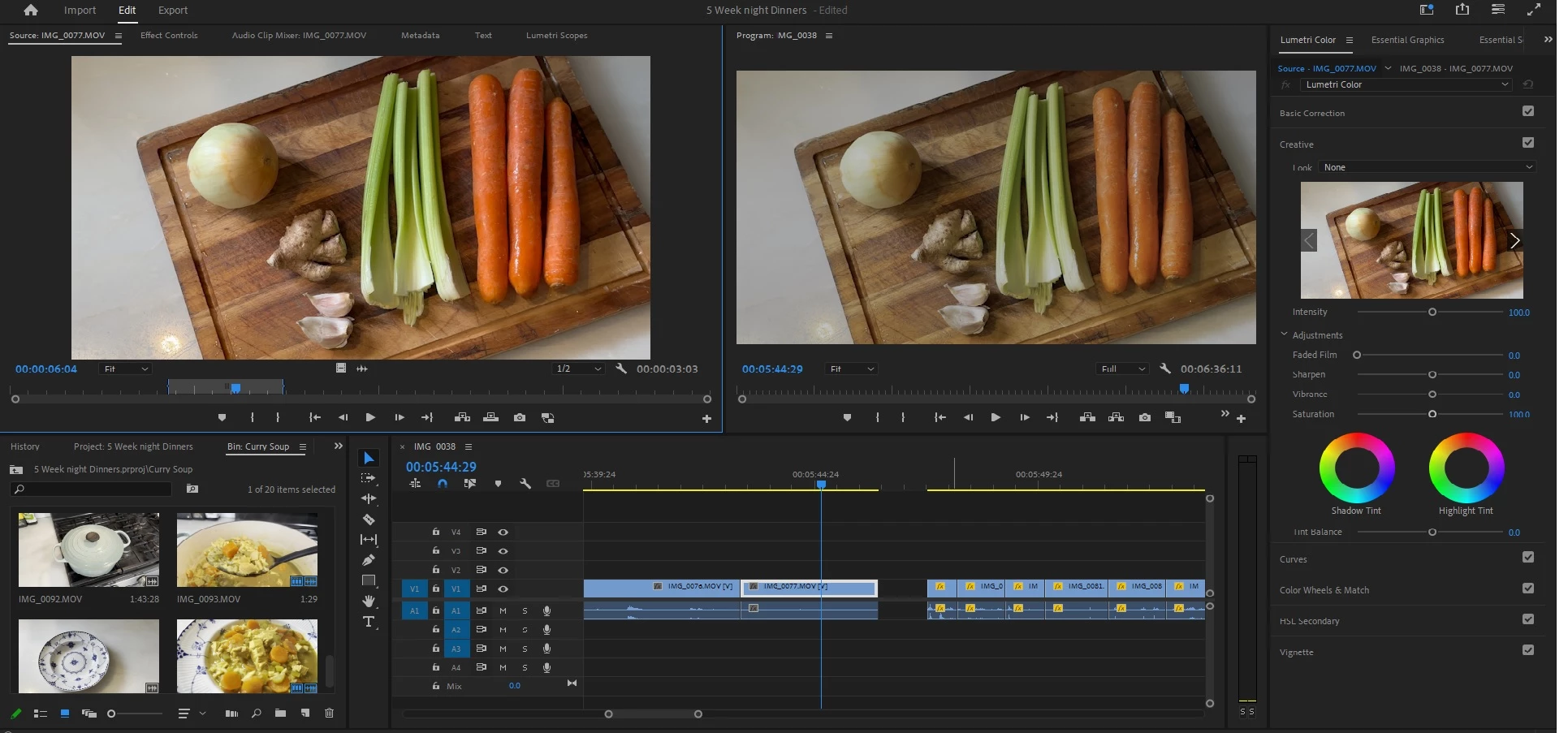
Why is this happening? (Clip looks faded when added to timeline, no effects added)

  • June 20, 2023
  • 1 reply
  • 632 views

Does anybody know why this is happening? Some of the clips end up looking faded once added to the timeline, but they look normal when in the project window. It seems to be completely random and it's happened to 4 or 5 different clips so far. There are no effects added to the clips, and I've tried starting a new project with the same clips and they look perfectly normal in the new project. I've also tried deleting the affected clips and re-imported them, and they still look faded. I've tried deleting the files completely and re-importing straight from my device (iPhone) again, and they still look faded in this particular timeline. 

I've managed to make them look slightly normal by using Lumetri edits as I don't want to start my whole video over in a new project... But if anybody could tell me why it's happening that would be great!
This topic has been closed for replies.
Correct answer Ann Bens

Hit F1 and type in Color Management and/or Tone Mapping.


Everything needs to be the same: clip, sequence and export as in tone mapping.

1 reply

Ann Bens
Community Expert
Ann BensCommunity ExpertCorrect answer
Community Expert
June 20, 2023

Hit F1 and type in Color Management and/or Tone Mapping.


Everything needs to be the same: clip, sequence and export as in tone mapping.

Laura Rendle
Participant
June 20, 2023

Ahh I see... iPhone footage is in a different color workspace. 

But now, the problem I have is if I change it to 709 (which is where these specific clips need to be), then every other clip in the timeline looks blownout and over-contrased 😕😕 

Laura Rendle
Participant
June 20, 2023

I think I figured it out, lol. I had "Auto Tone Map Media" un-toggled when I set it to 709. Everything looks good now.

Thanks so much!