
Participant
January 22, 2019
Question

Why my MOV Videos don't work properly ?

  • January 22, 2019
  • 3 replies
  • 611 views

Hello everyone,

I Have an Issue specifically with .MOV FIles, indeed when I drag them onto the timeline it's fine, but after a few minutes of work it starts to go... Back and forth, jumping from one frame to another, it is not a render Issue either because when I export it, the lag persist with the exported file.

giphy.gif

I Have tried several things to fix this but If one problem goes away another comes next.
For instance;
I've tried to convert MOV files into MP4, and other extensions like MPEG-TS MKV, but another issue comes next, when I do that, the video is flipped upside down, It wouldn't be a problem if it was just one video, but i have hundreds of videos that I need to constantly check, and it's hard to work with upside down clips in the preview window, obviously I could flip by rotating but I need to have the clip the right way in the preview window. I've also tried to convert it and flip the video in a converter, but there's still the issue of horrible quality loss.

I have also tried using proxies, It works to a certain extent, the videos don't jump back and forth, but on the final export it still has issues, that for some reason the clips don't start at the frame it needs to start. Other than that I need to work with some videos that are vertical (1080x1920) and i didn't find a way to make vertical proxies so when I try to fix this issue with vertical clips, I end up with a noodle shaped video.
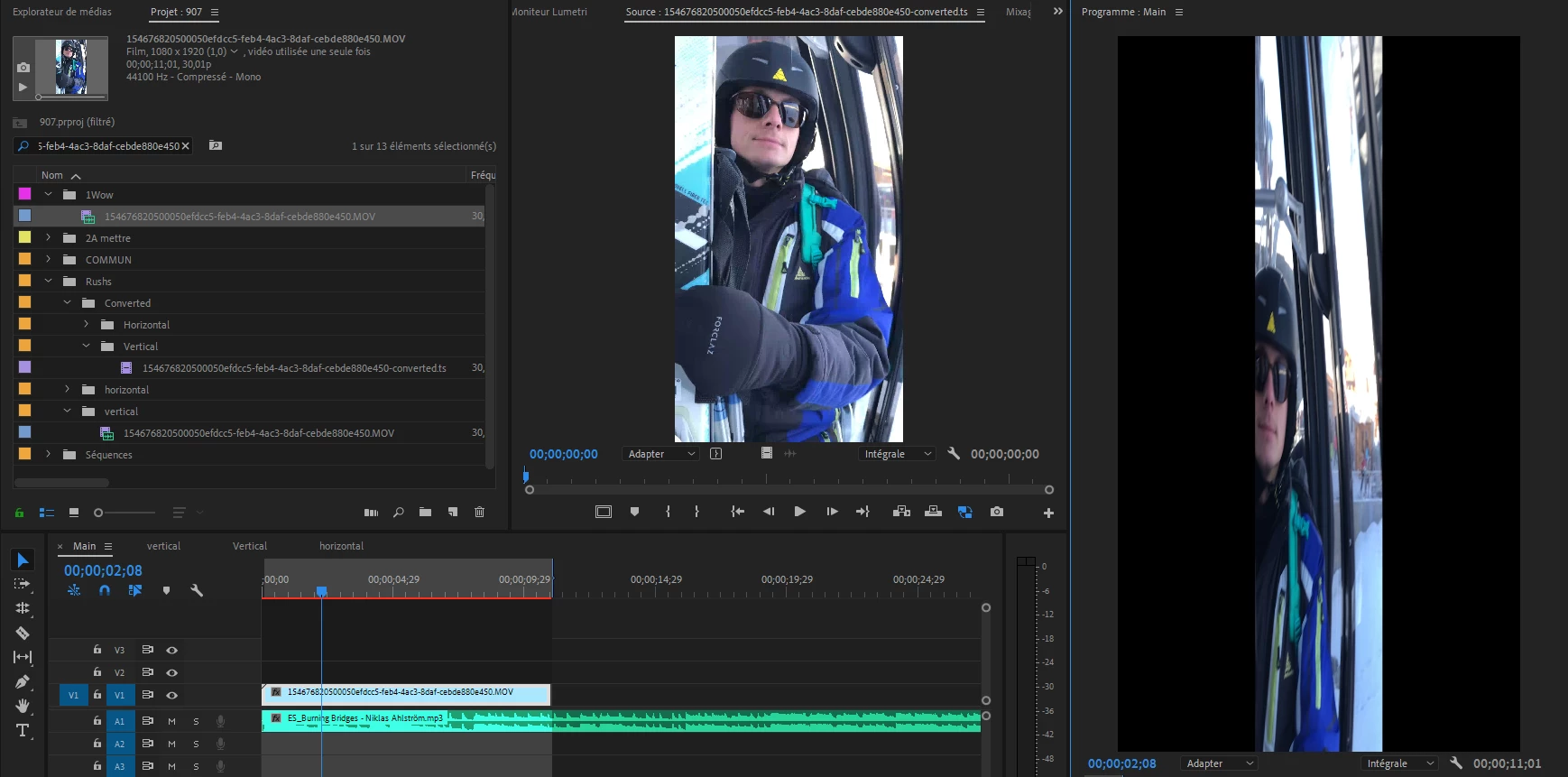
I've spent hours trying to figure out what's wrong, and reading different forums to no avail. I really need your help.

Also don't get me wrong, I've tried simple ways to try to fix it like deleting cache media, lowering the resolution, but as i said earlier, I don't think it's a render Issue, If you want my nineteen cents, I think there's some wierd shenanigans with end of support for quick time 7 era formats and codecs.

Thank you for reading and for your help, god bless.

This topic has been closed for replies.

3 replies

R.M.D.I.VAuthor
Participant
January 29, 2019

Bump, still would like any other ideas to my problem, converting it through handbrake only fixed half of the videos, the other half still has these jumps.

Legend
January 23, 2019

I believe Step 2B below will solve this for you.

Unofficial Premiere Pro Troubleshooting Guide

R.M.D.I.VAuthor
Participant
January 23, 2019

Unfortunately I am not the one taking the videos, My clients are taking videos and I have to deal with watever format they send our way. Changing the editing software will aslo be complicated.

I have found a temporary workaround by converting the files in handbreak, into M4V using H.265 codec, my videos don't lose quality, and are no longer upside down, however, it doesn't work for all clips, some still keep the lag (even though visioning the raw clip with vlc for exemple, the clip is fine.)

It is sadly still a problem as I have hundreds of clips, and can take a very long time to convert, so if there is any other fixes available, please do tell me.

Kevin-Monahan
Community Manager
Community Manager
February 12, 2019

HI R.M.D.I.V,

Sorry for the issue. I have a feeling that much of this has to do with the quality of your source footage. Is this all mobile phone video? Have you found a solution for your workflow issue yet?

Thanks,
Kevin

Kevin Monahan - Sr. Community and Engagement Strategist – Adobe Pro Video and Audio
Participant
January 22, 2019

Could you try this,

Check in the " project settings " if the renderer is grayed or not, if its not-

change it to GPU if you have a dedicated graphics card.

At times you will find it grayed even if you have a dedicated graphics card, so what you do is go on

my computer / local disk where windows is installed / program files/ adobe / version of premiere pro you are using / on the empty space side, hold shift and right click, then click - open command window here- when its open type

GPUSniffer and press enter.

After that open premiere, project settings and check if the renderer is not grayed.

Then you can select your GPU,

and see if the draging continues.

R.M.D.I.VAuthor
Participant
January 22, 2019

Hi If you're talking about this

     Then it is active, and it doesn't fix the issue, actually it's quite the contrary, now on my converted clips that are upside down, I'm unable to preview the video when it's not playing, I see a black image when pausing, I switched it back to mrecury playback only and the video is not longer black when pausing.  Thank your for your answer though, hopefully we will find an answer soon enough.

Ann Bens
Community Expert
Community Expert
January 22, 2019

Two things I noticed: ridicules names with hyphens and variable framerate.

Do you have max bitdepth checked in the sequence settings?