Inspiring
July 14, 2020
Answered

wider height in Effect Control panel

  • July 14, 2020
  • 2 replies
  • 798 views

Hi,

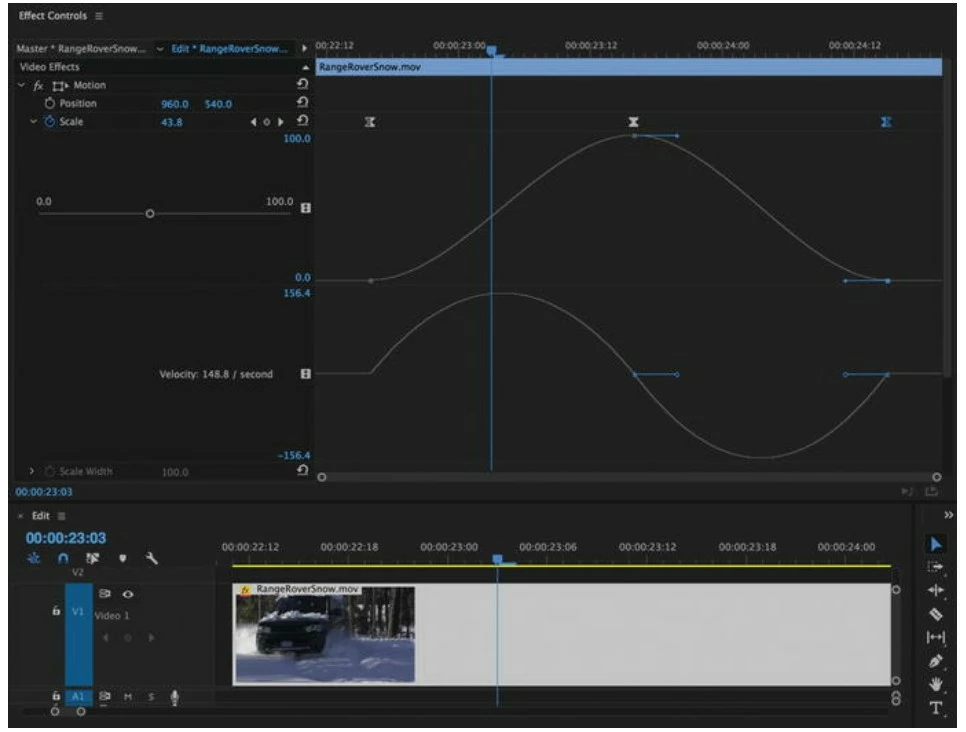
Is there a way to make the graphs taller to make more room for working with keyframes in the Premiere Effects Control Panel timeline?  I found this illustration in the book "The Cool Stuff in Premiere Pro" by Jarle Jeirpoll which shows the graphs as much taller than they usually appear in Premiere Pro.  But I can't find any way to make them taller.  Is there a way?

Thanks.

Zaffer
This topic has been closed for replies.
Correct answer Meg The Dog

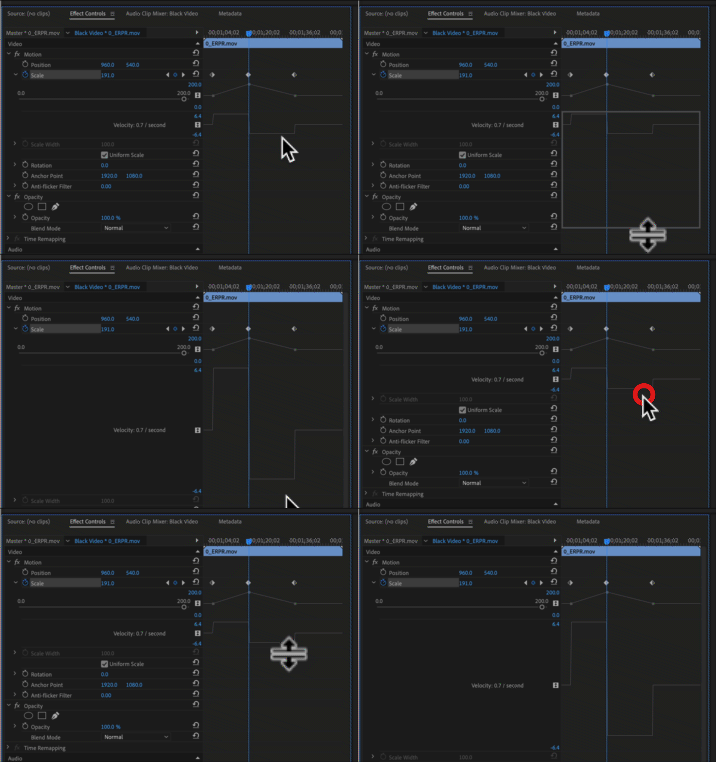
Hover on the thin gray horizotal lines that separate the graphs and when the cursor changes to the up/down form, click and drag:

MtD

2 replies

Meg The DogCorrect answer
Inspiring
July 14, 2020

Hover on the thin gray horizotal lines that separate the graphs and when the cursor changes to the up/down form, click and drag:

MtD

ZafferAuthor
Inspiring
July 15, 2020

Thanks Meg,

That's what I eventually figured out for myself 🙂

Zaffer

Ann Bens
Community Expert
Community Expert
July 14, 2020

Use the full screen feature (shortcut `) or get a larger monitor.

ZafferAuthor
Inspiring
July 14, 2020

Thanks Ann,

I wasn't trying to make the whole Effects Control Panel bigger, I was trying to make the individual graphs inside it bigger (taller) for ease of editing bezier handles.  I discovered the way myself.  The height adjustment is in the Effects Panel Timeline itself, not in the list of effects -- sort of the opposite of the way the timeline works, where the track heightment is in the list, not in timeline itself.

Zaffer