Participant
March 26, 2023
Answered

Windows screen recording poor quality when exporting from Premiere Pro

  • March 26, 2023
  • 1 reply
  • 1173 views

Hi everyone,

I have been struggling with this issue and haven't been able to find a solution. I am using some windows screen recordings I made with the Xbox Game bar on my Dell, and the videos look fine, but whenever I export them from Premiere Pro the quality is super poor and they look super blurry. I have tried using Handbrake to transcode it from a variable frame rate to a constant frame rate and it didn't solve the problem. I also tried using Shutter Encoder to rewrap it, and it didn't work out either. 

I'm panicking, please help!


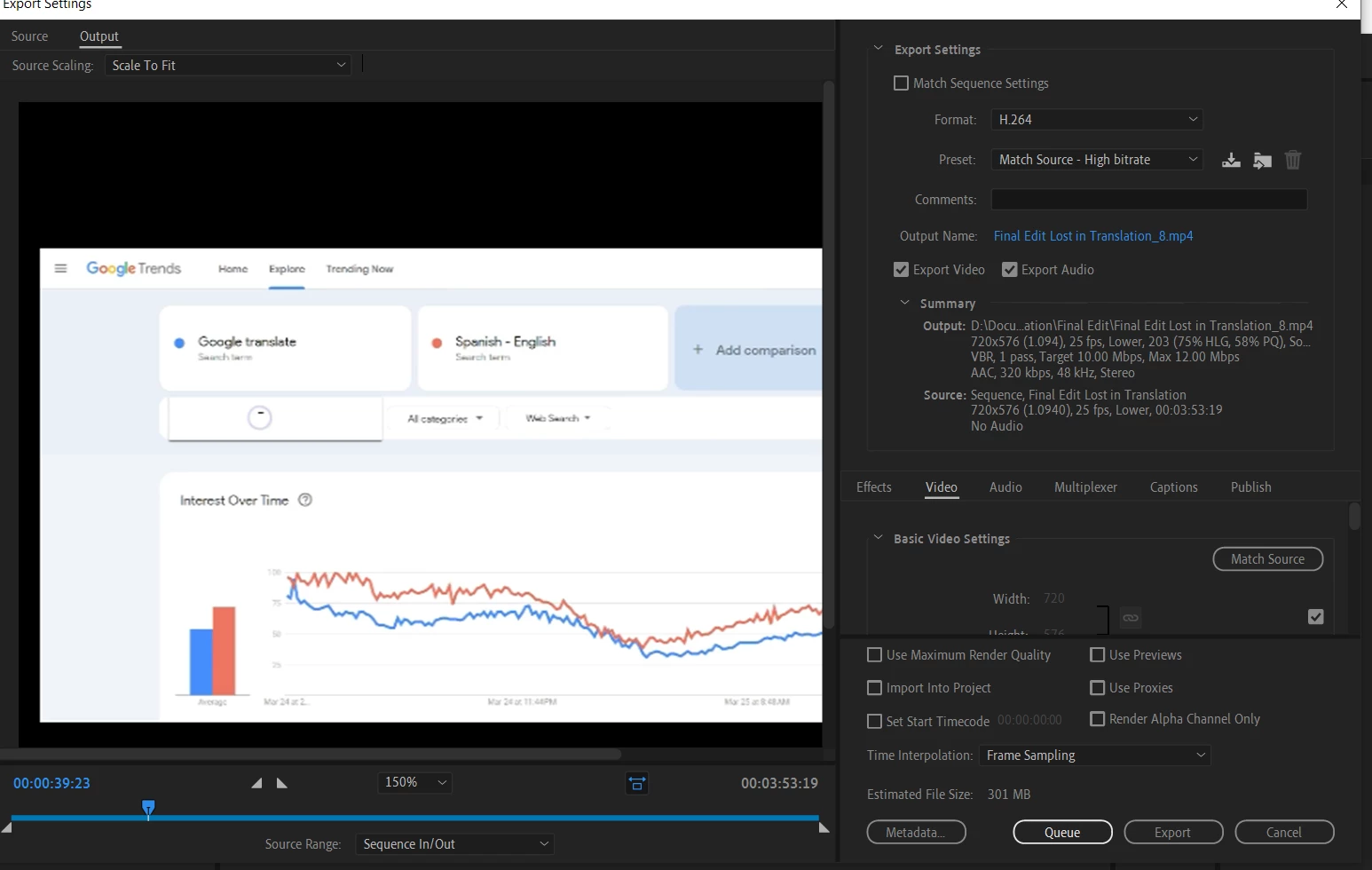
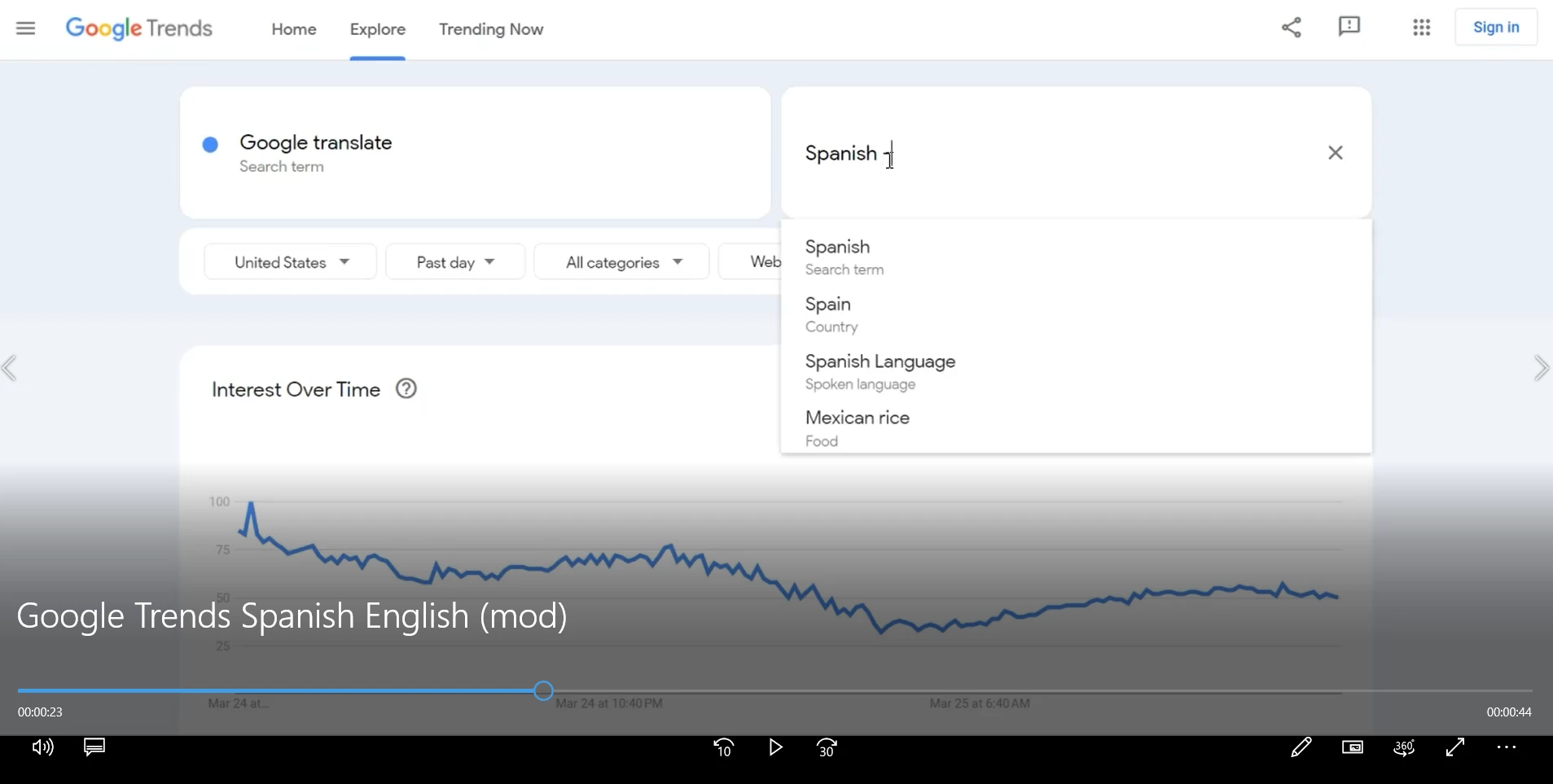
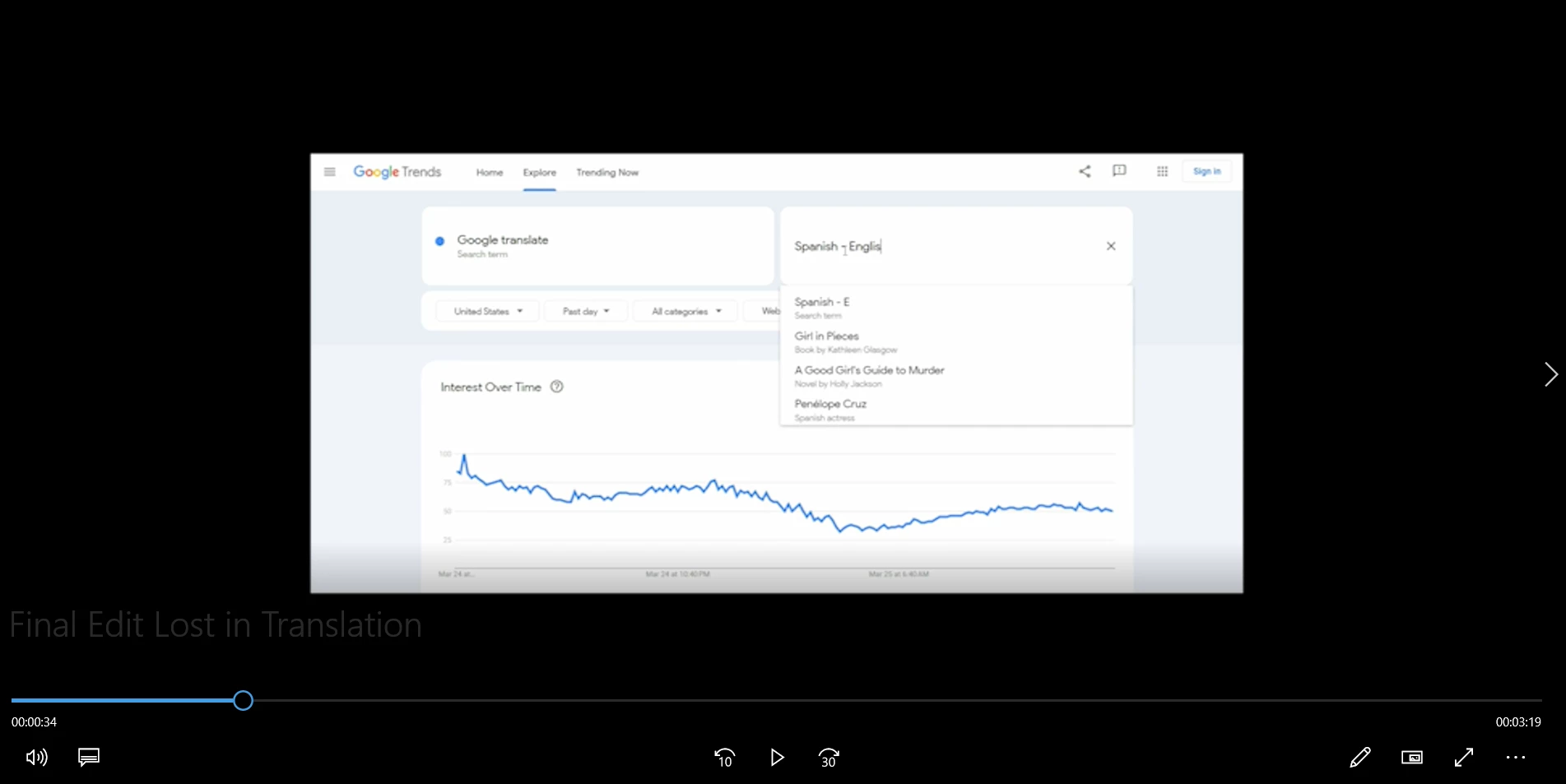
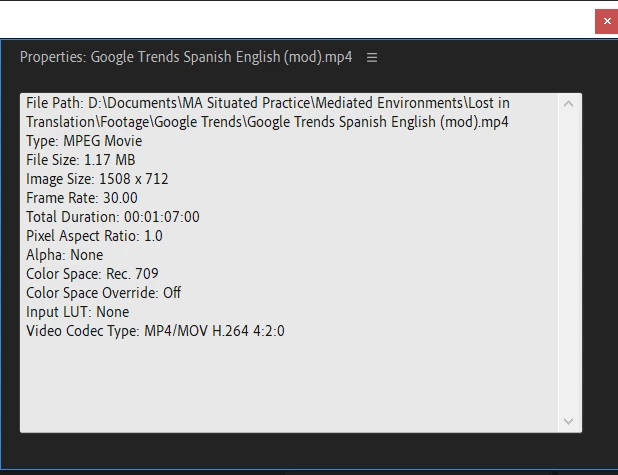
I have added some images of how the screen recording looks originally, how it looks after being exported from premiere, the properties of the screen recording, and the settings I'm using when exporting. 
This topic has been closed for replies.
Correct answer Averdahl
quote

...and the settings I'm using when exporting. 
 

By @Andrea29070650b0fy


You have a 720x576, PAR 1.0940 timeline and are exporting to 720x576, PAR 1.094 and that will indeed look bad since your source footage is 1508x712 with a PAR of 1.0. Thats the issue. 


Use a timeline with a PAR of 1.0 and use a timeline that matches your source footage and export with the same settings. You can also use a 1280x720 timeline but you will have to scale the footage. It all depends if you have any other source footage.


PAR=Pixel Aspect Ratio

1 reply

Averdahl
Community Expert
AverdahlCommunity ExpertCorrect answer
Community Expert
March 26, 2023
quote

...and the settings I'm using when exporting. 
 

By @Andrea29070650b0fy


You have a 720x576, PAR 1.0940 timeline and are exporting to 720x576, PAR 1.094 and that will indeed look bad since your source footage is 1508x712 with a PAR of 1.0. Thats the issue. 


Use a timeline with a PAR of 1.0 and use a timeline that matches your source footage and export with the same settings. You can also use a 1280x720 timeline but you will have to scale the footage. It all depends if you have any other source footage.


PAR=Pixel Aspect Ratio

Participant
March 26, 2023

How can I change the settings of the timeline?? 

Thank you for your time 

Kevin-Monahan
Community Manager
Community Manager
September 29, 2023

Sorry the directions above dont help. Explain it to me like im a 5 year old. 


Choose Sequence > Sequence Settings. Change the dimensions to 1508 x 712. Add the image to the sequence once more. It should fit the sequence and it should not be blurry. Does that work for you?


Thanks,

Kevin

Kevin Monahan - Sr. Community and Engagement Strategist – Adobe Pro Video and Audio