
Working with Multi-Channel Audio in a Multicam Sequence
Premiere Wizards, I humbly need your assistance.
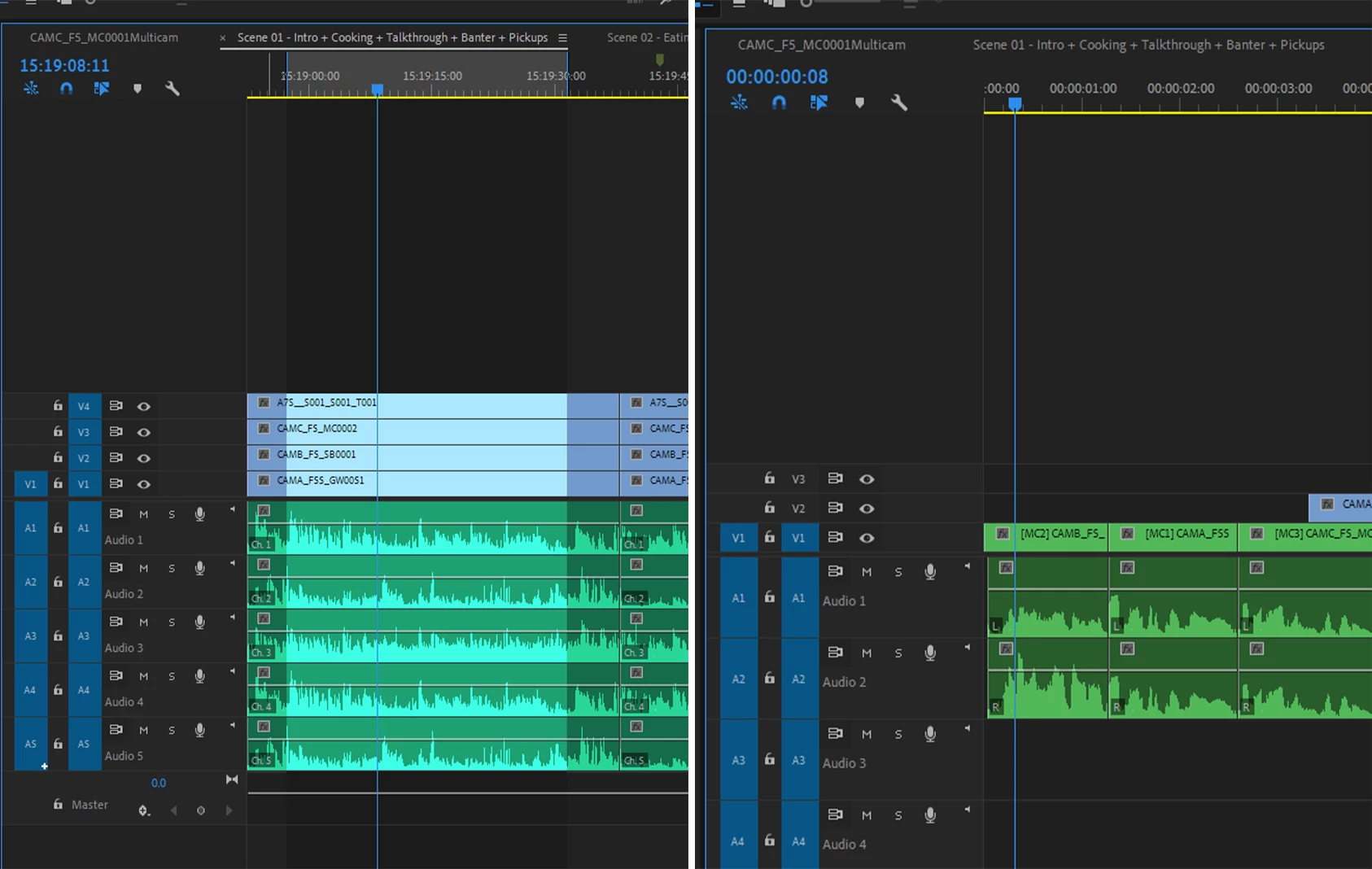
I have a multi-cam sequence (opened in the timeline on the left in the image above) with the camera audio removed and replaced with the on-set recorded audio. The audio is 5 channels, each channel being a different mic, but all together in one file. However, the sequence settings for this multicam sequence show that it's a Stereo sequence with just two channels. The option to change this is grayed out. When I insert clips from the multicam sequence into my main edit sequence, it's reduced down to just two channels (L & R), but it sounds like some of the channels aren't coming through.
So far, I've tried to re-create the multicam sequence in a way that allows for the 5 channels, but there doesn't seem to be a way to do this, all the options I've tried all result in a standard 'stereo' 2 channel sequence, that I can't alter afterwards. I've tried placing all the clips from the multi-cam sequence into a regular sequence with 5 channels created, but then there doesn't seem to be a way of converting this sequence into a multicam sequence. I've looked at the 'modify > audio channels' menu for all of the sequences, and the source audio files. The files correctly show 5 mono channels, but none of the sequences give me the option of adding more than just the standard 2 L&R channels.
Ultimately, I just want to be able to drop clips from the multicam sequence into my edit and have all the channels appear. The closest I've been able to do so far is after the clips are added, as in the image on the right, I can flatten the multicam, match source on the audio and swap it out, but this is a pain and takes ages.
Any assistance here woud be greatly appreciated. Audio channels are my big weak spot when it comes to Premiere!
 AdChoices