Inspiring
September 30, 2012
Answered

Canon C300 MXF spanned clips

  • September 30, 2012
  • 4 replies
  • 36611 views

Total FCP to PP newbie here, so pardon if this is already addressed/covered/known issue or simply user error.

My first project in PP is based on Canon C300 footage, 23.976, 1920x1080, interview content.   Many of my interviews go longer than the 2.05GB file limit and thus span across multiple clips.  This appears to be causing significant confusion with PP.  I've read a few other user discussions that seem to have similar issues but mine are slightly different...bear with me...

Issue #1:

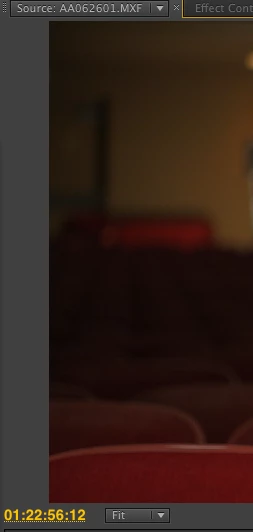
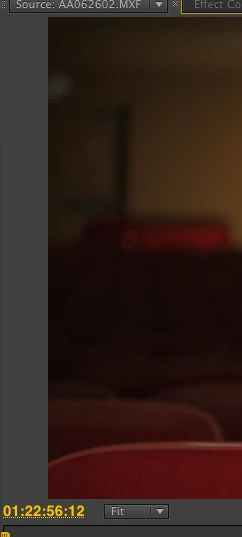
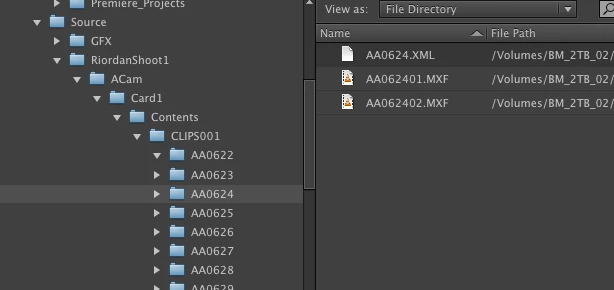
Two spanned clips from the same camera take show up with the same starting time coded.  For example. I have one continuous interview that starts at 01:22:56:12 but then spans across two clips.  I'll call those Part A and Part B.   When I import Part A and Part B using "Import from Media Browswer, then both Part A and Part B display the same common start time-code, even though in reality part B should clearly start one frame after the end of Part A.      This happens in both the Project/Bin view as well as the Source Monitor.  See below.

Aside from the confusion this creates with me, the user, it also appears to be causing problems within PP in that when I try to simply load either Part A or Part B into my source monitor, PP gets "confused" about which source clip it should playback from.  Sometimes this means that it plays the wrong clip entirely, until I pause and restart the playback, and sometimes it means that PP will stagger playback between the two clips (altnernately playing frames from A and then B in near real-time...A-B-A-B-A-B-A-B, etc) until it figures out which is the correct source clip to play.  

If this weren't bad enough, it gets even more troubling when I edit a section from either Part A or Part B into a sequence, thinking that I've edited in the section that I want, only to play it back and have PP play the audio from Part A and the picture from Part B.  Yet another example of it's own internal confusion.

Issue #2

The complimentary problem to this is that the End TC for Part A and Part B are note the same.   Looking at the Bin view above, you can see that Part A has an end TC that is after the ending TC of Part B.   When I first encountered this I thought that it meant that PP was being "smart", seeing that there was a spanned clip, and then using the XML metadata to know that the full clip was the total of Part A and Part B, and that I could simply delete Part B from my project.      Not so.  As Issue #1 demosntrated, the TC associated with Part B is just flat out wrong in its display.  (the only correct aspect of Part B apparently is the duration.)

Take-Aways:

I'm not clear at this point if this is a problem with how Canon is writing it's MXF and XML files or how PP is reading those files.  Either way, it's maddening to try to edit something without the confidence that what I'm editing is in fact going to be there when I play it back.

I've seen some users mention using other ingesting solutions and I would be interested in what those are before going much further in my cut (even though it will be tremendously discouraging to know that the "fast solution of PP" is somewhat of a fallacy at this point).    I'm also interested to know if these problems are limited to C300/MXF files or if it's showing up with .R3D files which also get written to disc as spanned files.
This topic has been closed for replies.
Correct answer imacattack

What does the View as: show up top?


oh wow...I feel dumb...and yet not.  Here's the reason:

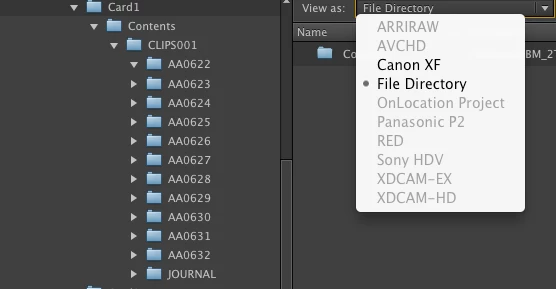
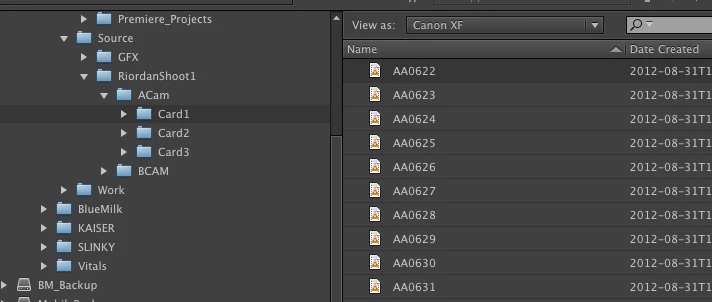
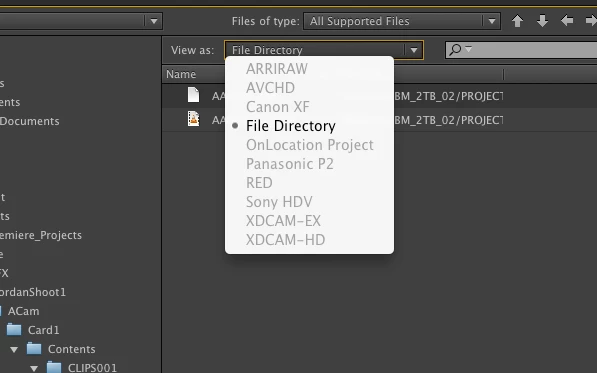
When I first looked, it said "File Directory", and I saw everything XML files, and all spanned clips.  This is how I had imported things before and no doubt leads to my problems.      But because you had raised the question, it seemed like it was my newbie error so I investigated the other options.  I was intrigued by Canon XF but it was greyed out (see below).    Turns out there's a slight order of operation bug/limitation to get Canon XF to even display.  (I call it a bug because it's not user intuitive, but it may just be a feature limitation that could be imrpoved upon).  The issue is that UNLESS the user clicks on the root "Card Name" of the /Card Name/Contents/Clips###/ClipName/ structure, then there is no ability to even choose to view Canon XF.    In other words, because the "View As" was already set to File Directory, I was never viewing Single Clips and I was therefore allowed/forced to drill all the way down to individual MXF files to then import.

vs....

Thus, I now see why you said  "You shouldn't be seeing two clips....etc"

It's a bit less than intuitive and hopefully can be improved. 

Thanks for the help.

Loves me some Premiere Pro CS6.


4 replies

Participant
February 13, 2015

I'm just starting to import some C300 footage, and having the same grayed out Cannon XF utility.  I'm just getting started but wanted to add my voice that this seems messed up and has been going on for a LONG time now.

I'm using CC 2014.2 (8.2.0 (65) build

Going to get the Cannon XF utility and see if that helps.

Edit: Decided to punt this problem for now, just used FCP 7 to ingest footage.  Had to install the FCP ingest plugin from cannon, I'm using 10.9, and it's only under like 10.8 software but so far everything is working good.  FCP 7 is reading Cannon XF cards just fine.  Is this a case of C300 just being too old to work with newer stuff? 

Adobe please look into this though, I can't use FCP 7 forever.

Kevin-Monahan
Community Manager
Community Manager
February 13, 2015

Hi Eric,

Typically, the way you import C300 footage is via the Media Browser from copies of the SD cards on your media drive. Is that the way you imported the footage?

Thanks,

Kevin

Kevin Monahan - Sr. Community and Engagement Strategist – Adobe Pro Video and Audio
Participant
February 16, 2015

This was not working in Prelude when I choose to "import files".  But in Premere Pro, I tired though the media browser as you said and it did allow me to bring in the files, and they appeared to be correct. 

However, I wanted to transcoded the media to Prores (I simply have bad luck with running raw .mxf files on mac) and edit with that.  But if I was editing raw this would have worked pretty well. 

So thanks!  But it would be nice to get Prelude to work better with Cannon XF cards though. 

Tayedrummer
Participant
October 21, 2012

I was having the same problem if I'd drop folders from Windows Explorer into a bin.  The only solution I found was to use the media browser, navigate to the location of the media, right click and select IMPORT.  At that point you'll only see AA062401 in your bin even if AA062402, AA062403 and AA062404 spanned clips are in there (similar to how Red R3D media behaves in Premiere).

I haven't tried to round-trip through Resolve to see if the spanned files make it though the process.  They do work in Premiere this way though.

Stephen_Spider
Inspiring
October 1, 2012

Premiere interprets the spanned clips as one clip, which is convenient.

If you import through a "file > import"  method after importing the spanned clip through Media Browser, you will see all of the partial .mxf of the spanned clip, however upon import premiere will treat each clip as if they are the same entire spanned clip.

If their is a View setting in Media Browser is set to Cannon XF and the folder structure from the flash storage is intact, one should only see the 1st part of the spanned clip listed there. If the Media Browser view is set to File Directory, one should see all the .mxf files; again upon import premiere will treat each partial .mxf of the spanned clips as if they are the same entire spanned clip.

If for some reason you really needed to import only one part of the spanned clip, use a file > import method before ever using the Media Browser.

On our CS5.03 system Media Browser doesn't recognize Cannon XF spanned clips. We just use file import, then select each clip of the spanned video from the project window and drag them onto the New Item button. The creates a sequence that serves as a virtual spanned clip in Premiere.

Legend
October 1, 2012

Issue 1:

You shouldn't be seeing two clips.  If a particular clip takes up two actual files on disk, let's call them File_01 and File_02, then only File_01 will show up, both in Media Browser and in the Bin once imported.  Sorted by file name, you should see the names go from File_01 to File_03.  The only time this doesn't happen is when you don't use the Media Browser for import, when you do it from the Project panel, which I suspect is what you actually did here.

Issue 2:

Corrected when you import from the Media Browser.

Inspiring
October 1, 2012

"You shouldn't be seeing two clips."

And yet, I do. 

"If a particular clip takes up two actual files on disk, let's call them File_01 and File_02, then only File_01 will show up, both in Media Browser and in the Bin once imported.  Sorted by file name, you should see the names go from File_01 to File_03."

Nope, not happening.  I see File_01, File_02, File 03, etc...

"The only time this doesn't happen is when you don't use the Media Browser for import, when you do it from the Project panel, which I suspect is what you actually did here."

Nope, looking at it right now in Media Browser.


Ken40
Participant
February 4, 2014

Ken_Disney wrote:

Unfortunately changing cameras is not an option for us. My facility is tasked with being a bit of a swiss army knife with production, importing & exporting from just about any format you can imagine.

I’m in the process of attempting multiple workflow options to get this footage functioning. Hopefully I can post a functional workflow if I find one.

I didn't suggest changing cameras - I meant changing how the folders are named within the C300s for future shoots to make sure the folders do not have numbers.  You can do this in the setup menus, and hopefully you can put the word out to the crews that are supplying footage for you as well.

This ended the problem for me going forward. 


Thanks for the clarification! I’ll look into that… that would be great.