
Participant
March 29, 2017
Answered

Clips are bigger in the timeline than they are in the source

  • March 29, 2017
  • 3 replies
  • 1974 views

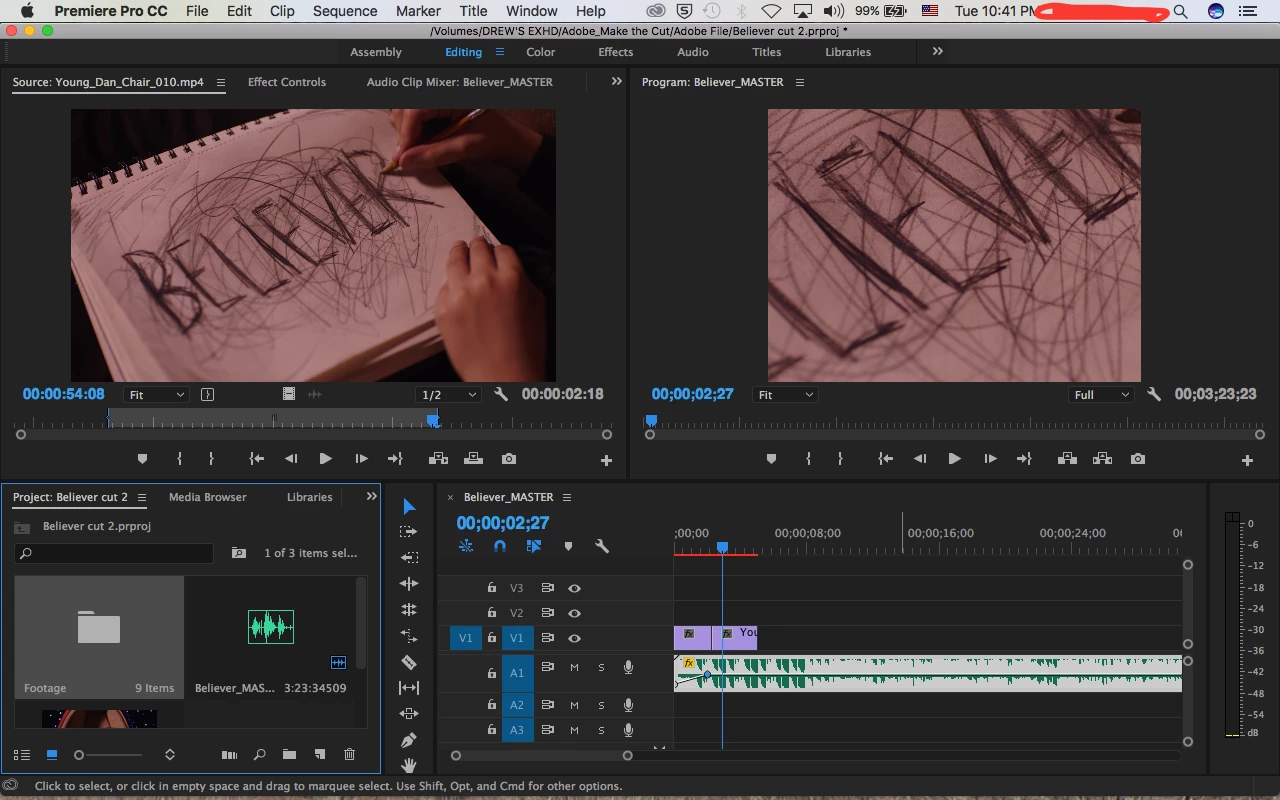
As you can see by the image below, the raw clips that appear as they are in the source column are zoomed in when they are brought into the timeline. I did not change any settings and everything was set to default when I started the project so I don't know what setting I could have made to cause this. If it helps I am using a trial version of Premiere Pro. Any suggestions on how to fix this?
This topic has been closed for replies.
Correct answer gerikp

Perhaps your sequence settings are wrong? Looks like you are editing larger 16x9 footage in a smaller 4x3 timeline.

Try creating a new sequence by right clicking (or using your control key and clicking) on one of your video clips in the project panel and choosing "New Sequence from clip." This will create a new sequence with the exact some size and frame rate as your source video clips.

3 replies

afll126Author
Participant
March 29, 2017

It worked, thank you!!

Vidya Sagar
Adobe Employee
Adobe Employee
March 29, 2017

Thank you Gerikp for the suggestion.

Afll126, You can try changing the sequence Frame size to match the source in Sequence settings as well.

Instructions: Create and change sequences in Premiere Pro

Please let us know the status.

Thanks,

Vidya

gerikp
Community Expert
gerikpCommunity ExpertCorrect answer
Community Expert
March 29, 2017

Perhaps your sequence settings are wrong? Looks like you are editing larger 16x9 footage in a smaller 4x3 timeline.

Try creating a new sequence by right clicking (or using your control key and clicking) on one of your video clips in the project panel and choosing "New Sequence from clip." This will create a new sequence with the exact some size and frame rate as your source video clips.