Participating Frequently
August 28, 2017
Answered

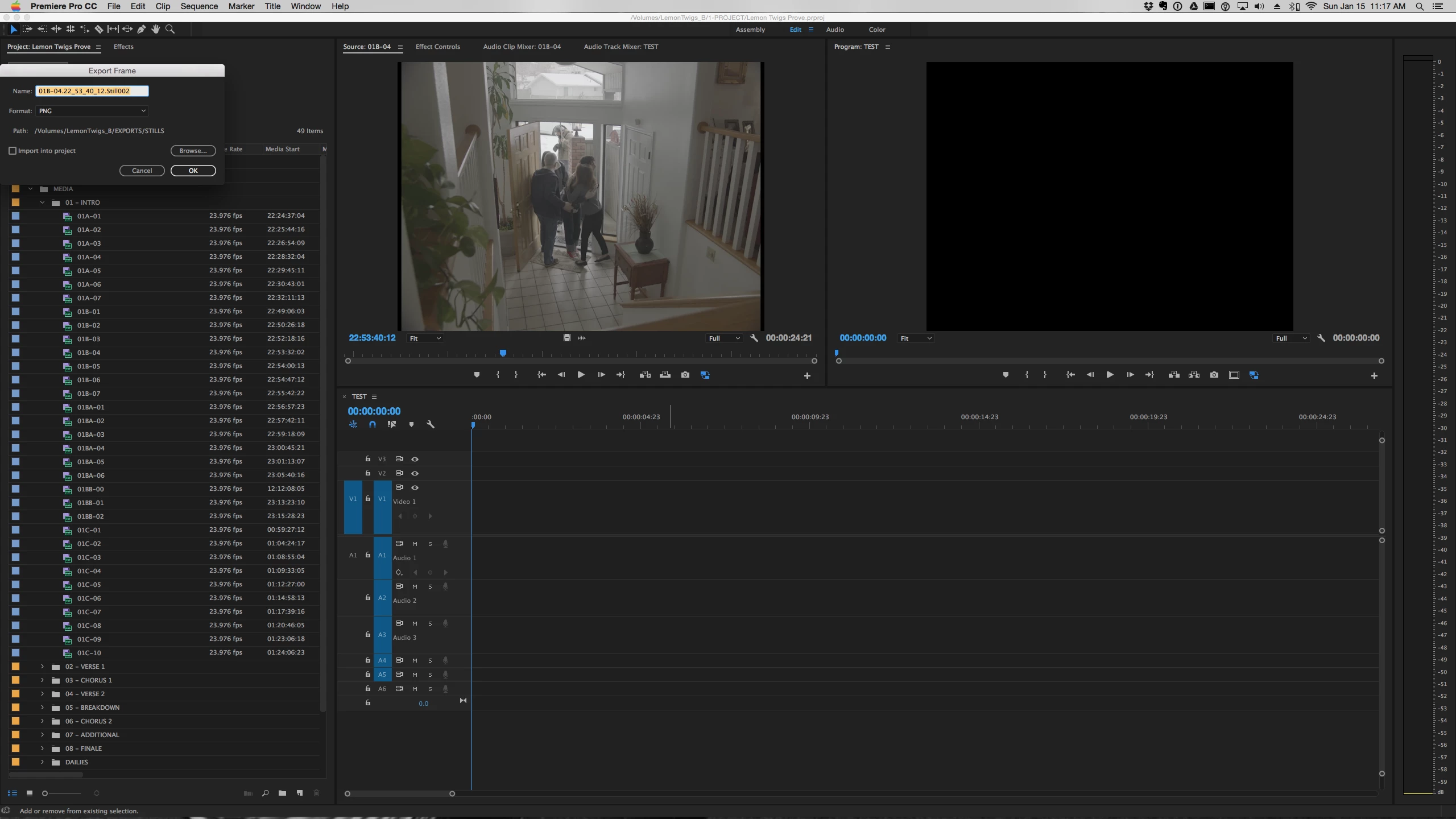
Dialog box always in corner

  • August 28, 2017
  • 9 replies
  • 11312 views

Why does the dialog box always pop up in the corner? Even after moving to the center. Every. Single. Time.

Anyone else having this issue?

Extremely annoying. Dialog boxes should be centered or pop up where your cursor is located.

Premiere Pro CC 2017.1.2 (11.1.2), Mac OS 10.12.6

This topic has been closed for replies.
Correct answer wafflegalaxy

I was having this issue the past few days as well, and I think I found a fix. If you're still having this issue, try this:

First make sure Premiere is closed.

On a Mac, go to Finder, click "Go" in the menu bar, select "go to folder", then type /Users/[your username]/Library/Preferences/Adobe/Premiere Pro/[your version of premiere]/DVADialogPrefs

So for me, I'd put in /Users/Bryan/Library/Preferences/Adobe/Premiere Pro/12.0/DVADialogPrefs

Or try manually navigating to that folder.

Once you're there, you should see a file named "DVADialogPrefs.xml", move that file to your desktop. the "DVADialogPrefs" folder should now be empty.

Now you can open Premiere, open a project, and test it out. After doing this, I did not have my dialog boxes appearing on the top left corner anymore.

If for some reason something went wrong during this, try closing premiere, moving that "DVADialogPrefs.xml" from your desktop back to the "DVADialogPrefs" folder, then open Premiere again and see if you can find another solution.

This worked for me, and I haven't seen anything missing in my project files, presets, etc. so I think it should work for anyone else having this problem.

If you know how to navigate to the Windows version of that directory, please post it so others can benefit from this fix.

Hope this helps!

AllTheGoodNamesAreGoneTaranVHAdmiral Cook​ - If you're still having this issue, can you report back and see if this fixes it?

9 replies

Participant
December 27, 2020

Thank You! This worked for me in after effects....it was a small thing that started to bug me enough to search for a solution. 

Participant
August 5, 2020

I can confirm it worked for me, too. I'm using windows 10, so for PC's the location is;

C:\Users\editcomputo\AppData\Roaming\Adobe\Premiere Pro\14.0\DVADialogPrefs

Artes_Stampo
Participant
June 7, 2020

Thanks! it work for me! in my case was Adobe Illustrator.. on Windows 10 the folder path is C:\Users\[YourUserNameHere]\AppData\Roaming\Adobe\Adobe Illustrator 24 Settings\en_US\x64\DVADialogPrefs

Participant
October 16, 2018

Please tell me WHERE to locate te SNAP controp.  The Premier reply was at top left of the Transition ... BUT the screen is all black; except for the video in edit

wafflegalaxyCorrect answer
Participant
October 13, 2018

I was having this issue the past few days as well, and I think I found a fix. If you're still having this issue, try this:

First make sure Premiere is closed.

On a Mac, go to Finder, click "Go" in the menu bar, select "go to folder", then type /Users/[your username]/Library/Preferences/Adobe/Premiere Pro/[your version of premiere]/DVADialogPrefs

So for me, I'd put in /Users/Bryan/Library/Preferences/Adobe/Premiere Pro/12.0/DVADialogPrefs

Or try manually navigating to that folder.

Once you're there, you should see a file named "DVADialogPrefs.xml", move that file to your desktop. the "DVADialogPrefs" folder should now be empty.

Now you can open Premiere, open a project, and test it out. After doing this, I did not have my dialog boxes appearing on the top left corner anymore.

If for some reason something went wrong during this, try closing premiere, moving that "DVADialogPrefs.xml" from your desktop back to the "DVADialogPrefs" folder, then open Premiere again and see if you can find another solution.

This worked for me, and I haven't seen anything missing in my project files, presets, etc. so I think it should work for anyone else having this problem.

If you know how to navigate to the Windows version of that directory, please post it so others can benefit from this fix.

Hope this helps!

AllTheGoodNamesAreGoneTaranVHAdmiral Cook​ - If you're still having this issue, can you report back and see if this fixes it?
milosv71787754
Participant
October 16, 2018

Amazing - thank you - this worked!

This problem has plagued my Premiere for almost a year now and I'm sure I spent a stupid amount of cumulative time of the last few months moving the box to the middle of the screen each time.

I'm on PC and found the XML file by searching for it - cut it, moved to desktop, then opened Premiere - was disappointed to see the problem was still there... HOWEVER, this time when I moved the box to the middle, it remembered, and it stays there now.

Thanks a bunch - hope this helps others!

Participant
August 1, 2018

Might be worth trying this, worked for me.

Known Participant
April 13, 2018

Are you using AMD graphic card?

This started happening to me when I switched from NVIDIA to AMD GPU/drivers + HDMI monitor.

Actually, not all dialogs, but loading/saving dialogs are always in the top left corner for me.

Can this be related to GPU drivers/software?

TaranVH
Inspiring
August 28, 2017

I have this bug as well.

It doesn't seem to have affected ALL my dialogue boxes YET... but once a dialogue is affected, it stays that way. (except, one or two have reverted back to appearing in the middle, like Modify Clip.)

I am on Windows 10, Premiere 2017.1.2. But the problem appeared before then. Here's a thread from another forum with more info from other users.

CreativeCOW

I can confirm that resetting the workspace does not fix the issue.

Kulpreet, will those steps potentially work for Windows machines?

I have not tried unplugging all my other monitors. Here's my setup.

This is ID #182 in my Premiere bugs/features spreadsheet:

ALL of Taran's feature requests and bug reports for Adobe Premiere - Google Sheets

kulpreet singh
Inspiring
August 28, 2017

Hi,

Extremely annoying. Dialog boxes should be centered or pop up where your cursor is located.

That could be because of the corrupt workspace. Sorry about this annoying issue.

Please reset the current workspace or try in a different workspace. Click on Window > Workspaces > Reset to Saved Layout

Thanks,

Kulpreet Singh

Participating Frequently
August 28, 2017

Thank you for the reply, Kulpreet!

Unfortunately that is not fixing it. Does this in all workspaces. I have reset all of them and even gone as far as to reset my preferences, and uninstalling/reinstalling the application.

Happening on all of our systems in the studio

kulpreet singh
Inspiring
August 28, 2017

Thanks for the update. Do you have a single monitor setup or multiple monitors?

If multiple, how exactly they are connected to your computers?

-Kulpreet Singh