Danzinar
Participating Frequently
July 7, 2017
Question

Downscaling 4k to 1080p

  • July 7, 2017
  • 3 replies
  • 10093 views

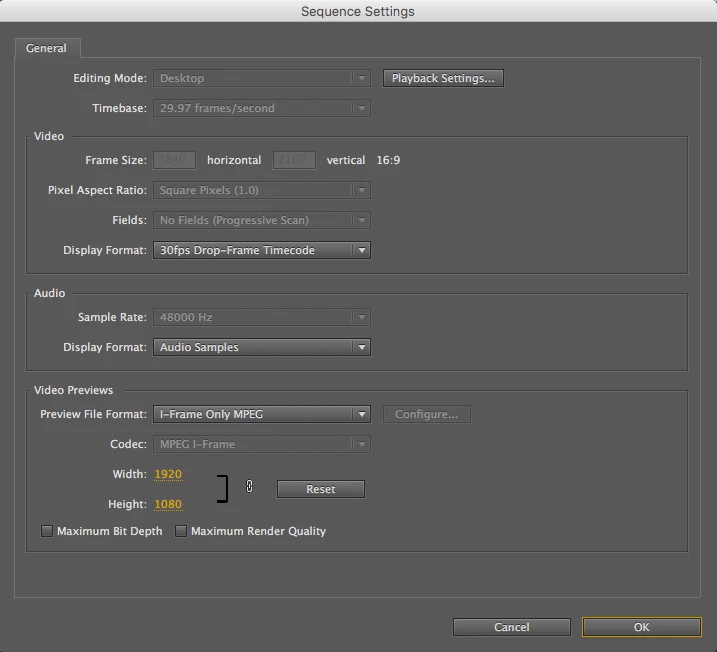
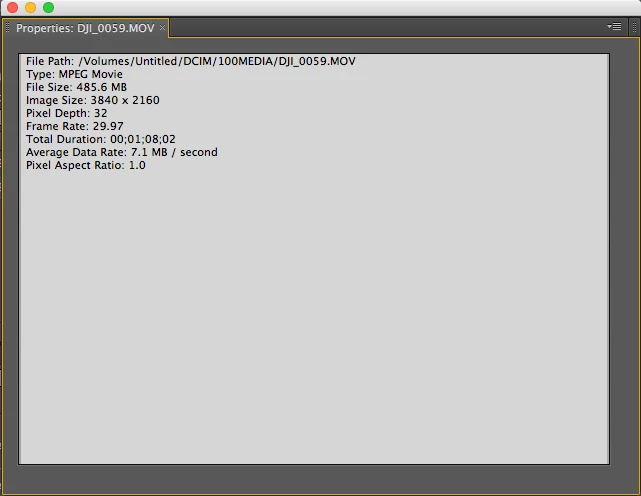
Hello, new to premiere and to this forum but i have searched all over the web and watched multiple videos on how to downscale a 4k video but for some reason when I follow instructions my frame size cannot be adjusted in sequence settings. Here are some screen shots of what i have going on. any help is greatly appreciated.
This topic has been closed for replies.

3 replies

Szalam
Community Expert
Community Expert
July 7, 2017

It looks like your sequence settings are 1080p. You should be able to place your footage file in that sequence and scale it down.

Inspiring
July 7, 2017

Szalam​​ those are just the settings for rendering previews. The 3840x2160 frame size is grayed out above.

Szalam
Community Expert
Community Expert
July 7, 2017

Sorry, somebody was talking in the office and I was typing at the same time and typed part of what they said. Instead of saying, "looks like your sequence settings..." I MEANT to say, "Make a new sequence with 1080p settings..."

Ann Bens
Community Expert
Community Expert
July 7, 2017

It looks like your are on an older version of Premiere.

You cannot change the excisting sequence.

You will have to make a new one (1920x1080) and copy content from old sequence into this new one.

All footage will probebly be zoomed in. Right click on all clips and Scale to framesize or scale down manually.

Danzinar
DanzinarAuthor
Participating Frequently
July 7, 2017

I am on an older version, CS5 on a 2011 MacBook pro. I created a new sequence with the frame size i want and copied content into it but still shows up as 3840x2160 when i click properties and its still unplayable on player.

Inspiring
July 7, 2017

You don't say what version of Premiere you're using, but this looks like an older one. It was in one of the CC versions that Adobe added the ability to change the frame size of an existing sequence. You have to create a new sequence and move your footage into it and then scale it down. Alternatively, you could create a 1080 sequence and nest your 4K sequence in it and then scale down, but that probably doesn't make a lot of sense.

Danzinar
DanzinarAuthor
Participating Frequently
July 7, 2017

I have moved my footage into a 1920 x 1080 sequence. How do I scale down from there?

Inspiring
July 7, 2017

You should change your pixel aspect ratio from "D1/DV NTSC to Square", otherwise you'll cause yourself problems, and change Fields from "Lower Field First" to "Progressive," as you indicated 1080p in your title, and you're working with DJI footage, so I doubt it's interlaced.

You can go to the Effects Controls panel (Window>Effects Controls) and scale the footage down from the Motion section: How to resize a video in Adobe Premiere Pro - YouTube