
joshs130237
Inspiring
June 1, 2018
Question

Exported Video Shorter than Original

  • June 1, 2018
  • 4 replies
  • 10129 views

Hello !

I'm having two issues with my project that maybe someone is able to help.

1. I want to export individual clips and keeping their name. (what methods are the best ?)

2. When I managed to do the first step it exports sometimes shorter and sometimes longer video files.
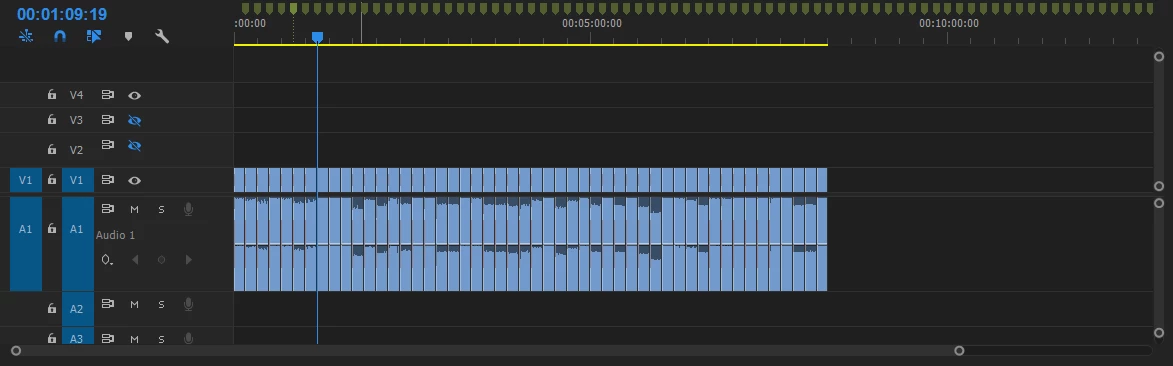
This is my timeline, each segment is a separate video file with its own name and exactly 10 seconds long.

When I export them as individual clips 20% of them are 9 seconds long.

I discovered that "fps" and sequence settings are at fault here, but haven't managed to tweak it.

The imported files are in .mp4 format and some have different fps's. (mixed fps rates)

       Thank you !

This topic has been closed for replies.

4 replies

Kevin-Monahan
Community Manager
Community Manager
June 15, 2018

Hi JoshS,

Is your issue solved yet? Did CarlosZ's info help you solve it? Please let us know.

Thanks,
Kevin

Kevin Monahan - Sr. Community and Engagement Strategist – Adobe Pro Video and Audio
Community Expert
June 3, 2018

I am watching your video again and I think your sequence is at 25 fps

and you are trying to export at 30fps.

Please readjust your sequence settings to match the fps of your export or the reverse,

footage fps, sequence fps and export fps should be the same

joshs130237
Inspiring
June 4, 2018

Myeaa... You are right it was the sequence at 25 and I was pushing 30 on the other side. Ok all lined up...

Now how do I export all of the files separately keeping their own names, only 10 seconds as in the timeline, because if I add them to queue in the Media Encoder it exports all the clip not only 10 seconds. (I got Premiere Pro CC 2018)

EDIT: Managed to use the render and replace tool, it worked, big files for only 10 seconds but I will make them smaller somehow, now the only issue is with 50 fps video files, they are distorted (run faster and in lenght have 4-6 seconds instead of 10 like in the timeline), how can I correct for those two ? Is there a middle FPS option that I could choose ?

    Thanks in advance for the help !

Community Expert
June 4, 2018

to go back and reply on how to batch export your trimmed clips,

yes you can do that on Premiere, on the sequence where you

have your trimmed footage, select all of them, then right click

and choose 'create subsequence'. you will see the subsequence

on the project panel, then go to project manager, on the sequence

tab check only the subsequence you created, then in the resulting

project panel choose 'consolidate and transcode' and most importantly

check 'individual clips'. if you want other export settings you have

to ingest them before this process. This will batch export your trimmed clips.

Concerning frame rates, try the best to match it across sequences and

in the export settings, they should match exactly to perform correctly on playback.

Community Expert
June 1, 2018

concerning the different fps, try to select all of them in the project panel, then

right click and choose Modify - Interpret Footage - Assume this frame rate and set your sequence frame rate

joshs130237
Inspiring
June 2, 2018

Tried it but when it's the same result. Any other suggestions ?

Community Expert
June 2, 2018

can you create a small short video on how you are performing the process ?

Legend
June 1, 2018

Premiere Pro has no easy way to do this.  DaVinci Resolve does.  (And it's free.)