Producer storyteller
Inspiring
August 6, 2020
Answered

Exporting over saturated clips in media encoder

  • August 6, 2020
  • 3 replies
  • 2118 views

This is the weirdest thing. When I export a clips straight from premiere they export fine. When I batch export the same set of clips, they come out over saturated and high contrast.
My settings are the same straight out of premiere and media encoder. Am I missing something? Two example screenshots attached.

Any help would be great.

Thanks.

Kevin Gonzales


This topic has been closed for replies.
Correct answer R Neil Haugen

NO!!!!!!!!!


This is the WRONG solution ... do NOT EVER add LUTs to the program/package files locations! They do have a specific location for users to add, which does NOT screw up things like this does. In several other ways you haven't even encountered yet.


The items in the package/program locations are expected to be exactly the same in ALL the video apps, Premiere Pro, AfterEffects, MediaEncoder, and Prelude. They are not accessed by name, but by relative location sorted computer alpha-numeric. In other words, if you use the 6th one down in Premiere, no matter the name! ... MediaEncoder, Ae, and Pr will use the 6th one down.


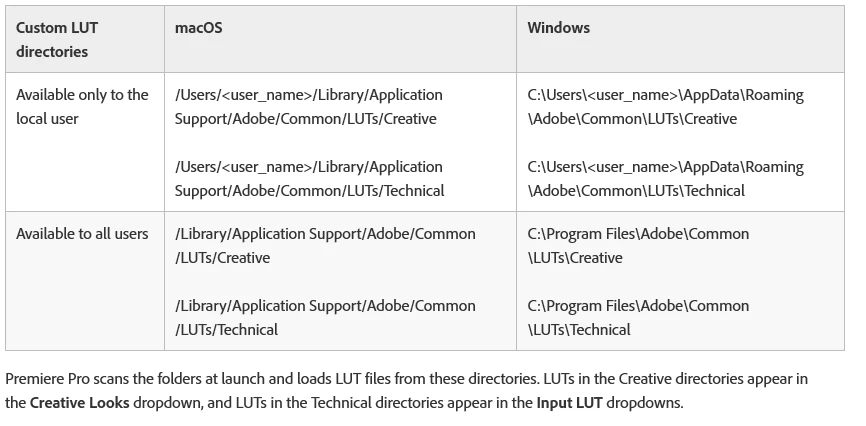
All users should park their own LUTs in the specified location as shown in the chart below ... note, you need to add the final folder in each tree, the Technical (for the Basic tab LUT dropdown) and the Creative (for the Creative tab LUT dropdown).


Using this setup, ALL the apps will access the LUT by name ... properly. I also setup an icon shortcut on the desktop so I can quickly get to these folders to add or delete LUTs. Plus, I add a suffix ... number and letter ... to serve two functions: first to get mine showing first, and second to organize them.


Something like:

01 A low-sat neutralize

01 B high-sat neutralize

07 A high contrast shadows/low highlights


Neil


3 replies

R Neil Haugen
Legend
September 8, 2020

CB,


It would be good to see the Export dialog right-side in  a screen-grab. This is a really weird thing.


Neil

Everyone's mileage always varies ...
R Neil Haugen
R Neil HaugenCorrect answer
Legend
August 8, 2020

NO!!!!!!!!!


This is the WRONG solution ... do NOT EVER add LUTs to the program/package files locations! They do have a specific location for users to add, which does NOT screw up things like this does. In several other ways you haven't even encountered yet.


The items in the package/program locations are expected to be exactly the same in ALL the video apps, Premiere Pro, AfterEffects, MediaEncoder, and Prelude. They are not accessed by name, but by relative location sorted computer alpha-numeric. In other words, if you use the 6th one down in Premiere, no matter the name! ... MediaEncoder, Ae, and Pr will use the 6th one down.


All users should park their own LUTs in the specified location as shown in the chart below ... note, you need to add the final folder in each tree, the Technical (for the Basic tab LUT dropdown) and the Creative (for the Creative tab LUT dropdown).


Using this setup, ALL the apps will access the LUT by name ... properly. I also setup an icon shortcut on the desktop so I can quickly get to these folders to add or delete LUTs. Plus, I add a suffix ... number and letter ... to serve two functions: first to get mine showing first, and second to organize them.


Something like:

01 A low-sat neutralize

01 B high-sat neutralize

07 A high contrast shadows/low highlights


Neil



Everyone's mileage always varies ...
Producer storyteller
Inspiring
August 10, 2020

Hi R_Neal:


When I go to my Program Files>Adobe>Common, the only thing there is a folder that says Plug-ins and that's it. There is no folder for LUTs

Ann Bens
Community Expert
Community Expert
August 10, 2020

If there is not folder you make one, next to the Plug-ins folder.

LUTs with 2 sub folders Creative and Technical.

Producer storyteller
Inspiring
August 8, 2020

FIXED!

Believe it or not it was a very simply fix. I had added LUTs in Premiere to the clips but the LUTs were not exporting over to Encoder. So, if you have installed any LUTs in Premiere you MUST also install them in Encoder. Just make sure you install them in the same place and folder you installed them in Premiere. I had assumed they would carry over from Premiere to Encoder but... nope. So, what Encoder was doing was making it's best guess as to how to interpret the color grade.


Hope this helps anyone else with the same problem.


Kevin

Averdahl
Community Expert
Community Expert
August 8, 2020

Great, i was about to reply to your mail with two ideas. One was to try without GPU Acceleration or checking the LUT´s if you use them.