
Question
How to delay the appearance of text items which are in the same layer?
Hi,
I am trying to annotate an image in premiere pro, basically I need the letters D, C, B, A, F to appear one after the other (in line with my voice). Obviously though premiere pro only has 4 video tracks and one of them is for the footage so I've had to merge C,B and A,F into the same text layer. However I need the second letter to appear slightly after the first and at the moment I can't separate the two.
I've tried using opacity keyframes but this makes it fade in- I need the labels to just snap in without any effects as I say "D, C, B, A and F". How do I delay the second text item without fading it?
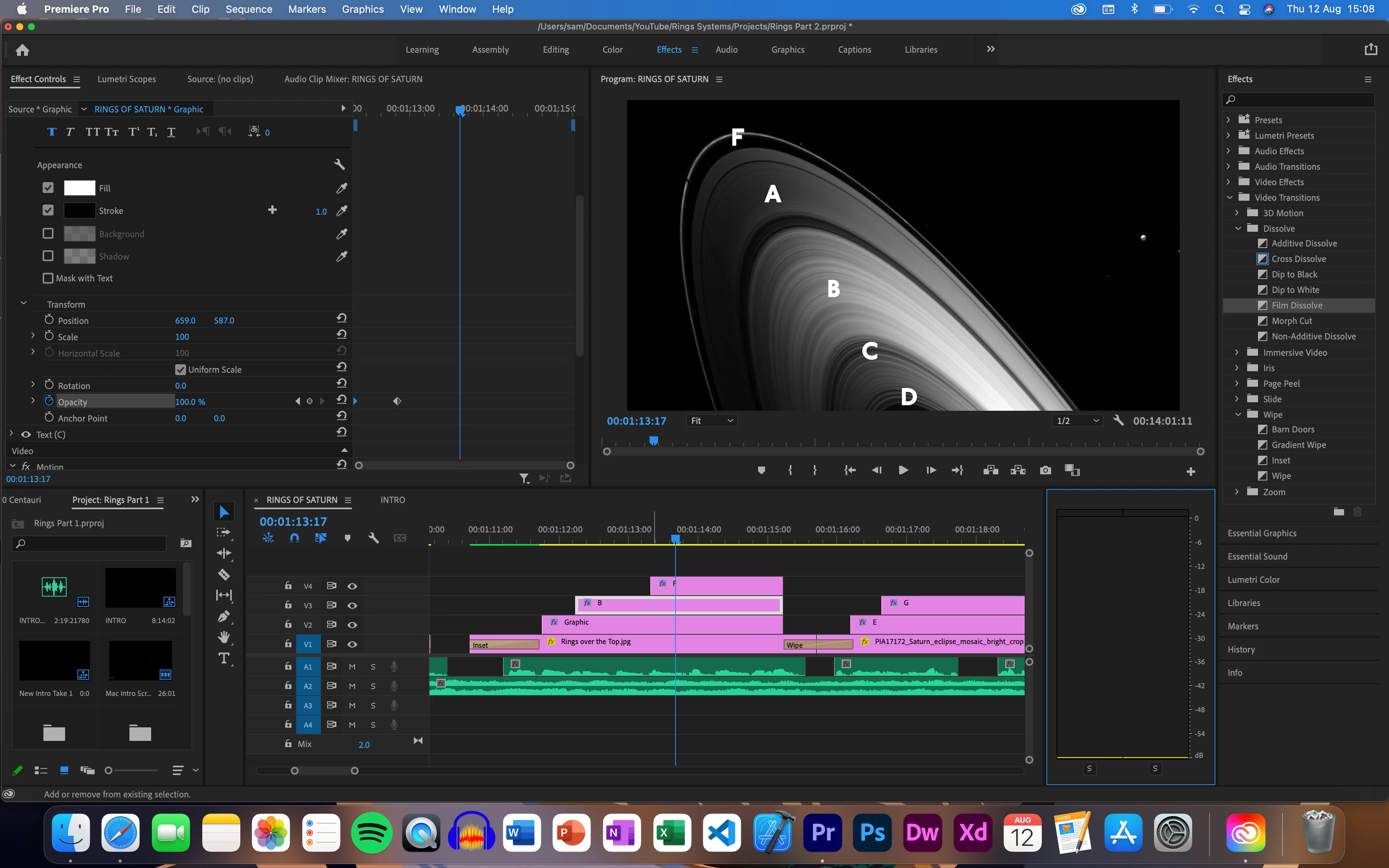
Sorry if this is a simple fix, I only started using Premiere last week.
 AdChoices