Inspiring
November 22, 2018
Answered

Input contract violation every time I try to create a timeline

  • November 22, 2018
  • 3 replies
  • 14146 views

I'm working with MXF files shot on a Sony FS7, and ProRes files from a BlackMagic Video Assist.

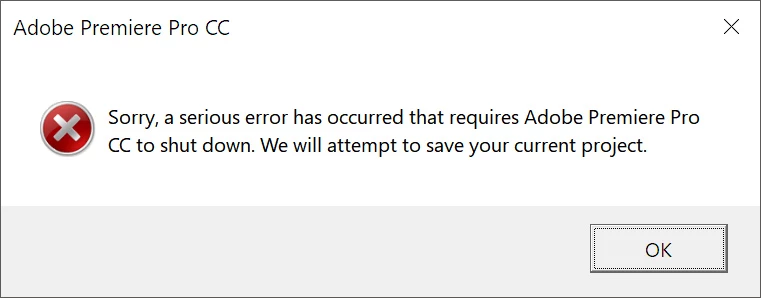
Every time I try to create a timeline (either with File > New sequence or by dragging a clip into the empty Timeline panel), I get this crash.
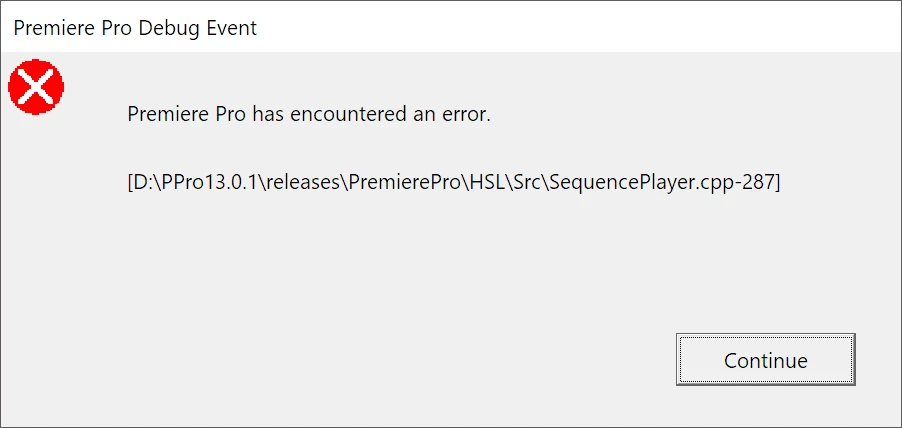
This happens with both CC2019 and CC2018. I reinstalled CC2019 in case that would fix it, and restarted, but it didn't help. I've also updated my graphics drivers and that hasn't helped either.

System: Windows 10 x64

64GB RAM

GeForce GTX980

Intel i7-6700K

This error seems to have been happening for years, although there doesn't seem to be a pattern in how others have reported it (sometimes it's on starting Premiere, sometimes on moving footage around, etc). The last couple of days are the first time I've experienced it, but right now Premiere is totally unusable for me.

It's not the footage, because I've tried it on one of our other machines (Windows 10 x64, Premiere CC2019, GTX1080Ti) and it works fine.

FWIW, the path referred to in the first dialogue box (D:\PPro13.0.1...) doesn't correspond to a path on my D drive.

This topic has been closed for replies.
Correct answer NoMagnolia

Had a support chat with Aditya from ADobe tech support. She suggested the following steps, which have fixed this issue for me:

1. Please close app, go to 'Run' ( Windows Key + R) , then type %appdata% , in Folders, go to Adobe > Common > Delete the folders named Media cache & Media cache files

2. Open Premiere Pro restoring default settings and plug-in cache. To do this, hold down Shift-Alt (Windows) or Shift-Option (Mac OS) while the application is starting. Release the Shift-Alt keys or Shift-Option key when the splash screen appears. (You will get a dialogue box asking if you're sure you want to clear the plugin cache; click Yes or OK.)

3. create a new blank project

4. On the top menu, go to Window > Workspace > uncheck the option 'Import Workspaces from Projects'

This should now enable you to create timelines as normal. It will have deleted all your prefs, but personally that's less of a pain than not being able to use Premiere at all....

3 replies

NoMagnoliaAuthorCorrect answer
Inspiring
December 4, 2018

Had a support chat with Aditya from ADobe tech support. She suggested the following steps, which have fixed this issue for me:

1. Please close app, go to 'Run' ( Windows Key + R) , then type %appdata% , in Folders, go to Adobe > Common > Delete the folders named Media cache & Media cache files

2. Open Premiere Pro restoring default settings and plug-in cache. To do this, hold down Shift-Alt (Windows) or Shift-Option (Mac OS) while the application is starting. Release the Shift-Alt keys or Shift-Option key when the splash screen appears. (You will get a dialogue box asking if you're sure you want to clear the plugin cache; click Yes or OK.)

3. create a new blank project

4. On the top menu, go to Window > Workspace > uncheck the option 'Import Workspaces from Projects'

This should now enable you to create timelines as normal. It will have deleted all your prefs, but personally that's less of a pain than not being able to use Premiere at all....

mudkip
Participant
March 7, 2020

Um... The second point... 
hold down Shift-Alt (Windows) while the application is starting. Release the Shift-Alt keys or Shift-Option key when the splash screen appears. (You will get a dialogue box asking if you're sure you want to clear the plugin cache; click Yes or OK.)

I don't get the dialogue box, and when I tried to resolve problems, it didn't work.

Participant
April 18, 2022

I thought I hadn't got the dialogue box too, but it was hidden behind the open Google Chrome browser. When I moved the browser, I was able to see it.

Inspiring
December 4, 2018

Here's a screencast of what happens when I try to create a timeline.

Participant
November 28, 2018

FACING THE EXACT SAME ISSUE!

caroline_edits
Community Manager
Community Manager
November 30, 2018

Hi SaranshG!

I'm so sorry Premiere isn't working for you. I do not know the answer personally but here are some links that may be helpful:

Adobe Premiere Pro Debug Event - YouTube

"Premiere Pro Debug Event" Error (this solution is tedious but may work)

Premiere Pro CC Crash FIX Tutorial - YouTube

Hope this will bring you an answer!

-Caroline