
Participant
June 8, 2019
Answered

Making a gradient on text?

  • June 8, 2019
  • 5 replies
  • 11183 views

Recently I updated from an old version of Premiere, I was using either 2014 or 2015. Now that I have the 2019 version the new graphics panel seems really complicated compared to the simple title system I used to have. All I want to do is put a gradient on text, but I can't seem to figure it out. I tried doing a mask with a rectangle gradient but it's just not working for some reason. If I can, I'd prefer not to have to make a mask layer because my project already has 9 layers (and is 10 hours long-- Youtube content haha) and I don't want to make another one just for a mask. Can anyone help me?
This topic has been closed for replies.
Correct answer jstrawn

I'm happy to announce the implementation of Text Gradients as of the latest public release of PrPro 15.2. Please try it out when you can and let us know what you think.

For information about how to apply Text Gradients as well as a couple of short how-to videos, go to this link:
https://helpx.adobe.com/premiere-pro/using/text-gradient.ug.html
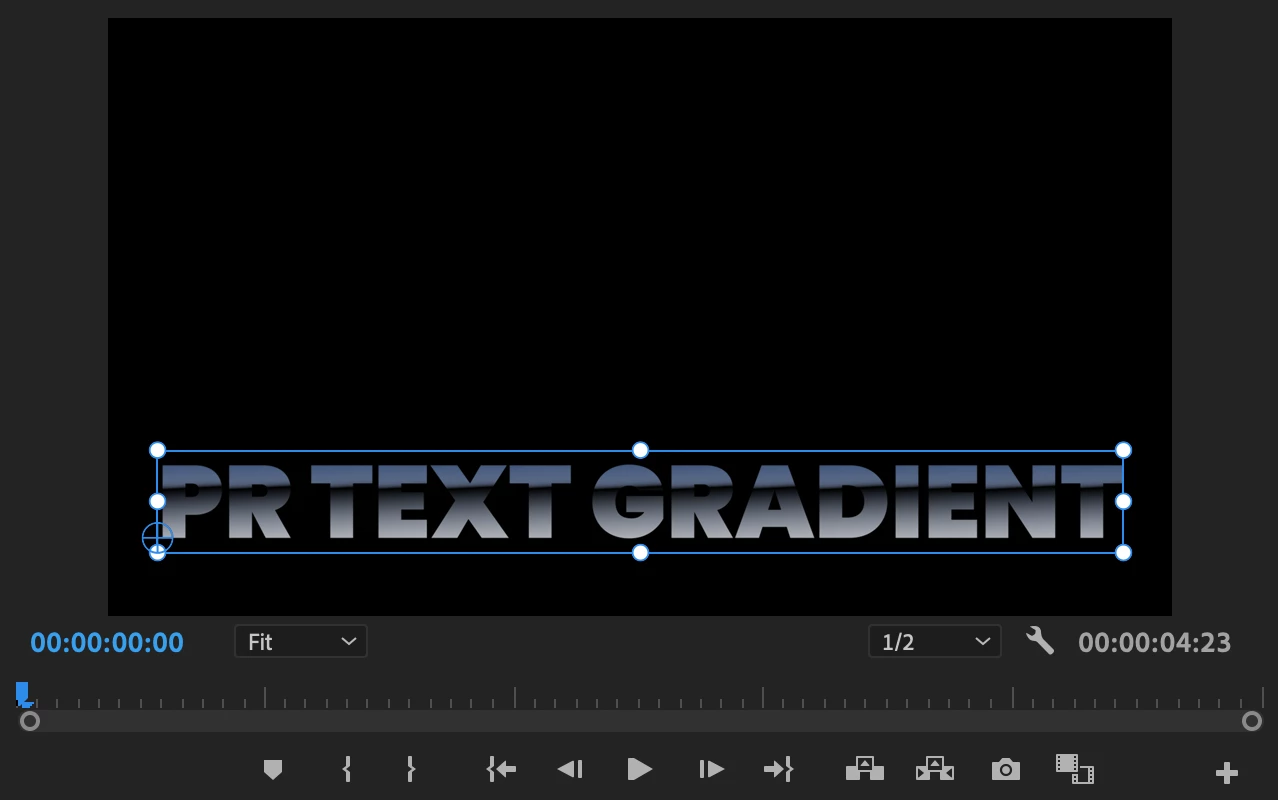
And here is a snapshot of a Text gradient inthe Program Monitor:

5 replies

jstrawn
Community Manager
jstrawnCommunity ManagerCorrect answer
Community Manager
May 11, 2021

I'm happy to announce the implementation of Text Gradients as of the latest public release of PrPro 15.2. Please try it out when you can and let us know what you think.

For information about how to apply Text Gradients as well as a couple of short how-to videos, go to this link:
https://helpx.adobe.com/premiere-pro/using/text-gradient.ug.html
And here is a snapshot of a Text gradient inthe Program Monitor:

R Neil Haugen
Legend
August 21, 2020

One last step to keep the strokes ... copy the text, paste back in on top of the EGP layer stack. Now for that top layer, uncheck the fill color. The strokes you have will show now.


I also recommend making such multi-line creations into a "group" in the EGP, so you can change position/scale/rotation of the entire object together.


Neil


Everyone's mileage always varies ...
August 22, 2020

Ahh! Perfect! Thank you so much!

August 21, 2020

This method works great until you have to add a stroke to the text. How can I have a gradient fill AND add several strokes in different colors? When I do this, no matter what color I make the stroke, it just expands the fill gradient?

golfingpenquin
Participant
November 5, 2020

I am faced with the same dilemma. I just want to place a black stroke but the stroke remains the same color of my gradient fill.

November 5, 2020

R Neil's reply below explains this better. Here's what I ended up doing:


Inspiring
June 8, 2019

You can do this all within the graphic, Type your text, then go to Edit:

Then add a rectangle shape behind the text (you may need to drag the order of the layers within the graphic around):

Click on the Fill color well to bring up the color picker tool:

Click on the drop down menu at the top left to change it to a gradient.

When you have your gradient built:

Making sure you have the text layer selected, check the box for Mask with Text to punch out the matte:

and now you have a self contained graphic with the gradient.

MtD

November 24, 2020

Is there any way to make the colors go from top to bottom instead of side to side?

I currently type my text and add "Ramp" from the effects menu. But having more options is always better!


Jeff

Inspiring
November 24, 2020

You can control the direction of the gradient in the program monitor using the little blue handles.

Ann Bens
Community Expert
Community Expert
June 8, 2019

V1: draw square or rectangular size of the text and fill with gradient.

V2: write text

Now add Track matte effect to V1 and set to V2 with matte luma.

Might be others way but this came to mind.

To cut down on the layers you could nest.

Participant
June 8, 2019

Thank you! I ended up going into Photoshop and doing it there but I'll do this next time I need to make a gradient text.