Participant
June 11, 2018
Answered

Motion Graphics Folder Location?

  • June 11, 2018
  • 7 replies
  • 140397 views

Hi!

Does anyone know where I can find the motion graphics (essential graphics folder) so I can add multiple mogrt. files?
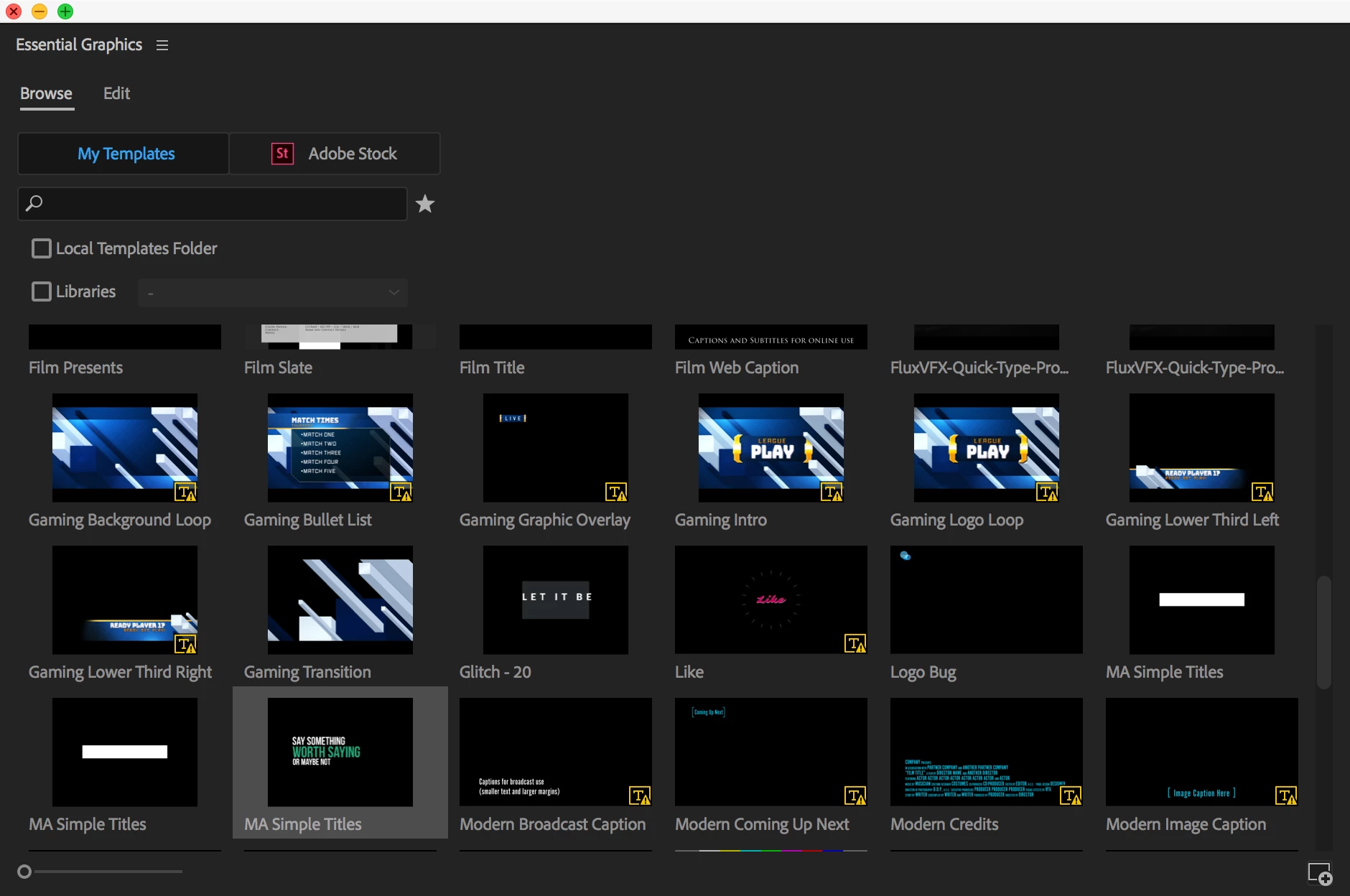
I have read multiple forums and watched a lot of videos, but everyones essential graphics panel looks different? (see below)
And when I search the path name, libraries/common/adobesupport etc... I find now motion graphics folder that is linked with my premiere pro?

Can someone please help me? So I can install multiple templates at once & organise folders etc. (like most people seem to be able to do?)

Thank you!

Correct answer BlindingCloud

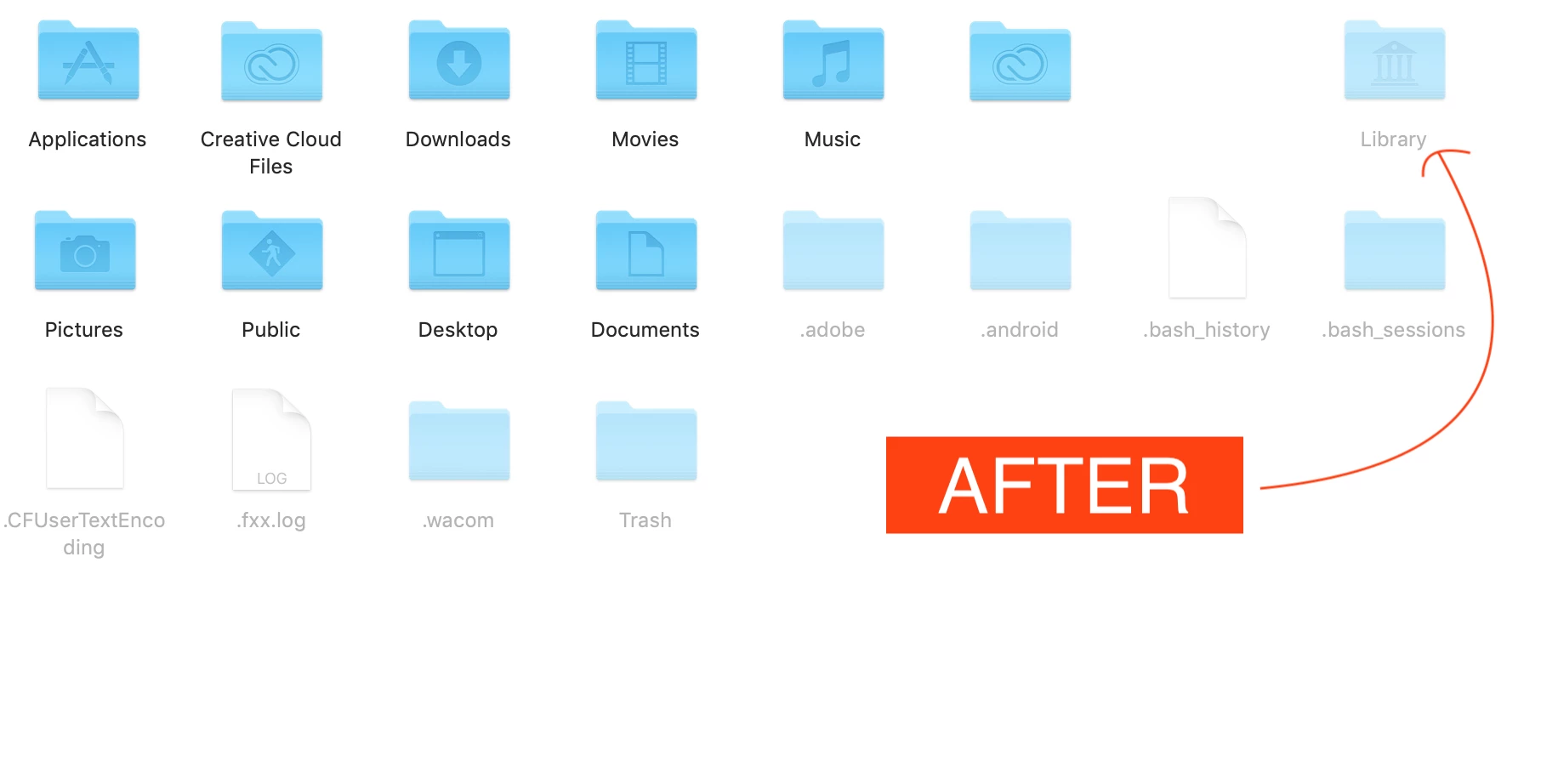
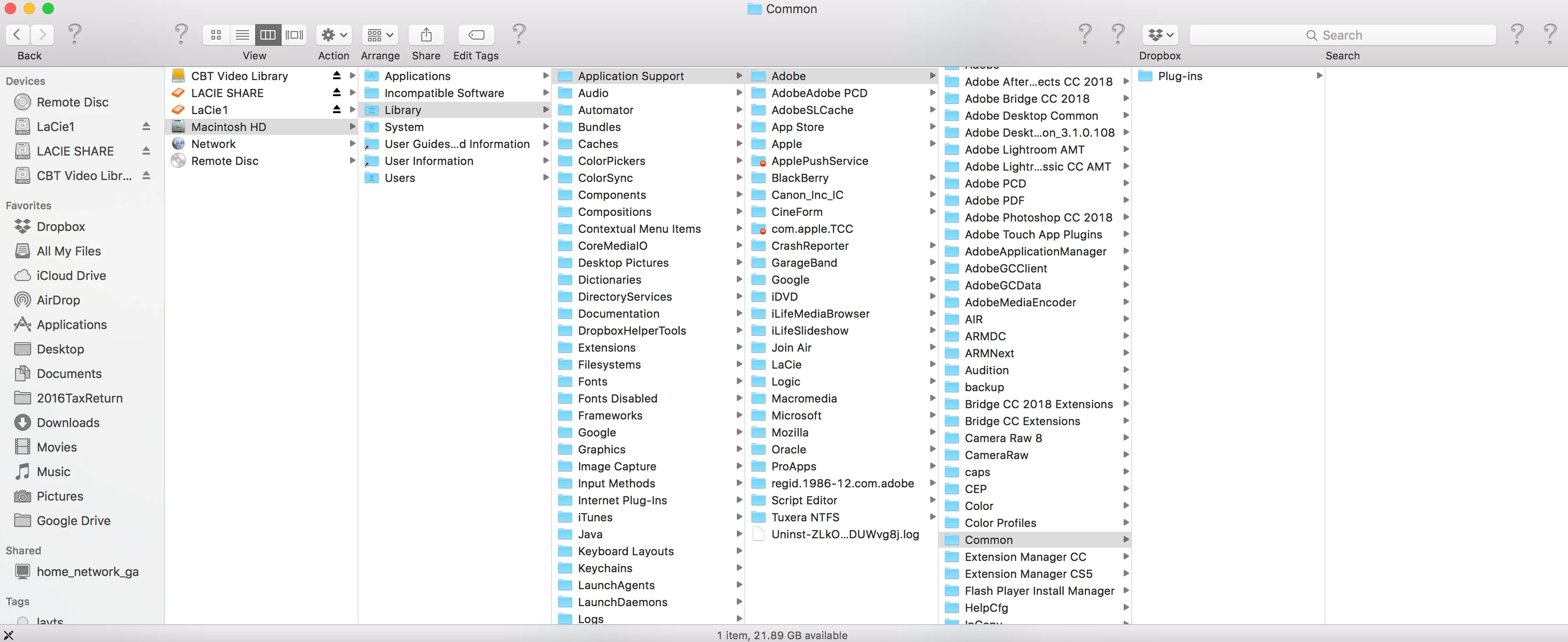
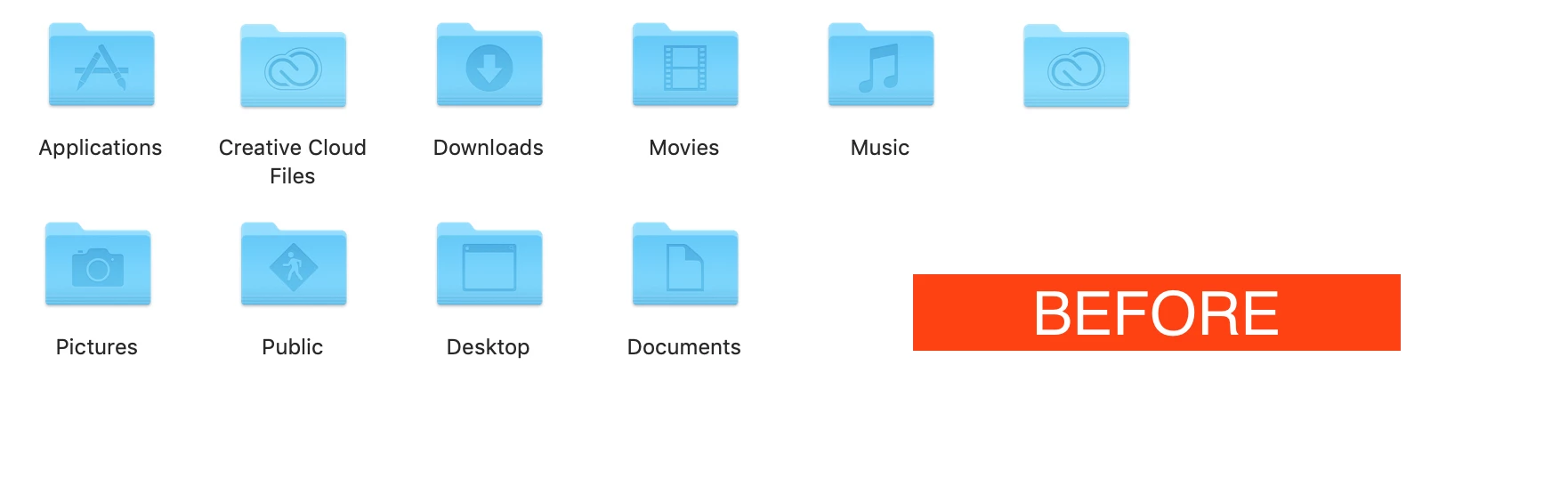
I've had the same issue, to fix it: On a MAC OSX go to user or "USERS" ( if many users ) > if the folder didn't show up it means hidden, so press " Command + Shift + Period " on the keyboard to unhide files and folders than the library folder shows up then go to  /Library/Application Support/Adobe/Common/Motion Graphics Templates/  aaaaand voila.


Steps for Adding MOGRT folders in Premiere Pro
 
Motion Graphics Templates files also known as MOGRT files do not need to be installed individually, it's highly recommended that you don't if you have multiple files. This method will allow you full access and control of your MOGRT file/folders within PR's platform and provide you with additional tools to increase your organization, productivity, and workflow.


Please follow these steps below:


1. Create a folder anywhere on any storage location. (e.g I used my "C: Adobe\Documents\Adobe\Premiere Pro" and named it 'Motion Graphics Templates,')
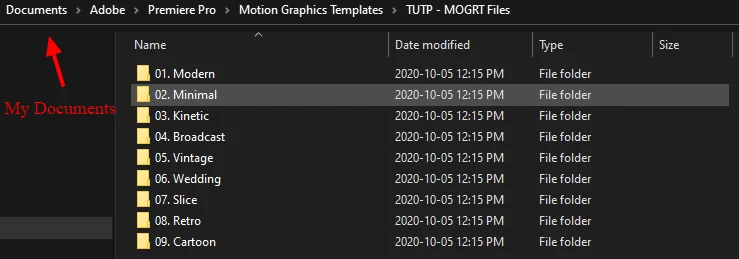


2. Move or Copy your Folder(s)/Files(s) to your newly created folder.


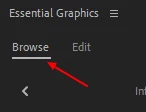
3. Expand the "Essential Graphics" panel.


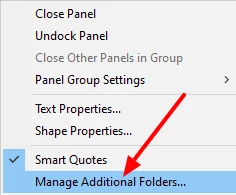
4. Click "Manage Additional Folders ..."


5. Click "Add"
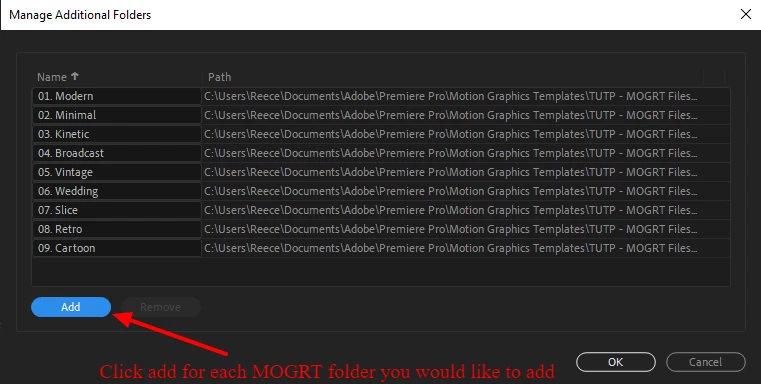
Click each folder you would like to add. (Keep in mind this will add one folder at a time, this process does NOT support subfolders or nested folders, so add each folder individually).


6. Once you have added each of your folders containing your MOGRT files click "OK"
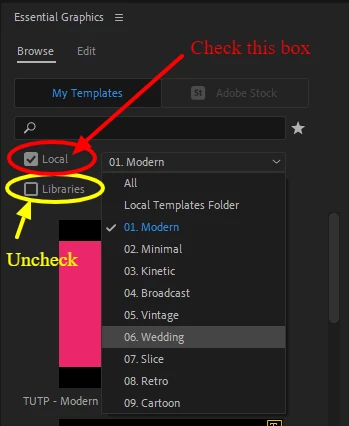
 

7. Uncheck "Libraries" and check the "Local" checkbox. (Typically people don't use the preloaded templates if they have downloaded their own, so clicking "Local" will provide you with full access & control of your folders/files which is typically most designers ' preferred' option, in Premiere Pro 2020 you have the option of selecting "All" in the dropdown menu if you would like to display the preloaded templates as well.

This option provides you with a lot of flexibility such as linking either locally to your desired location on your PC, or you can link a cloud storage device also, such as "Dropbox, OneDrive, Google Drive etc." additionally, any files that you add to your linked folder is automatically updated in real-time, in Premiere Pro


Once your folder is linked and loaded inside Premiere Pro's interface you'll have much more flexibility and organizational controls such as; sorting options, setting your favourites, and adding new files +
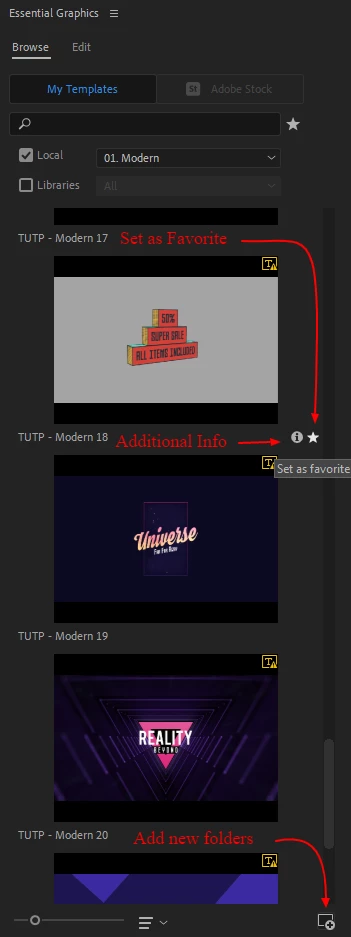


Good luck with your designs, I hope this helps! 

7 replies

inuyashafan
Inspiring
May 26, 2021

Hey! I think I have the solution you're really looking for that's a bit more efficient than copying over folders to multiple locations.

In the Essential Graphics panel, click the hamburger menu, and click Manage Additional Folders. 

Add each folder of mogrt files you want in there, and it'll show up super nicely in separate folders. 

This way you can have your own little directory where you want it and not in the hidden Adobe folder which can be a pain in the arse to get to (unless you just made a shortcut of course, but I prefer to do it my own way this way)

Hope this helps people import multiple folders at once without downloading them one by one.


Participant
January 30, 2022

I do de same and I made it. I can add multiple mogrt.

Participant
November 18, 2020

Thank you for the file location.  I had always done the drag and drop method to install MOGRTs recently but needed to find one so I could change it in AE to make the font editable.  This was most helpful.

jstrawn
Community Manager
Community Manager
February 20, 2019

Mogrts can only be installed one at a time from within Pr's EGP Browser. In the future, we hope to offer the ability to drag and drop multiple mogrts into the EGP and install them all at once. (no promises on that one yet though, ok?). For now, you are correct that in order to install multiple mogrts at once, you need to drop them into your Local Templates Directory manually, outside of PrPro. Those directory locations are here:

Pr 12.1 x 137 and higher
(mac) username/Library/Application Support/Adobe/Common/Motion Graphics Templates/

(win) root ://Users/username/AppData/Roaming/Adobe/Common/Motion Graphics Templates/

Note: the Library dir on mac and AppData dir on win are hidden directories, so you'll need to set your system to show those before trying to find your Local Capsules Dir.

If you happen to be running a Pr version earlier than 12.1, please post a message back here to let me know, since we changed a folder name between 11.n and 12.n version.

Participant
March 24, 2019

Hi, this does not work for me. I can not see a folder "Motion Graphics Templates" even when I show the hidden files. Can you help? I got a library of 80 .mogrts that I need to work.

Cheers
Mathias

jstrawn
Community Manager
Community Manager
March 25, 2019

Can you try: Launch Pr,  go to Pr's Essential Graphics Panel > Browse tab, check on Local Templates Folder and make sure Libraries is NOT checked on.. Do you see any mogrt thumbnails there?

Participant
September 4, 2018

I have copied over a folder with multiple motion graphic files to the C:\Users\Myer\AppData\Roaming\Adobe\Common\Essential Graphics folder.  Then opened Premiere Pro CC v12.1.1 (Build 10) but the motion graphic files I copied over did not show up in the Essential Graphics Panel.  I had to select the install motion graphics button located at the bottom right of the Essential Graphics Panel and install each file individually.

The loss of using folders in the Essential Graphics Panel is a huge one! 

Go here and let it be known you want the ability to organize with folders!

Make the Essential Graphics interface options flexible & robust – Adobe video & audio apps

Participant
September 4, 2018

Correction...the file path I used to copy mograph files was, C:\Program Files\Adobe\Adobe Premiere Pro CC 2018\Essential Graphics

MyerPj
Community Expert
Community Expert
September 5, 2018

You do not want to put your files into the "Program Files" folder...


If you paste the below file path into Windows Explorer, it will take to you the holding folder you want:


%UserProfile%\AppData\Roaming\Adobe\Common


First Adobe was using "Essential Graphics" as the folder for holding mogurts, however they changed that to "Motion Graphics Templates". So whichever one you have, but 12.1.2 uses the later...


I was able to simply add my folder and then copy in the graphics, it seems to work fine, your mileage may vary!


MyerPj
Community Expert
Community Expert
June 12, 2018

I find some here. You can paste the line below: (version 12 and beyond)

%UserProfile%\AppData\Roaming\Adobe\Common\Motion Graphics Templates

DEEZLE
Participant
July 13, 2023

best answer

Community Expert
June 11, 2018

01. Applications - Adobe Premiere Pro CC 2018 (double click)

02. Adobe Premiere Pro cc 2018 (Right click, show package contents)

03. Essential Graphics Folder

bazz19Author
Participant
June 12, 2018

Thank you Carlosz I never knew you could do that. That's really helpful!
However it still doesn't come up in Premiere Pro? I restarted etc. But the folders still don't show? All I see is the below templates:

R Neil Haugen
Legend
June 12, 2018

I think you need to install mogrts ...

Neil

Everyone's mileage always varies ...
R Neil Haugen
Legend
June 11, 2018

The online help says that when you install a mogrt, using that icon in the lower right of your Essential Graphics screen (box with the plus sign) you can choose in the process to install to your local folder. All the instructions discuss installing one mogrt at a time that I've seen. Of course, I'd love further comments from others on this!

Neil

Everyone's mileage always varies ...
Participating Frequently
February 20, 2019

Hi,

I've seen a lot of tutorials where people created a mogurt in After Effects and than loaded it in Premiere.

So AE mogurts can be loaded in Premiere but when I try it it's not showing up, when I try it again it says the file will be overwritten, even though there is no file.

Any idea how I can fix this?

Thanks

R Neil Haugen
Legend
February 20, 2019

When you exported the mogrt in Ae, did you put it in a Library or Local folder? How are you accessing this in Pr?

And really, go directly to the best source for this  ... Jarle Leirpoll's ebook on Making Mogrts, which Adobe acquired from him to put up on their pages for free downloads.

I'm on my phone or I'd give a link but it's easy to find.

Neil

Everyone's mileage always varies ...