
DrewRothman
Inspiring
May 8, 2018
Answered

.MTS Files import with wrong durations

  • May 8, 2018
  • 2 replies
  • 2846 views

I'm bringing in video shot on a Canon Vixia HF10. The files are each 11:20 long and are recognized as such when the properties are checked in Windows and when I open them in VLC or other players. However, when imported to Premiere's media browser they show up as being 47:33:15 each. This leads to a timeline claiming to be 6 hours long and various "disk full" errors when I try to export it. What can I do to force Premiere to recognize the correct length on these clips?
    This topic has been closed for replies.
    Correct answer DrewRothman

    It's definitely an issue with your machine, not the files. Have you tried resetting the Premiere preferences holding Alt or Option launching Premiere?


    Wiping the prefs didn't do it. Thank you for confirming that the files are ok though - that's a relief!!!

    That said, what I have discovered is that going to the Media Browser rather than just using the media bin shows me a shorter list of files. Premiere seems to be recognizing and grouping the clips that were shot in a stream without stopping. Perhaps that's where the miscalculation is going wrong - it's assigning the duration of the entire sequence to each of the clips it contains. I'm going to toss the timeline and re-do from the Media Browser import and see if that does the job.

    2 replies

    Jeff Bugbee
    Community Expert
    Community Expert
    May 8, 2018

    I've seen this issue where sometime in the past (even months ago) I imported footage with the same filenames. Somehow, Premiere associated old cache/render files with the new media, which resulted in the exact issue you are explaining: files show correct duration outside of Premiere, inside they are wrong.

    I believe my solution was to delete my entire Media Cache folder. Note: I did NOT use the "clean up" button in the preferences, the entire folder needs to be deleted.

    Location:

    Mac: /Users//Library/Application Support/Adobe/Common

    Windows: \Users\<username>\AppData\Roaming\Adobe\Common

    Exit premiere, delete media cache folder, restart Premiere, open project. See if that resolves the issue.

    DrewRothman
    Inspiring
    May 8, 2018

    Thanks for the tip, but that doesn't appear to have done the job. The lengths remain all wrong once it rebuilds the cache.

    I tried importing another .MTS from the same external drive and that did the same thing. I pulled and old .MTS from my machine and that one did not exhibit the problem. So it seems like something specific to these files. I just don't know what.

    I'm going to see if I can transcode one of these to MP4 with VLC, away from Adobe, and see what happens.

    DrewRothman
    Inspiring
    May 8, 2018

    Can you upload a single file? The smallest that exhibits the issue would be ideal. We can at least see if the file does the same on my machine or if its a problem with your workstation.


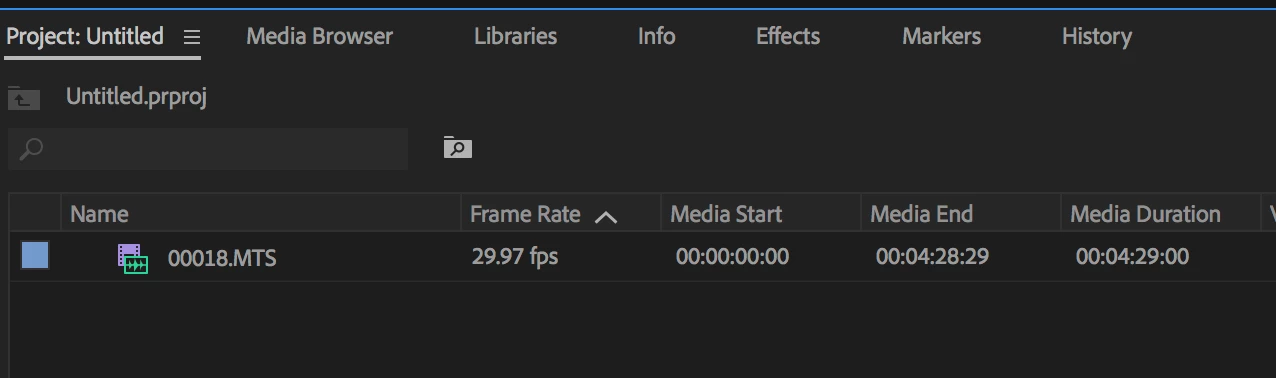
    Sure! This file is 00:04:29 but in Premiere it shows up as 38:29:15

    https://drive.google.com/file/d/1v6setva52Bnv4q7EUI82XipD59XLP1cL/view?usp=sharing

    Peru Bob
    Community Expert
    Community Expert
    May 8, 2018

    Did you copy the entire contents of the SD card to your hard drive before importing into Premiere Pro?

    DrewRothman
    Inspiring
    May 8, 2018

    I have all of the visible files, yes.

    I have the AVCHD, CVINFO, MY_MUSIC, and MY_PICT folders and their contents. The .MTS clips I imported are in the \\AVCHD\BDMV\STREAM folder.

    These were provided to me on an external drive and I copied the whole structure to my local machine. I tried importing the clips straight from the external drive too but the same issue occurs.

    I'm wondering if I should try to transcode all of these to some other format first or something so that Premiere sees the correct lenghts?