

phil_1
Known Participant
January 19, 2017
Answered

music track sound quality really bad in premiere pro

  • January 19, 2017
  • 10 replies
  • 12392 views

I've been using premiere pro for a few years now and never had this issue before.

When I play mp3 or .wav files in quicktime player they sound great.

But playing in the source panel in premiere pro 2017 cc, the sound quality is severely degraded. I posted yesterday with no fix offered so I thought I might need to clarify in a repost

The only difference from before is that I just got some new Sennheiser headphones, (bluetooth), but again everything sounds fine in qt player.

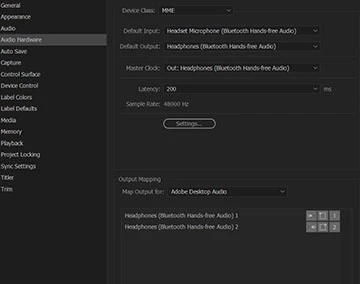
At first I had no sound in premiere pro til I switched the audio hardware input to headset microphone (handsfree bluetooth audio), and the output to Out (headphones bluetooth handsfree audio). Now I have sound but really bad sound.

Is there something else I should be checking?

Thank You

OK I have to add something here and this is weird- If i'm listening to Pandora music on my headphones, and I open premiere pro, the audio quality immediately degrades after a brief pause. If I minimize premiere pro, the sound quality improves to normal.
This topic has been closed for replies.
Correct answer excited_Genie16B8

The only advice I can think to offer is to skip the Bluetooth and use speakers physically connected to the speaker output on the motherboard.  If you need to use headphones, plug them into the headphone jack on the speakers.

10 replies

Inspiring
March 14, 2020

Try this:

Go to your sound settings under the apple menu > system preferences > sound > input and change the input to "internal microphone."


You may need to upair the headphones and then re-pair. You may also need to do this before making the preferences changes. (I've not experienced this issue so going on others info).


Apple support info:

https://support.apple.com/en-us/HT208896 

Participant
March 13, 2020

Hi Phil!

I know this thread was started a LONG time ago, but I was just running into the same issue today while using my MacBook pro with Airpods for audio. After tweaking some settings and seeing what works, I found the reason that bluetooth headphones seem to cause such awful sound quality while using Premiere. Here's my fix that worked:

1. Set the default output to you bluetooth headphones

2. MAKE SURE the default input stays as either your computer's mic or your mic that you're using to record sound. (this is what causes the audio to sound so bad.)

If you want to use your headphones as the input source for recording, I'm unsure of a way around the bad audio, but if you're just listening for editing, I suggest switching to just the headphones as an output, not an input.

Participant
August 10, 2019

Figured it out, the problem is the mic turning on in the AirPods. Go into your sound input settings, click the AirPods and set the input volume to 0 so that it never turns on the mic. Once that is set to 0 you should be able to restart the Mac and be good to go. the only downside to this is not being able to use the mic, but the mac's is fine.

Participant
January 2, 2020

Thank you ChuckTheHuman! You're right - it was an issue with my computer activating the mic in my headphones unnecessarily. On my Windows 10 PC I restored sound quality in Premiere by doing the following:

  1. Right-click sound icon in bottom right -> Open Sound settings -> Sound Control Panel -> Recording tab -> Right-clicked my bluetooth headphones -> Disable
  2. In Premiere, Edit -> Preferences -> Audio Hardware -> Default Input = No input, Default Output = Headphones
March 18, 2021

Thank you so much! This worked for me 🙂

JackPriceBurns
Participant
December 25, 2018

If you go into audio hardware settings then set the audio input to something else, does this fix it for anyone?

Participant
May 30, 2020

Cheers JackPriceBurns! This worked! I just disabled the input (as the onboard audio on my macbook is fried, so theres no alternative) and its working fine!

Participant
December 2, 2018

Same exact problem for me. With Airpods and a 2018 Macbook Pro with Mac OS Mojave. Had it happen in Premiere CC 2018 and now in Premiere CC 2019. Doesn't seem to be a fix, only workarounds which usually involves either plugging in headphones or no headphones at all.

I really hope this gets fixed soon because I like to have the freedom of Bluetooth so I can get up and walk around but still listen.

Participant
November 10, 2017

I'm experiencing the exact same issue as well (Macbook Pro OSX Sierra, Audition CC, bluetooth headphones) with the audio output very poor when Audition is open, but quality switches back to excellent when moving to Quicktime (or Spotify, or any other source). I've never had this problem in the 5 years using various versions of Audition. When using the system speakers everything seems fine, but the issue seems to affect bluetooth output. Hmm...

Participant
August 5, 2017

I'm having this same problem.  I'm using Bluetooth headphones and the audio I'm getting from the computer is fine until I open premiere. I noticed that premiere is forcing the audio from 32 bit- 2 channel to 16 bit-1 channel in the Audio Midi Setup. I'm on Mac OS Sierra. When I try to manually switch it back nothing happens. However, when I close Premiere the problem goes away.  This started happening after I updated to the current version of Premiere just 2 weeks ago. 

phil_1
phil_1Author
Known Participant
January 19, 2017

Ok got it. Pretty much what Jim said.

I switched from bluetooth on the headphones and plugged them into the pc and everything is fine now.

I would like to hear about it if I am able to switch back to wireless but this will do for now.

Thank You All!

Community Expert
January 19, 2017

Try setting the master clock to the input.

phil_1
phil_1Author
Known Participant
January 19, 2017

Didn't change Richard.

excited_Genie16B8Correct answer
Legend
January 19, 2017

The only advice I can think to offer is to skip the Bluetooth and use speakers physically connected to the speaker output on the motherboard.  If you need to use headphones, plug them into the headphone jack on the speakers.

Participant
February 9, 2023

Hey! As the comments mention below, this isn't a solution to the problem. the solution is to change your input to "no input" or your computers onboard microphone. This will then make the quality of the recording normal again.