Participating Frequently
July 8, 2018
Answered

Need help with export settings to get decent DVD

  • July 8, 2018
  • 6 replies
  • 3816 views

I'm trying help my son create a decent DVD from footage he filmed in HD.  (He's helping out a small dance studio for free - the parents want DVDs of the dance recital.)  We've been trying to follow all settings suggested in various threads, but the exported video is very grainy.  I realize DVDs can't support HD, but what we're getting is far worse than any standard DVD I've seen.  In the past, we've filmed a lot of home videos on a little camcorder and burned to DVD using Windows Movie Maker.  Those DVDs are much better than this.  I think we may be messing up settings somehow. Any help would be appreciated.

We're burning onto double-layer DVDs.

This is the MediaFile treeview from one of his video clips:  (He filmed on a Canon EOSM, if that is relevant)

General

Complete name                            : D:\video\Senaca School\2018\ballet\class dance\sspa_class_demonstration_0001.MOV

Format                                   : MPEG-4

Format profile                           : QuickTime

Codec ID                                 : qt   2007.09 (qt  /CAEP)

File size                                : 1.25 GiB

Duration                                 : 3 min 50 s

Overall bit rate                         : 46.4 Mb/s

Movie name                               : sspa_class_demonstration_0001

Encoded date                             : UTC 2018-05-19 18:08:14

Tagged date                              : UTC 2018-05-20 18:53:00

com.apple.quicktime.make                 : Canon

com.apple.quicktime.model                : Canon EOS M

Video

ID                                       : 1

Format                                   : AVC

Format/Info                              : Advanced Video Codec

Format profile                           : Baseline@L5

Format settings                          : 1 Ref Frames

Format settings, CABAC                   : No

Format settings, RefFrames               : 1 frame

Format settings, GOP                     : M=1, N=12

Codec ID                                 : avc1

Codec ID/Info                            : Advanced Video Coding

Duration                                 : 3 min 50 s

Bit rate                                 : 44.9 Mb/s

Width                                    : 1 920 pixels

Height                                   : 1 080 pixels

Original height                          : 1 088 pixels

Display aspect ratio                     : 16:9

Original display aspect ratio            : 16:9

Frame rate mode                          : Constant

Frame rate                               : 23.976 (24000/1001) FPS

Color space                              : YUV

Chroma subsampling                       : 4:2:0

Bit depth                                : 8 bits

Scan type                                : Progressive

Bits/(Pixel*Frame)                       : 0.903

Stream size                              : 1.21 GiB (97%)

Language                                 : English

Encoded date                             : UTC 2018-05-19 18:08:14

Tagged date                              : UTC 2018-05-19 18:08:14

Color range                              : Full

Color primaries                          : BT.709

Transfer characteristics                 : BT.709

Matrix coefficients                      : BT.709

Audio

ID                                       : 2

Format                                   : PCM

Format settings                          : Little / Signed

Codec ID                                 : sowt

Duration                                 : 3 min 50 s

Bit rate mode                            : Constant

Bit rate                                 : 1 536 kb/s

Channel(s)                               : 2 channels

Channel positions                        : Front: L R

Sampling rate                            : 48.0 kHz

Bit depth                                : 16 bits

Stream size                              : 42.2 MiB (3%)

Language                                 : English

Encoded date                             : UTC 2018-05-19 18:08:14

Tagged date                              : UTC 2018-05-19 18:08:14

All total he has about 1 hour, 35 minutes, shot in HD.

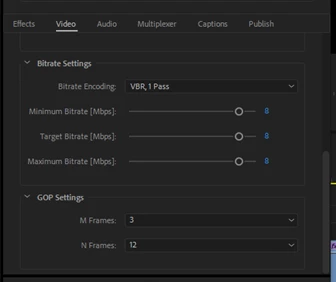
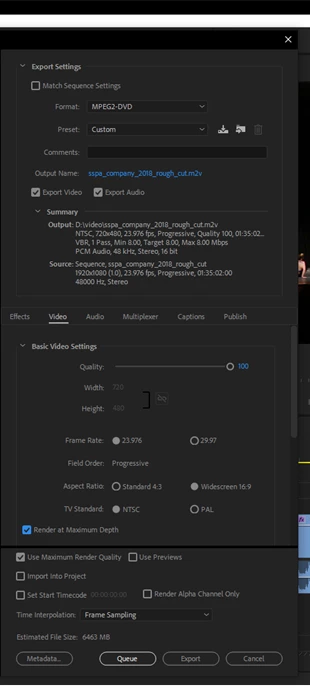
These are the setting we used to export: (we are going to use double-layer DVDs)
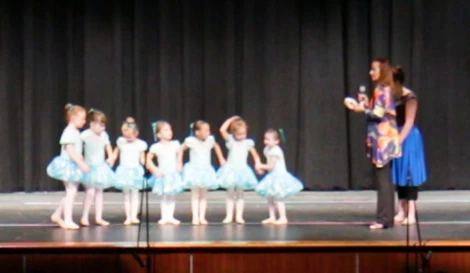
This is video in Premier Pro before export:
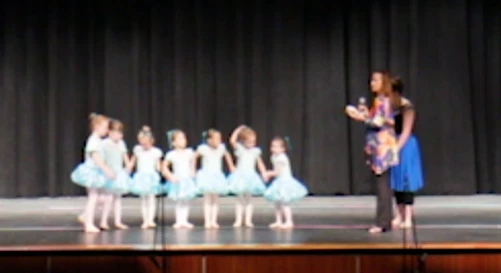
This is the video after export:
Is there anything we can do to improve this?  Are our settings wrong? Would another program be helpful for some reason?

Thank you!

This topic has been closed for replies.
Correct answer rodneyb56060189

The clip is ok but not great.

The dancers are far away and appear very small in the frame

This is going to be a tough cookie.

Might want to try the 23,976 wide preset. No tweaking.


You said you filmed it HD and DVD is 720 x 480 I think...is a smaller picture frame...so if you create a sequence etc. that is 720x480 and put your HD stuff in there, it will automatically (hopefully) make a crop that makes the kids fill frame more. You can scale as needed.

Anne is a pro film maker and she is always looking to give people the best advice for the best product.

Don't lose heart. What you are doing is documenting something where every single parent loves their children very much, and having ANY record of them performing will make them proud and happy.  So if you just do the best you can they will be very happy.

: )

6 replies

Stan Jones
Community Expert
Community Expert
July 9, 2018

A comment about DVD authoring and Encore.

If you are going to use a menu and separate buttons for each performance ("chapters"), you plan the method for doing that before you export. When using Encore, I prefer exporting each performance/chapter as its own file. This is easiest if they are each in their own PR sequence. In Encore each is its own timeline. A "playlist" is created of all the timelines, and that is the "play all."

Encore is a bit of a learning curve and can be quirky. The Encore forum is here:

Encore

Mike Dziennik
Community Expert
Community Expert
July 9, 2018

You want to do this as a 2 step operation:

In your current setup, Premiere is both downscaling and encoding to MPEG2 - it does its best by default but you will get a better result separating these 2 processes.

First export your sequence as a Cineform file at 720x480 - this is the downscaling part. Ensure your sequence settings are set to maximum quality and the export settings have Maximum Render Quality switched on.

Once you are happy with the quality of this file (it should look superior to your previous attempts) put it back into premiere and export using the DVD presets, again ensuring you have all the maximum settings on and you are keeping it progressive.

Participating Frequently
July 9, 2018

Thank you for the suggestion.  We're going to play around with this.  Our first attempt didn't result in a good video - we probably exported using the wrong settings.  The only way we could figure out to keep the file as .mov  was to use a Quicktime export setting.

Legend
July 9, 2018

: )

Ann Bens
Community Expert
Community Expert
July 8, 2018

In the past, we've filmed a lot of home videos on a little camcorder and burned to DVD using Windows Movie Maker.  Those DVDs are much better than this.

You also did not have a HD tv....

Anyway your original before import does not look HD at all.

Also in the export settings turn off max depth and max render.

Set bitrate to 2.7- 7 - 8.

1 hour and 35 minutes should fit easily on a SL dvd.

Might want to use a bitrate calculator.

Why not make a bluray.

Participating Frequently
July 8, 2018

Still don't have an HD TV  We play everything back on the computer and our home video DVDs look a lot better than this.  Maybe the fault was in the original filming, but I'm hoping we can get a better DVD than what we have so far.  How should I grab a good image of the original HD?

Wish we could make BlueRay, but most of the people who want these only have DVD players.

Ann Bens
Community Expert
Community Expert
July 8, 2018

Dont you have a clip that is just a few seconds or minutes?

Stan Jones
Community Expert
Community Expert
July 8, 2018

You'll have a lot more trouble with dual layer. This should be fine on a single layer. Vbr 2 pass, target about 7. Use a bitrate calculator.

The original looks soft. Is that a correct image?

Do you have hardware acceleration for the export?

Participating Frequently
July 8, 2018

How do I get a correct image?

The Video rendering in Premier Pro is set at: Mercury Playback Engine GPU Acceleration (CUDA ).  Is that correct?

Ann Bens
Community Expert
Community Expert
July 8, 2018

Upload a short clip to test.

John T Smith
Community Expert
Community Expert
July 8, 2018

Export using the MPEG2-DVD preset and import the two (audio and video) files in Encore for authoring

As long as you don't deviate too far from the preset defaults, your files will show as "do not transcode" when in Encore

Anything that is not legal for a DVD will be transcoded again in Encore, which may lower the quality

If you have questions about Encore, they go in Community: Encore | Adobe Community

Legend
July 8, 2018

John's advice is totally true and good to follow. Increasing bitrate and doing stuff that intuitively suggest better result is often not true in reality.

Use an RW disc to do your tests. For final stuff use the most basic DVD possible so that majority of DVD players can actually play them.

Finalize disc when doing the customer stuff if you use an ISO burner.

choose a small section of work area to burn your tests, if you want,  so you don't waste time doing the whole thing until you are happy.

Encore lets you do title play buttons and chapters, etc. I normally just kept my stuff really simple.

I also exported as ISO and burned from free program like CD Burner XP ( which worked pretty good, and was better than burning from encore ).

The encore forum will have tons of info.

Participating Frequently
July 8, 2018

Thanks for the input.  Haven't gotten to the burning step yet.  The exported video itself looks bad, even before attempting to put it on a DVD.