
Participant
October 4, 2018
Answered

New Premiere Pro user: how to keep clips together when changing speed

  • October 4, 2018
  • 2 replies
  • 2007 views

Hi,

We are considering moving from Movavi Video Editor to Premiere Pro and started a product trial. We often accelerate certain scenes (food/recipe videos), and in Movavi, if we accelerate a clip from 100% to 200%, everything else in the timeline moves to "stick" to the clip's endpoint. In Premiere Pro, it seems one option is to use the Remove Gap function, but it is manual and adds an extra step. Also, after removing the gap, if I try to go back from 200% to 100%, the clip can't expand its length back to the original, as it is squeezed by the next clip. There must be a way for things on the timeline to automatically adjust and all clips to stay bonded to each other as we adjust speeds up and down... but I can't find that setting. Help?
This topic has been closed for replies.
Correct answer Meg The Dog

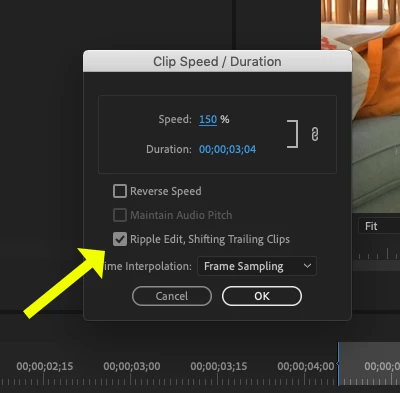
When you change the speed of the clip, make sure the box for Ripple Edit, Shifting Trailing Clips is checked:

MtD

2 replies

pro1000Author
Participant
October 4, 2018

Thanks Meg! This is helpful and going in the right direction. I tested and it worked when accelerating from 100% to 200%.

However, I still ran into a problem when re-adjusting from 200% to 100%, doing exactly the same command:

- the clip sound timeline got out of alignment, while it stayed in synch on the 100% to 200% change.

- all clips now show +59.07

Inspiring
October 4, 2018

I've never noticed that behavior before. I think it may have something to do with the attached audio on the clip being an L cut to the next edit.

Did you want the clips audio to speed up and slow down with the video?

My personal workflow for handling speed changes on clips already in an edit sequence is to drag the clip up an empty video track and adjust the speed there and make any necessary trims, then place the changed clip back onto the original track.

MtD

Meg The DogCorrect answer
Inspiring
October 4, 2018

When you change the speed of the clip, make sure the box for Ripple Edit, Shifting Trailing Clips is checked:

MtD

pro1000Author
Participant
October 4, 2018

Thanks Meg! This is helpful and going in the right direction. I tested and it worked when accelerating from 100% to 200%.

However, I still ran into a problem when re-adjusting from 200% to 100%, doing exactly the same command:

- the clip sound timeline got out of alignment, while it stayed in synch on the 100% to 200% change.

- all clips now show +59.07